

Overview
Events are activities and key dates customers can browse and sign up for on your members portal and app — workshops, networking sessions, wellness classes, socials, and more. Each event can carry tickets (paid or free), a capacity, a wait list, and optional reminders and pre-event forms. Physical events can be linked to a resource so nobody else can book that space during the event.How to access
Navigate to Community → Events in the dashboard. There are two views:- Events calendar — a month-at-a-glance view that plots each event on its scheduled date, ideal for spotting clashes.
- Events list — a flat, sortable list, ideal for searching and filtering. Categories are managed from the Categories link under the Events list card.
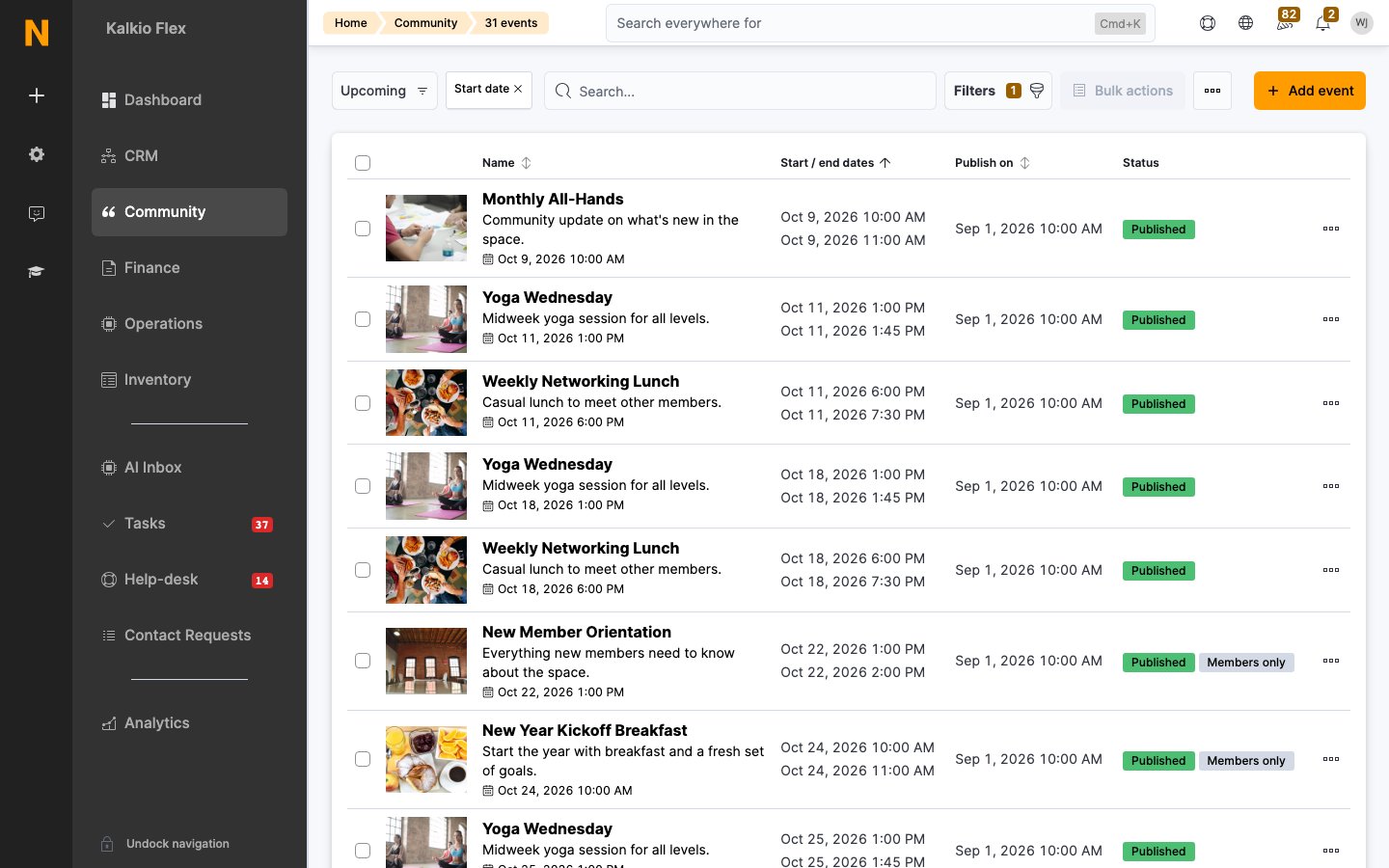
The list
Each row shows the event’s large image, Name (with its summary and start date), Start / end dates, Publish on, and Status. Status shows a Published or Unpublished badge based on the publish date, plus any targeting badges (for example Members only) when the event isn’t visible to everyone. Use the Upcoming and Past filters to jump between future and finished events, and the Add event button to create one.Creating an event
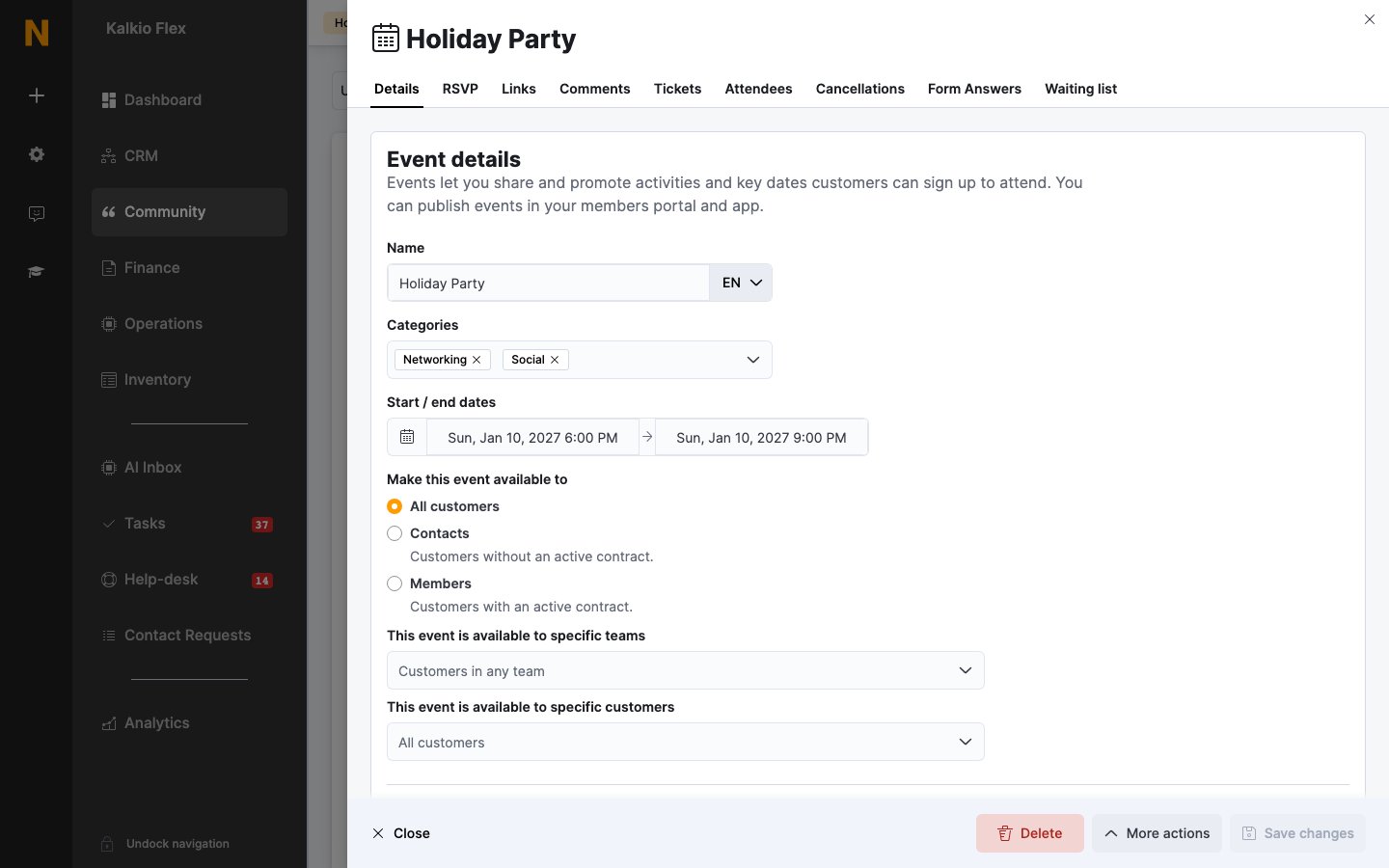
1
Start a new event
Go to Community → Events and click Add event.
2
Set the basics
Under Event details, set the Name, one or more Categories, and the Start / end dates. If you manage several locations, also pick the Location the event is published in — choosing a network location makes it available at every location in that network. Use Make this event available to to control who can see it (all customers, members, contacts, or specific teams and customers).
3
Write the content
Under Event content, add an Event summary (the blurb shown in listings) and the Event full description (the rich-text body). Upload a Large image (recommended 1500×1125px or larger — used in listings and the detail page) and a square Small image (300×300px or larger — used in the basket and purchased-ticket lists).
4
Set publishing options
Under Publishing settings, pick a Publish on date and time, and switch on any of the options below.
5
Add the venue details
Under Location and host, optionally override the Location name and Venue address (both default to the site you selected), add a Host full name, and select the Resource the event takes place in. Selecting a resource prevents other customers booking it during the event.
6
Repeat it (optional)
New events show a Repeat event section. Choose This event repeats. to pick a cadence (every day/week/month/year, or a weekday position like “the second Tuesday of the month”) and a Repeat until date.
Publishing settings
Repeating series
When an event belongs to a series, a callout offers Bulk options so you can update all or some of the events in the series in one go. Saving changes to a series member asks whether to apply them to this event only, the following events, or the whole series.Zoom
Tick Send a Zoom Meeting link to all attendees of this event. to include a meeting link in attendee communications. If the location isn’t connected to Zoom yet, use Connect this location to Zoom and sign in with a licensed Zoom account.Links
The event’s Links tab provides a Permalink and an iCal calendar feed for the event, plus optional external addresses: Web address, Facebook page address, and Tickets page address.Custom fields
Use custom fields to ask attendees for details when they sign up, such as dietary requirements, a T-shirt size, accessibility needs, an emergency contact, or the session they want to join. Create the field in CRM → Custom fields with the Event record type. On its Details tab, choose the events it’s for. Leave all three settings empty to use the field for every event.
Then, on the Visibility tab, under Event sign-up form:
- Include this field in the event sign-up form. Shows the field in event checkout, once for each attendee, below their ticket. Leave it off to keep the field for your team: it then only appears when you add or edit an attendee in the dashboard.
- Make this field required: attendees must answer before they can complete checkout.
Related
- Event tickets — pricing, availability, and capacity
- Event attendees — registrations, cancellations, and the waiting list
- Events on the portal — the listing customers see
- Event checkout — the ticket purchase flow
- Custom fields — create the fields attendees fill in
- My events — where customers manage their tickets
- Events and ticketing settings — module and checkout configuration
- Resources — the spaces events take place in