

Overview
Sensors are small devices that detect and measure conditions where they’re placed, such as presence, people counts, temperature, humidity, CO2 levels, noise, and water leaks. Nexudus records every reading the sensor sends, so you can track changes over time and use the data to run actions automatically. For example, a temperature sensor in a meeting room can email your team when the room gets too warm, and a presence sensor on a desk can mark the desk as unavailable while someone is using it.How sensors work
Every sensor follows the same flow in Nexudus:- Nexudus receives a reading. Depending on the sensor’s data strategy, Nexudus either fetches the latest value from your provider or receives readings as your provider sends them.
- Nexudus extracts the value. For polled and endpoint sensors, a Value function tells Nexudus where to find the value in the data, for example
payload["value"]. - Nexudus checks the trigger function. If you’ve added a Trigger function, the sensor’s actions only run when the function returns
true. Without a trigger function, the actions run every time Nexudus receives data. - Nexudus runs the actions. Actions apply to the resources and units linked to the sensor.
- Nexudus displays the data. The latest value appears on the sensor record, on the linked resources and units, and, if you choose, on your dashboard and in the Members Portal and app.
Data strategies
The Obtain data using setting controls how a sensor sends data to Nexudus.D12S is the simplest way to get started, because Nexudus handles the connection for you. Setting up your own sensors with Polling a URL or Received at an endpoint requires technical knowledge of your provider’s API. See Registering a new sensor for the technical details, or contact our support team for guidance.
How to access
Manage your sensors under Settings → Sensors. From there, you can add sensors, see each sensor’s latest value and status, and review the reading history of each sensor. To connect D12S or Pressac sensors, open Settings → Integrations and select the provider under Sensors.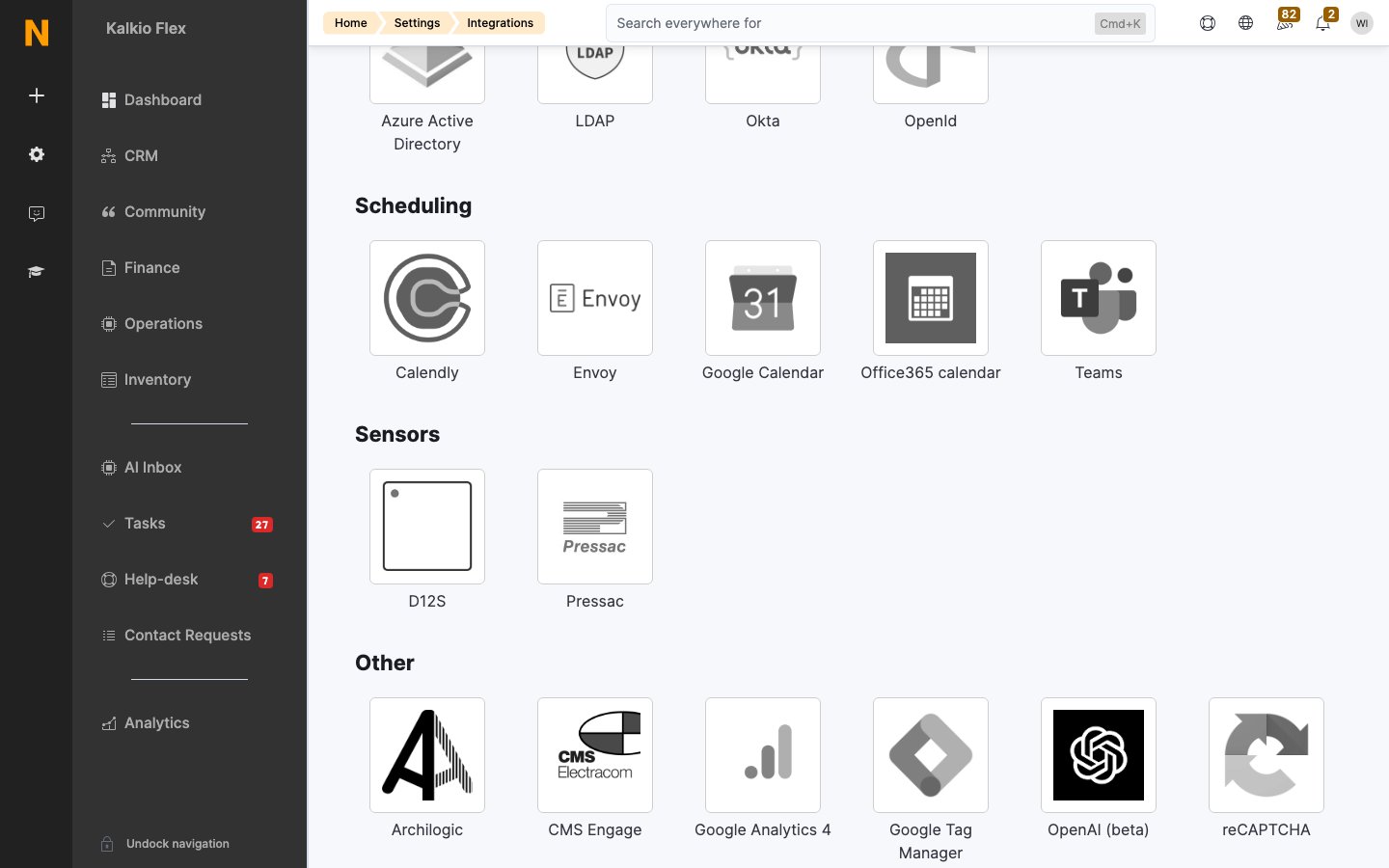
Key concepts
- Sensor type. Each sensor measures one kind of reading, such as presence, temperature, or CO2. The type controls how Nexudus displays the sensor’s data
- Value and trigger functions. The value function extracts the reading from the data your provider sends. The trigger function decides when the sensor’s actions run
- Linked inventory. Sensors are linked to Resources and Units (desks and offices). Actions apply to the linked items, and the sensor’s data appears alongside them in the dashboard
- Visibility. You can show a sensor as a tile on the Now dashboard, and in the Members Portal and app when customers are logged in. Both display the current value and the last 12 hours of history
Actions
Actions run every time Nexudus receives data from the sensor or, if you’ve added a trigger function, when the data meets your criteria.Setting up a sensor
1
Connect the device
Follow your provider’s steps to bring the sensor online. For D12S or Pressac sensors, enable the provider’s integration under Settings → Integrations → Sensors.
2
Add the sensor
Go to Settings → Sensors and click Add sensor. Enter a Name, an optional Unit to display next to the value (for example, °C), and choose the Sensor type. Turn on Active so the sensor starts collecting data.
3
Choose a data strategy
Under Data strategy, select how Nexudus should obtain the data in Obtain data using. For Polling a URL, enter the Polling URL and Value function. For Received at an endpoint, save the sensor, then copy the Endpoint URL into your provider’s settings. Add any credentials your provider needs under Authentication.
4
Link resources and units
Under Inventory, select the Resources and Units the sensor monitors.
5
Set up actions
Under Actions, select the actions to run. Add a Trigger function if the actions should only run when the reading meets specific criteria, for example when a temperature reading goes above 25.
6
Choose where to show the data
Under Visibility, choose whether to show the sensor as a tile on the Now dashboard and in the Members Portal and app.
7
Verify the data
Click Save changes. Once the sensor sends data, check the History tab on the sensor record to confirm readings are arriving.
Using the data
Sensor readings help you answer practical questions: which rooms are actually used, whether ventilation is keeping up, and whether a quiet floor is living up to its name. The History tab on each sensor lets you compare readings across periods instead of reacting to a single moment.Related
- Dashboards — where sensor tiles appear
- Resources — the rooms and spaces sensors can be linked to
- Registering a new sensor — technical details for each sensor field
- Validating sensor data — checking that data sent to an endpoint is genuine
- Access Control Integrations — entry-side monitoring, alongside sensor-based occupancy