

Overview
An opportunity is a deal you’re working on with a customer or prospect: a tour request, an enquiry about a private office, an upgrade, a renewal at risk. Each opportunity sits in a stage of a CRM board and moves through the stages until you win or lose it. Opportunities are linked to a customer record, so everything about the deal — messages, notes, tours, tasks, proposals and files — is kept in one place.How to access
Go to CRM → Opportunities to see all opportunities. To see one customer’s opportunities, open the customer and go to CRM → Opportunities.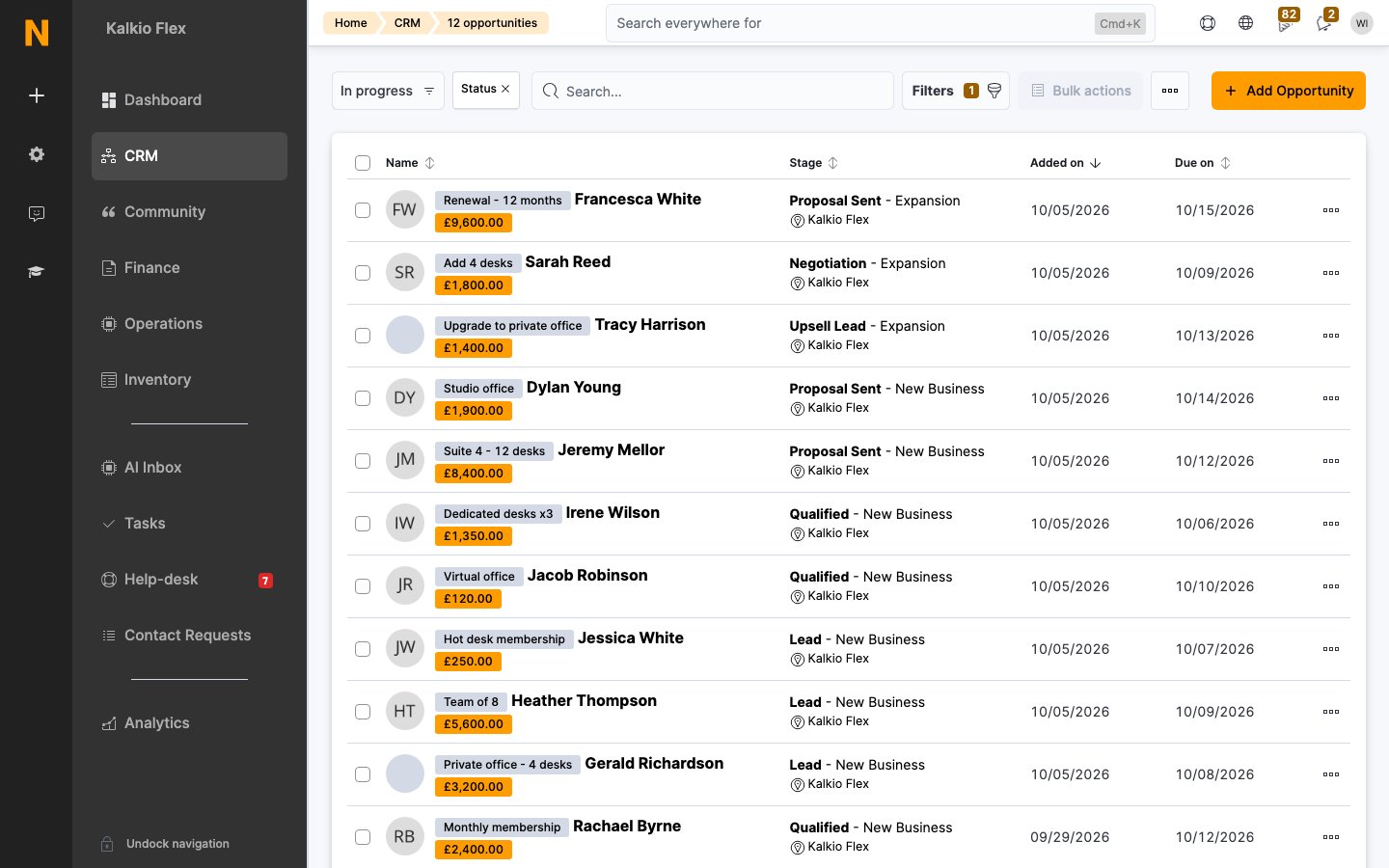
Add an opportunity
Opportunities can be added in three ways:- Automatically, when a customer meets a stage’s auto-assignment condition, such as booking a tour. See Boards.
- From a contact request. In Contact Requests, tick one or more requests and select Add Opportunity, then choose the stage to add them to. If the sender isn’t a customer yet, Nexudus creates a customer record for them.
- Manually, as below.
1
Open the form
Go to CRM → Opportunities and select Add Opportunity. You can also add an opportunity from a CRM board.
2
Choose the customer
Select the Customer. To add someone who isn’t a customer yet, type their name and select Add.
3
Name the opportunity (optional)
Add an Opportunity name to tell apart several opportunities for the same customer, such as “Suite 4 upgrade”. It appears as a tag before the customer’s name.
4
Place it on a board
Select the Board and the Stage the opportunity starts in.
5
Add the details
Fill in any other details you need. See Opportunity details.
6
Save
Save the opportunity.
Prospects without an email address
If a broker passes you a lead without contact details, you can still track it. When adding a new customer from the Customer field, turn on I don’t yet have an email address for this customer. You can add the email address to the customer record later.Opportunity details
The Details tab holds the main information about the deal: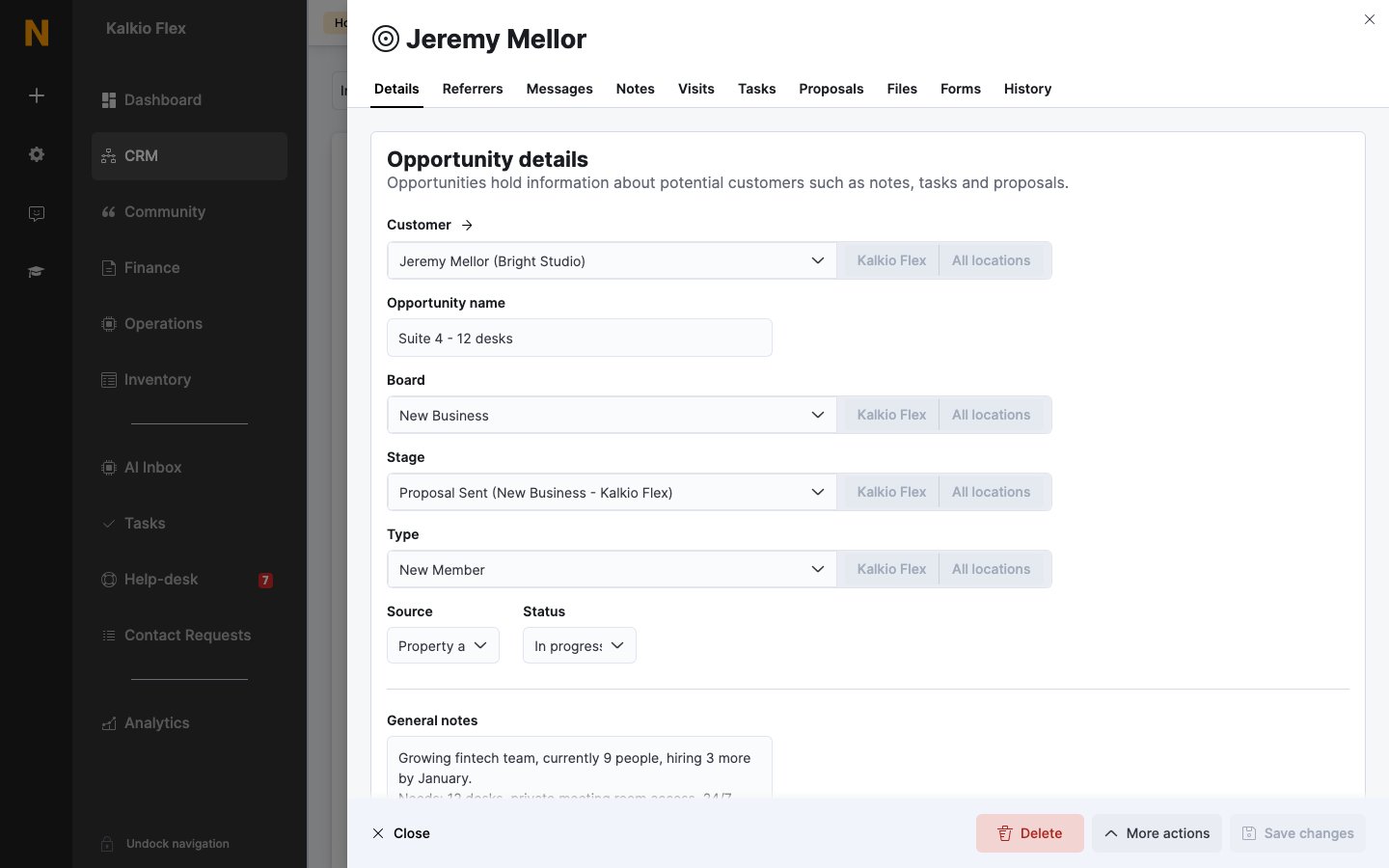
Other tabs
Each opportunity also has tabs for the work around the deal:Move an opportunity
Drag the opportunity to another stage on the board, or change its Stage on the Details tab. Each move is recorded in its History, and any actions set up on the new stage run. See Boards.Win or lose an opportunity
Set the opportunity’s Status to Won when it leads to a sale, or Lost when it doesn’t. For a lost opportunity, choose a Loss reason so you can see later why deals fall through. Nexudus records the date it was won or lost. A stage can also be set up to win or lose opportunities automatically: moving an opportunity into it changes its status for you. Won and lost opportunities stay in CRM → Opportunities, under the Won and Lost views.Opportunity types
Opportunity types group similar deals, such as “Private office enquiry” or “Event space”, and give them a notes template. When you choose a type on an opportunity, its General notes are filled in from the template, for example with a checklist of questions to ask. To add a type, go to CRM and, under Opportunities, select Opportunity types. Then select Add opportunity type, enter a Type name, choose the Location and write the Notes template.Track campaigns with UTM codes
UTM codes are tags you add to the end of a link to see which campaign brought someone in. When a prospect uses a tagged link to reach your Members Portal and, for example, books a tour, the UTM values are saved on the Referrers tab of their opportunity. Add a? to the end of the link, then one or more codes separated by &:
For example, a link to your tour form in a September newsletter might be:
+ signs.
Export or delete opportunities
- Export: in CRM → Opportunities, tick the opportunities and export them from Bulk actions.
- Delete: tick the opportunities and delete them from Bulk actions, or open one and delete it. Deleting can’t be undone, so consider exporting first.
Related
- Boards: the pipelines opportunities move through, and stage automations
- Proposals: sending a formal offer for an opportunity
- Custom fields: adding your own fields to opportunities
- Reminders: automated follow-ups