

Overview
Newsletters are email campaigns sent to your customers. Design the layout visually, choose who receives it from your subscriber groups, and track engagement with open and click counts.How to access
Navigate to Community → Newsletters in the dashboard.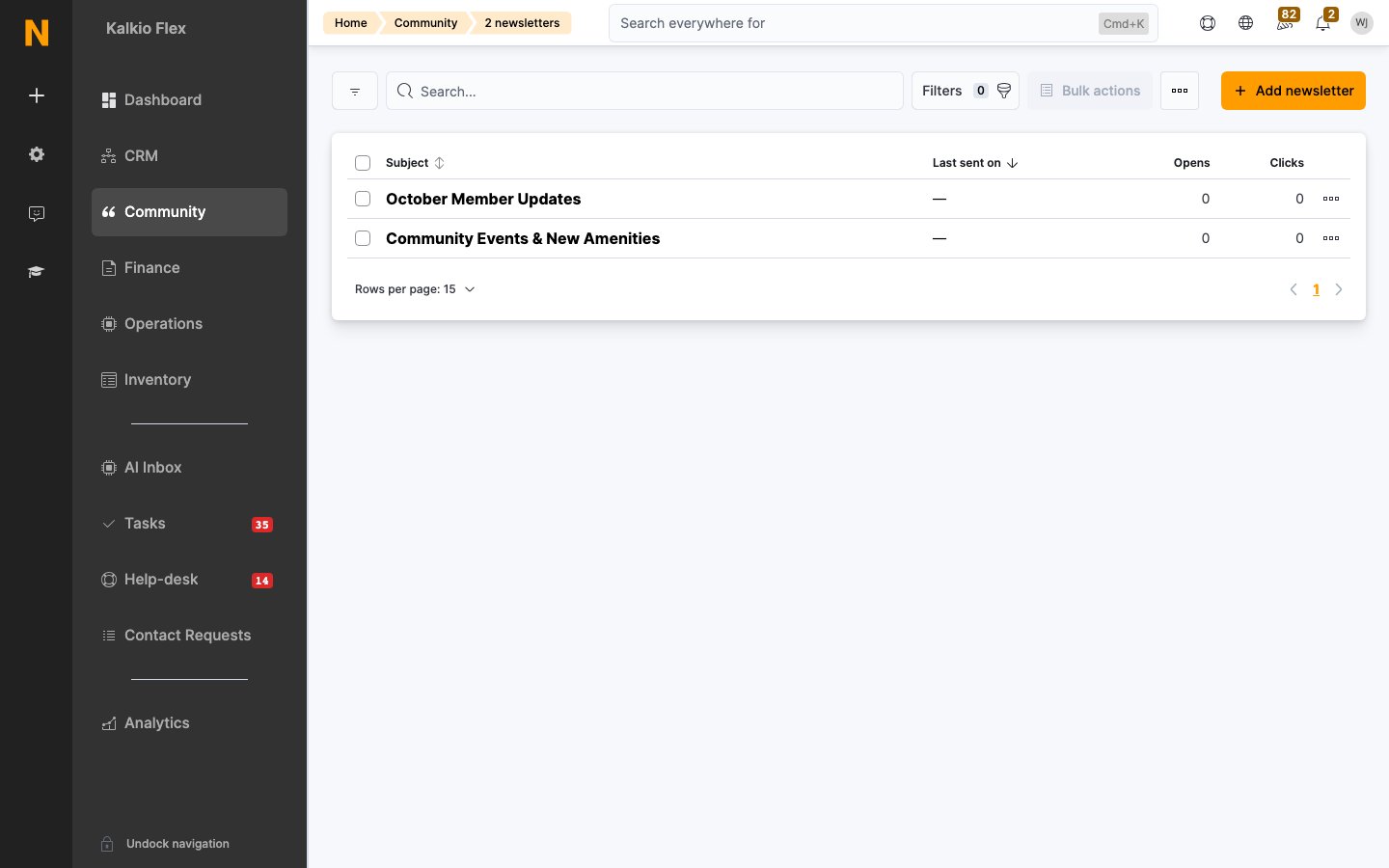
The list
Each row shows:
Use the Add newsletter button to create a new one.
Creating a newsletter
1
Start a newsletter
Go to Community → Newsletters and click Add newsletter.
2
Fill in the details
Set the Location and Subject (this becomes the email subject line).
3
Design the layout
A visual email editor opens. Use the toolbar to add text blocks, images, buttons, and columns. Click Default template to load a pre-built starting layout you can customise.
4
Save
Save the newsletter. It is now ready to send to your subscriber groups.
Subscriber groups
From Community → Subscribers → Groups you can create named groups to target different audiences. Each group has two modes:- Manual groups. You add and remove subscribers individually.
-
Smart groups. Automatically populate based on conditions:
- Current members (optionally filtered by plan/tariff)
- Current contacts
- Event attendees
- Team paying members
- Visitors
- Customers who made a booking
Managing individual subscribers
From Community → Subscribers you can view and edit each recipient. The list shows their name and email, a Status badge (Active or Inactive), and an Activity column tracking engagement with your most recent campaign (Viewed / Clicked / No activity). Each subscriber record has:- Full name, Email, Company name
- Reason for the visit (free-text note)
- Subscribed to — which groups this person belongs to
- Active — toggle to include or exclude from sends
Related
- Announcements — the in-portal counterpart
- Articles — content to link from your newsletters
- Surveys — gathering feedback from the same audience