

Overview
Custom fields let you store information the standard fields don’t cover: a customer’s industry, their parking bay, a team’s VAT exemption reference, the number of seats on an opportunity. Each field belongs to one record type and appears on every record of that type once you create it. Customer fields come in two kinds, and the difference matters:- Publishable customer fields can be shown to customers: in the sign-up, profile, tour and event sign-up forms, and in the member directory. Each one takes one of 30 numbered slots on the customer record.
- Internal customer fields, and fields on every other record type, have no slot limit and are referenced by the field’s ID. Most are for your team only, but resource, visitor and event fields can also be added to forms customers fill in.
How to access
Go to CRM and, under Opportunities, select Custom fields.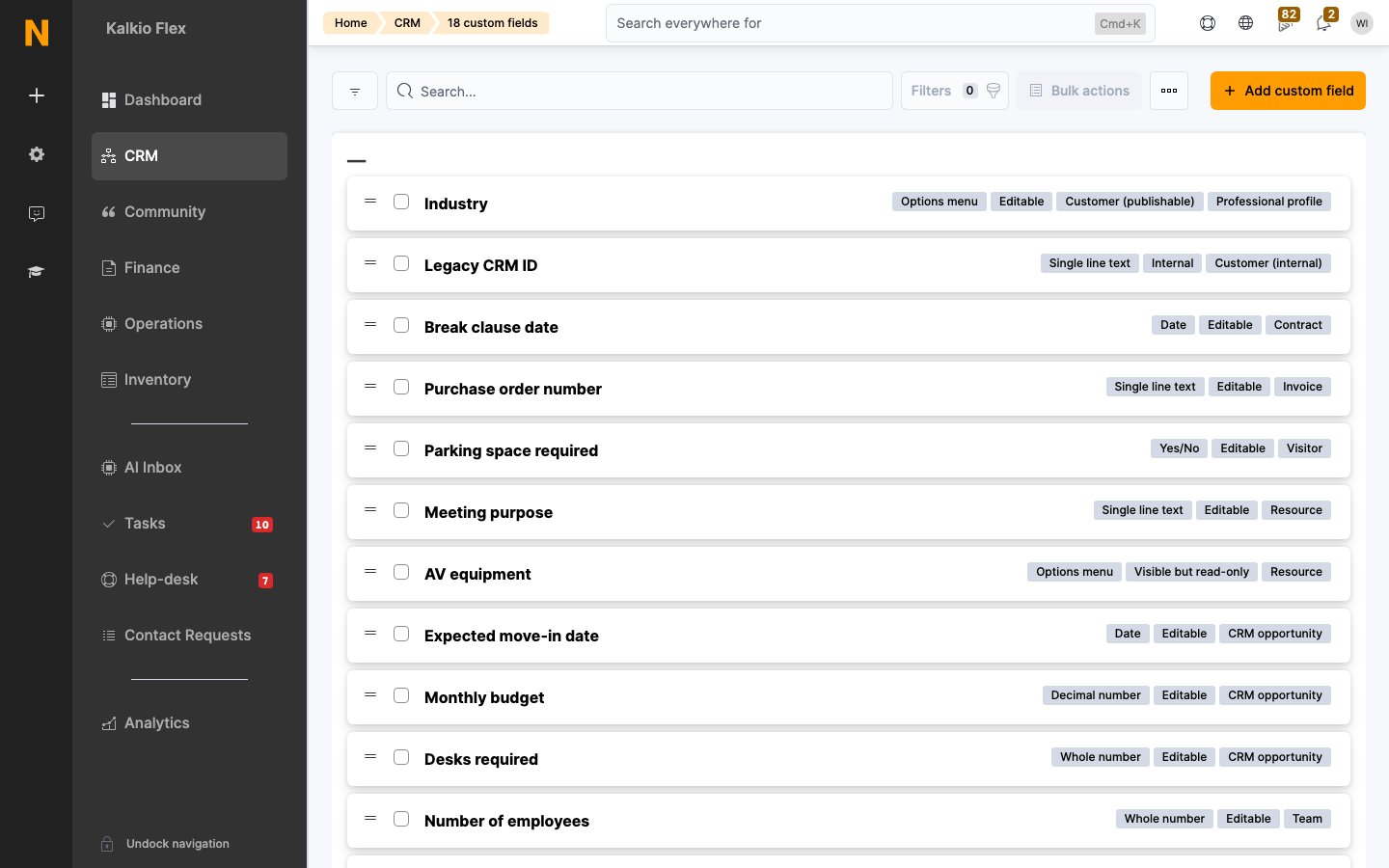
Record types
When you create a field, choose the Record type it belongs to. You can’t change it after saving. The field then appears on every record of that type.- Customers and teams: Customer (publishable), Customer (internal), Team, Visitor
- Sales: CRM opportunity, Proposal
- Spaces and bookings: Location, Resource, Booking, Floor plan, Floor plan unit, Equipment
- Community: Event
- Billing: Product, Plan, Contract, Invoice
- Help desk: Help-desk message, Help-desk department
Other records, through the API
The API can store custom field values on records that don’t appear in this list, such as event tickets. You can register a definition for them with the custom fields endpoints, or store values without registering a field at all. See Custom fields in records.Publishable and internal customer fields
Publishable fields and their index number
Nexudus stores publishable customer fields in 30 numbered slots on the customer record,Custom1 to Custom30. When you create a publishable field, it takes the lowest free slot automatically, and that number is its index. You can’t choose the index or change it.
After you save the field, its slot appears as Internal field name on the Details tab, for example Custom3. Use it wherever you need to refer to the field:
- API field name:
coworker_Custom3 - API search:
/api/spaces/coworkers?coworker_Custom3=value - Reading or setting the value in scripts:
record.Custom3
Internal fields and their reference
Internal customer fields, and fields on every other record type, have no index. Each one is referenced by its own ID instead, in the form<record>_CustomFields_<field ID>, for example team_CustomFields_1415551234.
The API section on the field’s Details tab shows its API field name, an example search, and how to read or set the value in scripts. In API responses, the value sits in the record’s CustomFields.Data list, in the entry whose Name is the field’s ID. Paste the API field name into email templates as plain text (Ctrl+Shift+V).
Create a custom field
1
Open the form
Go to CRM → Custom fields and select Add custom field.
2
Enter the details
On the Details tab:
- Location (networks only): for a publishable customer field, this must be your top-most location.
- Field name: what your team, and customers if the field is publishable, will see. It must be unique within your network.
- Record type: what the field belongs to. You can’t change this later.
- Resources (resource fields only): limit the field to some resources. Leave it empty for all resources.
- Event categories, Events and Event tickets (Event fields only): limit the field to some events or tickets. Leave them empty for every event. See Event fields.
- Field data type: see Field data types.
- Show field in (publishable customer fields only): the section of the customer record the field appears in: Account details, Addresses, Professional profile, Payments, Services or Notes.
3
Choose its visibility
On the Visibility tab, choose whether the field can be edited. For publishable customer fields, resource, visitor and event fields, choose where else it appears. See Visibility.
4
Save
Save the field. It appears on every record of that type straight away.
Field data types
Visibility
Every field has a visibility setting:The Internal visibility setting and the Customer (internal) record type are different things. A Customer (internal) field is visible to your team on the customer record. A field with Internal visibility is hidden from the UI entirely.
Publishable customer fields
Choose where customers see the field:- Profile & sign-up forms: include the field in the sign-up form, event sign-up form, profile form or tour form, and choose whether it’s required.
- Customer directory: show the field on the customer’s directory profile, and let members search the directory by it. You can give the field a different label in the search.
Resource fields
- Booking form: show the field when customers book the resource, and choose whether it’s required. Nexudus creates a matching booking field to store the answer on each booking. It’s managed for you, so it doesn’t appear in the custom fields list.
- Resource search: let customers search for resources by the field in the Members Portal.
Visitor fields
Under Visitor registration forms, choose which forms ask for the field, and whether it’s required:- Include this field in the visitor registration form (Members Portal / Passport app): when a customer registers a visitor.
- Include this field in the visitor self-registration form (NexIO): when a visitor registers themselves at your front desk.
Event fields
Event fields are the questions attendees answer when they sign up for an event, such as dietary requirements or a T-shirt size. Under Event sign-up form:- Include this field in the event sign-up form. Shows the field in event checkout, once for each attendee. Leave it off to only ask for it when your team adds an attendee in the dashboard.
- Make this field required: attendees must answer before they can complete checkout.
Manage fields
- Rename a field at any time. Existing values are kept.
- Reorder fields by dragging them in the list.
- Delete a field you no longer need.
Related
- Members: the customer records most custom fields belong to
- Customer profile reference
- Opportunities
- Visitors: visitor registration questions
- Events: questions attendees answer at sign-up
- Custom fields in records: reading and setting values through the API