

Overview
Announcements are short notifications displayed to customers on the members portal and mobile app. Use them for time-sensitive notices: a closure, a system change, an important reminder. Unlike articles, announcements are brief, prominent, and plain text.How to access
Navigate to Community → Announcements in the dashboard.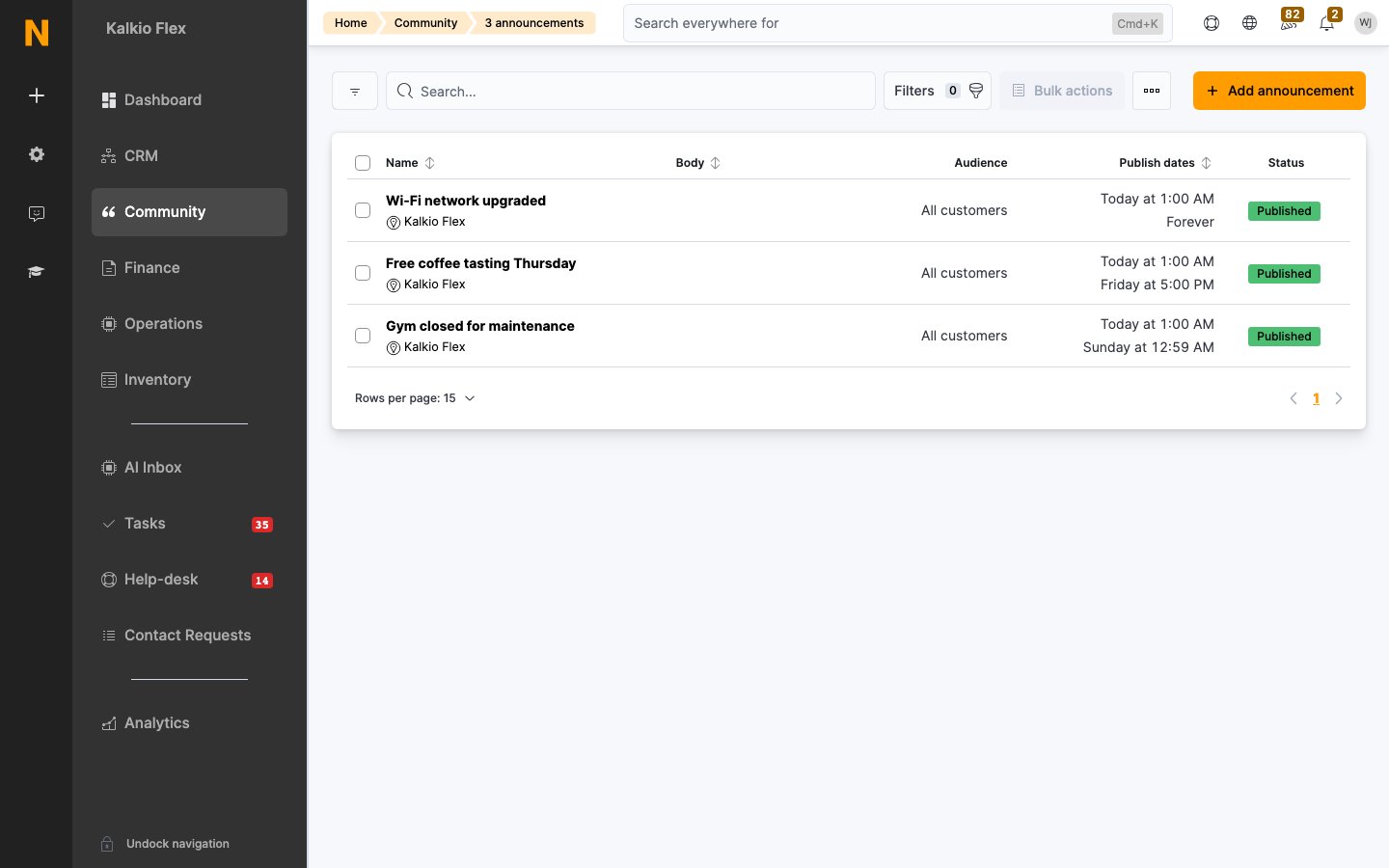
Key concepts
- Plain text only. Announcement bodies support plain text — no bold, italics, or lists. Keep them to a sentence or two.
- Optional image and button. An announcement can include an image and a call-to-action button that links somewhere.
- Timing. Set when the announcement starts and ends so it appears and disappears automatically.
Posting an announcement
1
Open Announcements
Go to Community → Announcements and click + New announcement.
2
Write the message
Enter the short plain-text message. Lead with what changed and what members should do.
3
Add optional extras
Attach an image and/or a call-to-action button if useful.
4
Set the window and publish
Choose the start and end times, then publish.
Best practices
- One announcement per issue. Stacking several notices makes each less noticeable.
- Always set an end time. An announcement about a one-day closure that lingers for a week trains members to ignore the banner.
- Link, don’t explain. If detail is needed, point the button to an article rather than cramming it into the notice.
Related
- Articles — longer-form content announcements can link to
- Newsletters — pushing the same news by email