Overview
A floor plan is a visual map of one floor of your space. It shows the walls, rooms and furniture on that floor, and the status of each desk, office and room at a glance. Floor plans have two parts:- The floor plan itself. The layout: walls, rooms (called areas) and furniture. You draw it in the floor plan editor.
- Floor plan items. The desks, offices, rooms and other spaces you actually sell or let customers book. You link each item to a piece of furniture or a room on the plan.
How to access
Go to Inventory → Desks and Offices → Floor plans. Click a floor plan to open it in the floor plan editor.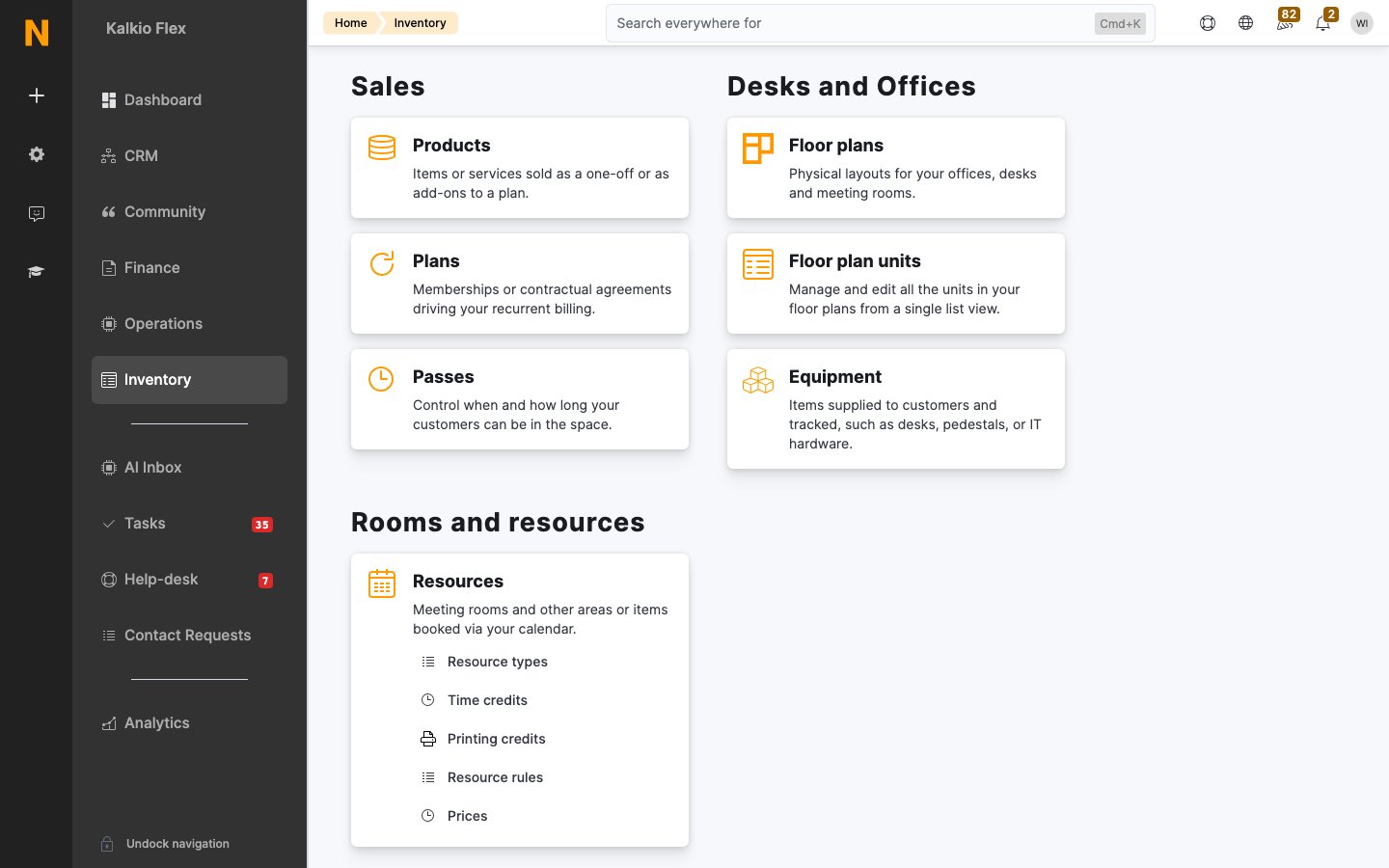
Key concepts
How floor plan items are used
- Contracts. Assign offices and dedicated desks to a customer’s contract. The item shows as occupied for as long as the contract is active, then becomes available again automatically.
- Proposals. Offer specific offices and desks to a customer by adding them to the plans in a proposal.
- Bookings. Connect items to a resource so customers can pick a specific desk or room when they book.
- Occupancy. Each item counts towards your availability and occupancy reports, so you can see which spaces are free now and in the future.
Create a floor plan
Create a separate floor plan for each floor in your building. For example, a three-storey building needs three floor plans: Ground Floor, First Floor and Second Floor.- Go to Inventory → Desks and Offices → Floor plans.
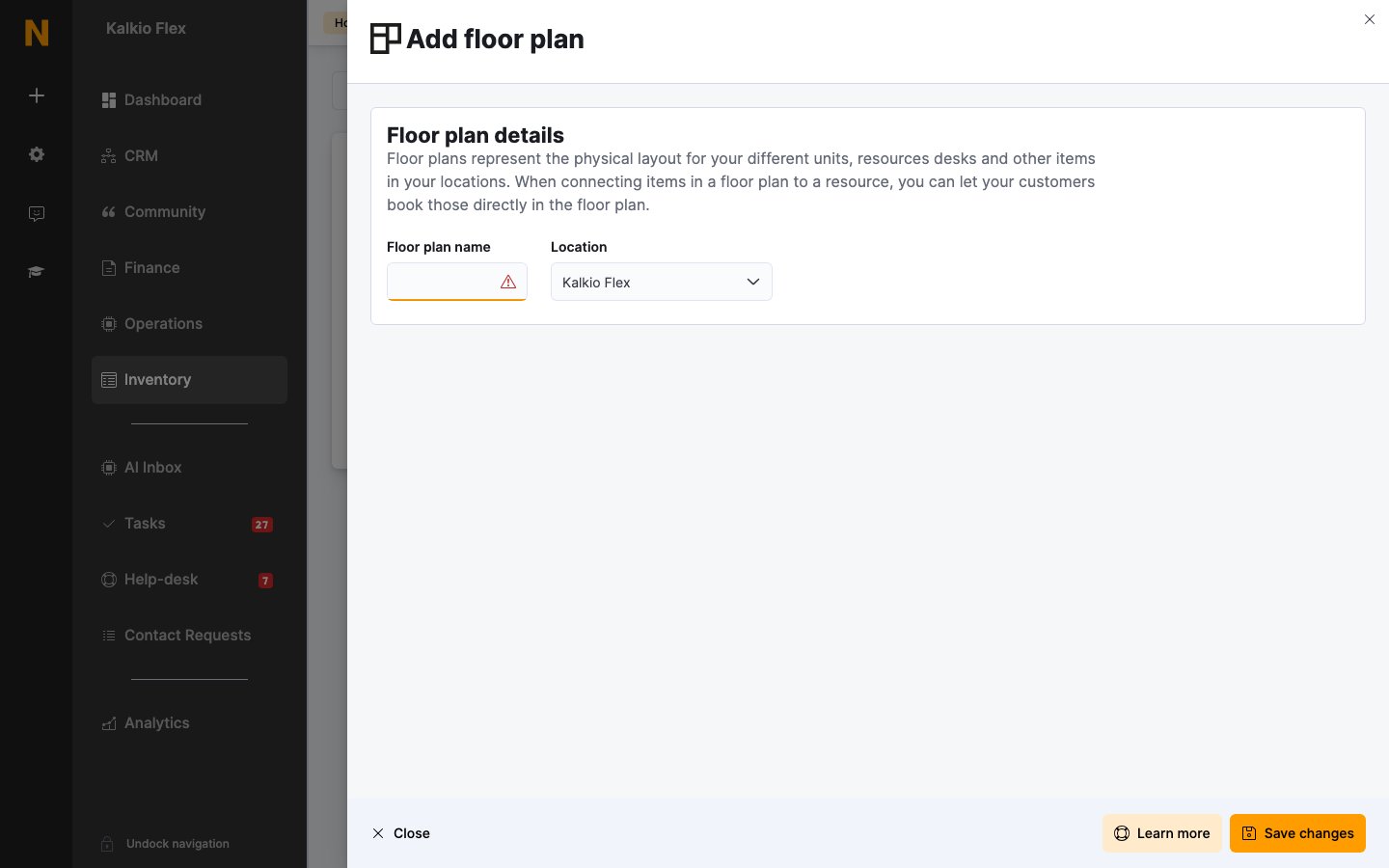
- Click Add floor plan.
- Enter a Floor plan name, such as “Second Floor”.
- Select the Location the floor belongs to.
- Click Save changes.
Draw the layout
Click the floor plan in the list to open it in the floor plan editor, then select the Edit tab.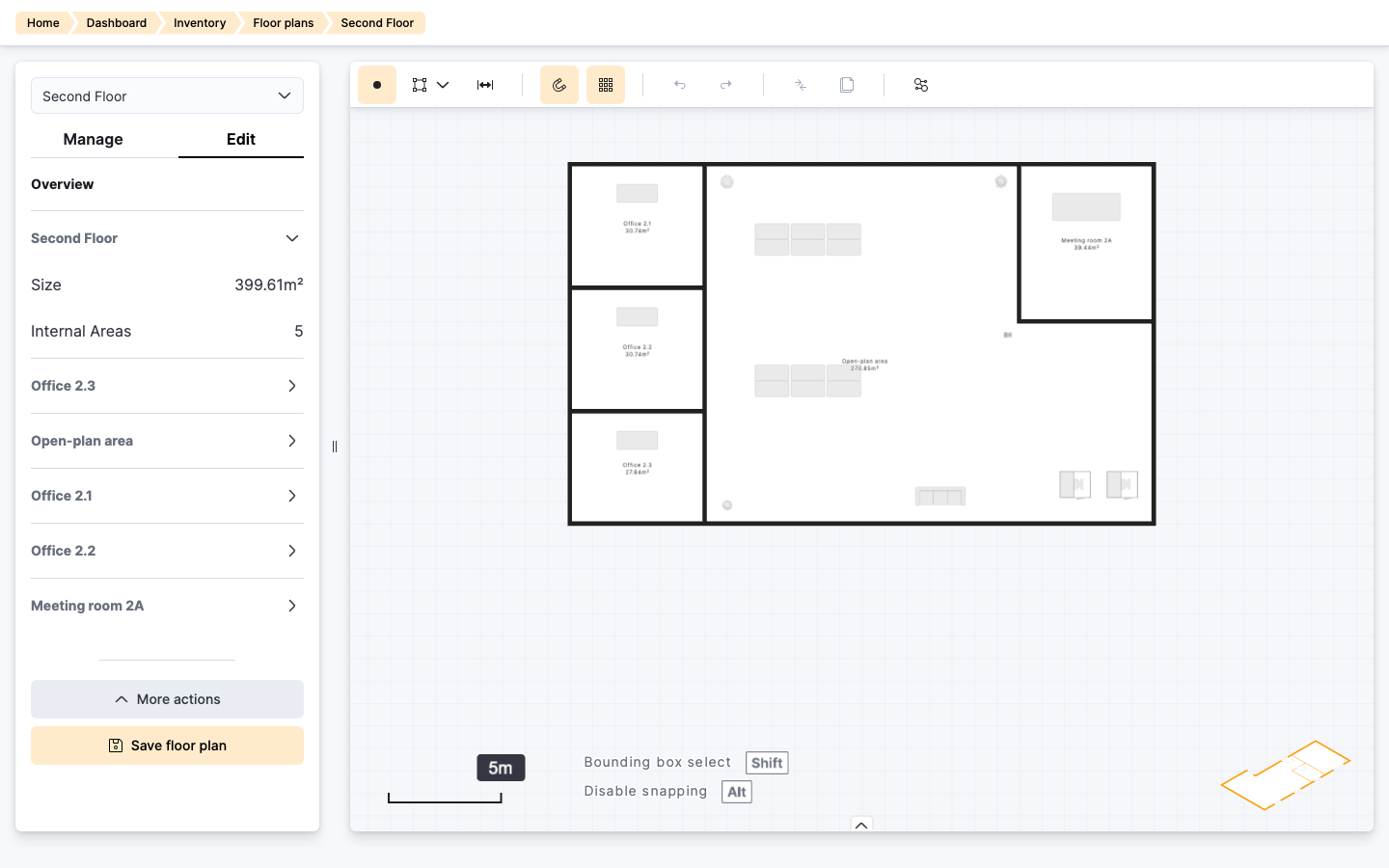
- Draw the walls. Press 1 (or open the create menu) and click on the grid to place each corner of a wall. Press Esc to stop drawing. Draw the outside walls first, then the inside walls that split the floor into rooms.
- Check your areas. Every space fully enclosed by walls becomes an area. The Overview in the side panel lists each area with its size.
- Name your areas. Click an area and enter an Area Name, such as “Office 2.1” or “Meeting room 2A”. Names appear on the plan, so customers and your team can recognise each room.
- Add furniture. Press 5, search for an item such as a table, desk or booth, click it, then click on the plan to place it.
- Click Save floor plan.
Add floor plan items
Once the layout is saved, link each desk, office and room you want to contract or book to a floor plan item. What you link depends on the space:- Offices and meeting rooms: link the item to the area (the room), not the furniture inside it. Linking to furniture inside a room can lead to the same room being double-booked or assigned to two contracts.
- Desks and phone booths: link the item to the furniture that represents it.
- Open the floor plan and select the Manage tab.
- Click the area or piece of furniture you want to link.
-
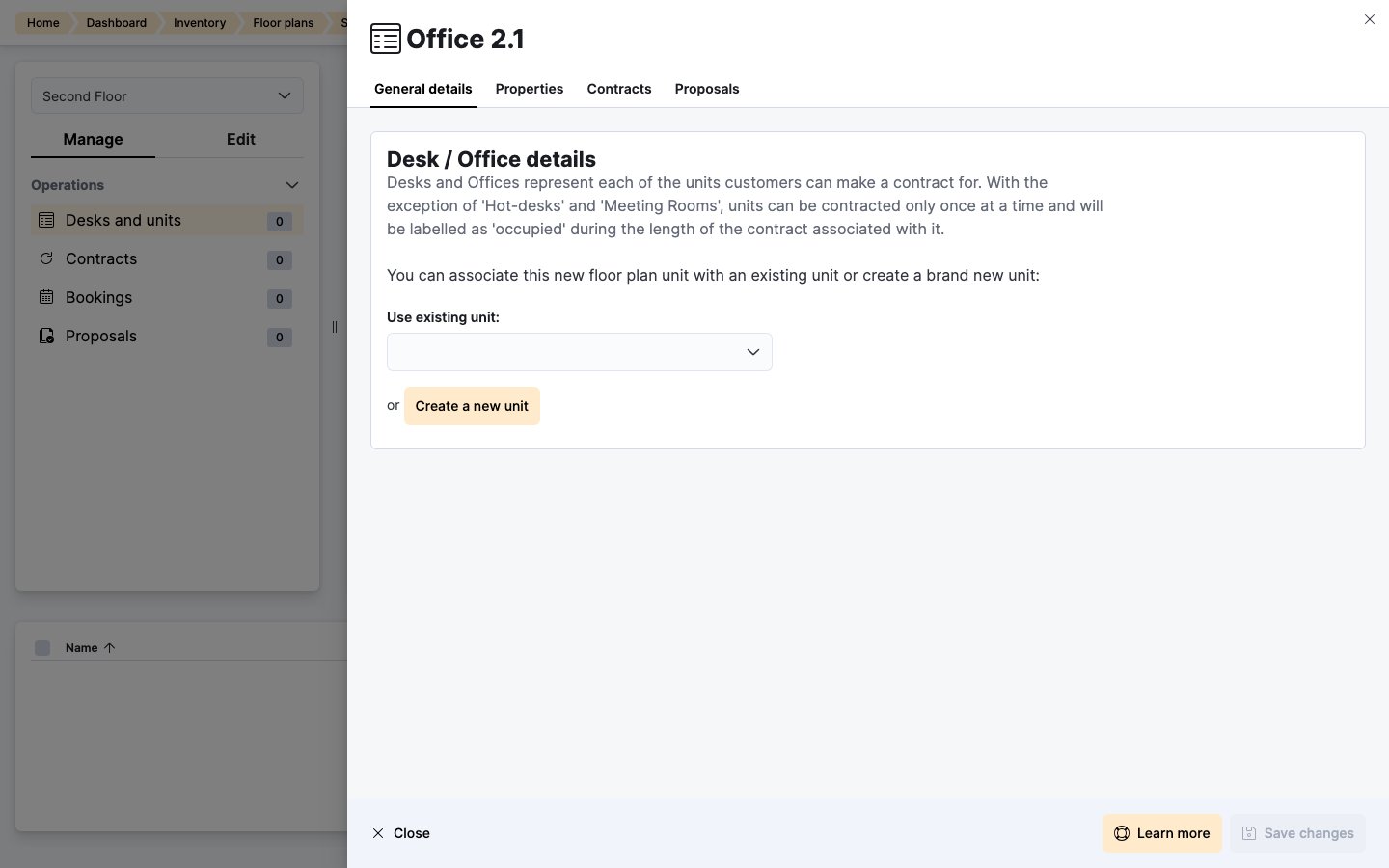
Under Desk / Office details, click Create a new unit. To link an item that already exists, select it under Use existing unit instead.
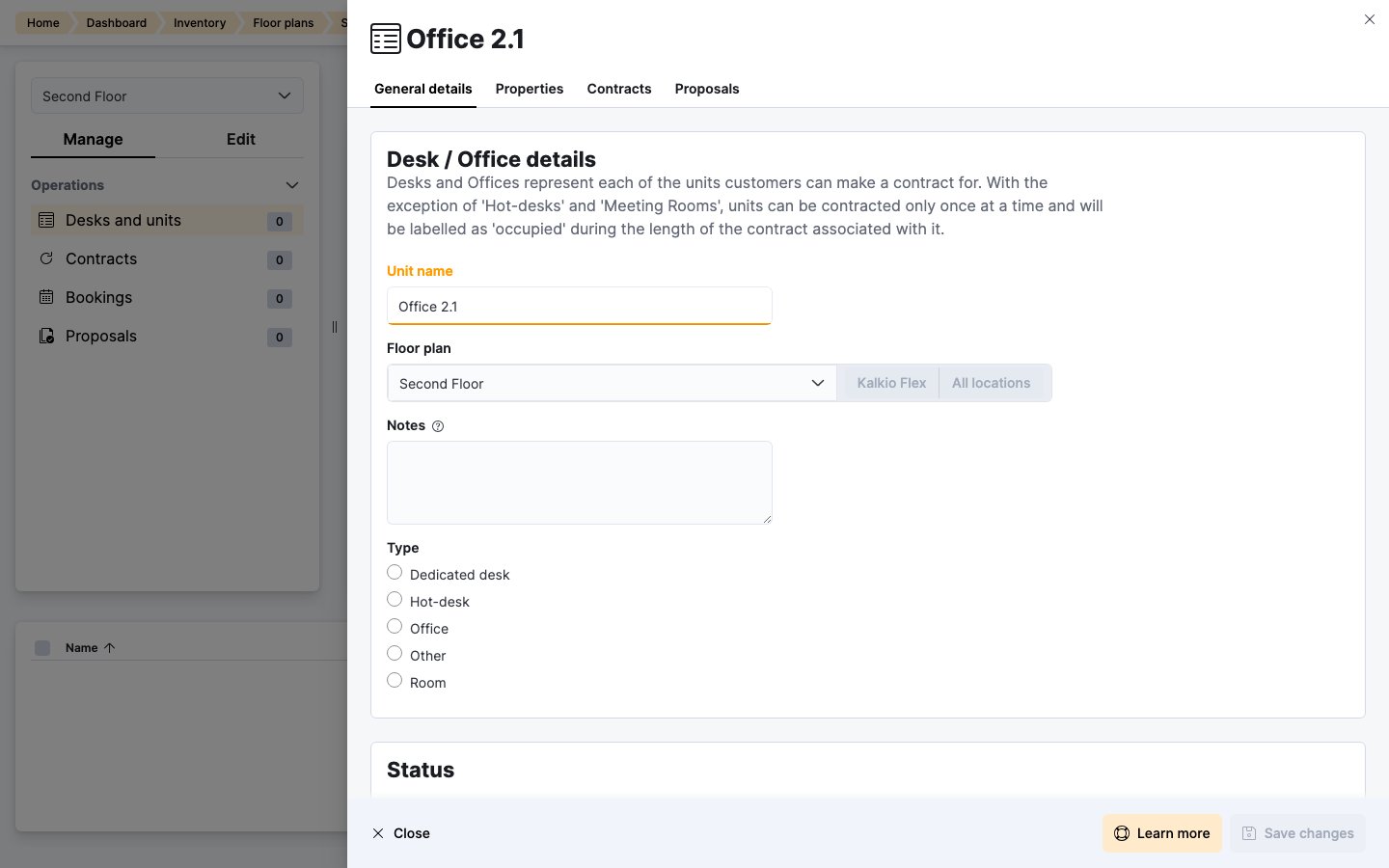
- Check the Unit name. For areas, it’s filled in with the area’s name.
-
Select the Type: Dedicated desk, Hot-desk, Office, Other or Room.
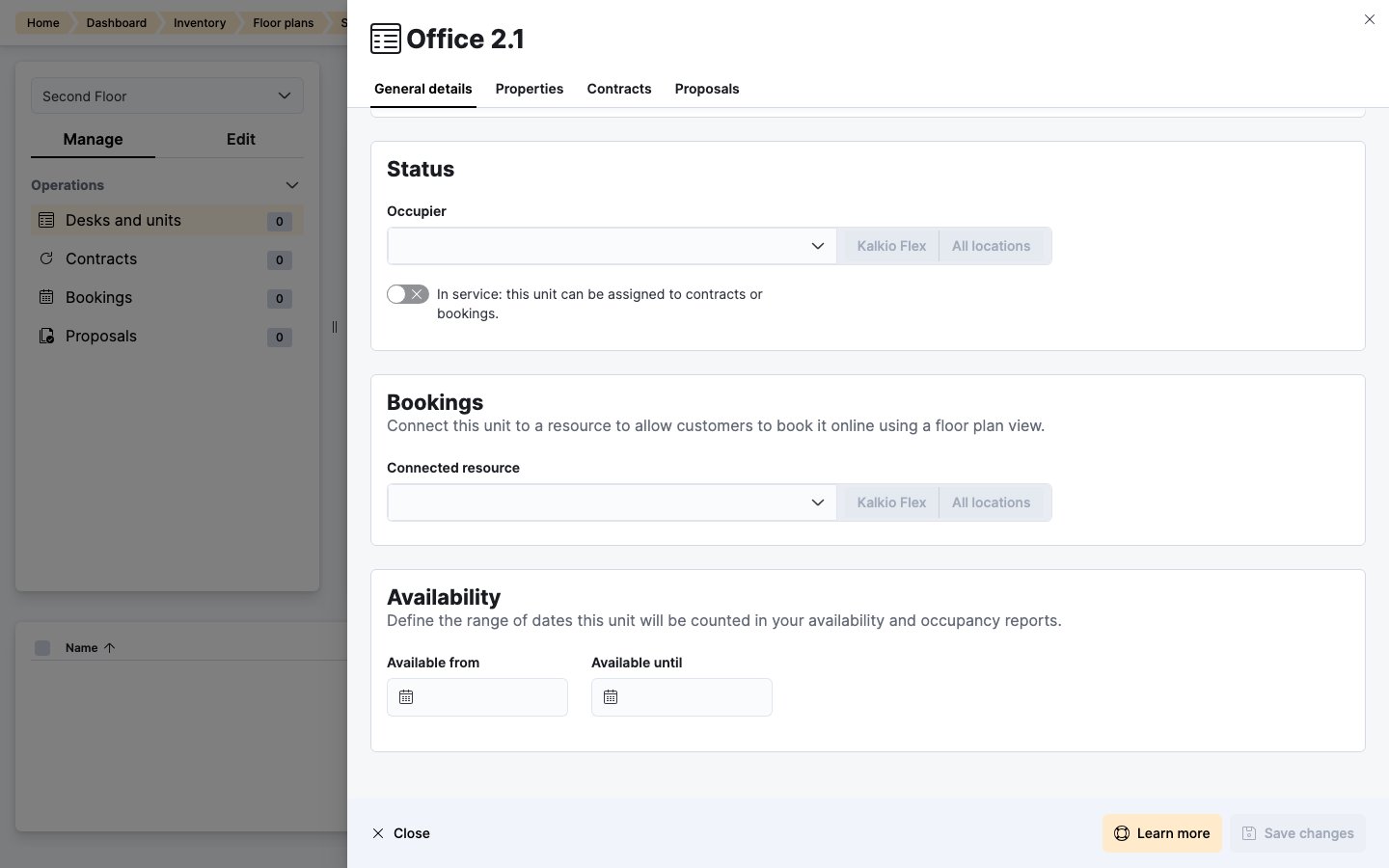
- Under Status, turn on In service so the item can be assigned to contracts or bookings.
-
Optionally, choose a Connected resource and set the Available from and Available until dates.
- Click Save changes.
Use your floor plan items
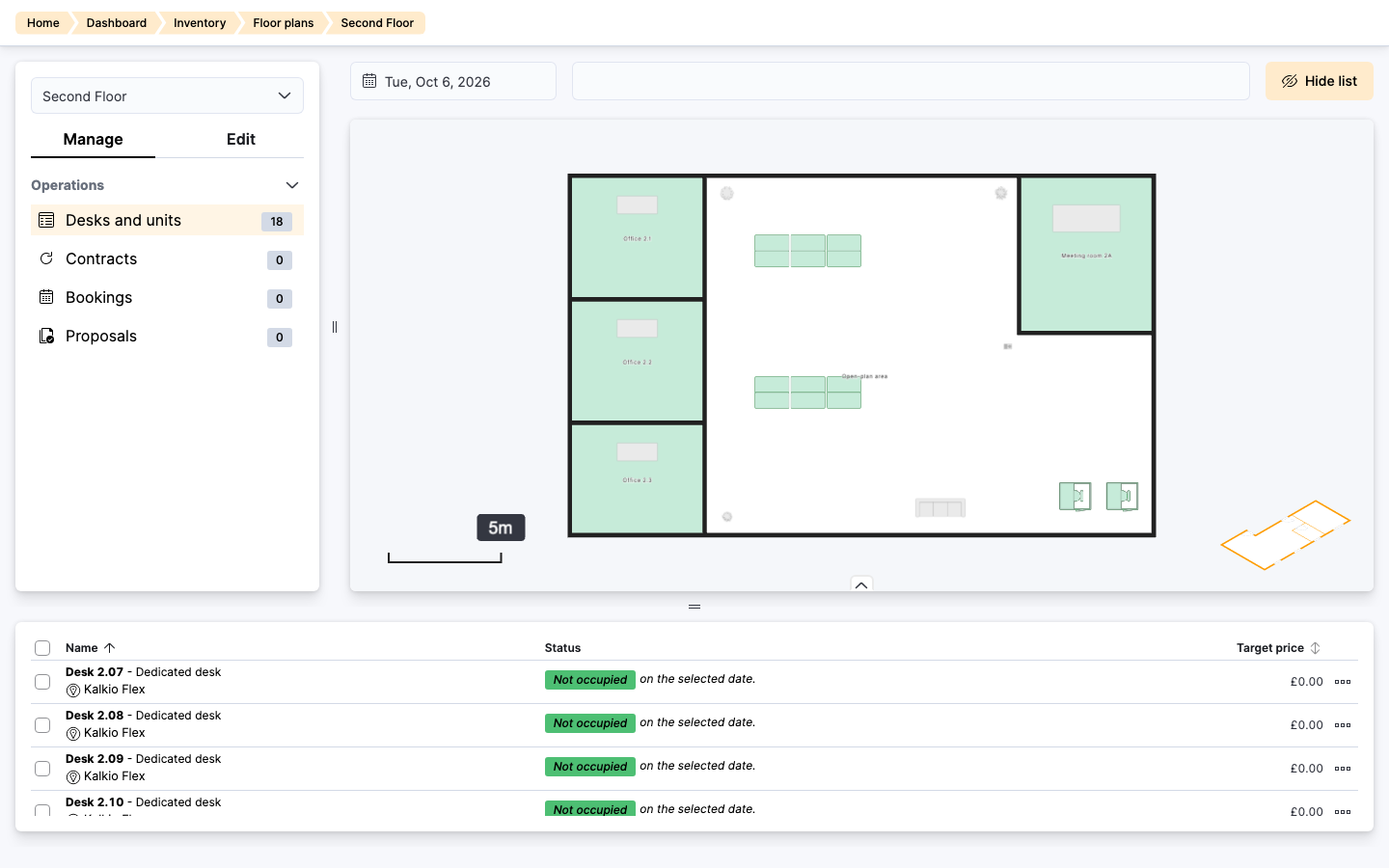
The Manage tab is where you run the floor day to day. Pick a date at the top to see what’s free, occupied, booked or in a proposal on that day. The side panel lets you switch between the floor’s items, Contracts, Bookings and Proposals.Assign items to contracts
Assign offices and dedicated desks to contracts rather than directly to customers. That way, the item frees up automatically when the contract ends, and you can forecast occupancy from contract dates.- Click the item on the plan, or open it from Inventory → Desks and Offices → Floor plan units.
- Open the Contracts tab and add the contract.
Include items in proposals
You add floor plan items to a proposal from the proposal itself, not from the item.- Open the proposal and go to its Plans tab.
- Click Add plans, or open a plan that’s already in the proposal.
- Under Price, select the items in Offices / desks.
- Click Save changes.
Connect items to resources
Connect desks and rooms to a resource to let customers book them from the floor plan view in the Members Portal.- One item: open the item and choose a Connected resource under Bookings. This suits a single office or meeting room.
- Several items at once: go to Inventory → Desks and Offices → Floor plan units, tick the items, then click Bulk actions → Connect to resource. This suits a bank of hot-desks that share one resource.
Duplicate a floor plan
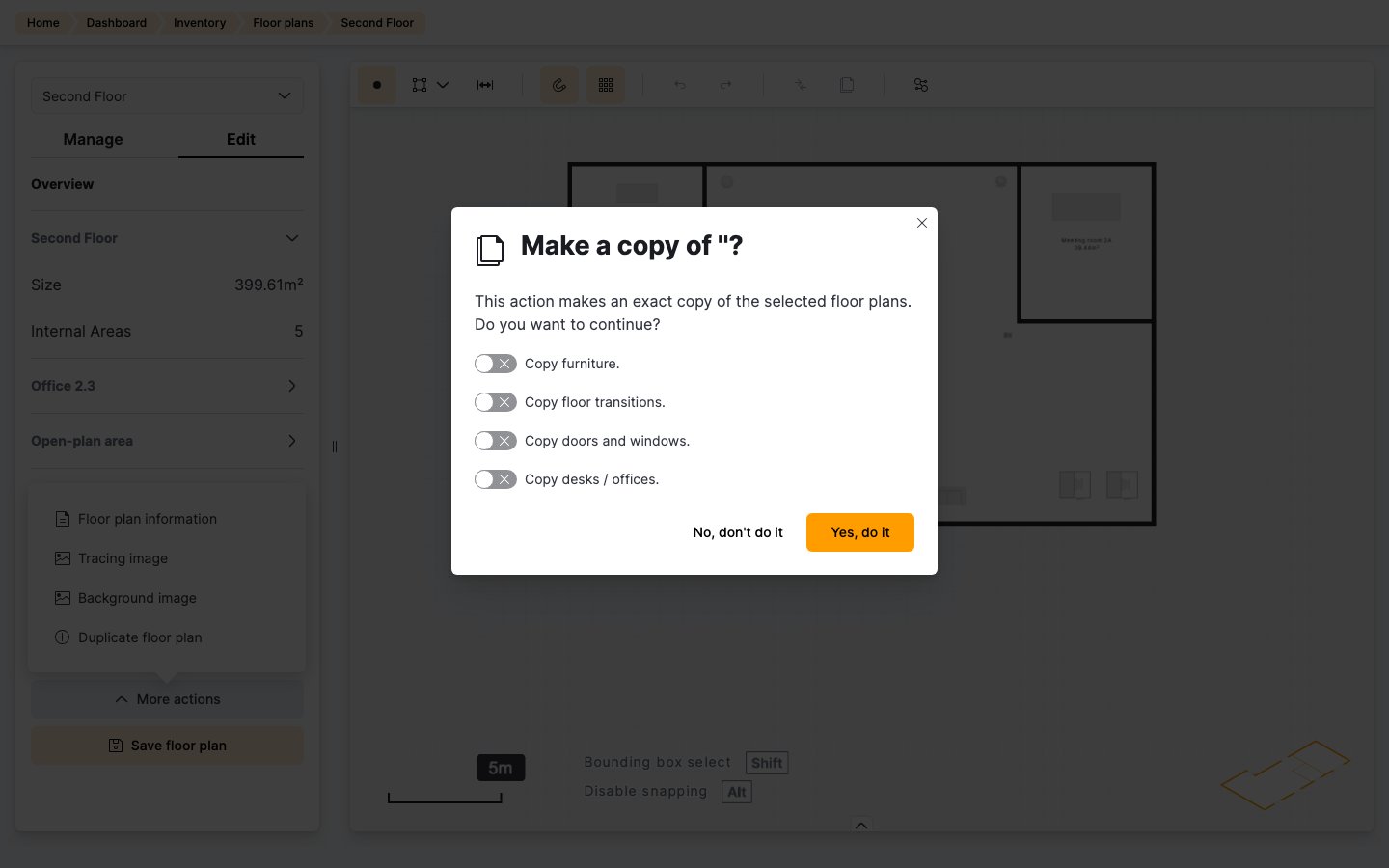
If several floors share the same layout, build one and copy it.- Open the floor plan and select the Edit tab.
- Click More actions → Duplicate floor plan.
- Choose what to copy: furniture, floor transitions, doors and windows, and desks and offices.
- Click Yes, do it.