

Overview
The discussion board is a community space on the members portal where customers start conversations, follow threads, like replies, and share files. Two pieces work together:- Discussion boards hold the conversations (threads) themselves.
- Discussion groups are named subsets of customers that control who can see and contribute to a board.
How to access
Navigate to Community → Discussion Groups for the groups themselves, and Community → Discussions for the boards and their threads.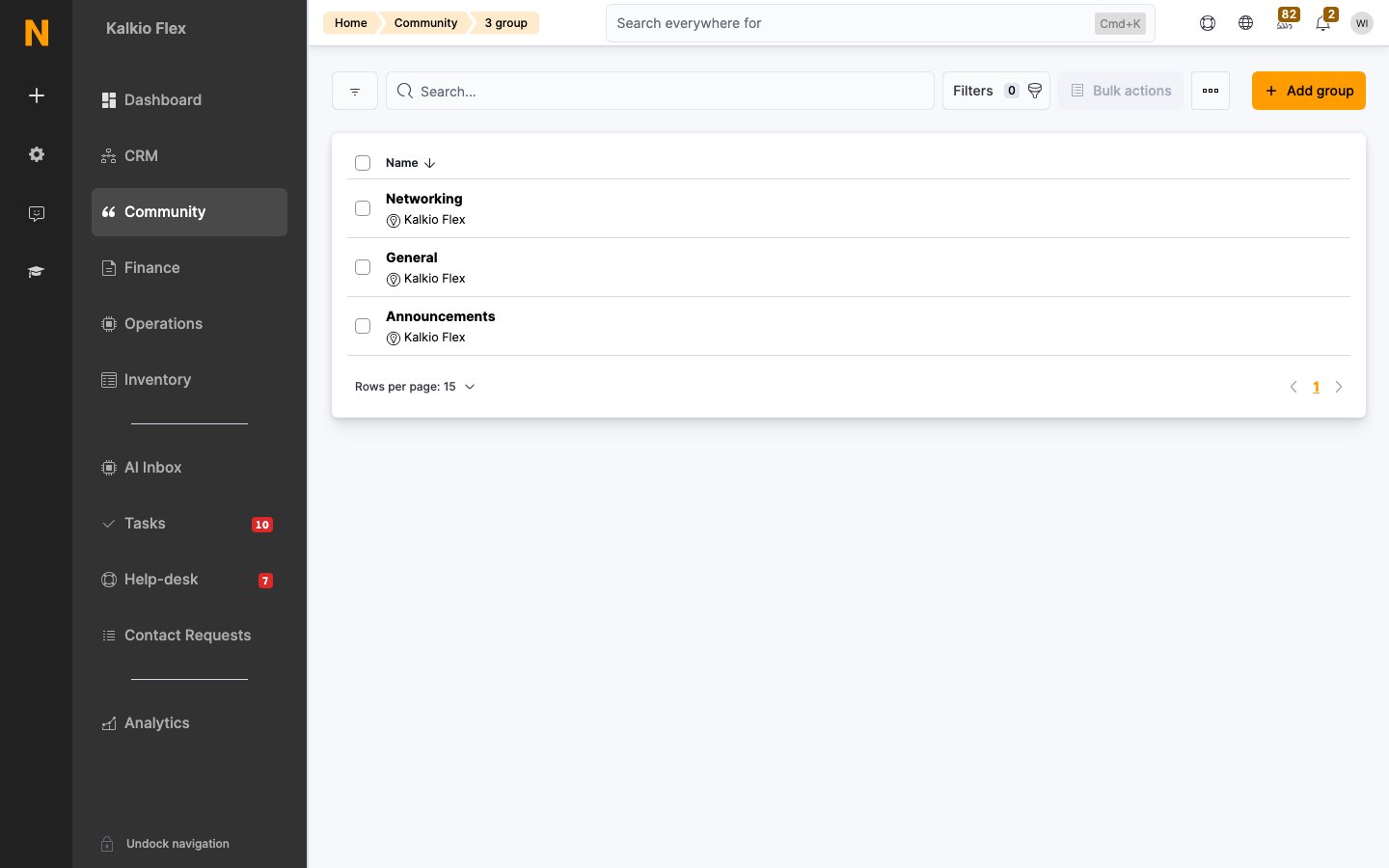
Key concepts
- Group. A named set of customers you define. Groups are created by admins and applied to boards.
- Access level. Each group has an access level (Public, Restricted, or Private) that determines who can see the board and who can post to it. See Setting the access level.
- Following and muting. Customers follow threads to get notified of new replies, and can mute threads they no longer want to hear about. See Notifications.
Creating a group
1
Open Discussion Groups
Go to Community → Discussion Groups and click Add group.
2
Fill in the details
Set the Location, give the group a Name that reflects the audience (e.g. “Wellness members”), and add a short Description. Assign an Administrator — the group’s admin can always post to the group and invite other users to it.
3
Choose the access level
Pick Public, Restricted, or Private — see Setting the access level.
4
Add members
Where the access level requires it (Restricted or Private), add the customers who belong to the group from the Members list.
5
Save
The group is now available when creating or editing a board.
Setting the access level
Each group has an Access level that decides who can see the board and who can post to it. It sits in the Access section of the group form.
Notes:
- Restricted and Private expose a Members picker so you can choose exactly who is covered. Public does not need one.
- The group’s Administrator can always post to the group and invite other users to it, regardless of the access level.
- Change the access level at any time to widen or narrow the audience.
Discussion boards
A discussion board is where the conversations happen. Threads on a board inherit the access level of the group the board belongs to, so choosing the right group is what scopes the conversation.Starting a discussion
Customers (and admins who have a customer profile) start a discussion from the members portal:1
Go to the board
Open Community → Discussions on the members portal.
2
Start a discussion
Click Start discussion.
3
Write the message
Add a Subject (this becomes the thread title) and your Message.
4
Choose the audience
Under Send to, pick Everyone in this group or specific customers. Select the Group the discussion belongs to — this is what applies the group’s access level. Leave it on the general board for a public conversation.
5
Organise and deliver
Add up to three tags to help people find the post, attach up to five files (each up to 10 MB), and enable Instant delivery if you want people notified as soon as you post rather than in the daily digest.
6
Publish
Click Start discussion.
Admins also need a customer profile in order to post messages to discussion boards.
Joining a discussion
On the board, customers can search by keyword or filter by group, inbox, or tag. To take part, open a thread, click Join this discussion, add a comment, and click Send reply. Participants are then notified according to their notification settings.Notifications
Discussions surface to customers in a few ways:- Daily digest. Once a day (around 8 a.m.), every customer who is part of at least one thread gets a digest summarising new conversations and replies since the last notification.
- Instant delivery. If you turned on Instant delivery when posting, people are notified straight away instead of waiting for the digest.
- Mentions. Anyone @mentioned in a message gets a push notification (via the Passport app, if they use it) and an email. Being mentioned also means they automatically start following the thread.
- Every message. Customers who switch on Receive every message in their notification settings get a notification for every message posted to a thread they can access.
- Like a message — this does not trigger a notification.
- Follow a thread — they get notified of every new reply.
- Mute a thread — they stop receiving notifications about it, even if someone mentions them.
Related
- Announcements — one-way notices, as opposed to two-way discussions
- Members — the customers groups are built from