

Overview
Message macros are reusable blocks of message content. Write the wording once, then reuse it in manual messages, reminders, and CRM board stage actions wherever you need it. They keep your team’s tone consistent and make routine messages fast to send. A macro has a subject line and a body. Both support dynamic tokens — placeholders that Nexudus replaces with live customer data (name, plan, invoice totals, and more) each time the message is sent.How to access
Navigate to CRM → Tasks & documents → Documents, then select Message macros from the sub-menu.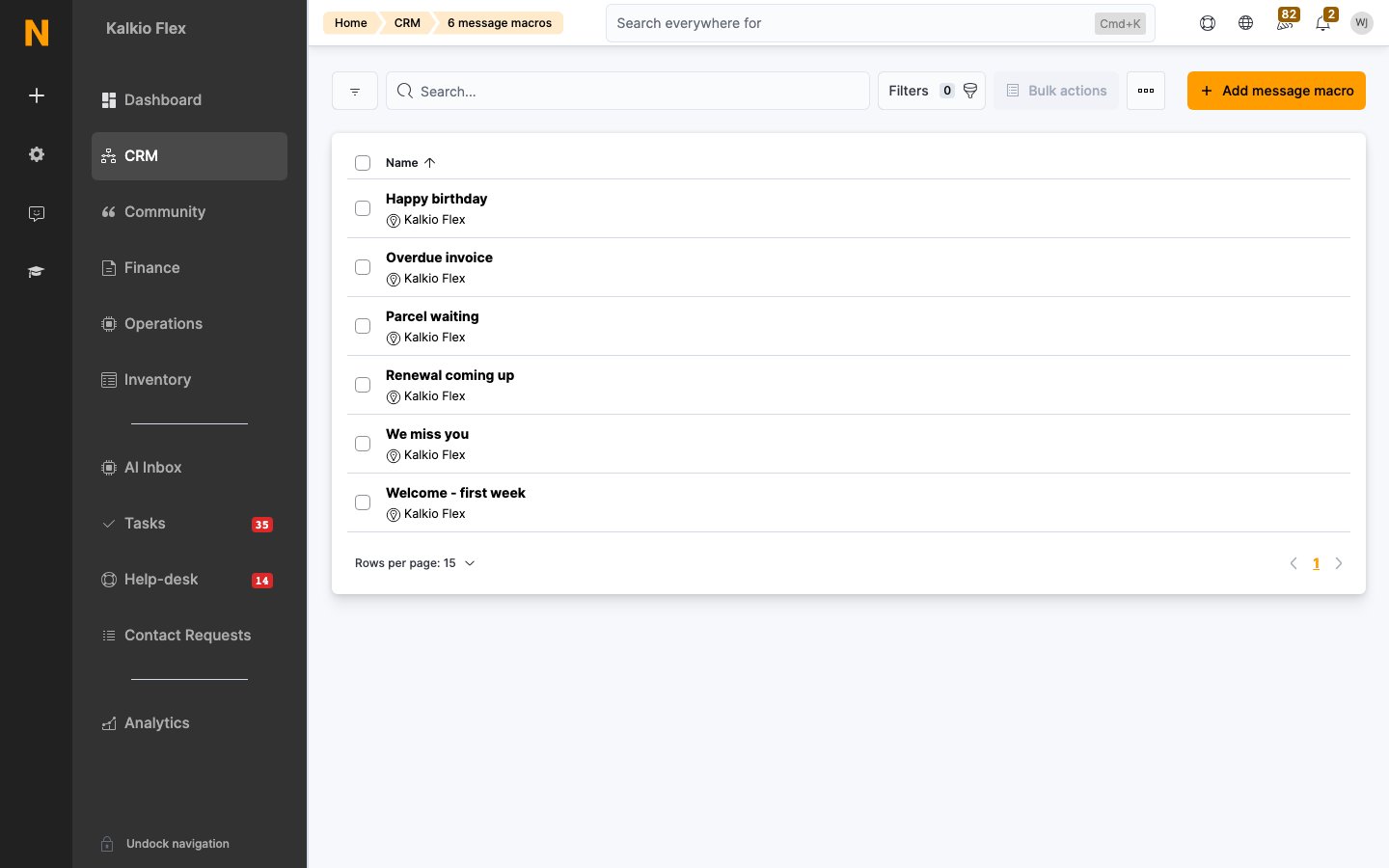
Key concepts
- Macro vs. message. A macro is a saved starting point; a message is what actually gets sent. Editing a macro does not change messages that were already sent.
- Dynamic tokens. In the body editor, open the Dynamic tokens panel to insert personalisation fields — member name, current and next plan, unpaid or due invoices, location details, dates, and more. Each token is replaced with the customer’s live value when the message is sent.
- Location. Every macro is attached to a location, but it can be used to message customers in any location, not just the one it was created under.
- Used by automations. Reminders and CRM board stage actions reference a macro, so updating a macro updates every future send that uses it.
Creating a macro
1
Open Message macros
Go to CRM → Tasks & documents → Documents → Message macros and click Add message macro.
2
Set the location
Choose the Location the macro belongs to. This does not limit where it can be sent from.
3
Name it and add a subject
Give it a clear Name that describes when to use it (e.g. “Welcome — new member”), and set the Subject line shown in the customer’s inbox.
4
Write the contents
Compose the Contents in the rich-text editor. Open the Dynamic tokens panel to insert personalisation fields where the content varies per customer.
5
Save
Save the macro. It is now available in message composition, reminder configuration, and CRM board stage actions.
Using a macro
- In a manual message: when composing a message to a customer, choose the macro from the Message macro field. Its subject and body are filled in automatically and can still be edited before sending.
- In a reminder: set How to deliver this reminder to Send message macro with your own content, then pick the macro. Every triggered send uses the same wording.
- In a CRM board stage action: point a board column’s action at a macro so that moving an opportunity into that stage emails it automatically.
Related
- Reminders — automated sends built on macros
- Boards — stage actions that fire a macro
- Email accounts — the connections that deliver and receive mail