

Overview
Surveys are structured questionnaires you use to capture feedback and other details from your customers — satisfaction checks, workspace experience check-ins, welcome surveys. A survey has a name, a description, and a set of questions. You can send one as a one-off or on a repeating schedule, and target it to a specific audience.How to access
Navigate to Community → Surveys in the dashboard. The list shows each survey’s name, its next delivery date, and its status — either Active with how often it’s sent (e.g. “Send every 10 weeks”), or Manual if it isn’t sent automatically.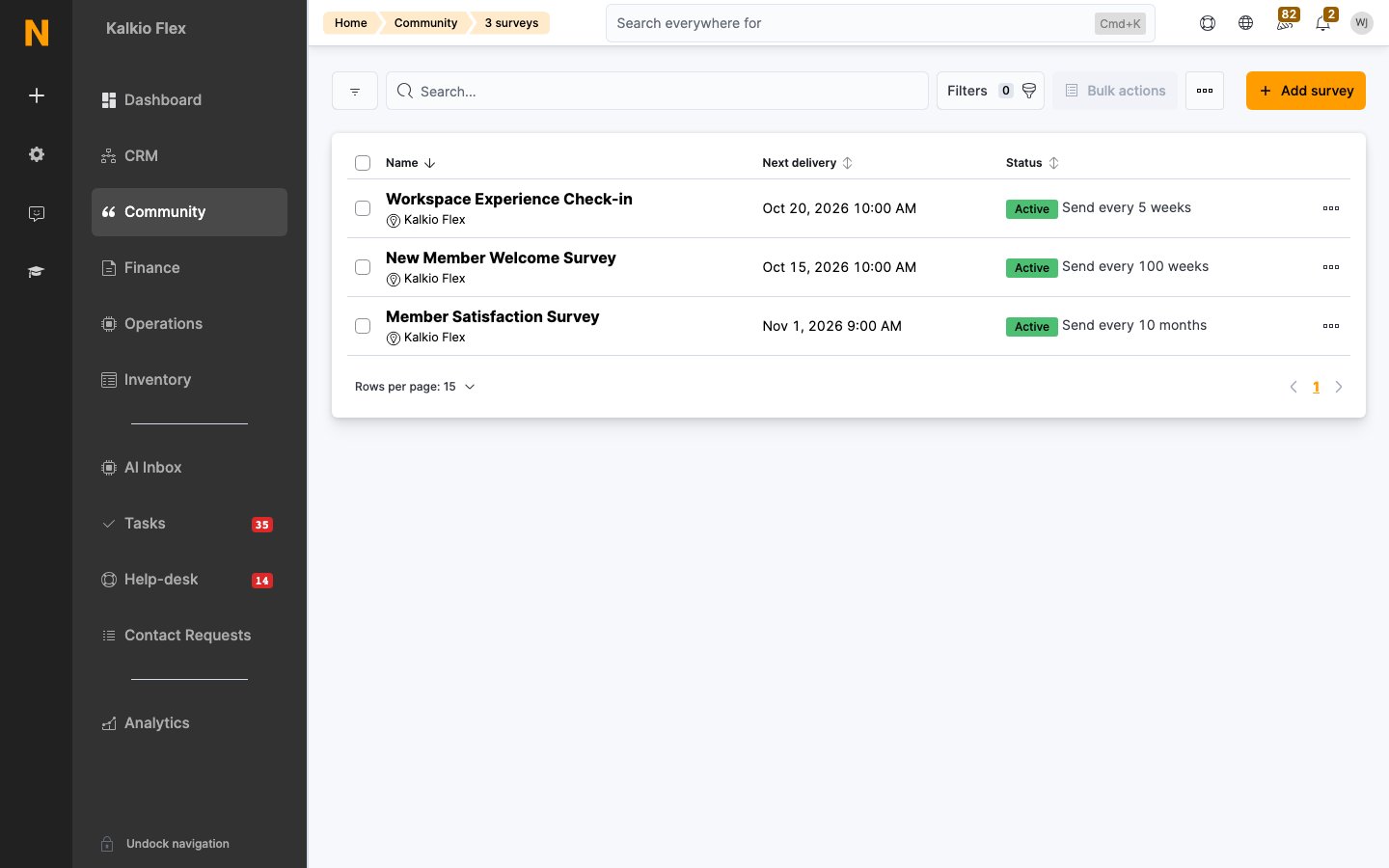
Creating a survey
1
Open Surveys
Go to Community → Surveys and click Add survey.
2
Name it
Give the survey a Name and a short Description, and choose its Location.
3
Set up automatic sending
Choose whether the survey is sent automatically. Leave it off to keep it manual, or turn it on and pick how often it goes out — every so many weeks, months, or years — plus the next delivery date. You can also cap it so it stops sending after a given date.
4
Choose the audience
Select who receives the survey: all customers, contacts (customers without an active contract), or members (customers with an active contract) — optionally narrowed to specific plans.
5
Add questions
Open the survey’s Questions section and add each question (below).
Adding questions
From the survey’s Questions view, click Add question for each one. A question has a prompt, an optional description, an active toggle, and a question type:- Text — a short free-text answer.
- Long text — a longer free-text answer.
- Yes/No — a single yes-or-no answer.
- Date — a date answer.
- Options menu — pick from a list of options you define; optionally let respondents select more than one.
- File — accept a file upload.
Sending and reviewing
- Preview link. Once saved, the survey has a copyable preview link you can open to check how it looks before anyone sees it.
- Automatic vs manual. An active survey is delivered to its audience on the schedule you set; the next delivery date updates automatically after each send. A manual survey is only sent when you trigger it.
- Via a reminder. A survey can also be attached to a reminder; in that case the reminder’s audience controls who receives it.
- Results. Use the View results action on the survey to open its report and review the responses.
Related
- Reminders — trigger a survey from an automated reminder
- Newsletters — point subscribers at a survey
- Announcements — flag a survey to portal users