

Overview
Proactive AI Agents are automated monitoring rules that watch for specific patterns in your coworking space — like an overdue invoice, a contract approaching expiry, or a member who hasn’t checked in for two weeks — and then propose the right action at the right time. The AI Agents Configuration page is where you enable, disable, and customize each agent. You can access it by navigating to Operations > AI Agents in the Dashboard, or by clicking Configure Agents from the AI Inbox page.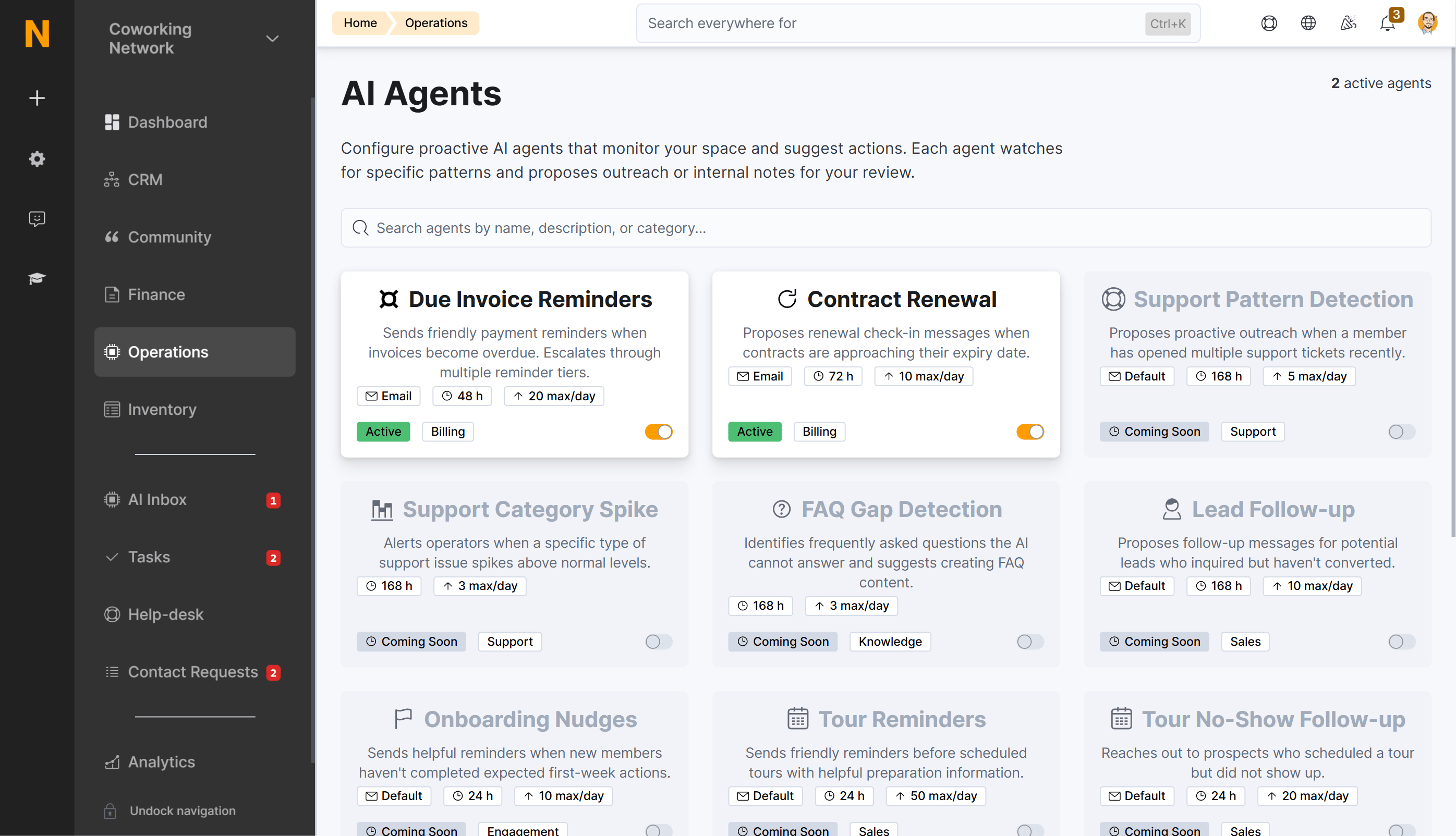
How to Access
- Log in to your Dashboard.
- Navigate to Operations in the left sidebar
- Click AI Agents under the AI Inbox section
- Alternatively, go to AI Inbox, then click Configure Agents in the right sidebar
The Configuration Interface
The AI Agents page displays all available agents as cards in a grid layout. Each card shows:- Agent icon — Represents the agent’s category (e.g., currency for billing, refresh for contracts)
- Agent name — The display name of the agent
- Description — A brief explanation of what the agent monitors
- Status badge — Shows Active (green) when enabled, Inactive (grey) when disabled
- Auto badge — Appears in yellow when auto-execute is enabled for that agent
- Category badge — Shows the agent’s category (Billing, Sales, Engagement, etc.)
- Toggle switch — Enable or disable the agent with a single click
- Channel badge — Shows the configured communication channel (Email, WhatsApp, Voice, or Default)
- Cooldown badge — Displays the cooldown period in hours
- Max actions badge — Shows the maximum number of actions allowed per day
- Search bar — Filter agents by name, category, or description
- Active agent counter — Shows how many agents are currently enabled
- Agent definitions — Agents are loaded from the frontend registry (
agentDefinitions.ts) and map 1:1 to backend criteria evaluators
Agent Card
Understand what each agent card displays and how to read the badges.
Configuring Agents
Step-by-step guide to enabling agents and customizing their behavior.
Agent Types Reference
Comprehensive reference for all available agent types and their settings.
Agent Lifecycle
Each agent follows a consistent lifecycle:- Monitoring — The agent continuously watches for patterns defined in its criteria (e.g., invoices past due date, contracts within 30 days of expiry)
- Evaluation — When a pattern is detected, the agent calculates a confidence score based on how strongly the situation matches the criteria
- Proposal — A proposed action appears in your AI Inbox with a suggested message or note
- Review — You approve, edit, or reject the proposed action (unless auto-execute is enabled)
- Execution — Once approved, the action is sent through the configured channel (email, WhatsApp, voice call, or internal note)
Agent Categories
Agents are organized into categories that reflect the area of your business they monitor:
Some agents are available now; others are marked as Coming Soon. The full list with detailed information is on the Agent Types Reference page.
Key Concepts
Best Practices
Getting Started
- Start slow — Enable one or two agents at a time to understand how they work
- Use manual review first — Keep auto-execute disabled for the first 1–2 weeks while you monitor the quality of proposed actions
- Review your AI Inbox daily — Get familiar with the types of actions each agent proposes
- Test voice calls — If enabling voice agents, use the test call feature to verify quality before going live
Optimization
- Adjust cooldowns — If you’re seeing too many or too few actions, adjust the cooldown period
- Monitor approval rates — Track how often you approve vs. reject actions to calibrate confidence thresholds
- Customize prompts — Once comfortable, customize first messages and system prompts to match your location’s tone
- Review metrics weekly — Check which agents are most active and which generate the most value
Safety Tips
- Never enable auto-execute immediately — test with manual review first
- Start with conservative rate limits (higher cooldown, lower max actions per day)
- Test voice calls thoroughly before enabling auto-execute for voice agents
- Monitor customer feedback and adjust accordingly
- Remember that Coming Soon agents cannot be enabled — they’re planned features
What’s Next?
- Learn how to configure individual agents with step-by-step instructions
- Browse the Agent Types Reference for detailed information on each agent
- Understand how to review and manage proposed actions in the AI Inbox