

Overview
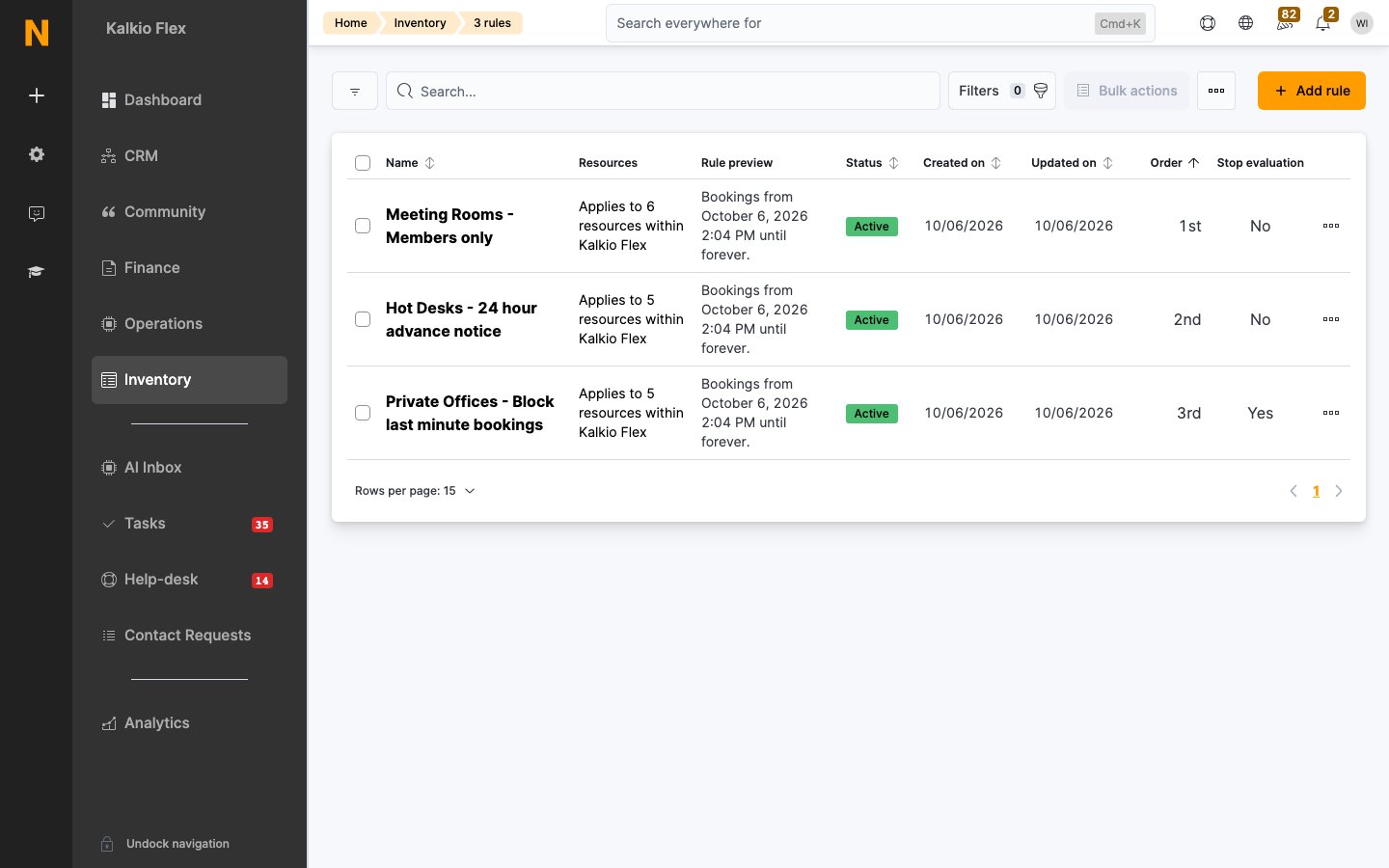
A resource rule applies booking limits only when certain conditions are met. For example:- Only members can book the conference room.
- Contacts must book phone booths at least 24 hours ahead.
- Bookings over $500 can’t be made in the last 48 hours.
- Cancellations within 48 hours cost 25% and within 24 hours cost 50%.
How to access
- All rules: Inventory → Resources → Resource rules.
- Rules for one resource: open the resource and go to its Rules tab.
Key concepts
Create a rule
Select Add rule and choose a wizard for a common setup, or Manual entry.Wizards
Manual entry
1
Rule details
Choose the Location and the Resources the rule covers. Leave Resources empty to cover all resources. Enter a Rule name, set the Evaluation order, and turn on This rule is active. Turn on Stop the evaluation of other rules if this one is met only if later rules should be ignored when this one applies.
2
Conditions
On the Conditions tab, set when the rule applies (see below).
3
Limits
On the Limits tab, set what the rule enforces (see below).
4
Save
Select Save changes. The rule applies straight away.
Conditions
Limits
These work like the matching sections of a resource’s limits.
Evaluation order
When several rules cover a resource, Nexudus checks them in evaluation order, 1st first. A rule’s evaluation order is the same for every resource it covers, so plan the order across both location-wide rules and rules for single resources. Stop the evaluation of other rules if this one is met skips every later rule once this one applies. For example, if a resource has three rules and rule 2 has this option on, rule 3 is ignored whenever rule 2 applies.Stepped cancellation fees
To charge different fees depending on how late a customer cancels, use the Stepped cancellation fees wizard. It asks for:- Rule name prefix
- Longer window (hours) and Shorter window (hours), for example 48 and 24
- Fee for the longer window (%) and Fee for the shorter window (%), for example 25 and 50
- Cancellation fee product, the product used to invoice the fee
Turn a rule off
Open the rule and turn off This rule is active. It stops applying but stays saved, so you can turn it back on later.Tips
- Start with the resource’s own limits, and add rules only for exceptions.
- Keep rules few and specific. Many overlapping rules are hard to reason about.
- Test a new rule by booking as a customer the rule should affect, and as one it shouldn’t.