Overview
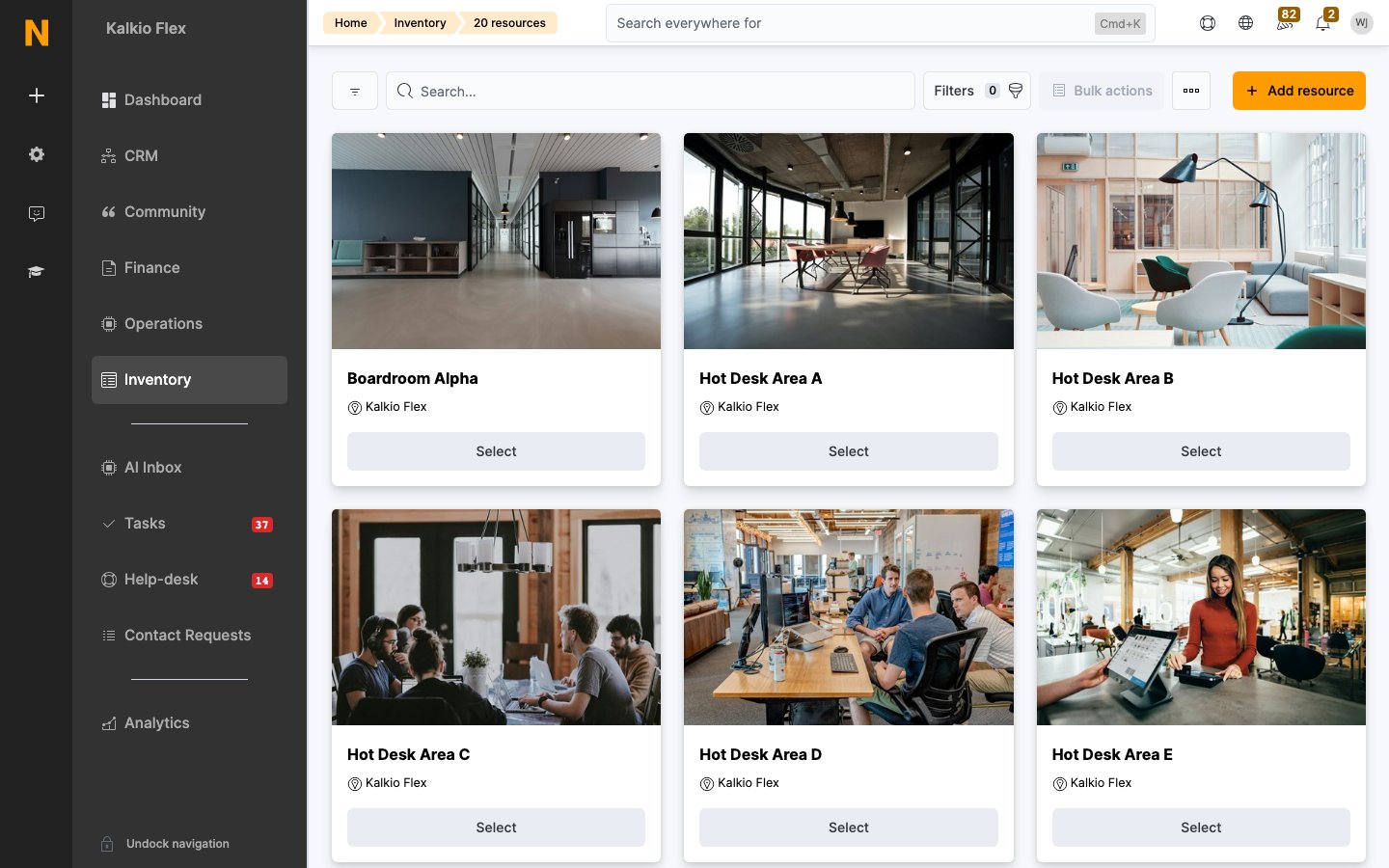
Resources are physical spaces or items that customers can book through your members portal. Examples include meeting rooms, hot desks, parking spaces, coliving rooms, recording studios, or equipment. Each resource has its own name, description, photo, and location. You define how customers can book it, how much they pay, and what rules apply.How to access
Navigate to Inventory → Resources or use the direct link: Manage resources.Resource kinds
Every resource has a kind (eResourceType) that determines its core booking behaviour. Choose the kind that best matches what you are adding.
| Kind | ID | Description |
|---|---|---|
| Meeting room | 1 | A room for meetings, events, or collaborations |
| Hot-Desk | 2 | An open-area desk that customers can book by time slot |
| Day office | 3 | A private office for daily use |
| Event space | 4 | A venue for events and gatherings |
| Lab | 5 | A laboratory or workshop space |
| Kitchen | 6 | A kitchen or food preparation area |
| Treatment room | 7 | A room for wellness or treatment services |
| Storage unit | 9 | A storage space or locker |
| Machine | 10 | Equipment or machinery that can be booked |
| Day pass | 11 | A pass granting access to the space for a day |
| Phone booth | 12 | A private booth for phone calls |
| Studio | 13 | A recording or creative studio |
| Car park | 14 | A parking space |
| Other resources | 99 | Any resource that doesn’t fit the categories above |
When to use each kind
- Use Meeting room for any enclosed room with a booking calendar.
- Use Hot-Desk for open-area desks where customers pick a spot within a time window.
- Use Day office for private offices that can be booked daily.
- Use Event space for venues hosting events or gatherings.
- Use Lab for laboratory or workshop spaces.
- Use Kitchen for kitchen or food preparation areas.
- Use Treatment room for wellness or treatment services.
- Use Storage unit for lockers or storage spaces.
- Use Machine for equipment or machinery that can be booked.
- Use Day pass for passes granting access to the space for a day.
- Use Phone booth for private phone call booths.
- Use Studio for recording or creative studios.
- Use Car park for parking spaces.
- Use Other resources for anything that doesn’t fit the categories above.
Resource types
A resource type is a grouping label that determines which rates apply to a resource. All resources of the same type share the same set of prices. For example, you might create separate resource types for “Meeting Rooms” and “Parking” so each category can have its own pricing structure.Creating a resource type
Creating a resource
Fill in the resource details
Complete the fields on the Resource details tab — see the Resource details section below.
Configure features and amenities
On the Features tab, check all the features and amenities the resource offers.
Resource details
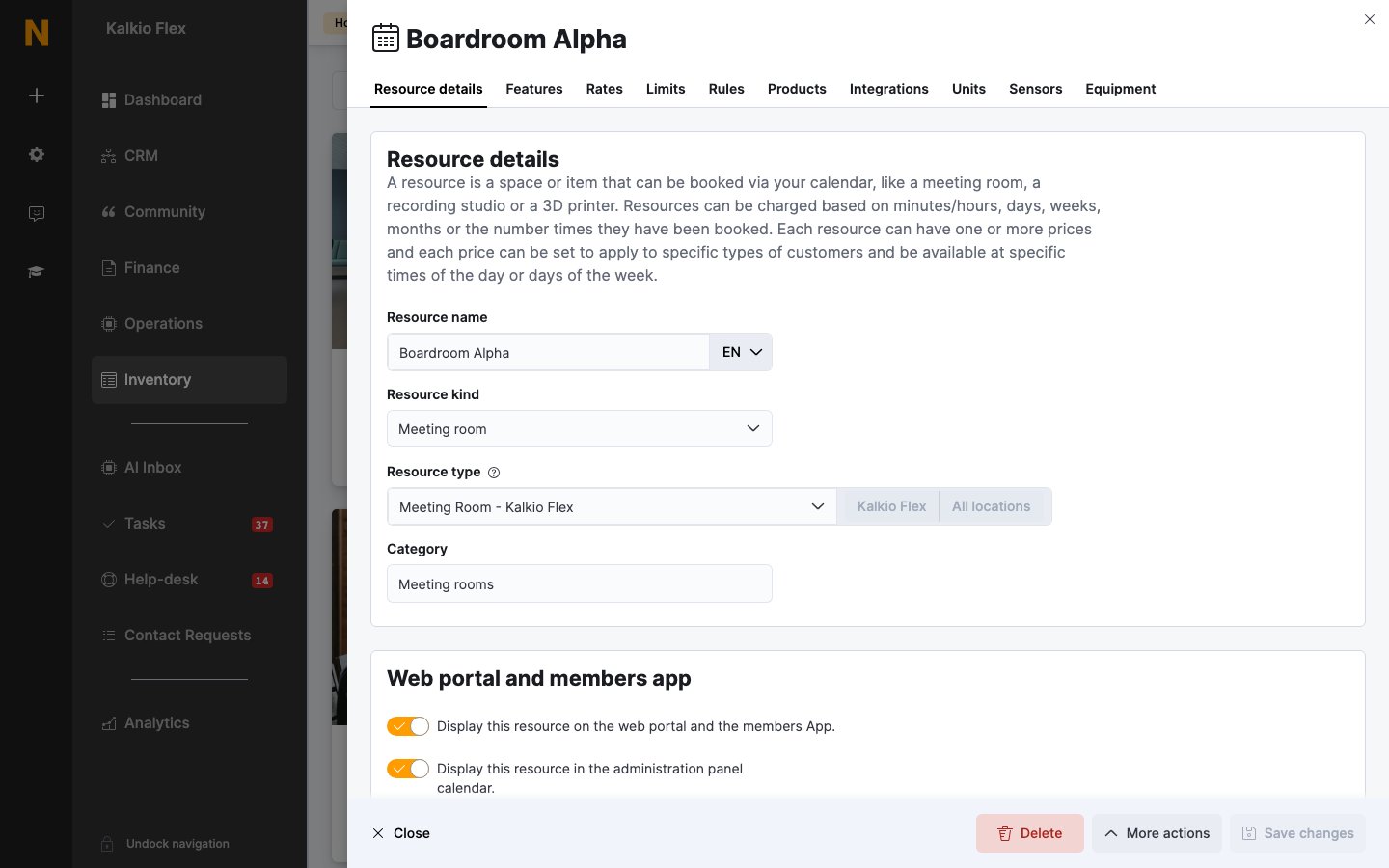
The Resource details tab contains the core information about the resource.General fields
| Field | Description |
|---|---|
| Resource name | The name displayed to customers in the members portal and booking calendar |
| Resource kind | The type of resource (see Resource kinds above) |
| Resource type | The grouping that determines which rates apply. All resources of the same type share the same set of prices |
| Category | A free-text tag used to group resources (e.g., “Floor 1”, “Main Building”) |
| Available at | The location where this resource is situated. If you choose a network location, the resource is available at all locations in that network |
Features and amenities
The Features tab lists checkboxes for everything the resource provides. These appear in the members portal so customers know what to expect.Features
| Feature | Description |
|---|---|
| Standing desk | The resource includes a standing desk |
| Quiet zone | The resource is in a quiet area |
| Privacy screen | The resource is surrounded by a privacy screen |
| Soundproof | The resource is in a soundproof room |
| Catering | The resource offers catering |
| Tea and coffee | The resource offers tea and coffee |
| Drinks | The resource offers drinks |
Amenities
| Amenity | Description |
|---|---|
| Projector | The resource has a projector |
| Internet | The resource has internet access |
| Conference phone | The resource has a conference phone |
| Standard phone | The resource has a standard phone |
| Whiteboard | The resource has a whiteboard |
| Large display | The resource has a large display screen |
| Video conferencing | The resource supports video conferencing |
| Dual display screen | The resource has dual screens |
| Display screen | The resource has a display screen |
| Wireless presentation | The resource supports wireless presentation |
| PA system | The resource has a public address system |
| Desktop monitor | The resource has a desktop monitor |
| Flip chart | The resource has a flip chart |
| Secure storage | The resource has secure storage |
| CCTV | The resource has CCTV coverage |
| Voice recorder | The resource has a voice recorder |
| Air conditioning | The resource has air conditioning |
| Heating | The resource has heating |
| Natural light | The resource has natural light |
| Wireless charger | The resource has a wireless charger |
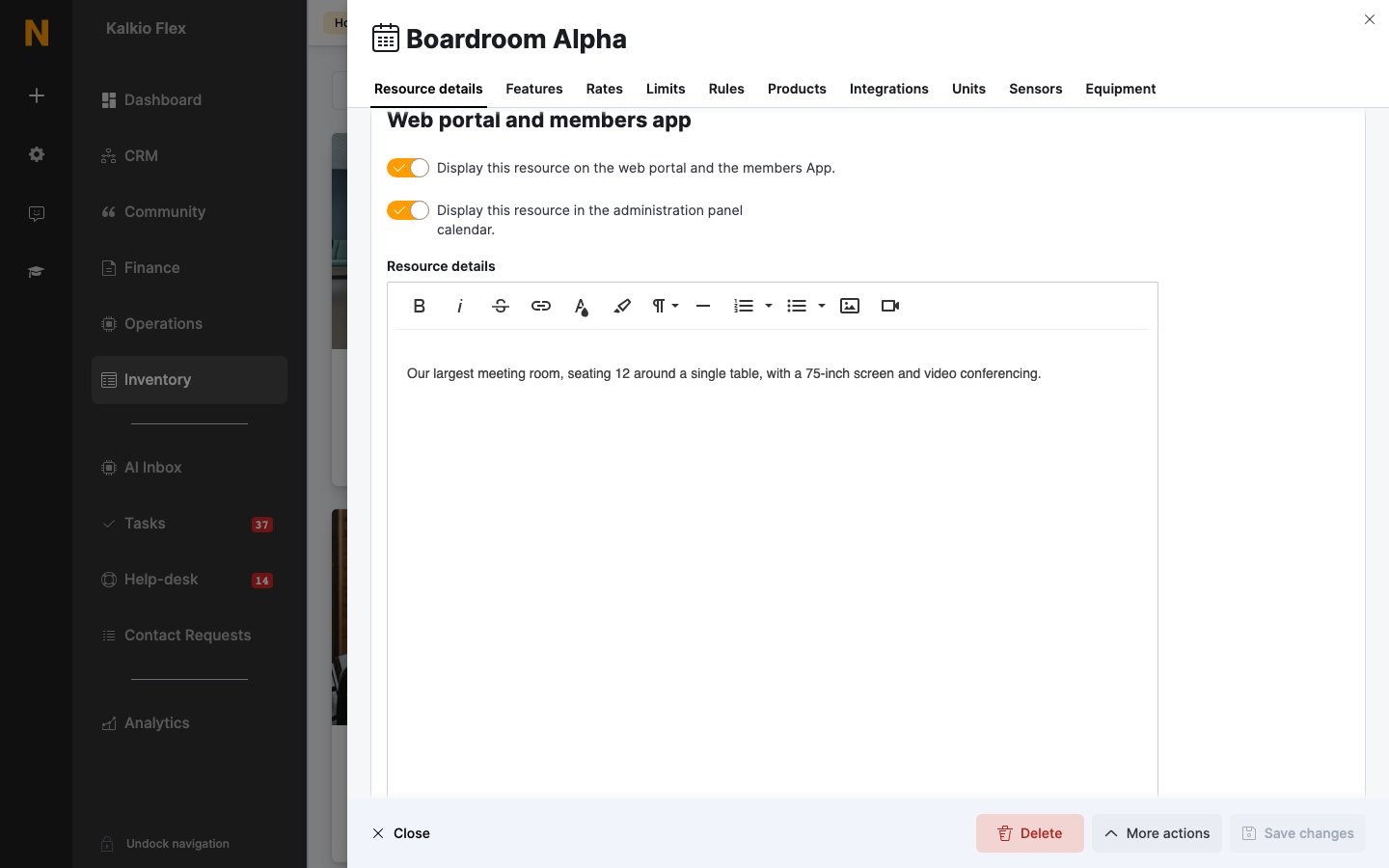
Web portal and members app
| Field | Description |
|---|---|
| Display on website/App | Whether the resource appears in the members portal and mobile app |
| Display in administration panel calendar | Whether the resource appears on the admin booking calendar (unchecked by default) |
| Resource details | A rich-text description shown to customers in the members portal |
| Email confirmation details | Text included in the booking confirmation email. Use the {confirmationContent} token in your email templates to include this |
| Photo | An image of the resource shown in the members portal |
Location
Set the physical latitude and longitude of the resource using the map picker. This is useful for resources that customers need to find on-site.Rates
Resources can have any number of rates based on:- The type of customer booking (member or contact)
- The time of day the booking starts
- The day of the week
- The duration of the booking
How rates work
- Rates are grouped by resource type — all resources of the same type share the same rates.
- Each rate has a charge period (minutes, hours, half day, day, week, month) and a price.
- Rates can specify minimum and maximum booking durations they apply to.
- Rates can be restricted to specific time slots (days of the week + start/end times).
- Rates can apply only to members or contacts.
Adding a rate
Configure the rate
- Name — a label for your own organisation (e.g., “Hourly rate - members”)
- Unit price — the amount charged per booking unit
- Charge period — the time unit for the price (minutes, hours, day, week, month)
- Min/Max length — optional booking duration constraints
- Time slots — optional days and times when this rate applies
Limits
The Limits tab defines booking constraints specific to this resource. These apply in addition to any global limits set at the location level.General limits
| Limit | Description |
|---|---|
| Allow multiple bookings | Whether multiple customers can book this resource at the same time (e.g., for a room with multiple desks) |
| Allocation | The maximum number of customers allowed per booking |
| Limit visitors to allocation | Whether the number of visitors is limited by the allocation |
Booking time limits
| Limit | Description |
|---|---|
| Book in advance limit | Maximum number of days in advance a customer can book |
| Late booking limit | Minimum number of hours before the booking start time that a reservation can be made |
| Late cancellation limit | Minimum number of hours before the booking start time that a cancellation is allowed |
| Min booking length | Minimum duration of a booking (in minutes) |
| Max booking length | Maximum duration of a booking (in minutes) |
| Interval limit | Minimum minutes between consecutive bookings for this resource |
Cancellation fees
| Field | Description |
|---|---|
| Charge cancellation fee | Whether to charge a fee for late cancellations or no-shows |
| Cancellation fee amount | A fixed fee amount (if using absolute fees) |
| Cancellation fee percentage | A percentage of the booking price (if using percentage fees) |
| Cancellation fee type | Choose between Absolute (fixed amount) or Percentage (of booking price) |
| Cancellation fee product | Link to a product that represents the cancellation fee |
No return policy
A no-return policy means the booking time is not refunded if cancelled.| Field | Description |
|---|---|
| No return policy | Apply a no-return policy to this resource |
| No return policy for all resources | Apply no-return to all resources |
| No return policy for all users | Apply no-return to all users |
Shifts (Hot Desks)
For hot desk resources, you can define shifts — predefined time blocks such as “Morning” (08:00–13:00) or “Full Day” (08:00–18:00). Customers book a shift rather than a specific time range. Shift templates are managed at the location level. When shifts are enabled, customers select from the available shifts when booking.Rules
Resource rules let you apply specific booking limits and restrictions to specific customers, teams, or time periods. They are a powerful way to manage access without creating separate resources.What resource rules control
- Whether a customer or team can book the resource at all
- How far in advance they can book
- How close to the booking time they can reserve
- How often they can repeat bookings
- Cancellation policies and fees
- No-return policies
Adding a resource rule
Configure the rule scope
- Select which resources the rule applies to
- Select which location
- Choose whether it applies to members only, contacts only, specific teams, or specific customers
Set the booking constraints
Configure advance booking limits, late booking/cancellation limits, repeat booking limits, and any cancellation fees.
Set the effective period (optional)
Define when the rule becomes active using apply from and apply to dates.
Products
The Products tab shows products linked to this resource. Products are items or services sold alongside a resource booking — for example, catering for a meeting room or printing credits for a copy room. See Products for details on managing products.Integrations
Resources can be connected to external services for enhanced functionality.Zoom
Connect a resource to a Zoom account so that every booking automatically includes a Zoom meeting link.- Each resource must be connected to a separate Zoom user account to avoid conflicts when multiple resources are booked simultaneously.
- The Zoom link is included in the booking confirmation email sent to the customer.
You need a licensed Zoom account to use this integration. Connect each resource to a different Zoom user.
Configuring Zoom
Enable meeting links
Check the option to include Zoom meeting links in all bookings for this resource.
NexBoard by Nexudus
NexBoard is a digital signage system that displays real-time availability outside each meeting room. Customers can use NexBoard touchscreen panels or iBeacon tiles to book rooms on the spot. Each resource has two numbers (iBeacon major and iBeacon minor) that link physical iBeacon tiles to the resource. When a customer taps an iBeacon tile with the Nexudus app, they are taken directly to the booking page for that room.Calendar iCal Feeds
Each resource has an iCal feed URL that you can use to sync bookings with external calendar applications like Outlook or Google Calendar. Add the feed URL as a subscribed calendar in your preferred app.Floor plan desks
For resources that represent physical layouts (like open office areas), you can define individual desks or units within the resource. This is managed on the Floor Plan Desks tab. Each desk has its own availability and can be booked independently. Floor plans are visualised using the Floor Plan Editor.Inventory assets
The Inventory Assets tab lets you track individual physical items within a resource — for example, individual projectors in a meeting room or individual desks in an open office area.Sensors
The Sensors tab links IoT sensors to the resource. Sensor data (temperature, humidity, occupancy, etc.) is displayed in the members portal and can trigger automated actions. See Sensors for details.Quick reference
| Concept | Where to configure | Purpose |
|---|---|---|
| Resource kind | During creation | Determines core booking behaviour |
| Resource type | Resource details tab | Groups resources with shared pricing |
| Rates | Rates tab | Prices based on duration, time, customer type |
| Limits | Limits tab | Per-resource booking constraints |
| Rules | Rules tab | Access restrictions for specific customers/teams/times |
| Features & amenities | Features tab | What the resource provides |
| Integrations | Integrations tab | Zoom, NexBoard, iCal connections |
| Floor plan desks | Floor Plan Desks tab | Individual desks within a resource |