

Overview
An email account connects one of your inboxes, such as [email protected], to Nexudus. Nexudus checks the inbox every 15 minutes and copies any email exchanged with a customer to that customer’s record, under CRM → Messages. Your team can then see the full conversation with a customer in one place, even if it happened in Outlook or Gmail. You add email accounts to a location, and can connect as many as you need.How to access
Go to CRM → Email accounts. The list shows each account and whether it’s Active or Inactive.Which emails are copied
Nexudus only looks at emails sent to the connected address, or with the connected address in CC. Of those:- Emails from a customer are added to the record of the customer with that email address. If several customers share the address, the most recently created one gets the email.
- Emails sent from the connected address are added to the record of each customer they were sent to. Because Nexudus only reads emails addressed to the connected inbox, an email you send from it is only picked up if the connected address is also in To or CC.
- Replies are kept in the same conversation as the original message.
If a customer is also one of your admin users, the email is still recorded, but its subject and content are replaced with “Redacted” to protect your team’s mail.
Connect an Office 365 or Outlook account
1
Start the setup
Go to CRM → Email accounts, select Add email account, then select Office 365 Exchange.
2
Enter the account details
Enter a Name for the account and the Email address you’re connecting.
3
Sign in to Microsoft
A Microsoft sign-in window opens. Sign in to the mailbox and allow Nexudus to access it. You don’t need to give Nexudus the mailbox password.
Connect any other email account
For Gmail, iCloud, Yahoo! and any other provider that supports IMAP, enter the server details yourself.1
Start the setup
Go to CRM → Email accounts, select Add email account, then select Manual entry.
2
Name the account
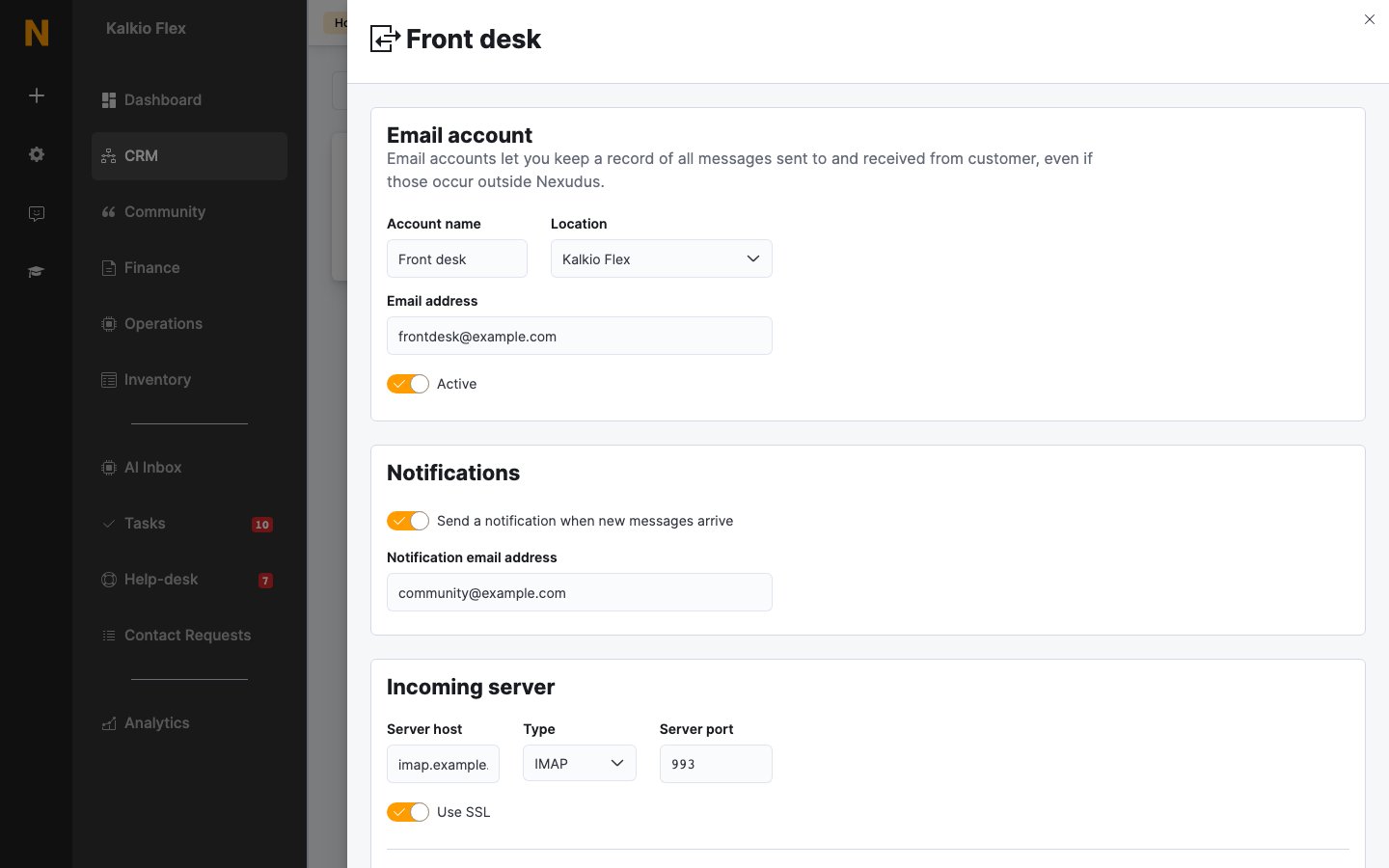
Enter an Account name, choose the Location, enter the Email address you’re connecting, and turn on Active.
3
Set up notifications (optional)
Turn on Send a notification when new messages arrive and enter a Notification email address to be told whenever a customer email is copied to Nexudus. This can be the connected address or any other.
4
Enter the incoming server
Under Incoming server, enter your provider’s Server host, Server port and Use SSL setting, with Type set to IMAP. Then enter the mailbox Username and Password. See Provider settings.
5
Choose a message deletion policy
Choose what happens to emails in your inbox once Nexudus has copied them. See Message deletion policy.
6
Enter the outgoing server
Under Outgoing server, enter your provider’s Server host, Server port and Use SSL setting, then the Username and Password.
7
Set a reply-to address
Enter a Reply-to Email: the address that receives customers’ replies to your messages. It can be the connected address or a different one.
8
Save
Save the account. Nexudus starts checking the inbox within 15 minutes.
Nexudus can only connect to inboxes that support IMAP. Most providers, including Gmail and Outlook, do.
Gmail accounts
Gmail doesn’t accept your normal Google password from other apps, so create an app password first:- Go to myaccount.google.com/apppasswords. You need 2-Step Verification turned on for your Google account.
- Name the app password, for example “Nexudus”.
- Copy the password. Google only shows it once.
Provider settings
Use these settings for the incoming and outgoing servers. For other providers, check your provider’s help pages for its IMAP and SMTP settings.
Turn on Use SSL for both servers with all of these providers.
Message deletion policy
Troubleshooting
- No emails are being copied. Check the account is Active, and that the password hasn’t changed or expired. For Gmail, make sure you used an app password.
- An email is missing from a customer’s record. Check that the sender’s address exactly matches the email address on the customer’s record, and that the connected address was in To or CC.
- Emails you sent aren’t showing. Emails sent from the connected address are only picked up if that address is also in To or CC.
Related
- Files, documents and messages: where copied emails appear on the customer’s record
- Operator takeover: sending replies to AI conversations from a connected email account
- Message macros: reusable replies for your team
- Help desk: customer support requests, which are separate from email accounts