Documentation Index
Fetch the complete documentation index at: https://learn.nexudus.com/llms.txt
Use this file to discover all available pages before exploring further.
Overview
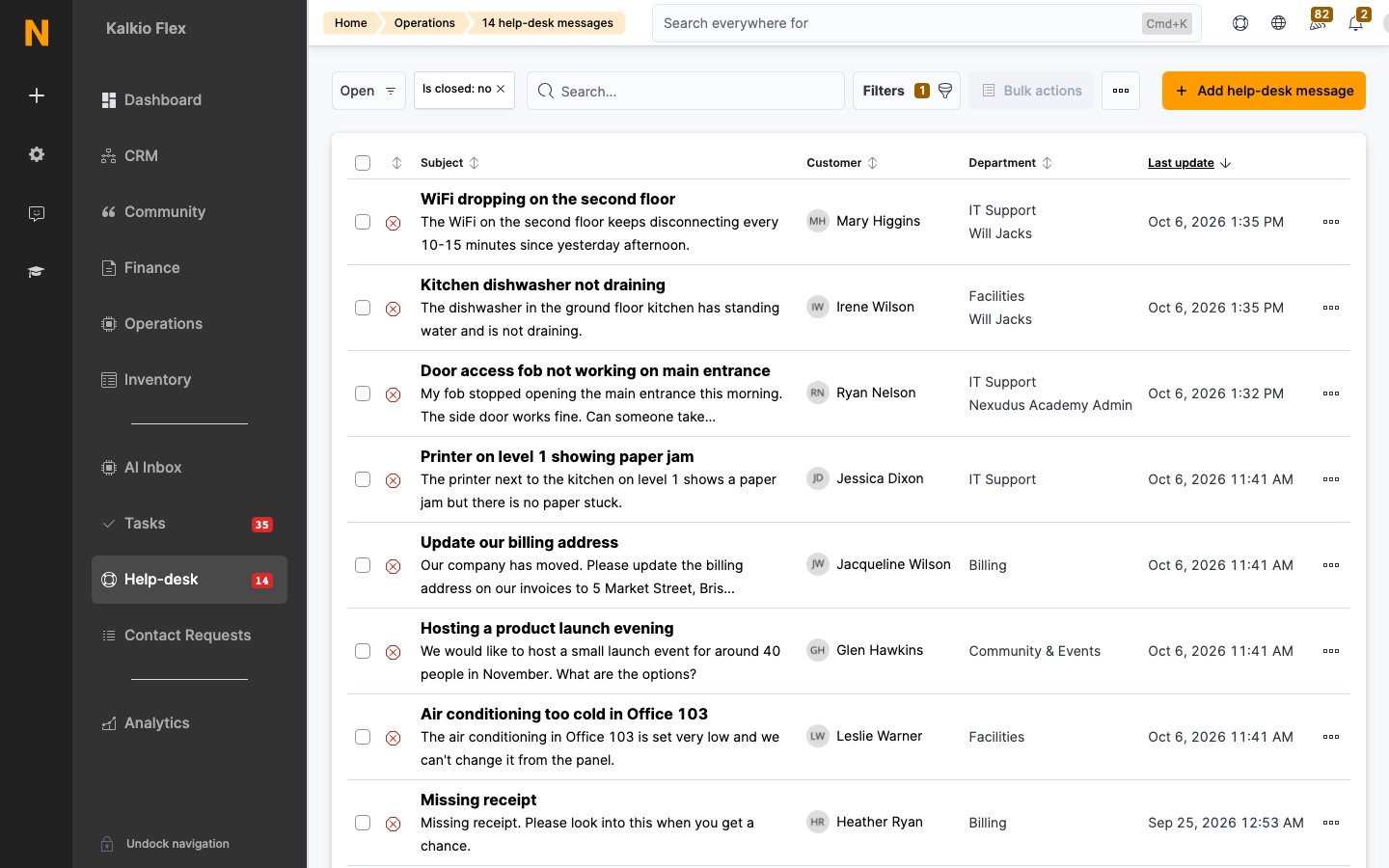
The Help desk lets your customers submit support requests directly from their members portal, and lets your team manage, assign, and resolve those requests from the dashboard. Each request becomes a threaded conversation where staff can reply publicly or leave internal notes. Help desk messages can be routed to departments, assigned to specific owners (staff members), prioritised, and optionally answered automatically by AI using your FAQ articles.How to access
- Help desk messages: Navigate to Operations → Front-desk → Help desk
- Help desk departments: Navigate to Operations → Front-desk → Help desk departments
Requires the helpDeskMessage role.
Key concepts
| Term | Meaning |
|---|---|
| Help desk message | A support request submitted by a customer, containing a subject, message, and optional attachment |
| Comment | A reply to a help desk message — can be public (visible to the customer) or internal (staff-only) |
| Department | A category for routing requests to the right team (e.g., “Billing”, “Technical support”, “Events”) |
| Owner | The staff member assigned to handle a specific request |
| Priority | The urgency level of a request (Low, Normal, High, Critical) |
| Internal reply | A comment only visible to staff — useful for discussing a request before responding to the customer |
The help desk message list
The message list shows all support requests, with quick filter segments:| Segment | Shows |
|---|---|
| Open (default) | All unresolved requests |
| Critical | Open requests with Critical priority |
| Closed | Resolved requests |
Viewing a help desk message
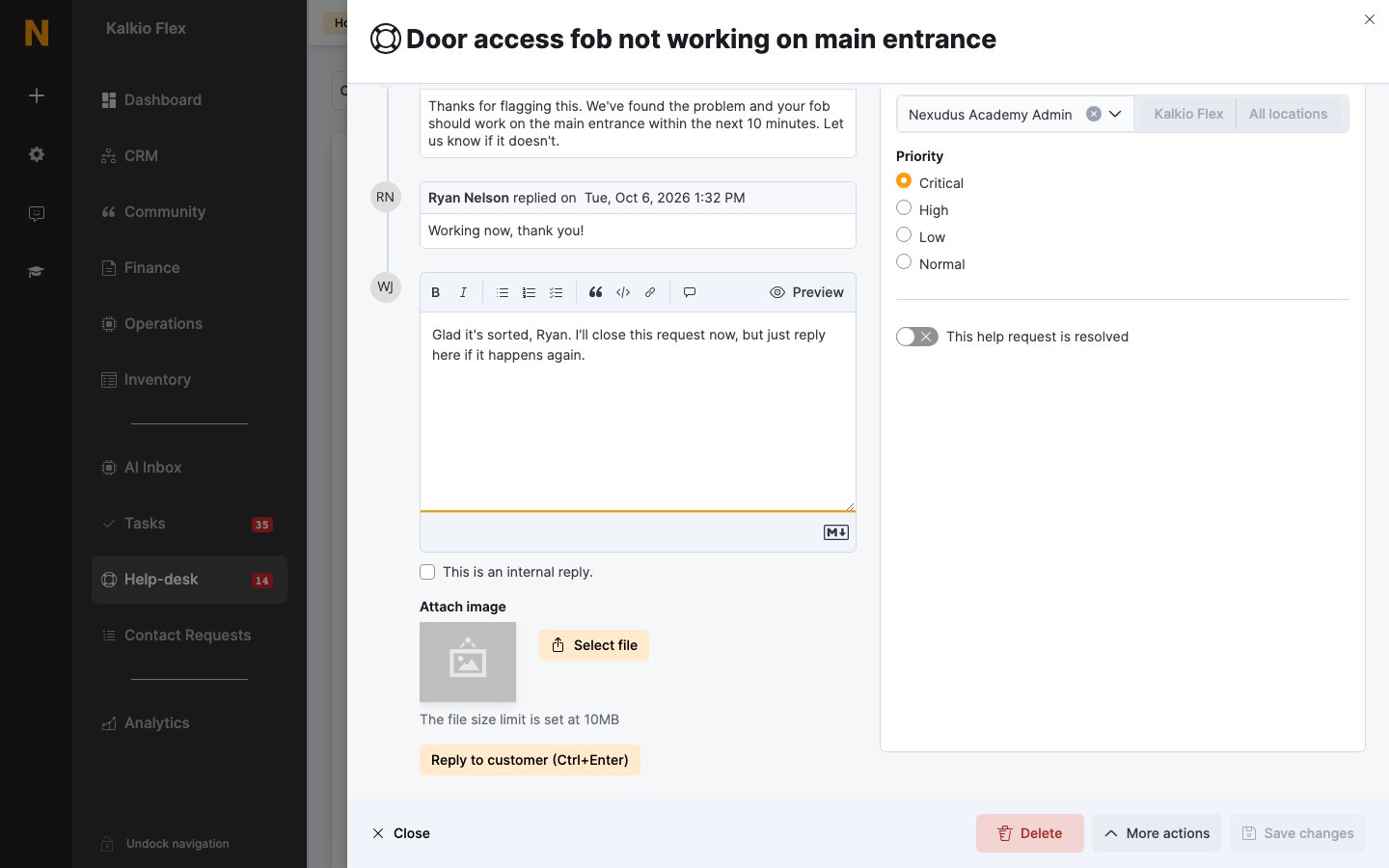
When you open a help desk message, the page is split into two areas:Conversation thread (centre)
- The original message from the customer (with any attachment)
- All subsequent replies in chronological order
- Each reply shows who posted it and when
- Internal replies are visually marked and hidden from the customer
- AI-generated replies show a link to the FAQ article used as the source
Message details (right sidebar)
| Field | Description |
|---|---|
| Customer | The customer who created the request (read-only) |
| Location | The location the request was submitted from (read-only) |
| Department | The department this request is assigned to |
| Owner | The staff member responsible for this request |
| Priority | Low, Normal, High, or Critical |
| Resolved | Checkbox to mark the request as closed |
Creating a help desk message (as staff)
While customers typically create help desk messages from the members portal, staff can also create them on behalf of a customer:Replying to a message
Write your reply
Use the reply composer at the bottom of the conversation thread. Markdown formatting is supported.
Choose visibility
- Leave the Internal checkbox unchecked to send a public reply (customer will see it and be notified).
- Check Internal to post a staff-only note that the customer cannot see.
When a staff member posts a public reply and the message has no owner yet, the replying staff member is automatically assigned as the owner.
Assigning and managing requests
Departments
Assign a request to a department to route it to the appropriate team. When a department is assigned:- All department managers receive a notification about the new request
- If the department has a linked task list, that task list is automatically started for the customer
Owner
Assign a specific staff member as the owner to indicate who is responsible for resolving the request. The owner receives:- Notifications when the customer replies
- Periodic reminders about open requests they own (if they have reminders configured in their profile)
Priority levels
| Level | When to use |
|---|---|
| Low | General questions, non-urgent feedback |
| Normal (default) | Standard requests that need attention within normal timeframes |
| High | Important issues that need prompt attention |
| Critical | Urgent problems affecting the customer’s ability to work |
Resolving a request
Check the “This help request is resolved” checkbox in the sidebar to close the request. The closure time is recorded automatically. If a customer replies to a closed request, it is automatically re-opened.Departments
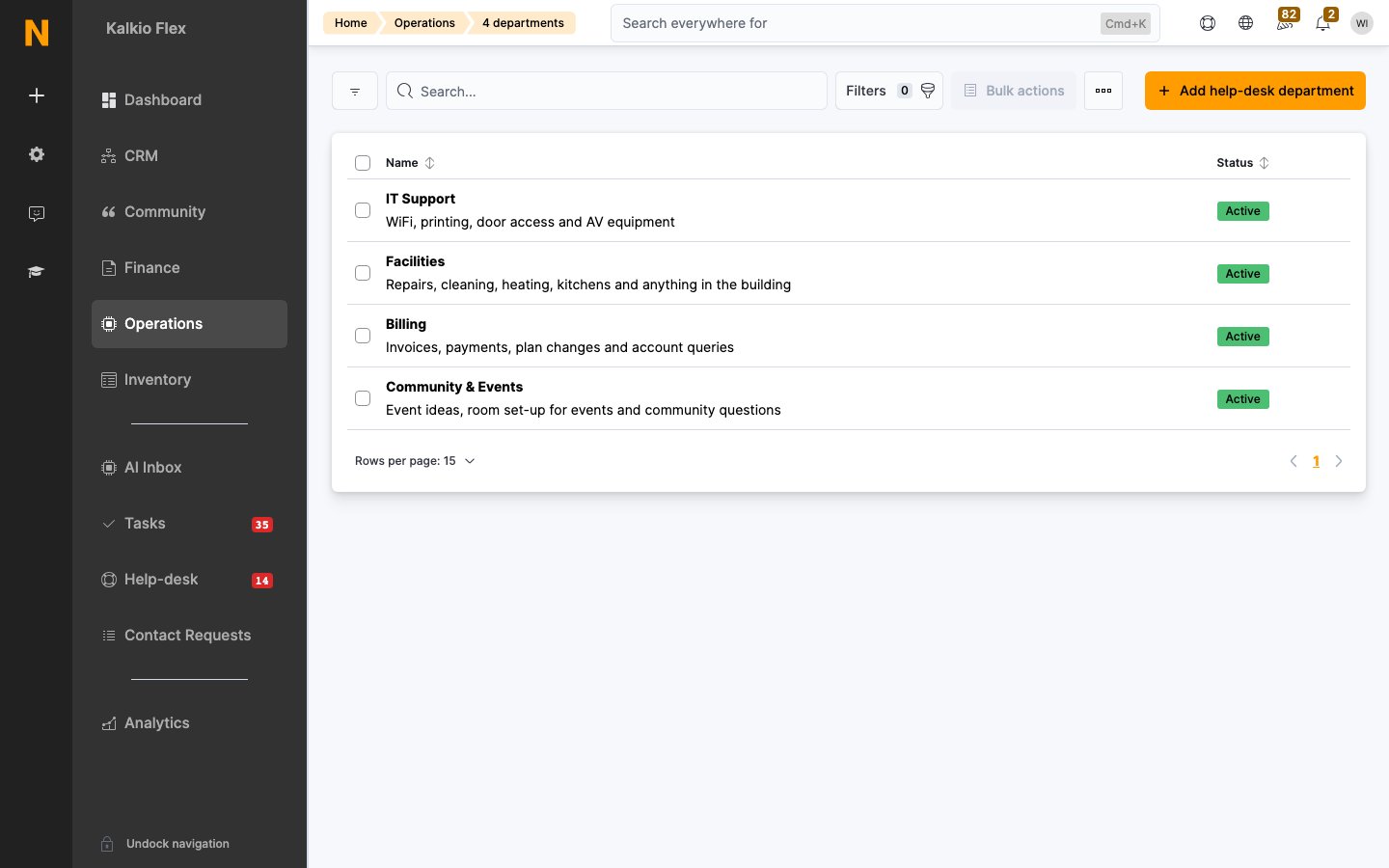
Departments help you organise and route incoming help desk requests. Navigate to Operations → Front-desk → Help desk departments to manage them.Department fields
| Field | Description |
|---|---|
| Name | The department name shown to customers when they submit a request (unique per location) |
| Description | Explains what type of requests should be sent here (shown to customers) |
| Active | Whether this department appears as an option for new requests |
| Department managers | Staff members who receive notifications for requests in this department |
| Start task list | An optional task list that is automatically assigned to the customer when a request is created in this department |
AI auto-replies
When AI help desk replies are enabled, the system automatically attempts to answer incoming customer messages using your FAQ articles.How it works
- A customer submits a help desk message (or replies to an existing one)
- The system searches your FAQ articles for a relevant answer
- If a match is found, an AI-generated reply is posted automatically, including a link to the source FAQ article
- The message is marked as “AI responded”
- If no relevant FAQ is found, the message is marked as “AI not responded” (requires manual follow-up)
AI processing states
| State | Meaning |
|---|---|
| Not processed | AI reply is not enabled or was not attempted |
| Responded | The AI found a relevant FAQ and posted an automatic reply |
| Not responded | The AI was unable to find a relevant answer — requires staff attention |
AI replies are posted as public comments visible to the customer. They appear in the conversation thread with a reference to the FAQ article used. Staff can follow up with additional details if needed.
Notifications
When a new request is created
| Recipient | Condition |
|---|---|
| Department managers | If a department is assigned |
| Help desk notification subscribers | If no department is assigned |
When a customer replies
| Recipient | Condition |
|---|---|
| The assigned owner | If the request has an owner |
| Department managers | If no owner but a department is assigned |
| Help desk notification subscribers | If neither owner nor department is assigned |
When staff replies (public)
| Recipient | Condition |
|---|---|
| The customer | Always (email + push notification) |
Reminders
Staff members who own open help desk requests receive a weekly reminder email about their unresolved requests every Monday at 8:00 AM (in the location’s local time).Webhooks
The following webhook events are triggered by help desk activity:| Event | Triggered when |
|---|---|
| Help desk message created | A new request is submitted |
| Help desk message updated | A request is modified (priority change, department change, closure, etc.) |
| Help desk comment created | A reply is posted (public or internal) |
SLA metrics
The help desk tracks response time metrics for each request:| Metric | Meaning |
|---|---|
| First response time | Minutes between the request creation and the first staff reply |
| Minutes to close | Total minutes from creation to resolution |
Member portal settings
Customers can submit help desk requests from their members portal. To control this:| Setting | Location | Effect |
|---|---|---|
| Users can request help using the help-desk module | Settings → Members → Portal features | Enables or disables the help desk section in the members portal |
Best practices
- Create departments that match your team structure (e.g., “Billing”, “Facilities”, “IT Support”) so requests reach the right people immediately.
- Assign owners as soon as possible to ensure accountability and prevent requests from being missed.
- Use internal replies to discuss sensitive matters with your team before responding to the customer.
- Set up FAQ articles comprehensively — when AI auto-reply is enabled, well-written FAQs can resolve common questions automatically, reducing staff workload.
- Monitor the “Critical” segment daily to ensure urgent requests get immediate attention.
- Use the task list automation on departments to trigger standard procedures (e.g., “WiFi issue” department triggers a troubleshooting checklist).
- Review first response time regularly to ensure your team is meeting customer expectations.
Related pages
FAQ articles
Create FAQ articles that power AI auto-replies and help customers self-serve.
Members
View a customer’s help desk history from their profile.
Webhooks
Set up automations triggered by help desk events.
AI assistant
Learn more about AI-powered features in Nexudus.