

Overview
Passes control when customers can check in at your locations. Every check-in uses a pass, and if you’ve connected a door access or Wi-Fi system, passes control access through it too. There are two types of pass:
A pass is a template: creating one doesn’t give it to anyone. Customers get passes through their plan, a product they buy, directly from you, or automatically through pay as you go.
Availability and check-in rules
Where, when, and by whom a pass can be used, and which pass is used first.
Pay as you go
Charge customers who check in without a pass for the time they spend on site.
Giving passes to customers
Include passes in plans and products, or add them to a customer directly.
How to access
Navigate to Inventory → Passes in the dashboard. Each row shows the pass’s Name and location, its Type (Day or Time, plus PAYG for pay-as-you-go passes), the Time included, the Price, and its Priority.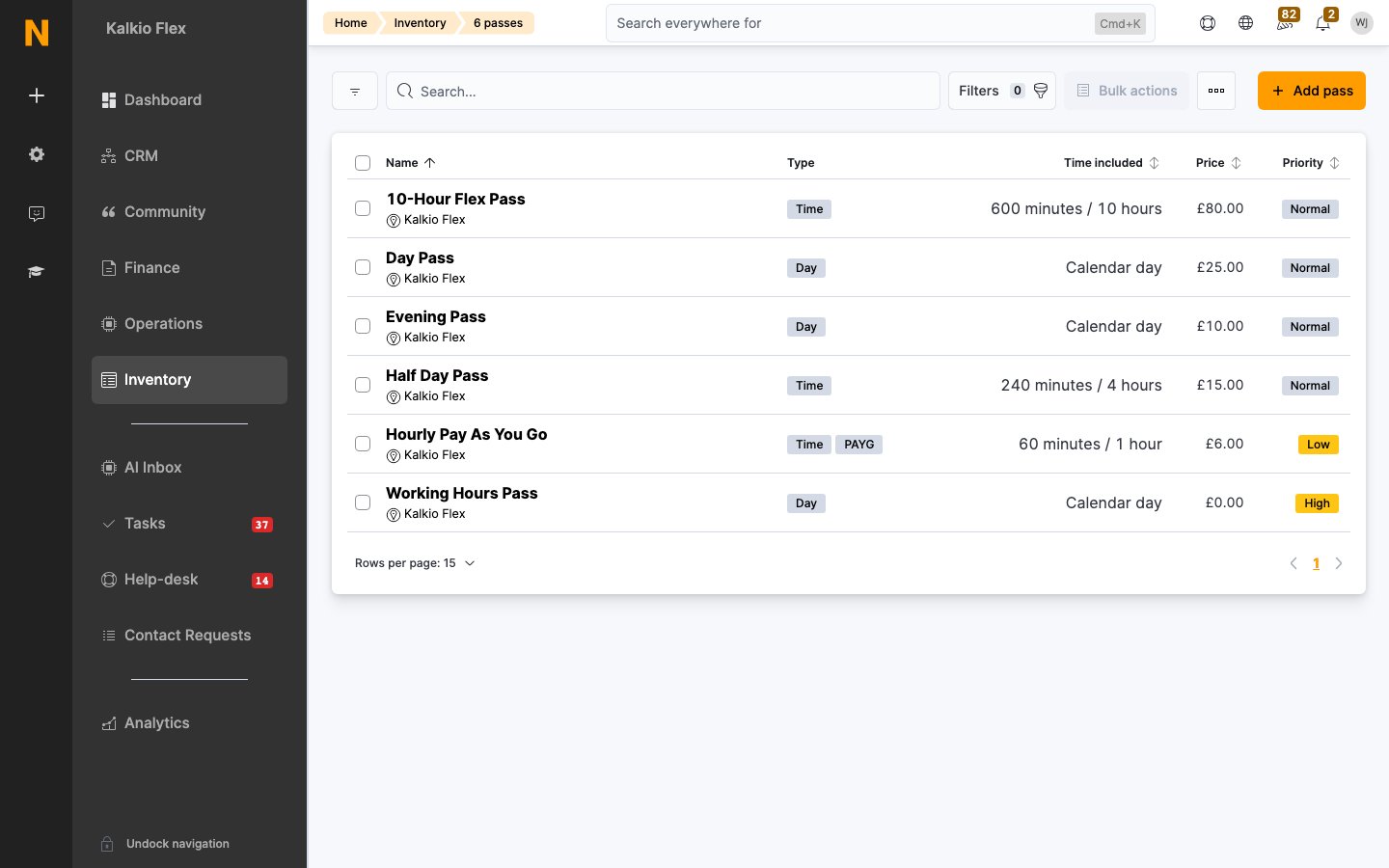
Creating a pass
Click Add pass. You can start from a blank pass or use one of the two shortcuts:- Working hours pass — a free day pass limited to Monday to Friday between the hours you enter.
- Pay As You Go Pass — a one-hour time-based pass at the hourly price you enter, sold automatically to members and contacts who check in without a pass.
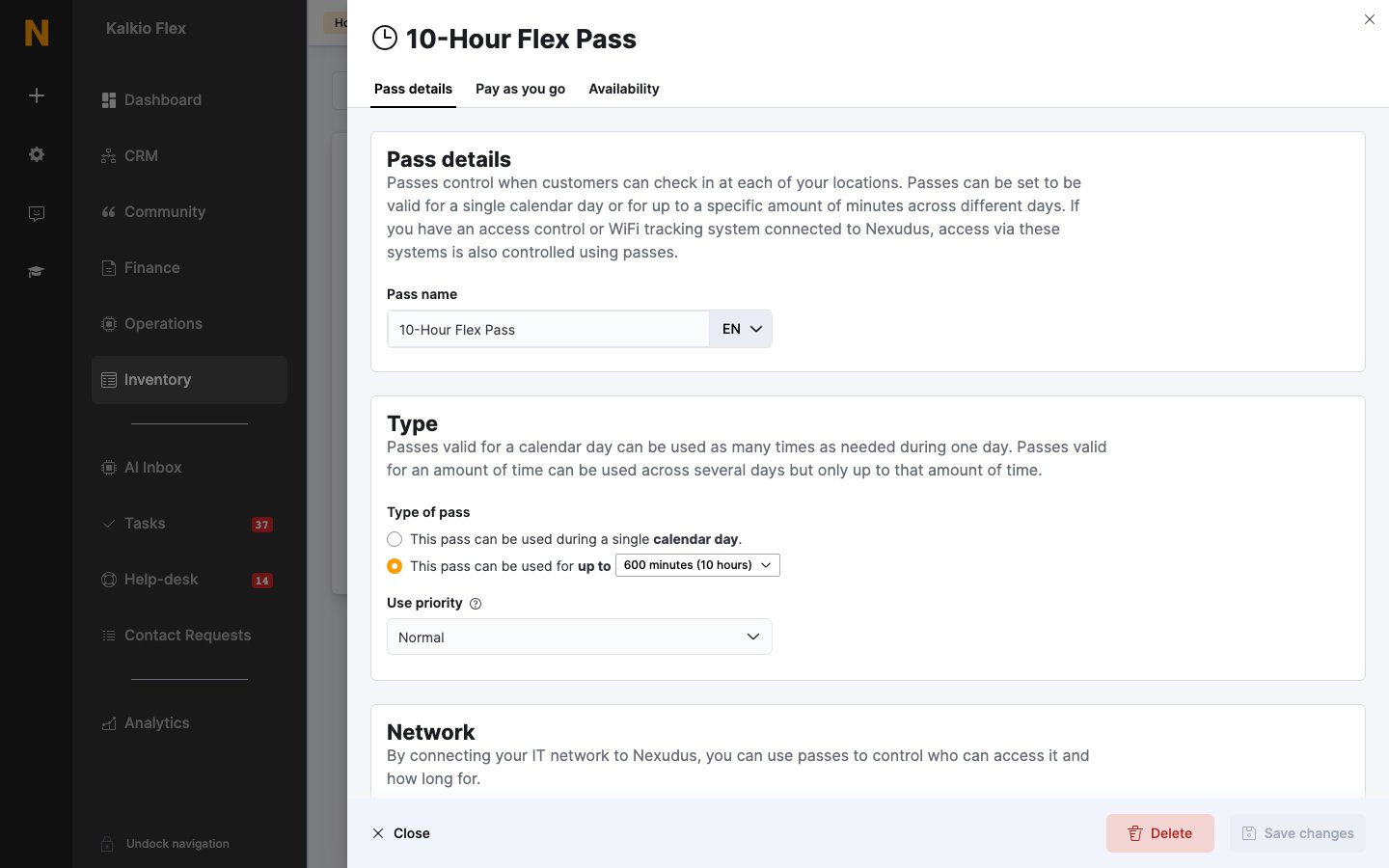
Pass details
Below these, set the pass’s tax rate and financial account, as for products.
The Pay as you go tab holds the pass’s Price — what it costs when sold — as well as its pay-as-you-go settings. The Availability tab controls where, when, and by whom the pass can be used.
Passes and door access
If you use a door access system, passes decide who can open your doors. In each access control integration’s settings, you link your passes to the system’s access groups, so customers holding a valid pass get the matching door access. See Access control and the page for your integration.Archiving a pass
You can’t delete a pass that’s been included in a plan or product or given to a customer, because its history must be kept. Archive it instead: tick it in the list and archive it from Bulk actions. Archived passes are hidden from your lists and can’t be chosen when adding passes to plans, products, or customers. Find them in the Archived passes view, where you can restore them from Bulk actions.Examples
Related
- Plans — include passes as a plan benefit
- Products — sell passes as a one-off purchase
- Check-ins — how check-ins use passes
- Access control — door access driven by passes