

Overview
With pay as you go, customers who check in without a valid pass aren’t turned away. Nexudus gives them a pay-as-you-go pass and, when they check out, charges them for their visit — by the minute for a time-based pass, or a flat rate for a day pass.Setting up pay as you go
1
Create the pass
Go to Inventory → Passes, click Add pass, and choose the Pay As You Go Pass shortcut — enter a name and an hourly price. Or set up any pass yourself as described below.
2
Choose who it's sold to
On the pass’s Pay as you go tab, turn on Automatically sell this pass to contacts (customers with no active contracts) checking in without a valid pass., Automatically sell this pass to members (customers with an active contract) checking in without a valid pass., or both.
3
Set the price
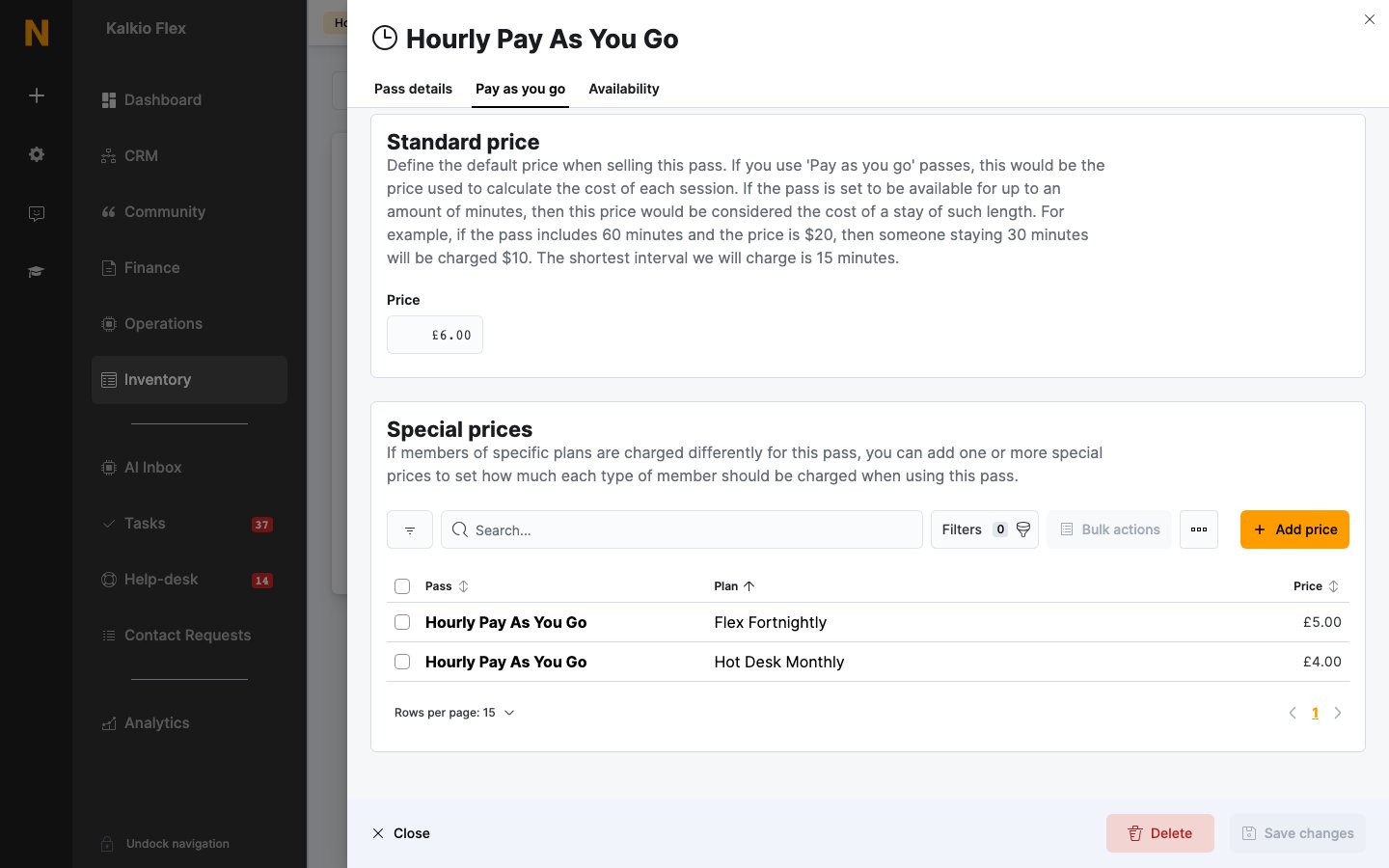
Under Standard price, set the Price — for a time-based pass, the price of the full number of minutes it includes.
4
Switch pay as you go on
Go to Settings → Features → Check-in settings → Pay as you go and turn on Enable ‘pay as you go’ access. Pay-as-you-go passes aren’t used until this is on.
How customers are charged
When the customer checks out, Nexudus works out the charge from the pass:
Check-in and check-out times are rounded to the nearest 15 minutes, so the shortest visit charged is 15 minutes.
If more than one pay-as-you-go pass applies, Nexudus uses the one with the highest Use priority, then the one that’s cheapest per minute for that customer.
Contacts’ charges are invoiced the day after their visit. Members’ charges are invoiced the same way unless you turn on Members pay the ‘pay as you go’ charges via their contract., which adds them to their next contract invoice instead.
Special prices
To charge members of certain plans a different rate, open the pass’s Pay as you go tab and use Add price under Special prices. Choose the plan under Offer this price to members of and enter the Price. Members on that plan are charged the special price; everyone else pays the standard price.Daily limits and bookings
These settings sit with Enable ‘pay as you go’ access. in Settings → Features → Check-in settings → Pay as you go:Related
- Passes — creating and managing passes
- Availability and check-in rules — which pass is used at check-in
- Check-ins — check-in settings and failed check-ins