

Overview
A validation rule checks a record every time it’s created or changed — in the dashboard, the members portal or the apps — and blocks the save with your own error message if it doesn’t meet your conditions. Use rules for checks Nexudus doesn’t offer as a setting, such as making a field required, checking a format, or allowing a resource to be booked only with a certain product. Each rule is a formula that returns true or false. True lets the record be saved. False blocks it and shows your error message.How to access
Go to Settings → Data management → Validation rules.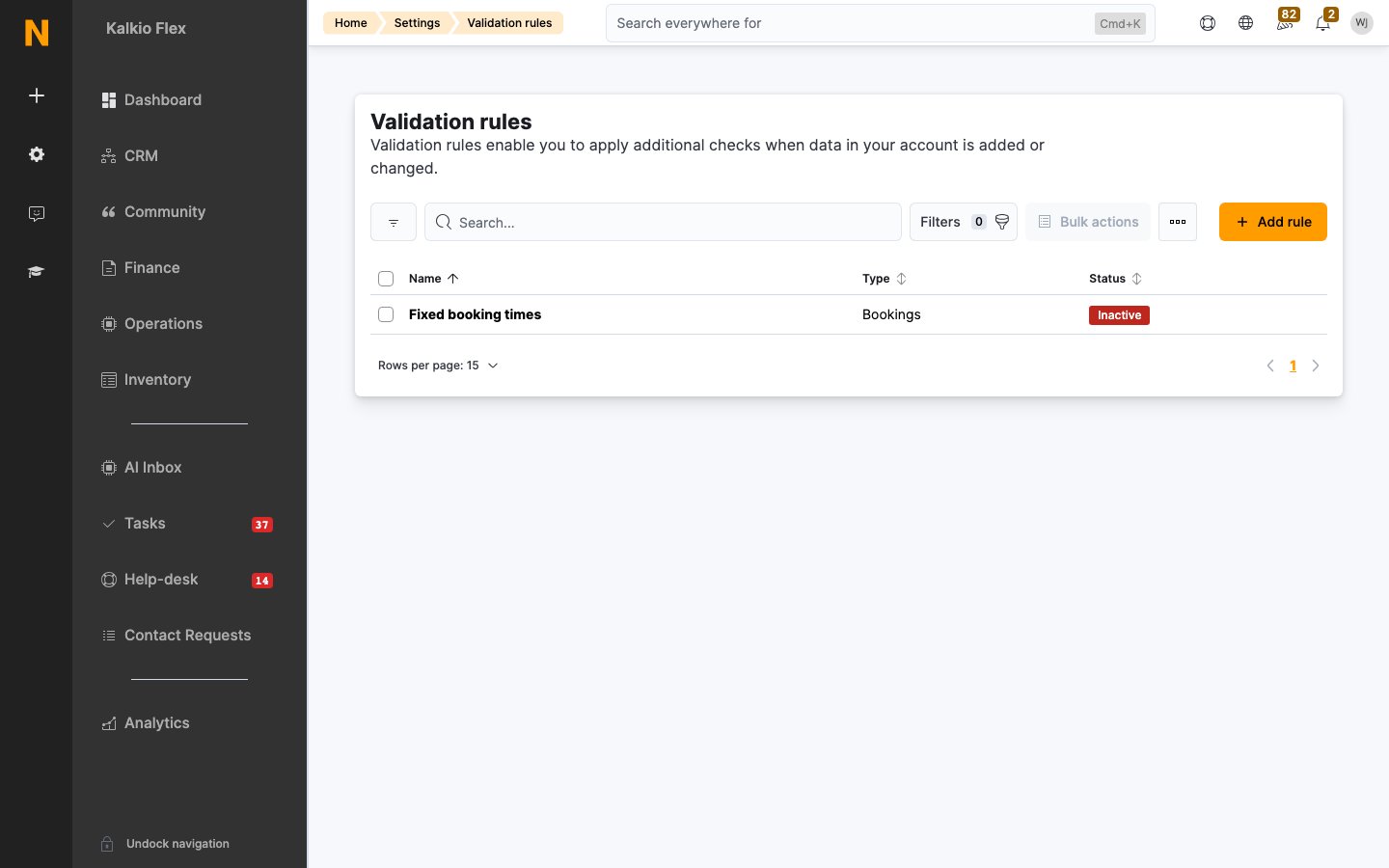
Adding a rule
Select Add rule, then either pick one of the ready-made rules or choose to enter your own.
For your own rule, fill in:
Writing formulas
The record being saved is calledrecord. You reach its fields with a dot, and follow links to other records the same way — record.Resource.ResourceType.Id is the ID of the booked resource’s type. The fields available are the record’s fields in the Nexudus API.
OR stops at the first true condition, so put the cheapest or broadest checks first. To find a pass, product, resource or plan ID, open it in the dashboard — the ID is in the address bar.
Variables
Functions
Customers
Bookings
Other
Spelling matters, including in
HasOveralappingBooking….
Examples
Replace the IDs with your own.Related
- Resource rules — booking rules you set up without formulas
- Custom fields — extra fields you can check in rules