

Overview
Documents are files attached to a customer’s record: membership agreements, licences, proof of address, insurance certificates, welcome packs. You can keep a document for your team only, share it with the customer in the Members Portal, or ask the customer to sign it electronically.How to access
Go to CRM → Documents to see the documents for all your customers.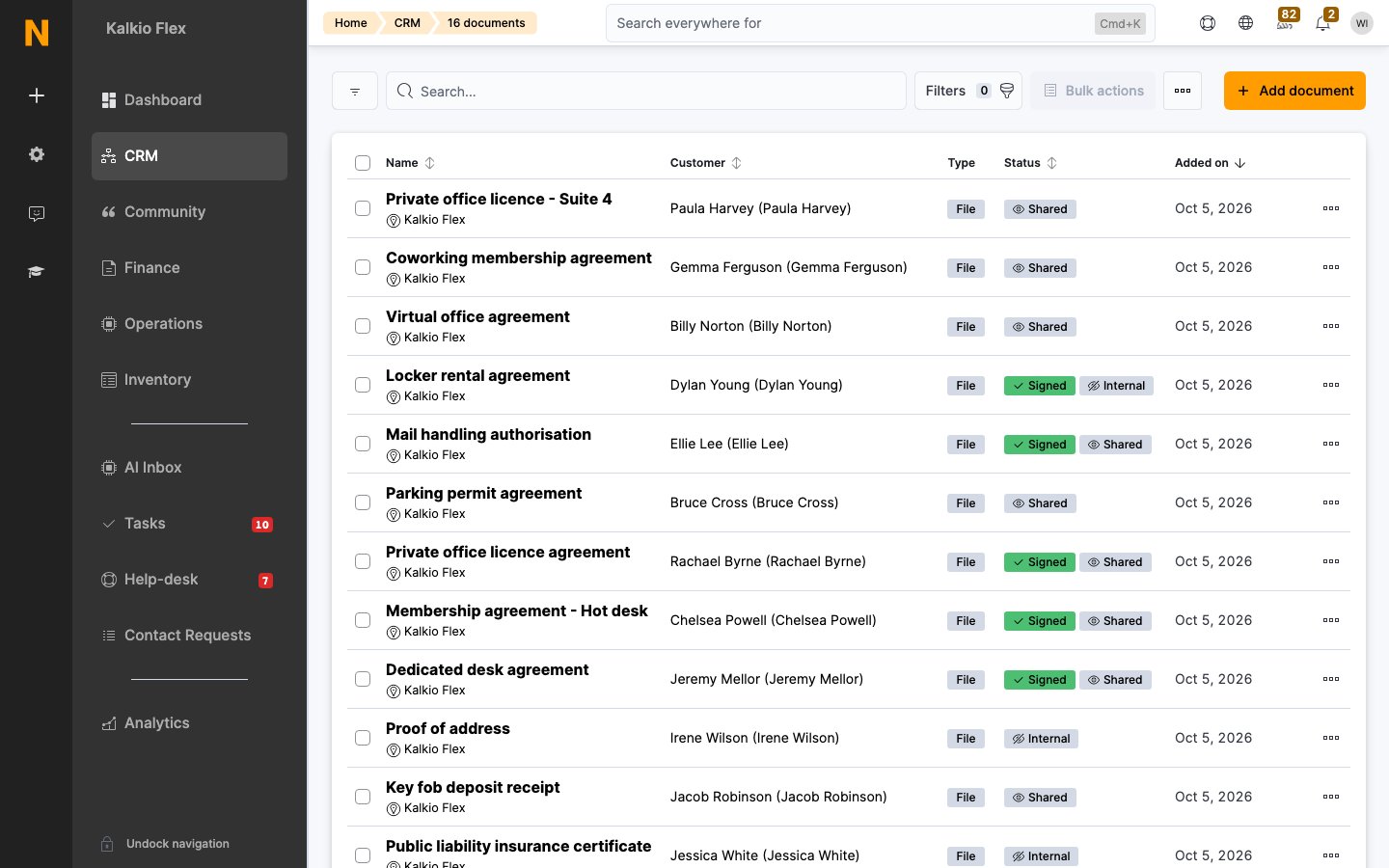
Read the list
Use the list’s filters to find documents that are Out for signature, Signed electronically or Signed manually. You can also add these as cards on your dashboard.
Add a document
1
Open the form
In CRM → Documents, select Add document. To add a document from a customer’s record instead, go to CRM → Files.
2
Choose the customer
Select the Customer. In a network, choose the Location too.
3
Add the file or contract
Under By file or contract, choose one:
- File: upload a file and give it a name.
- Contract: choose one of the customer’s contracts as the Contract name and a Document template to use. Nexudus generates the document from the template, filling in the contract’s details. Preview it before saving.
4
Add notes
Add any Notes for your team.
5
Choose how to share it
Choose whether to share the document and whether it needs signing. See Share a document and Signatures.
6
Save
Save the document.
Proposals also create documents. When a proposal includes a document for the customer to sign, Nexudus adds it to the customer’s documents automatically. See Proposals.
Share a document
Tick Share this document with the customer to make the document available in the Members Portal. The first time you share a document, the customer gets an email telling them it’s there. Documents you don’t share are Internal: only your team can see them. Use this for anything the customer doesn’t need, such as identity checks or credit references.Signatures
Ask for an electronic signature
To collect a signature online, use the Dropbox Sign integration. Turn it on in Settings → Integrations → Dropbox Sign. Dropbox Sign is a paid integration, charged monthly with an allowance of signatures.1
Request the signature
When you add the document, tick Request the customer to e-sign this document. You can only set this when you first create the document.
2
Choose who signs
The customer is added as a signatory automatically. Optionally:
- Add additional customer to collect signatures from other people, such as a second director.
- Add counter signature to have someone at your company sign. Counter signatures are only requested once all customers have signed.
3
Save
Save the document. Each signatory gets an email asking them to sign.