

Overview
Discount codes let you offer special prices to your customers when purchasing any of your services. You can create unique codes that apply percentage-based or fixed-amount discounts to plans, products, bookings, or events. Discount codes are useful for:- Welcome offers for new customers
- Seasonal promotions and sales
- Referral programs (rewarding both the referrer and new customer)
- Partner or community discounts
- Trial offers for specific services
- Discount type — percentage (%) or fixed amount
- Applicable items — plans, products, bookings, or events (or any combination)
- Validity dates — when the code can be redeemed
- Use limits — total redemptions and per-customer limits
- Audience restrictions — members only, contacts only, or both
How to access
Go to Finance → Discount codes.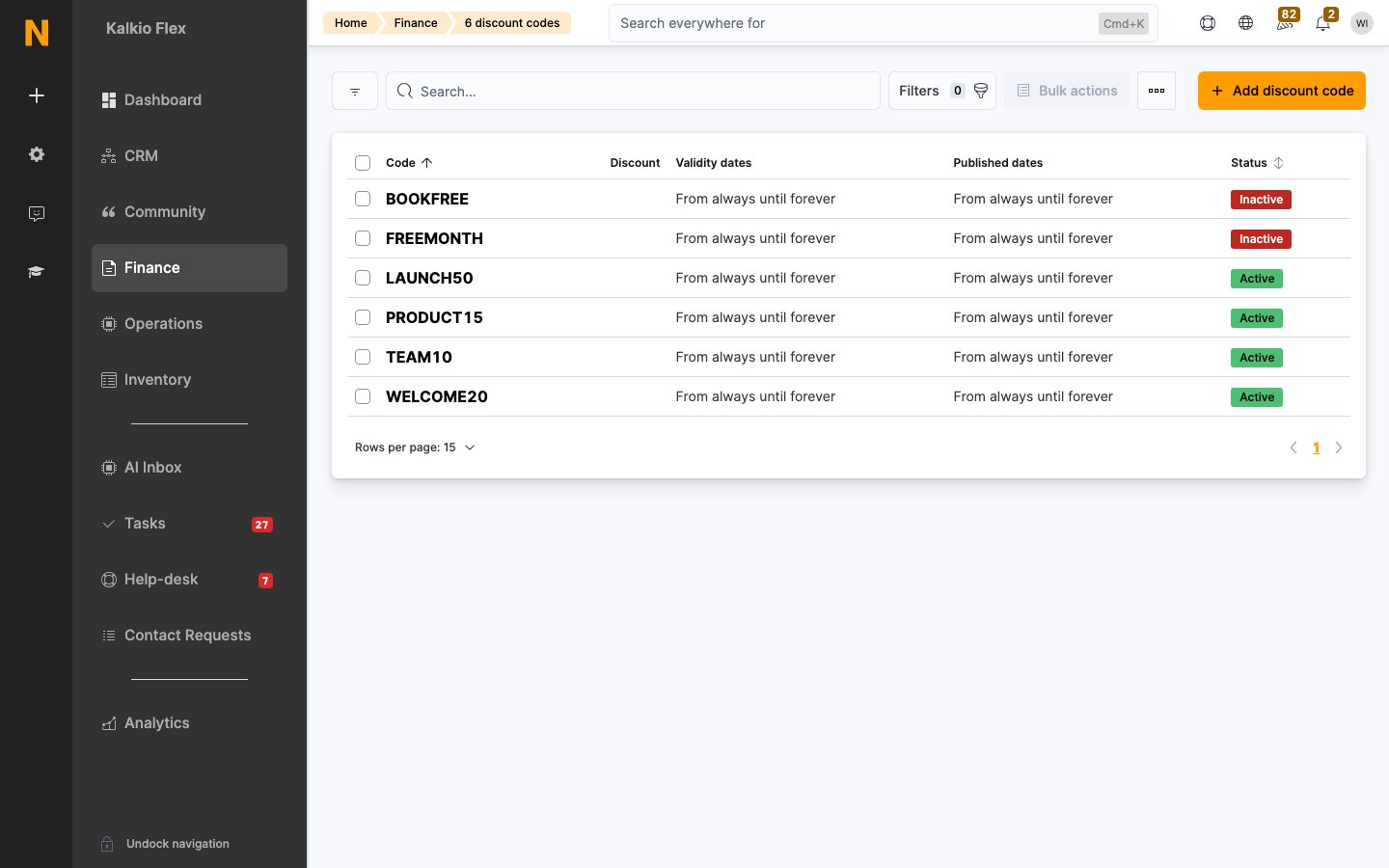
Creating a discount code
1
Navigate to Discount codes
Go to Finance → Discount codes and click Add discount code.
2
Configure discount details
Fill in the code, description, discount amount, and whether it’s a referral discount (see the section below for details).
3
Set discounted items
Choose which plans, products, bookings, or events the discount applies to.
4
Set availability and limits
Configure validity dates, published dates, and use limits.
5
Save
Click Save to create the discount code. You can assign it to specific customers later from the Customers tab.
Discount details
Discount code
Active status
- This discount is active — When unchecked, the code cannot be redeemed. Use this to pause a promotion without deleting it.
Referral discount
- This is a referral discount — When enabled, this discount is automatically applied to the customer sending the referral link when a new customer signs up using it. The Description is shown to customers when they invite others from their Members Portal account.
If you want both the referee (new customer) and the referrer (existing customer) to receive a discount, create a regular discount using the same discount code and apply it to the new customer’s signup.
Discount amount
Set the discount as either a percentage or a fixed amount — you cannot use both at the same time.Purchase links
When you create a discount code, Nexudus automatically generates shareable links:
You can copy these links and share them via email, social media, or your website.
Discounted items
Select which items this discount code applies to. You can enable one or more categories.Plans
- Toggle This discount code can be used to pay for any plans to apply to all plans.
- Or toggle it off and select specific plans from the list to apply the discount only to those plans.
Products
- Toggle This discount code can be used to pay for any products to apply to all products.
- Or toggle it off and select specific products to apply the discount only to those products.
Bookings
- Toggle This discount code can be used to pay for any bookings to apply to all booking resource types.
- Or toggle it off and select specific resource types (e.g., meeting rooms, event spaces) to restrict the discount.
Events
- Toggle This discount code can be used to pay for any events to apply to all event categories.
- Or toggle it off and select specific event categories to apply the discount only to those events.
Availability
Discount codes have two sets of dates that control different aspects of availability.Discount validity
These dates control when the discount can be redeemed by customers.Expiration after assignment
You can also set the discount to expire for a specific customer after they’ve been assigned it (useful for referral discounts or one-time codes).Published dates
These dates control when the discount is visible to customers on your website or the members portal.Use limits
Control how many times a discount code can be used to prevent overuse or create urgency.Who can use this discount?
Overall use limit
The overall use limit is the total number of times a discount code can be redeemed across all customers. Once the limit is reached, the discount is automatically disabled.Per-customer use limit
The per-customer use limit is the number of times each individual customer can redeem the discount code.Assigning discounts to customers
The Customers tab shows all customers who have been assigned this discount code. You can assign discount codes to specific customers in two ways:Automatic assignment
- Referral discounts are automatically assigned when a customer shares their referral link and someone signs up.
- Discounts can be automatically applied during checkout if the customer enters a valid code.
Manual assignment
- Go to Operations → Members & contacts and open the customer.
- Open Benefits → Discounts and select Add discount.
- Choose the Discount.
- Optionally set Valid From and Expires on. These dates override the discount’s own validity for this customer.
- Save.
Edit, deactivate or delete a discount code
- Edit: open the code, change it and save. Purchases already invoiced with the discount don’t change.
- Deactivate: turn off This discount is active. The code can’t be used, but its record and history are kept, and you can turn it back on later.
- Delete: tick the codes in the list and delete them. You can’t delete codes still assigned to customers, so deactivate those instead.
Team discounts
Teams can also get percentage discounts, without a code. Open the team from Operations → Teams, go to Benefits → Discounts and set a discount for Bookings, Plans, Passes or Charges. The discounts apply to every member’s future purchases until you change or remove them; purchases already invoiced keep their original price. See Teams.Discount code statuses
Discount codes can have the following statuses, shown as badges in the discount codes list:Best practices
Creating effective discount codes
-
Keep codes memorable — Use meaningful codes like
WELCOME10,SUMMER2026, orPARTNER15that customers can easily remember and share. - Set clear use limits — Even if you want unlimited redemptions, explicitly setting a high limit or “no limit” makes your intent clear to your team.
- Use published dates for campaigns — Set Publish from and Publish to dates to align with marketing campaigns, so the code automatically appears and disappears from your website.
- Track performance — Monitor how many times each code is used from the Customers tab to see which promotions are most effective.
Referral discount strategies
-
Create separate codes for referrer and referee — If you want both parties to receive a discount, create two codes with the same code string:
- One marked as a Referral discount (applies to the referrer)
- One as a regular discount (applies to the new customer)
-
Set per-customer limits — For referrals, set Per-customer use limit to
1so each customer can only refer one new customer with that code. - Use audience restrictions — Set referral codes to Contacts only so they only apply to new customers signing up for the first time.
Common use cases
Related features
- Plans — Create and manage membership plans that discount codes can apply to
- Products — Manage products that discount codes can apply to
- Rates — Set booking rates that discount codes can apply to
- Time passes — Manage passes that discount codes can apply to
- Discount Codes REST API — Automate discount code management via API