

Overview
A proposal is a formal offer you send to a customer or prospect: the plans and products they’d sign up for, at the price you’ve agreed, with any documents they need to read or sign. The customer reviews it online and accepts it. Nexudus then creates their contracts and products for you.How to access
Go to CRM → Proposals. To see one customer’s proposals, open the customer and go to CRM → Proposals, or open an opportunity and go to its Proposals tab.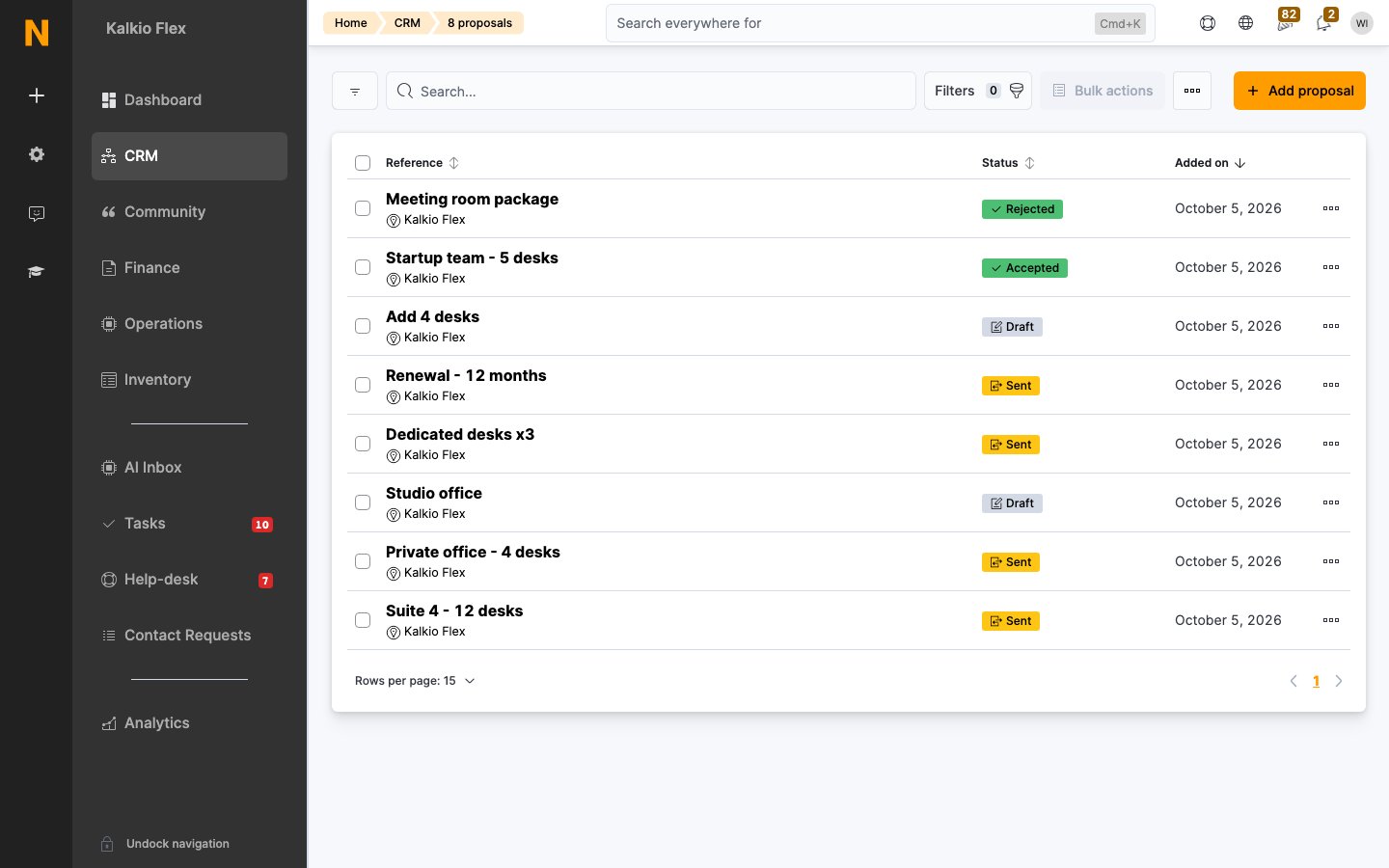
Proposal statuses
Create a proposal
The person you send a proposal to must have a customer or contact record. To send one to a new prospect, add them as a contact first.1
Open the form
Go to CRM → Proposals and select Add proposal.
2
Choose the customer and plan
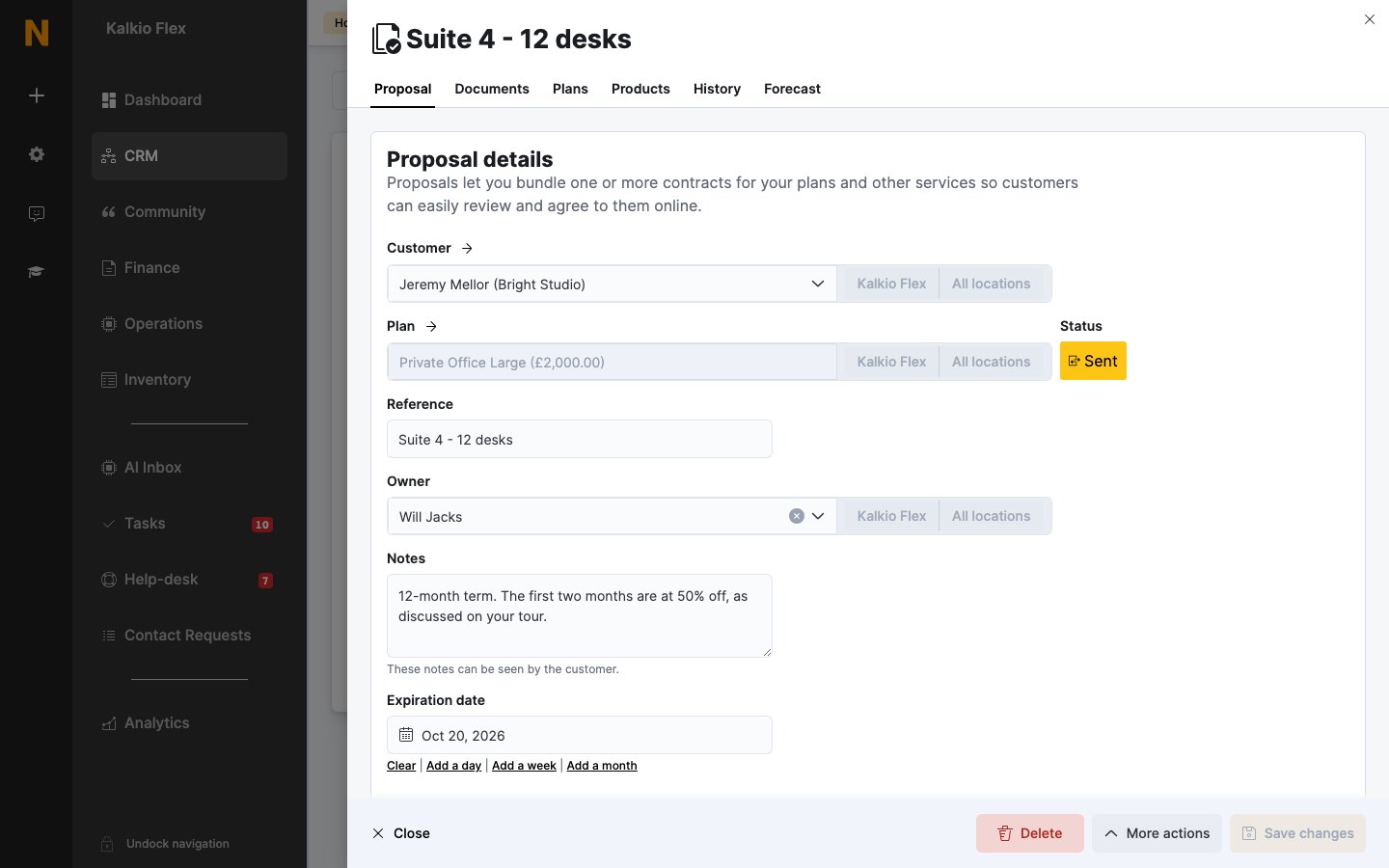
Select the Customer and the Plan to offer. Give the proposal a Reference your team will recognise, such as “Suite 4 - 12 desks”, and choose its Owner.
3
Add notes for the customer (optional)
Anything in Notes is shown to the customer with the proposal, so use it to explain the offer.
4
Set an expiry date (optional)
After the Expiration date, the proposal can no longer be accepted.
5
Set the key dates
Choose the contract’s Start date and Billing day, and a Cancellation date if the contract has a fixed end.
6
Set the price
For offices and desks, select the Offices / desks or Packages to include. Only units that are free on the start date are listed. Then set the price.
7
Save
Save the proposal. It’s saved as a Draft, ready for you to add more plans, products and documents.
Add more plans
A proposal can include several contracts, for example a private office plus two dedicated desks. On the proposal’s Plans tab, add each plan with its own start date, price, quantity, contract term, notice period and units.Offer a discount
To discount a plan, choose a Discount on it in the Plans tab. You can apply one discount code per plan. See Discount codes.Step-up pricing
For a deal whose price changes over time, such as a lower rate for the first six months, add the first price period as a plan, then use Create next price term. It adds a new contract that starts when the previous one ends, at the same price, ready for you to change. You can also start a new proposal with the Step-up deal option when you select Add proposal.Add products
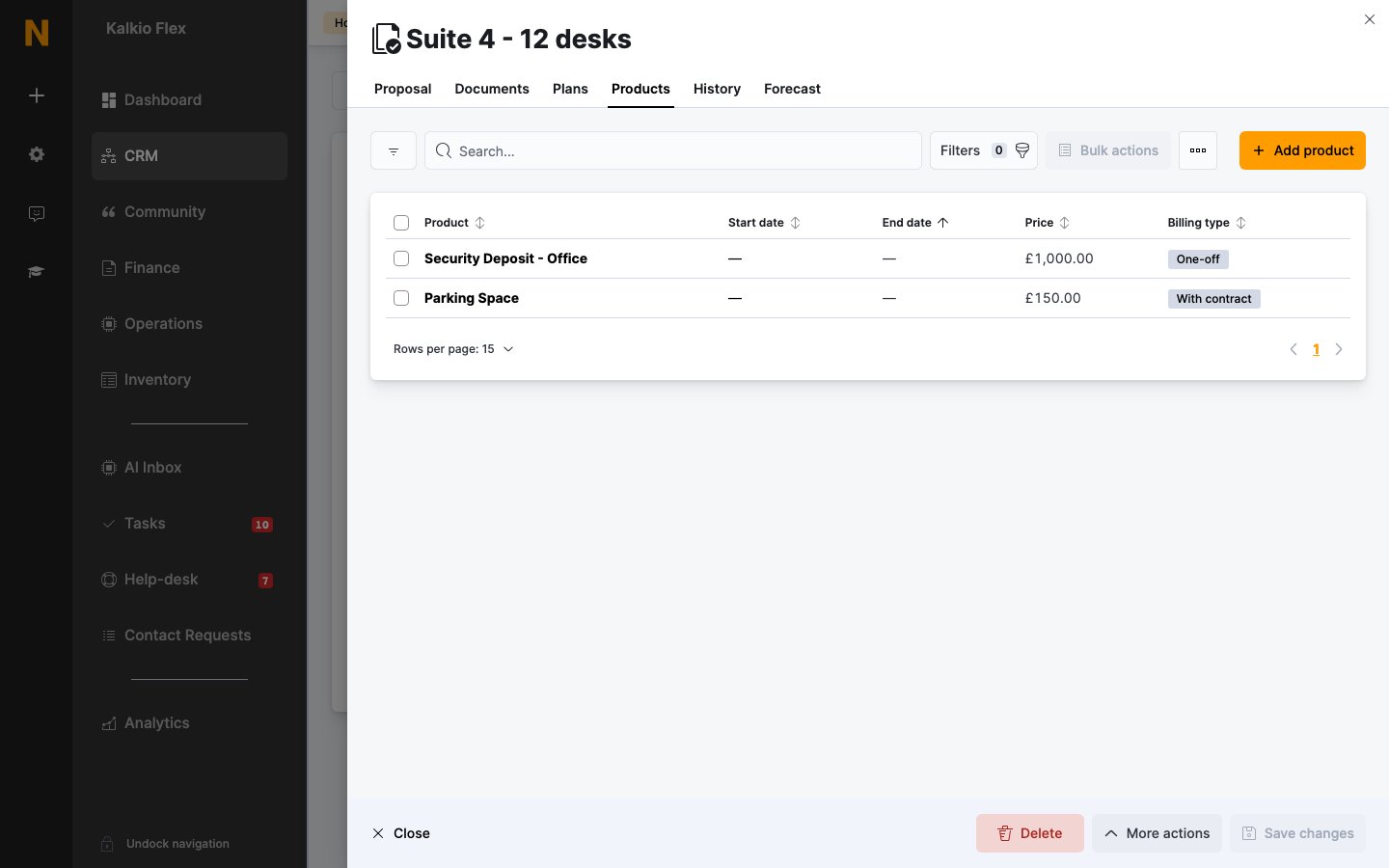
On the Products tab, select Add product to include one-off or recurring items, such as a security deposit, parking or a locker. For each product, set the Quantity and Price, then choose how it’s billed:- This charge should be invoiced alongside all contracts in this proposal: charge it with the contracts on every invoice.
- This charge represents a contract deposit: record it as a deposit. See Deposits.
- Invoice this product…: charge it once after the proposal is accepted, or on a schedule using Invoice on, Repeat from and Repeat until.
- Adjust the price of this product if invoiced alongside a prorated contract: reduce the price in line with a prorated first invoice.
Add documents
On the Documents tab, you can attach:
When the proposal is accepted, the document to e-sign is added to the customer’s documents and sent to them for signature.
Preview and send
The Proposal preview link on the Proposal tab shows the proposal as the customer will see it. To send proposals, tick them in CRM → Proposals and select Send from Bulk actions, or open one and use More actions → Send. The customer gets an email with a link to review and accept it. To download a proposal as a document, use Generate Document from More actions.When a proposal is accepted
Customers accept proposals online. You can also accept one for them, for example after a phone call, with More actions → Accept. When a proposal is accepted, Nexudus:- Creates a contract for each plan, and the products.
- Adds the document to e-sign, if there is one, to the customer’s documents and sends it for signature.
- Notifies your team.
- Moves the customer’s opportunity to any board stage set up for accepted proposals.
Hold off on invoicing
If you need to check paperwork before you charge the customer, tick Leave contracts issued by this proposal as paused and do not issue any invoices on the proposal. Its contracts are created paused, and no invoices are issued until someone issues the first invoice or sets the next invoice date on the contract. To do this for every proposal, turn on the same option in Settings → Billing and payments → Invoices and tax → Proposals.Track a proposal
- History lists when the proposal was created, sent, viewed and accepted.
- Forecast shows the invoices the proposal is expected to generate.
Copy, export or delete proposals
- Copy: use Make a copy from More actions to start a similar proposal for another customer.
- Export: tick proposals in the list and export them from Bulk actions.
- Delete: tick proposals in the list and delete them from Bulk actions. Deleting can’t be undone.
Related
- Opportunities: the deals proposals help close
- Contracts: what an accepted proposal becomes
- Customer documents: where proposal documents end up
- Plans and Products: what proposals are built from