

Overview
Your home dashboard is the landing view when you open the Nexudus admin panel. It is made up of cards — compact widgets that show a single metric at a glance: today’s check-ins, current occupancy, recent revenue, sensor readings, and more. You choose which cards appear and how they are arranged.How to access
Select Dashboard in the left-hand menu.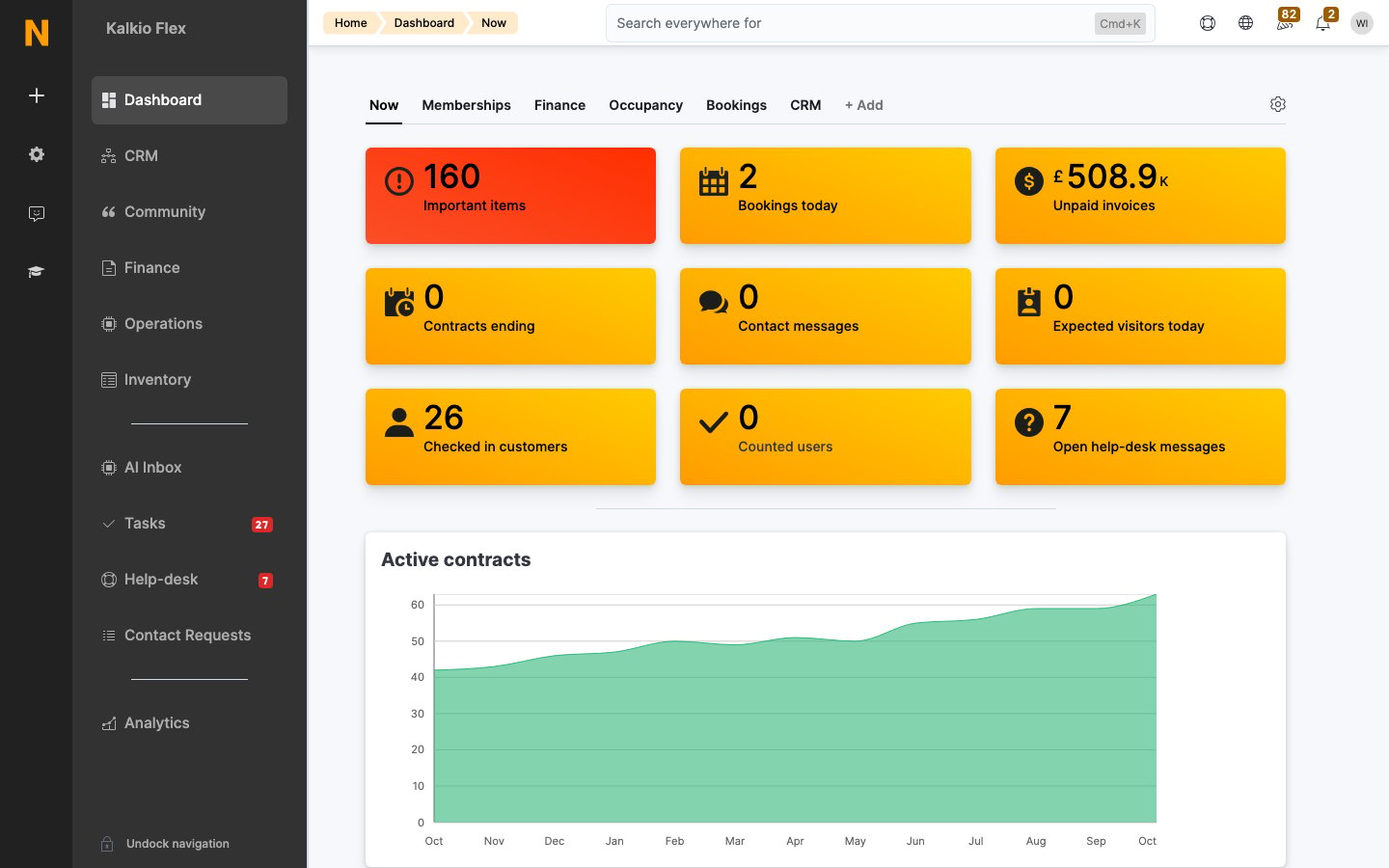
Key concepts
- Card. A single widget showing one thing — a number or a trend. Cards are the building blocks of a dashboard.
- Dashboard tab. You can maintain more than one dashboard layout (a “day-to-day” view and a “management” view, for example) and switch between them.
- Sharing. A dashboard tab can be shared so other staff see the same layout and cards.
Customising your dashboard
1
Create a dashboard
On the Dashboard page, click + Add and enter a name for your dashboard.
2
Add cards
Click + Add card and pick the cards you want to include.
3
Arrange them
Drag cards into the order and positions that suit how you work — the most-watched metrics first.
Creating and sharing a tab
Create a new dashboard tab for a different audience or purpose, build its layout, then share it with the team members who should use it. Each person can still personalise their own copy without affecting the shared original.Reorder or hide dashboard tabs
Open the Home dashboards dialog from the dashboard menu to control which tabs appear for you and in what order:- Reorder — drag tabs into your preferred order.
- Show or hide — toggle each tab’s visibility. Hiding a tab removes it from your dashboard bar without deleting it; show it again any time.
Related
- Reports — for the numbers that need more depth than a card can show
- Sensors — the live data behind occupancy and environment cards
- Account Check-up — a periodic health scan of the whole account