

Overview
Tasks are to-dos for your team, such as “Send Suite 4 floor plan” or “Set up access cards for 5 desks”. Each task has someone responsible for it and a due date, and is usually linked to a customer so it appears on their record. Task lists are reusable sets of tasks. Instead of creating the same onboarding or move-out tasks by hand every time, put them in a task list and Nexudus creates them for you when a new member signs up, a customer cancels, or an opportunity reaches a board stage.How to access
Select Tasks in the sidebar, or go to CRM → Tasks. The number next to Tasks in the sidebar is how many pending tasks you’re responsible for at the current location.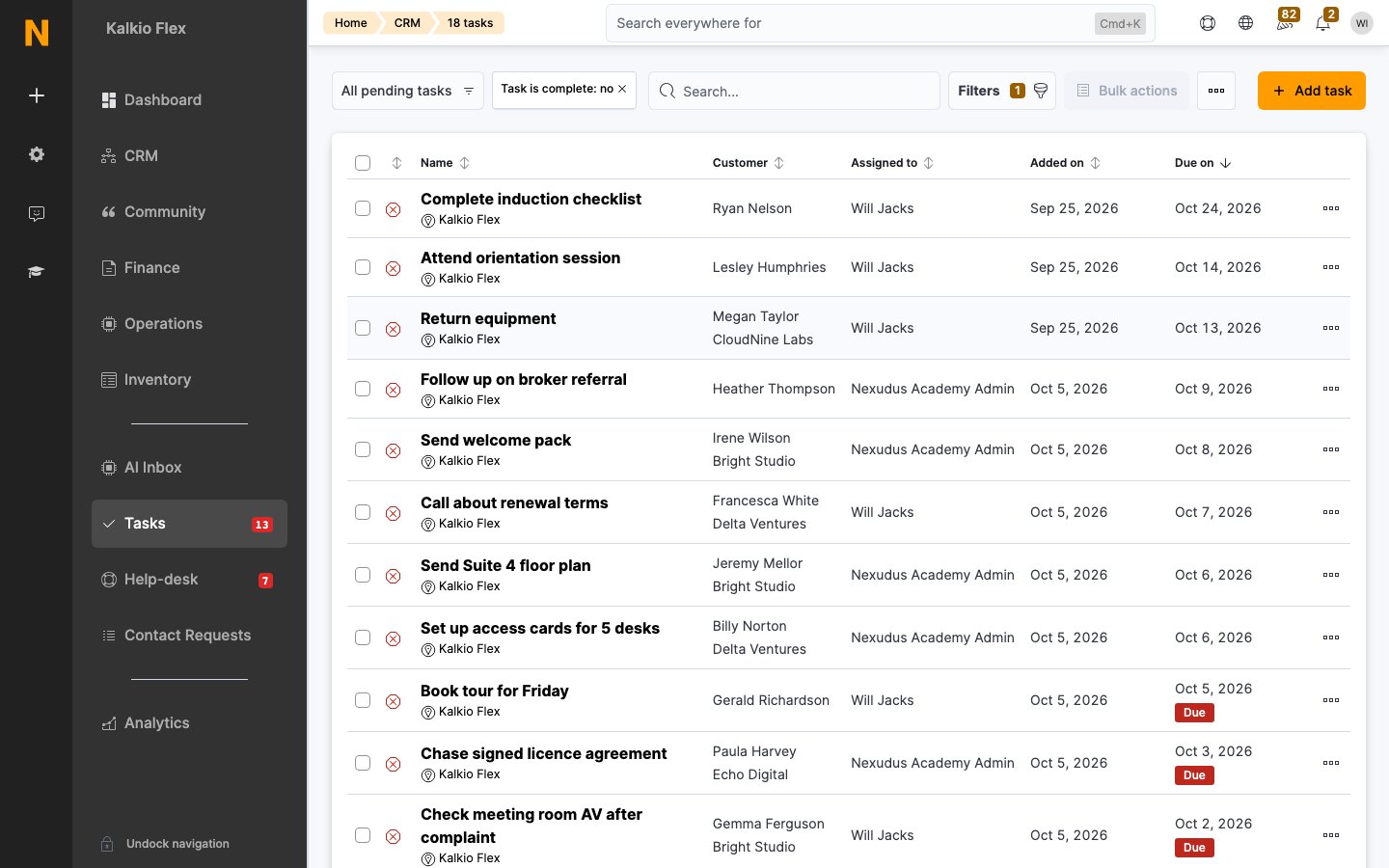
Add a task
1
Open the form
Select Tasks and then Add task. To add a task for a specific customer, you can also start from their record.
2
Describe the task
Choose the Location, then write the Task. Make it specific, such as “Call about renewal terms” rather than “Renewal”.
3
Link a customer (optional)
Select the Customer the task is about, and add any Notes that will help.
4
Assign it
Choose who’s Responsible and the Due on date. Turn on Notify responsible by email to email them when the task is due.
5
Save
Save the task. It appears in the responsible person’s pending tasks.
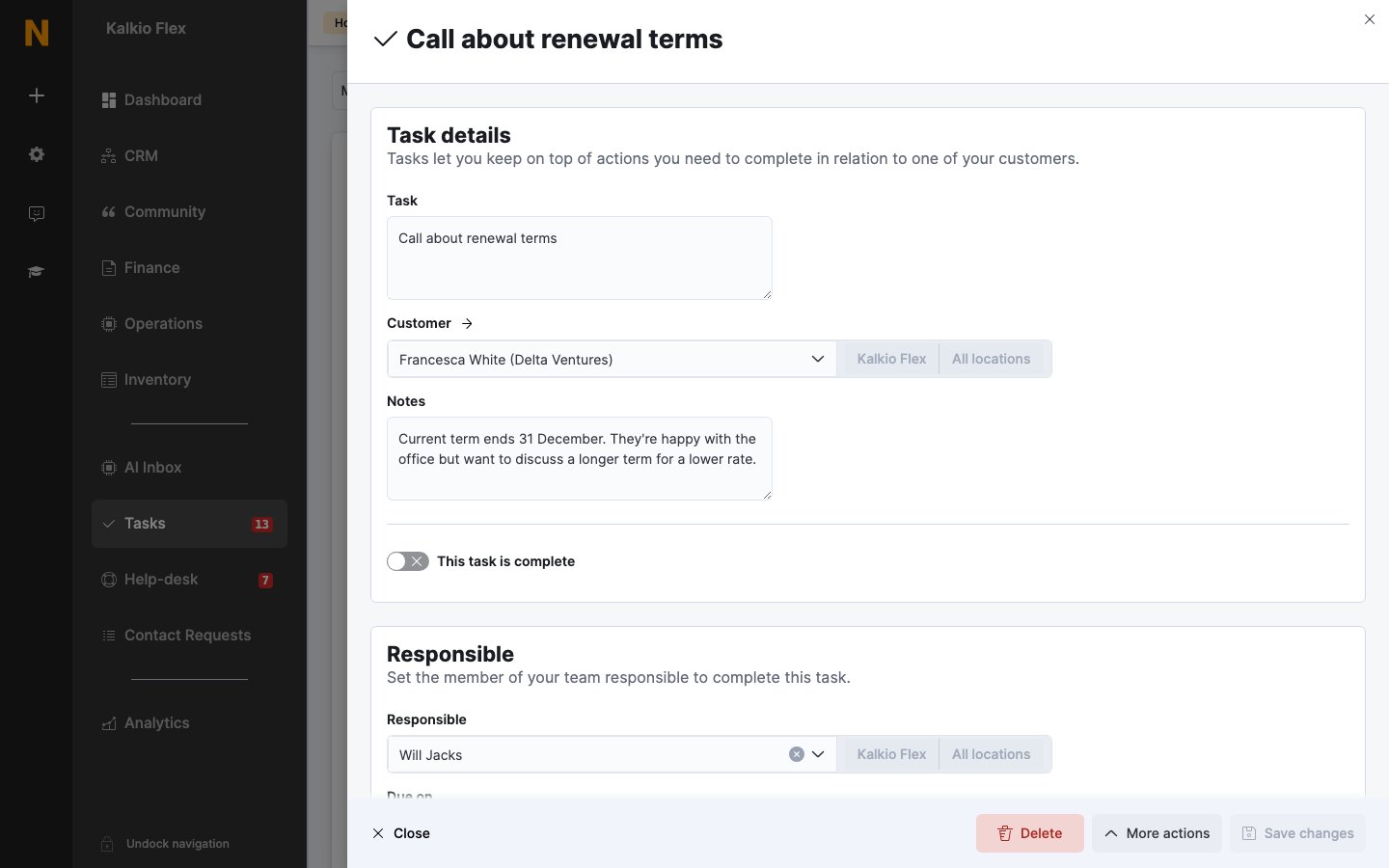
Tasks belong to a location and only show at that location.
Complete tasks
Open the task and turn on This task is complete, or tick several tasks in the list and select Mark as Completed from Bulk actions. Completed tasks leave your pending views but stay on the customer’s record.Task lists
To manage task lists, go to CRM and, under Tasks, select Tasks lists.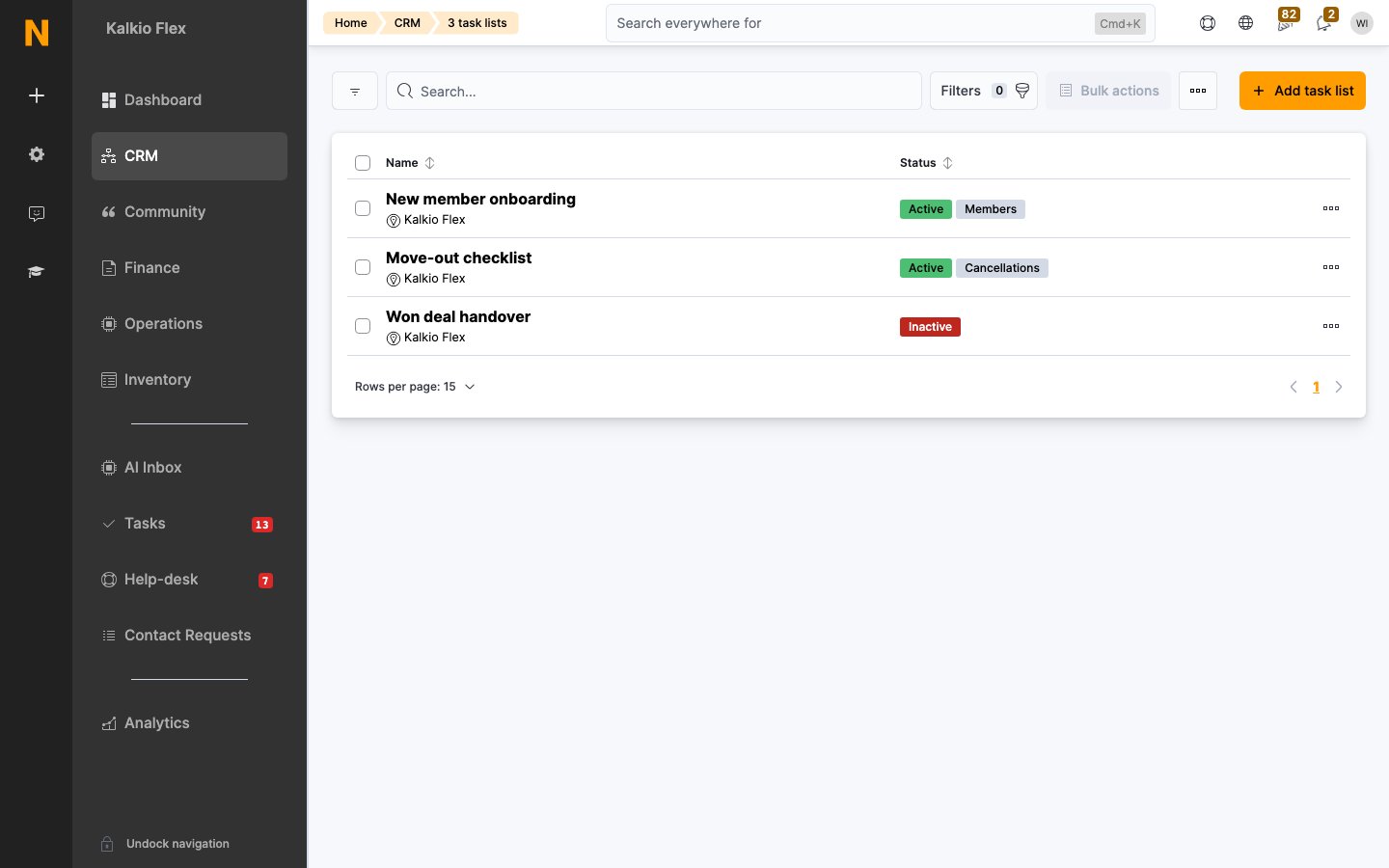
Create a task list
1
Create the list
Select Add task list, give it a name such as “New member onboarding”, and choose the Location.
2
Add its tasks
In the list’s Tasks section, select Add task for each step. For each one, enter the Name, choose who’s Responsible, and set Due after: the number of hours after the list starts that the task is due. Turn on Notify responsible by email if needed.
3
Choose when it starts
Set the list to start automatically, or link it to a board stage. See below.
Only active tasks in the list are created. Turn off Task is active on a task to leave it out without deleting it.
Start a task list automatically
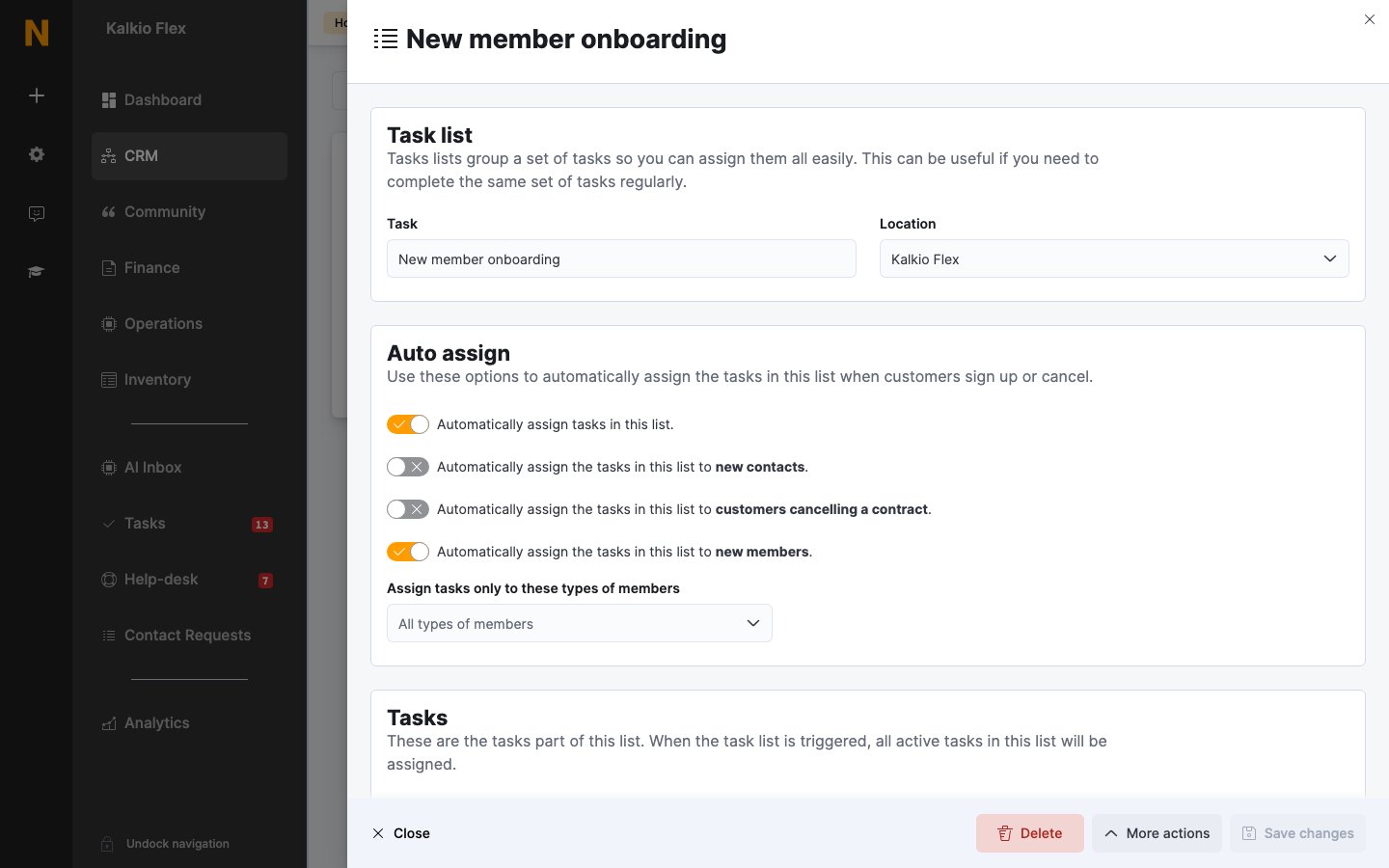
Under Auto assign, turn on Automatically assign tasks in this list, then choose when the list starts:- for new contacts
- for customers cancelling a contract
- for new members
Start a task list from a board stage
To create tasks when an opportunity reaches a stage, for example a handover checklist when a deal is won, edit the stage on your CRM board and choose the list in Start task list for opportunities added to this stage. When a task list starts from a stage, its tasks are assigned to the person responsible for the opportunity rather than the people set in the list. To do the opposite, and make each task’s assignee responsible for the opportunity, turn on Use the task list as responsible on the stage.Copy a task list
To make a similar list, tick it in the list and select Copy Selected Task Lists from Bulk actions. You can’t add existing tasks to a task list. Add new tasks to the list instead.Edit, export or delete tasks
- Edit: open a task or task list, make your changes and save.
- Export: tick tasks or task lists and export them from Bulk actions.
- Delete: tick them and delete them from Bulk actions. Deleting can’t be undone.
Related
- Opportunities: deals tasks are often linked to
- Boards: stages that can start task lists
- Reminders: automated emails
- Members: where a customer’s tasks appear