

Overview
Products are items or services you sell to your customers. They are versatile and can be sold in several ways:- As a one-off purchase from the Members Portal
- As a recurring add-on included in a contract alongside a plan
- As a booking extra linked to a resource (e.g., catering for a meeting room)
- As a deposit or sign-up fee in a contract or proposal
- Bundled with benefits like time credits, passes, or money credits
How to access
Navigate to Inventory → Products.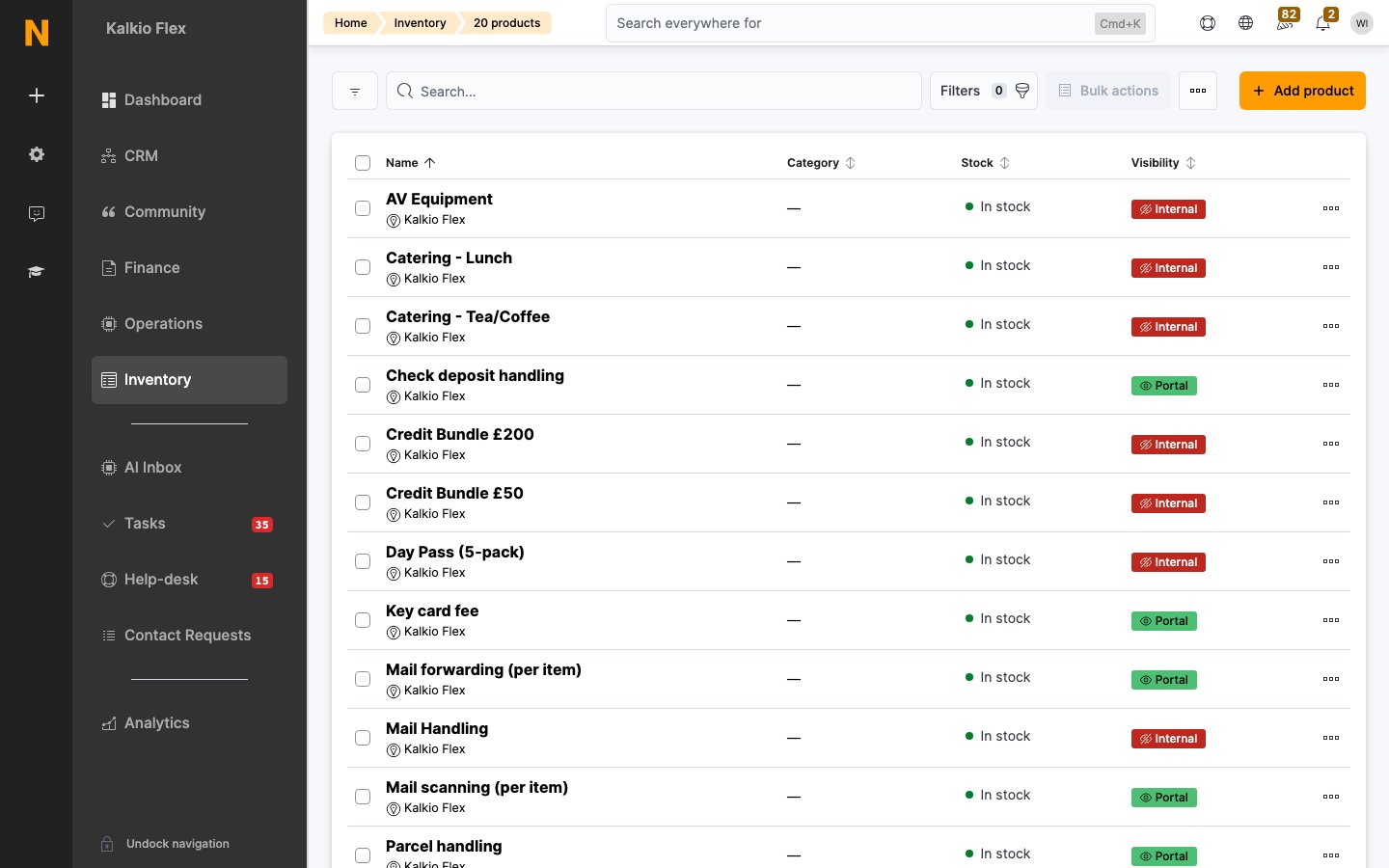
Product kinds
Every product has a kind that classifies what it represents. The Members Portal uses the kind to organise products: each kind with at least one published product appears as its own page under Store in the portal navigation, and customers can filter products by kind.Creating a product
1
Navigate to Products
Go to Inventory → Products and click Add product.
2
Enter product details
Fill in the required fields:
- Product name — a clear name shown to customers
- Product kind — the kind that sets where the product appears in the Members Portal
- Product description — describe what the customer is getting
- Unit price — the price charged per unit
3
Configure Members Portal display
Set how the product appears in the Members Portal:
- Display this product on the website and the App — whether customers can see and purchase it
- Category — an optional label for filtering products (e.g., “Food”, “Printing”)
- The position to display this product at — the sort order in the Members Portal
- Upload a Product image
4
Save
Click Save to create the product. Additional tabs become available for configuring benefits, availability, and integrations.
Product details
General fields
Portal and Apps
Purchase links
Once saved, each product gets two shareable links:Invoice the purchasing customer
When you enable When using merged invoicing, always invoice the customer purchasing this product rather than their team paying customer, the product charge is always invoiced directly to the customer who purchased it — even if they belong to a team where another member normally pays. Use this for personal items that should not be billed to the team.Financial details
These fields appear when your location requires financial accounts or tax rates:AI agent settings
Control how AI agents in the Members Portal can recommend or sell this product:Benefits
The Benefits tab lets you bundle credits, passes, and allowances with a product. When a customer purchases the product, these benefits are activated automatically.
Benefits are multiplied by the purchase quantity. For example, if a product includes 2 passes and the customer buys 3 units, they receive 6 passes.
Availability
Purchase type
This product can be purchased as controls how the product can be sold:Purchasable by
This product can be purchased by restricts who can buy this product:
When set to Members only, you can further restrict to customers on specific plans.
Stock management
See Manage stock for how stock changes as you sell.
Integrations
Sell a product to a customer
Customers buy products in the Members Portal, but you can also add one to a customer’s account yourself, for example to correct a missed charge.- Go to Operations → Members & contacts, open the customer and go to Sales → Products.
- Add the product and choose it in Product. Add Notes if needed.
- Turn on Activate immediately to let the customer use the product’s benefits, such as passes or credit, straight away. Otherwise they become usable once the product is invoiced.
- Set the Quantity and Unit price if they differ from the defaults.
- Under Billing, choose Invoice this product only once for a one-off sale, or set how often it repeats with Repeat from and Repeat until.
- Optionally set Invoice on a specific date and Do not include in any invoices before a date. Set both together, so automatic invoices such as plan renewals don’t pick the charge up early.
- Check the Sale date (today by default) and save.
Prorate products
Proration charges a product only for the part of the first billing period a customer uses.The plan must be prorated too. Proration uses the contract’s invoice period, so products can’t be prorated on their own. The setting applies to contracts that haven’t been invoiced yet.
Prorate a product on every contract
Turn on Always adjust the price of this product if invoiced alongside a prorated contract on the product. It then applies whenever the product is invoiced with a prorated contract: as a plan component, a contract product or in a proposal.Prorate a single contract product
To prorate the product for one customer only, leave the product setting off and turn on proration for that product line on the contract instead.Example
A $100 parking product on a contract that starts on the 15th and is billed on the 1st is charged at about half price on the first invoice.Manage stock
Turn on stock tracking
Products have no stock limit by default. For items with limited stock, such as drinks or parking bays, turn on Monitor stock levels for this product on the Availability tab. You can also turn on Prevent stock for this product to fall below zero and set Alert me when the stock level is below to a number.Adjust stock
To change stock, open the product’s actions menu and select Adjust stock. Enter a whole number: positive to add stock, negative to remove it.How sales affect stock
Stock goes down when you sell the product as a one-off, when a recurring sale is first added (not at each renewal), and when a booking with the product is charged. It goes back up if you remove the sale or cancel the booking.Categories
Product kind decides where a product sits in the Members Portal navigation. Category is an optional, extra layer you can use to group products within and across kinds. In the Members Portal, customers can filter the product list by category, and products without a category appear under Other. When customers add extras to a booking, booking products are also grouped under their category. Categories are free text and case-sensitive: “Day Passes” and “day passes” are two categories. Pick from the suggestions as you type to reuse an existing category. To give a product more than one category, separate them with commas, for exampleFood, Breakfast.
Archive or delete products
You can’t delete a product that has been sold, because its sales history must be kept. Archive products you no longer sell instead: they disappear from active lists and the Members Portal but keep their history.Find a product’s ID
Open the product; its ID is the number at the end of the address in your browser, for example/billing/products/1004438440. You need it for validation rules and automation tiles.
How products connect to other features
Products in contracts
Products can be added to a customer’s contract as recurring charges. The product is invoiced each billing cycle alongside the plan fee. This is configured from the contract page, not from the product itself.Products linked to resources
Products can be linked to resources as booking add-ons. When a customer books that resource, they can optionally add the linked product (e.g., adding catering to a meeting room booking). This is configured from the resource page.Products in proposals
Products can be included in sales proposals as line items, representing sign-up fees, deposits, or other costs.Webhooks
Webhooks send product activity to another system as it happens, so you don’t have to export or re-enter it. For example, you can:- Send each product sale to an external accounting or ordering tool
- Tell a café or catering supplier when a customer buys food or drink
- Keep a product catalogue in another system, such as a point-of-sale or inventory tool, in step with Nexudus
Product sale actions
These fire when a product sale on a customer’s account changes, whether the customer bought the product in the Members Portal or you added it to their account.Product catalogue actions
These fire when the product itself changes in Inventory → Products.Best practices
- Use descriptive names and images — customers see these in the Members Portal, so make them clear and appealing.
- Choose the right product kind — it decides where customers find the product in the Members Portal.
- Set up categories consistently — use the same categories (e.g., “Food & Beverage”, “Office supplies”) across products so customers can filter them easily.
- Use stock tracking for physical items to avoid overselling and get alerts when you need to reorder.
- Use “Members only” restrictions to create exclusive products available only to customers on certain plans.
- Bundle benefits to create compelling credit packs or day pass packages that customers can self-purchase.
- Enable proration for recurring contract add-ons so customers joining mid-cycle are charged fairly.
- Invoice the purchasing customer for personal items in team billing scenarios (e.g., food, personal printing) so the cost stays with the buyer.
Related pages
Plans
Create membership plans that can include products as recurring add-ons.
Resources
Link products to resources as booking extras.
Credits
Time, money, and printing credit you can bundle with products.
Contracts
Add products to customer contracts as recurring charges.
Webhooks
Send product sales and catalogue changes to other systems.