

Overview
A resource type is a grouping label for your resources — meeting rooms, parking spaces, equipment, and so on. All resources of the same type share the same set of booking rates, so resource types are how you organise pricing across your space. For example, you might create separate types for “Meeting Rooms” and “Parking” so each category can have its own pricing structure, while individual resources within a type can still carry their own name, photo, and description.How to access
Go to Inventory → Resources → Resource types.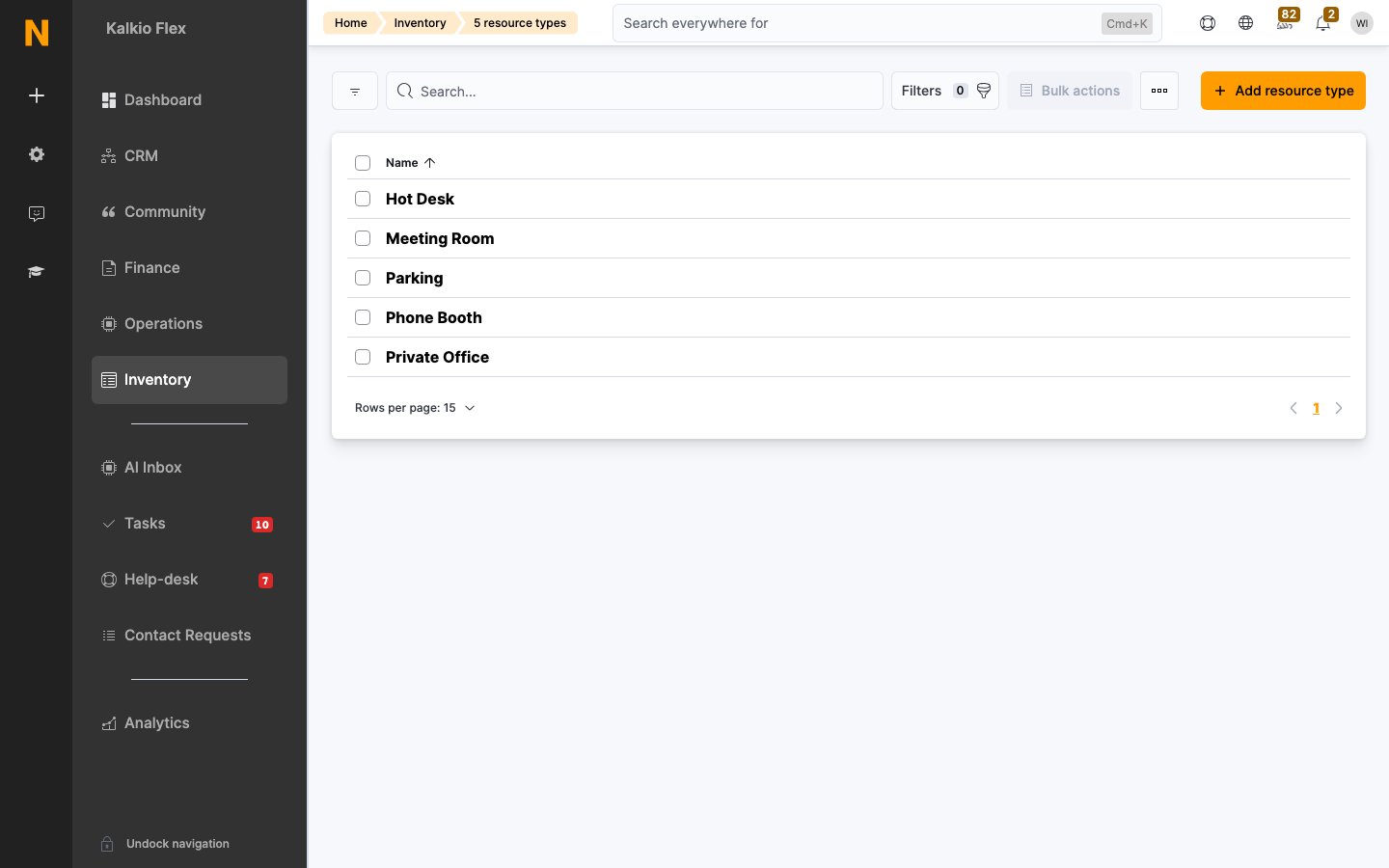
Key concepts
- One type per resource. Every resource belongs to exactly one resource type. The type determines which rates apply when the resource is booked.
- Rates follow the type. Booking rates are defined per resource type. Add or change a rate from any resource’s Rates tab, and it applies to every resource of that type.
- Types act as pricing templates. If five meeting rooms should cost the same, give them one type. To price one room differently, give it its own type.
- Types are organisational, not functional. A type does not change how a resource works — that is controlled by the resource’s kind (meeting room, hot-desk, machine, and so on).
Creating a resource type
1
Open Resource Types
Go to Inventory → Resources → Resource types and select Add resource type.
2
Name the type
Enter a Type name such as “Meeting Rooms” or “Parking”.
3
Save
Select Save changes to create the type.
Assigning a type to a resource
When you create or edit a resource, choose its type in the Resource type field on Resource details. Every resource needs a type. To move a resource to another type, change its Resource type. As soon as you save, the resource stops using the old type’s prices and switches to the new type’s.Editing and deleting types
- Rename a type at any time: open it, change the Type name and save. Existing resources keep their association.
- Delete a type by ticking it in the list and deleting it. You can only delete types that no resource uses, so move those resources to another type first.
Tips
- Keep type names short and consistent with how your team talks about the space (“Hot Desks”, “Offices”, “Equipment”).
- Use separate types whenever two groups of resources need different pricing, even if they look similar.
Related
- Resources — creating and managing bookable spaces and items
- Rates — pricing rules per resource type
- Floor plans — laying out desks and offices visually