

Overview
Courses are structured, self-paced programmes that customers follow on your members portal. Each course is made up of sections that group its lessons, and you control when each lesson unlocks and how customers complete it. Use courses for onboarding, house rules, compliance training, wellness programmes, or any content customers should work through step by step.How to access
Navigate to Community → Courses in the dashboard. Each row shows the course’s image, Title (with its summary and category), the date it was Added on, and a Published or Unpublished badge. Use Add course to create one.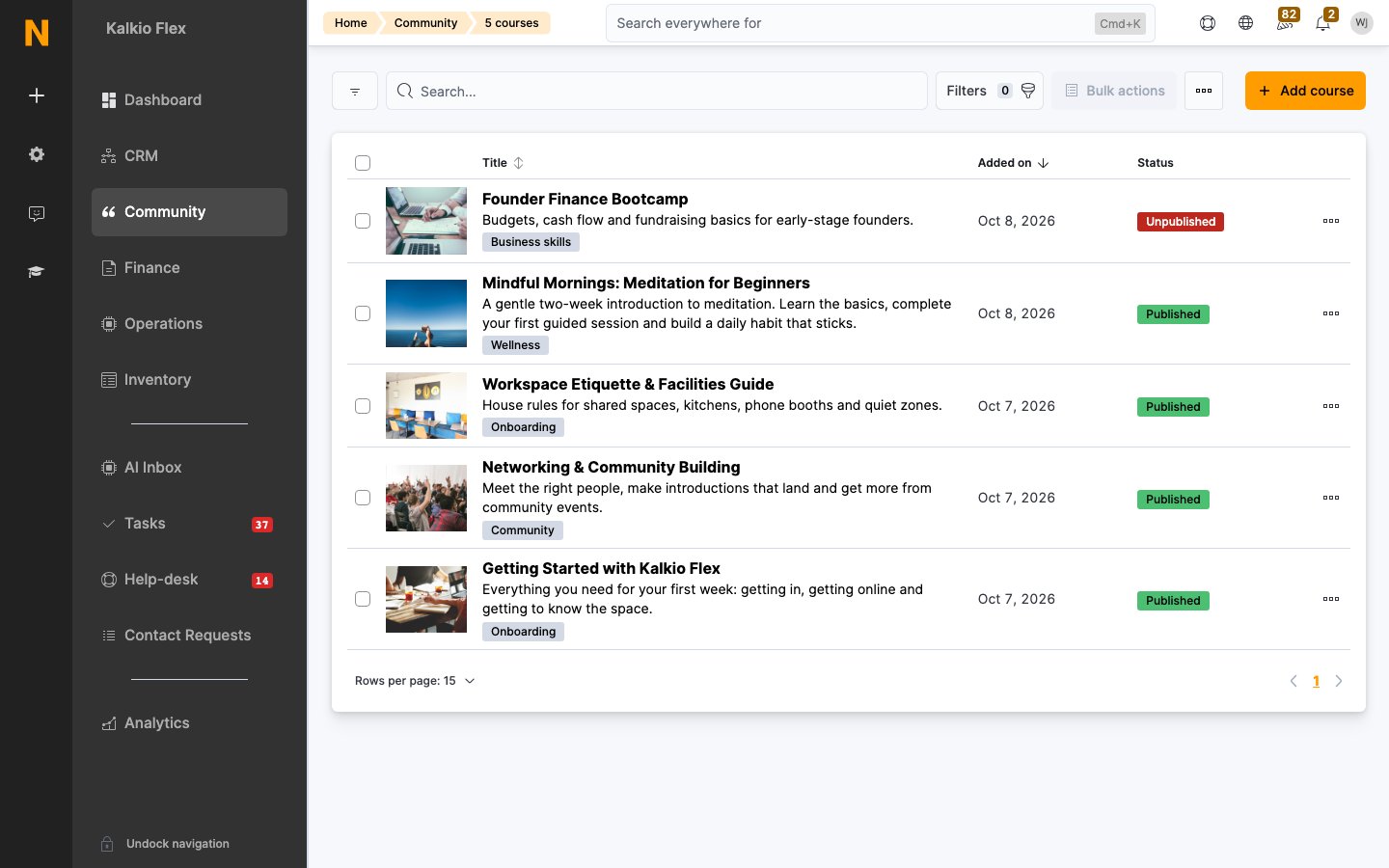
Key concepts
Planning a course
Before you build, decide who the course is for and what they should be able to do by the end. A beginners’ meditation course, for example, might aim to get customers meditating daily. Then plan each section as a step toward that goal, and fill it with short lessons that each cover one idea.Creating a course
1
Add the course
Go to Community → Courses and click Add course.
2
Fill in the course details
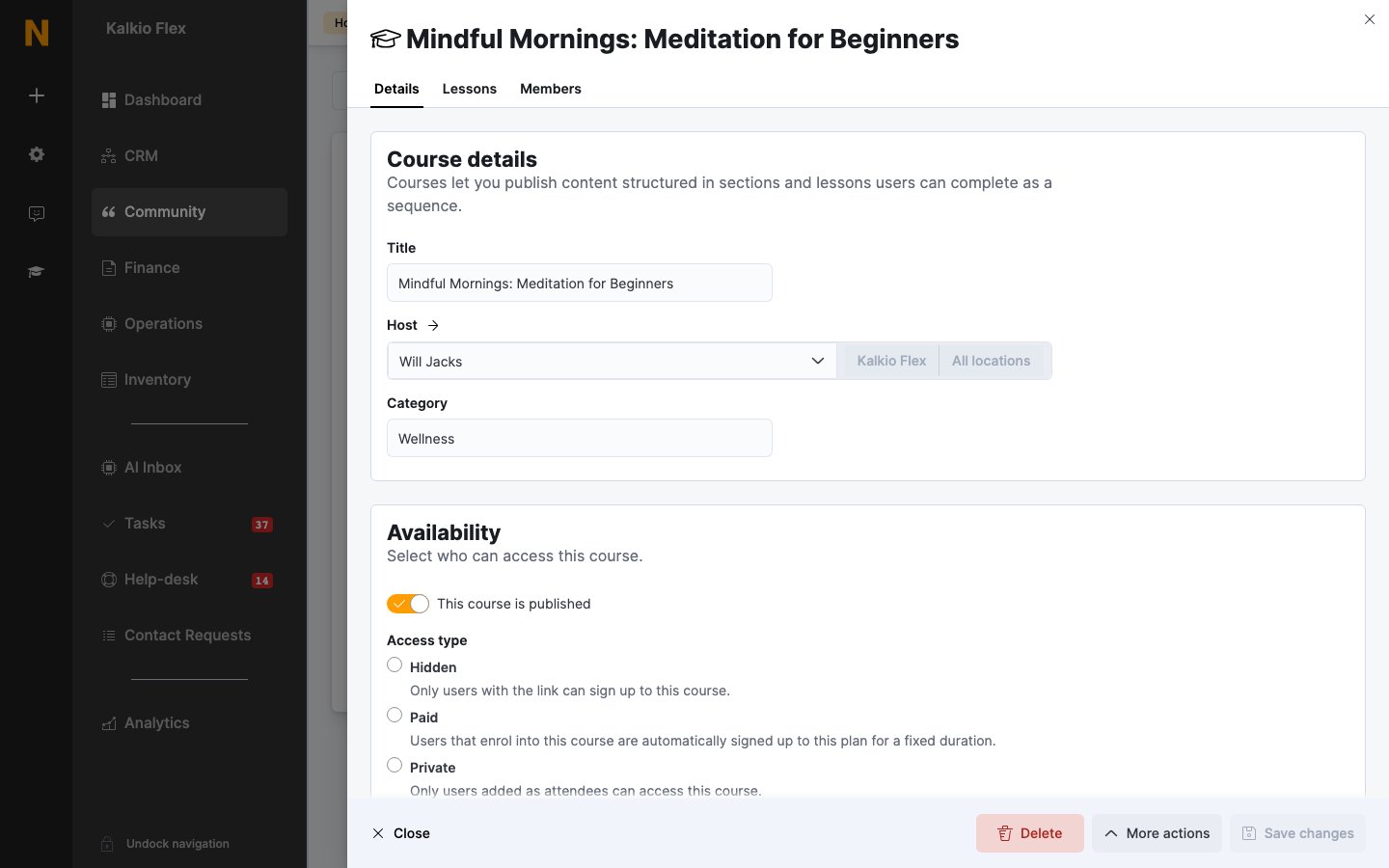
Enter a Title and choose a Host — the customer presenting the course. Optionally add a Category: pick an existing one or type a new one. Categories group courses on the members portal. If you manage several locations, also choose the Location — a network location makes the course available at every location in that network.
3
Add the content
Under Course content, write a Course summary (up to 400 characters, shown in course listings), a Full course description (shown under What’s this course about?), and an Overview (shown under What you’ll learn). Upload a Large image (1500×1125px or larger) and a Small image (250×250px or larger).
4
Save
Save the course. The Lessons and Members tabs appear once it has been saved.
Adding sections and lessons
Open the course and go to the Lessons tab. Lessons are listed under their sections, with badges showing whether each one is active and its unlock and completion types.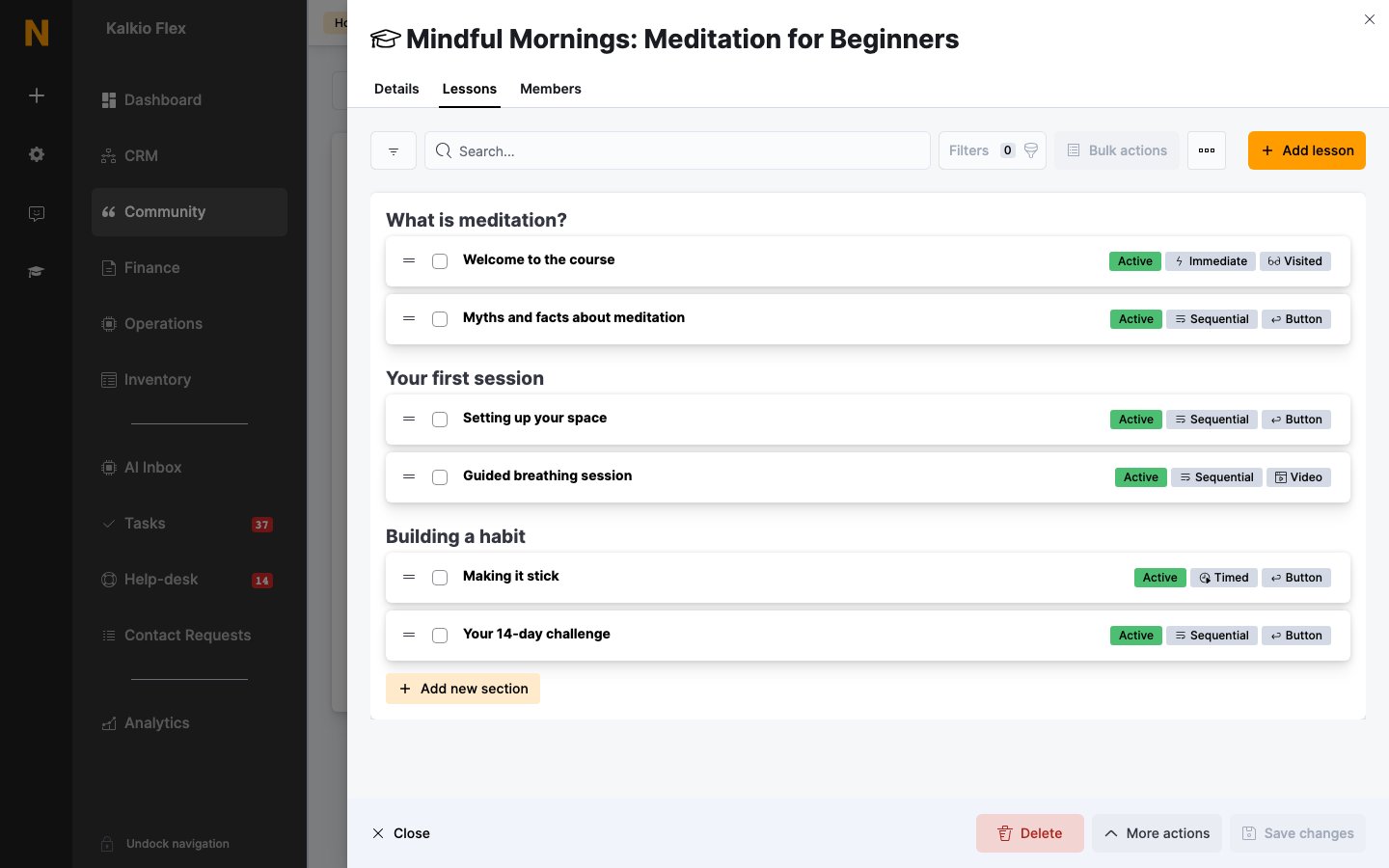
- Add a section — click Add new section at the bottom of the list. An empty section shows Drag an item here to add it to the section until you add lessons to it.
- Add a lesson — click Add lesson. Give it a Title, choose its Section, and add a Lesson summary, the Lesson contents, and an optional Image. Leave This lesson is active ticked to show it to customers.
- Reorder — drag lessons by their handle to reorder them or move them between sections. Use the arrows beside a section’s name to move it up or down.
- Edit or delete a section — use the icons beside the section’s name. A section has its own Section summary, Image, unlock settings, and a This section is active switch.
Unlock and completion
Each lesson — and each section — has an Unlock type that controls when customers can open it. Lessons also have a Completion type that controls how they’re marked as done.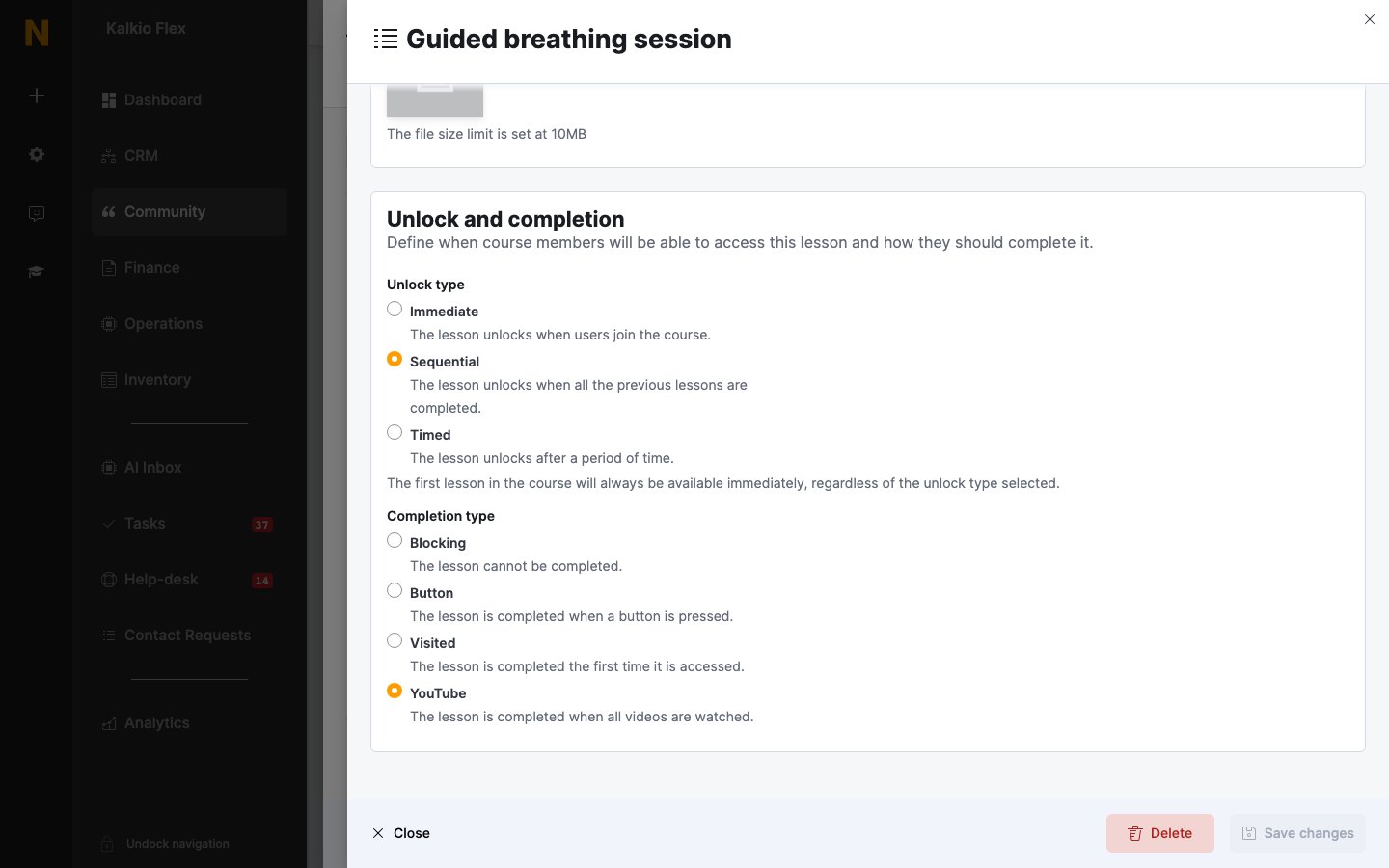
The first lesson in a course is always available immediately, whatever its unlock type.
Publishing a course
Courses are published from the Availability section of the Details tab. Tick This course is published, then choose an Access type.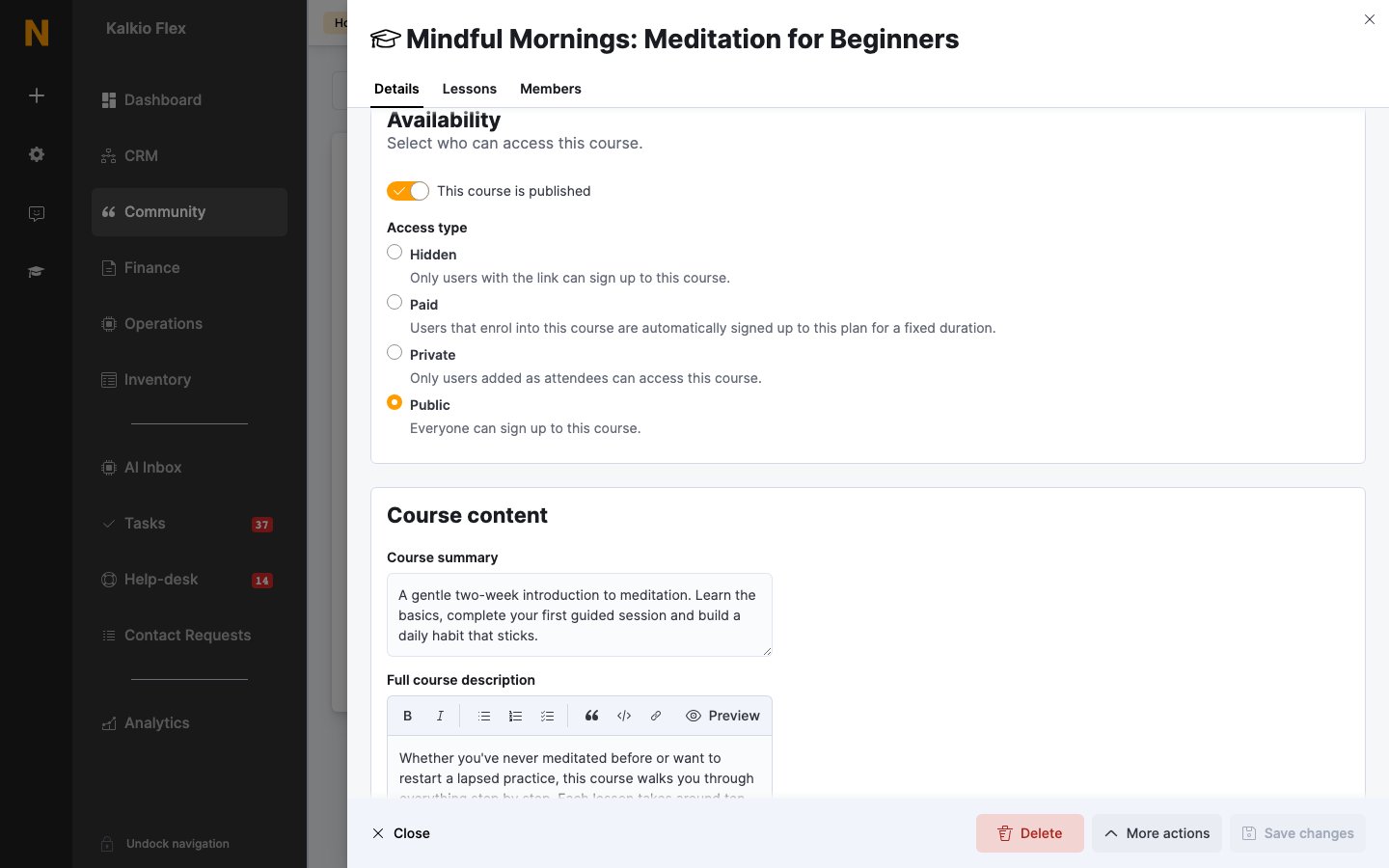
The Course link section shows the course’s View link for sharing — the only way into a Hidden course.
Publishing settings
Managing course members
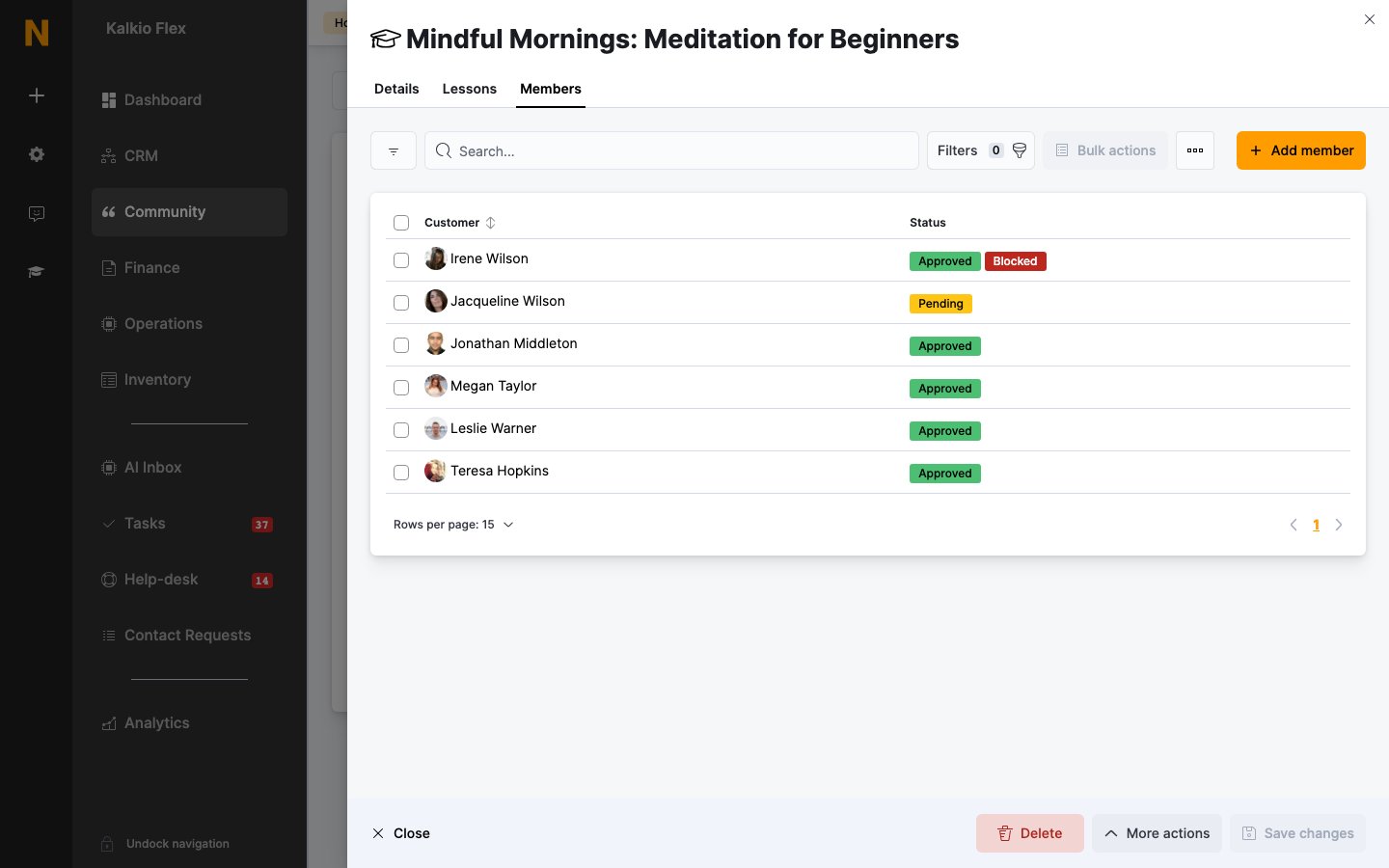
The Members tab lists every customer enrolled in the course, with a status badge:- Approved — the customer can access the course.
- Pending — the enrolment is waiting for approval, for example until a paid plan is paid for.
- Blocked — the customer’s access has been removed.
Copying a course
To reuse a course’s structure, tick it in the list and choose Make a copy from the Bulk actions menu. The copy, named <title> (Copy), includes all the sections and lessons — useful when several courses share content or when you want to offer the same course on different terms.Tips
- Keep each lesson to one idea. Shorter lessons are easier to finish and make progress feel steady.
- Alternate informational lessons with practical ones that ask customers to do something.
- Use Sequential unlocks to guide customers through a course in order, and Timed unlocks to pace a programme over days or weeks.
Related
- Articles — lighter-weight published content
- Discussion groups — community spaces for course members
- Announcements — telling customers a new course is live
- Plans — the plans used for paid courses