

Overview
A CRM board is a pipeline that groups the stages an opportunity moves through as a customer progresses — for example Lead → Qualified → Proposal sent → Won. Each board is made of stages (called CRM board stages in the dashboard), laid out in order. The power of a board is automation at the stage level:- Auto assignment decides which opportunities land in a stage on their own — for example, everyone who completes a tour request goes straight into a “Tour scheduled” stage.
- Auto actions run when an opportunity enters a stage — for example, send a message macro, start a task list, or mark the opportunity as won.
How to access
Navigate to CRM → Boards in the dashboard. Boards are shown as cards, each listing its stages top to bottom with a live count of the opportunities in each (and any that are due).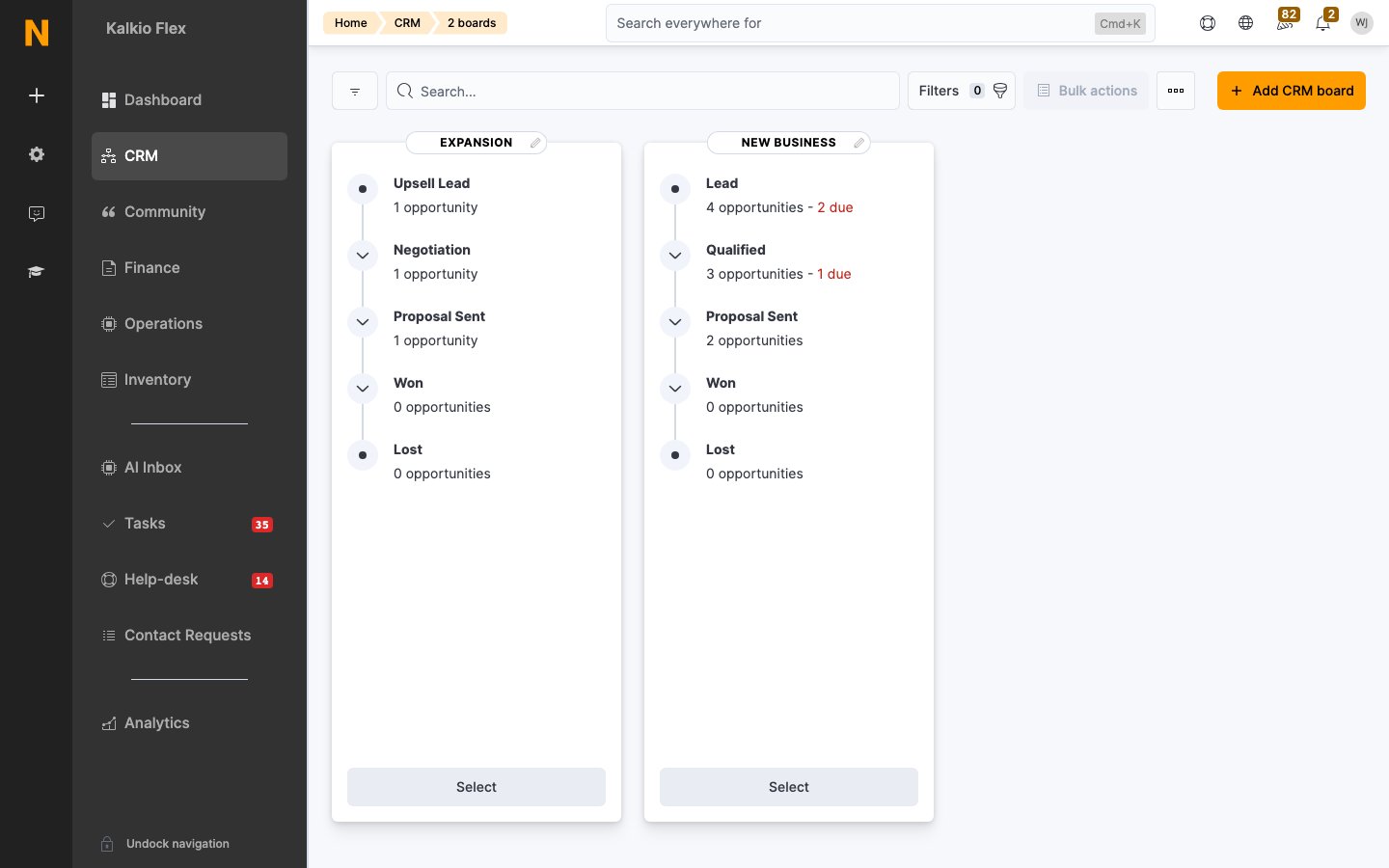
Creating a board
1
Open Boards
Go to CRM → Boards and click Add CRM board.
2
Choose a starting point
Build a board from scratch, or start from one of two guided templates:
- Sales pipeline — the classic enquiry funnel: Enquiries → Tour scheduled → Tour completed → Proposal sent → Proposal accepted → Moved in → Lose and delete.
- Sales pipeline with digital signature — the same funnel, but swaps “Proposal accepted” for a Contract signed stage that asks the customer to e-sign a document.
3
Set the basics
Give the board a name and choose its Location. A board belongs to a single location.
4
Add stages
A Stages section appears once the board is saved. Add one stage per step in your pipeline and set each stage’s auto-assignment and auto actions (below).
Configuring a stage
Each stage has two automation sections.Auto assignment
Decides which opportunities are added to the stage automatically. If you leave every box off, opportunities only reach the stage when you move them by hand. Options are grouped by what triggers them:- Tour requests — completing a tour request form, confirming a tour, or completing a tour.
- Contracts and proposals — completing a sign-up form, cancelling a contract, being sent a proposal, or accepting a proposal.
- Other customer engagements — completing a booking, e-signing a document, registering for an event, sending a contact message, purchasing a specific product (you pick which products), or an event attendee checking in.
Auto actions
Actions that fire when an opportunity moves into the stage. Pick one or more:- Send an email message to the opportunity using a message macro.
- Start a task list for the opportunity, and optionally use the task list as responsible so the opportunity is assigned to whoever owns each task.
- Activate or deactivate the customer’s account.
- Confirm tour for the opportunity.
- Mark the opportunity as won or lost.
- Permanently delete the account and all customer details — typically wired to a final “Lose and delete” stage.
Working with opportunities on a board
A board’s stages are populated from a single opportunities list, not a drag-and-drop board. Open a stage to see the opportunities in it as a table — name, company, email, value, follow-up date, status, source, responsible, and any custom fields. To move an opportunity, open it and change its Stage, or let auto assignment place it. Every move is written to the opportunity’s history, so you always have a timeline of how a deal progressed.Related
- Opportunities — what moves across the board
- Message macros — the templates a stage can send
- Tasks — the work a stage can kick off
- Reminders — automated outreach tied to customer events