

Overview
FAQ articles are the questions and answers published to your members portal and app. They’re the first place members look when something is unclear — keeping them current saves your team a large volume of repeat questions. Each article has a short Summary for the listing and a full Article contents body, plus optional images.How to access
Navigate to Community → FAQ in the dashboard.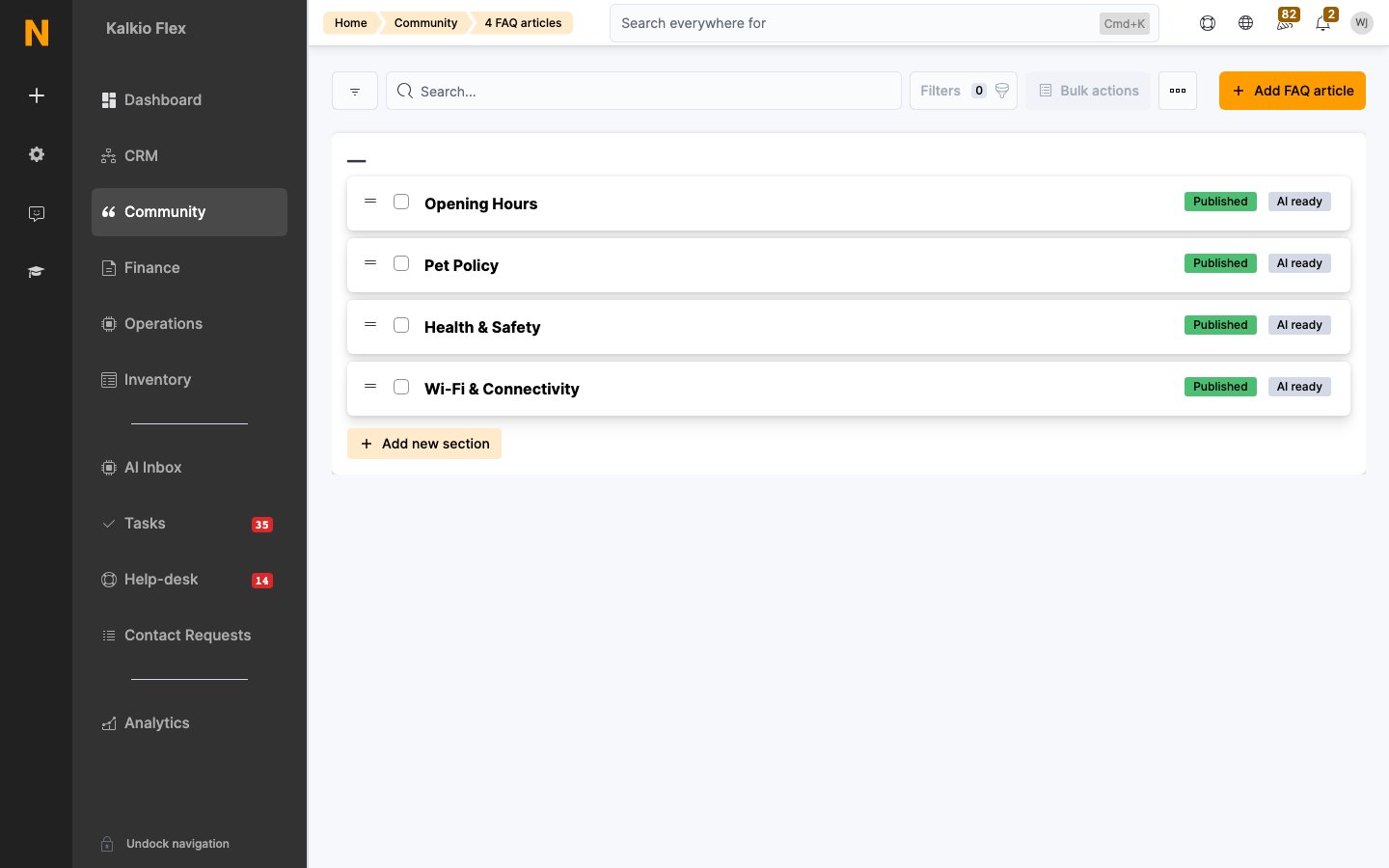
The list
Each row shows the Title alongside a Published or Unpublished badge. Two more badges can appear:- AI ready — the article has been processed so it can be used by AI-assisted answers.
- Targeting badges such as Members only, Contacts only, Specific membership, or Specific customers when the article isn’t visible to everyone.
Creating an FAQ article
1
Start a new article
Go to Community → FAQ and click Add FAQ article.
2
Write the content
Set the Location, Title, a short Summary (shown in the listing), and the full Article contents. You can attach a Large image (used on the article page and in listings — 1500×1125px or larger) and a Small image (used when the article appears as a related item — 250×250px or larger).
3
Choose who sees it
Under Availability, pick who the article is available to — all customers, members, contacts, or specific teams and customers. See Targeting below.
4
Publish
Tick This article is published. and save. Published articles appear on the portal and app immediately.
Targeting who sees an article
Under Availability, the This article is available to: control lets you narrow the audience:- All customers — everyone on the portal.
- Contacts — customers without an active contract.
- Members — customers with an active contract.
Keeping the FAQ useful
- One question per article. Combined questions (“How do I book and pay?”) hurt both findability and clarity.
- Answer the question first. Lead the Article contents with the direct answer, then add detail.
- Retire what’s obsolete. An article describing a setting you no longer have is worse than none — unpublish or delete it.