

Overview
Forms are a set of questions you can publish online for anyone to complete, or send directly to specific customers and prospects. Use them for anything that needs structured input — applications, dietary requirements, plan details — without a dedicated feature for it. Each submission comes back as a response you can review.How to access
Navigate to Community → Forms in the dashboard. All submissions across your forms appear under All answers.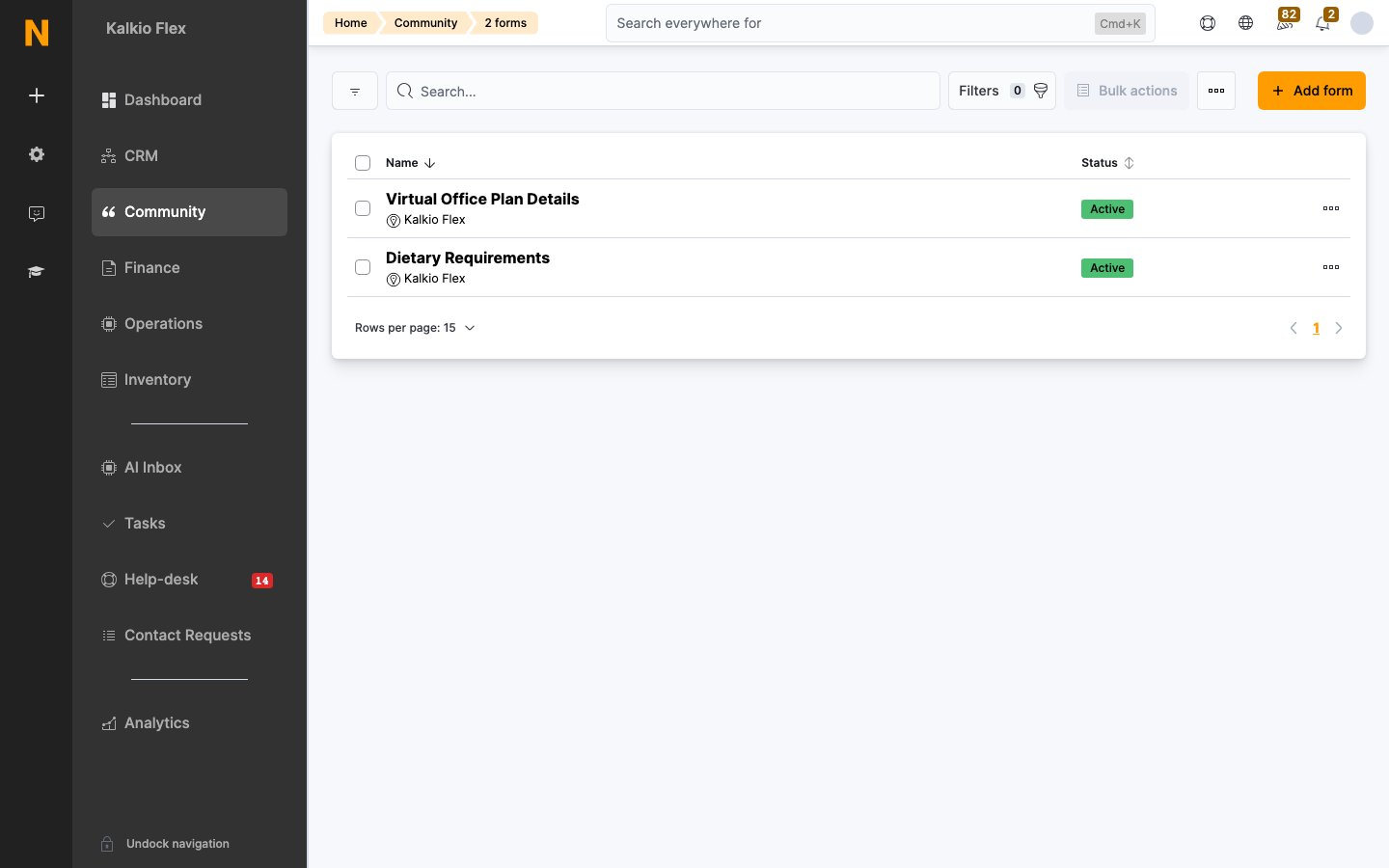
The list
Each row shows:
Use the Add form button to create a new one.
Creating a form
1
Create the form
Go to Community → Forms and click Add form.
2
Fill in the details
Set the Location, Name, and an optional Description. Tick This form is active so people can submit it. Optionally choose a CRM stage — anyone who submits the form is added to that CRM board stage automatically.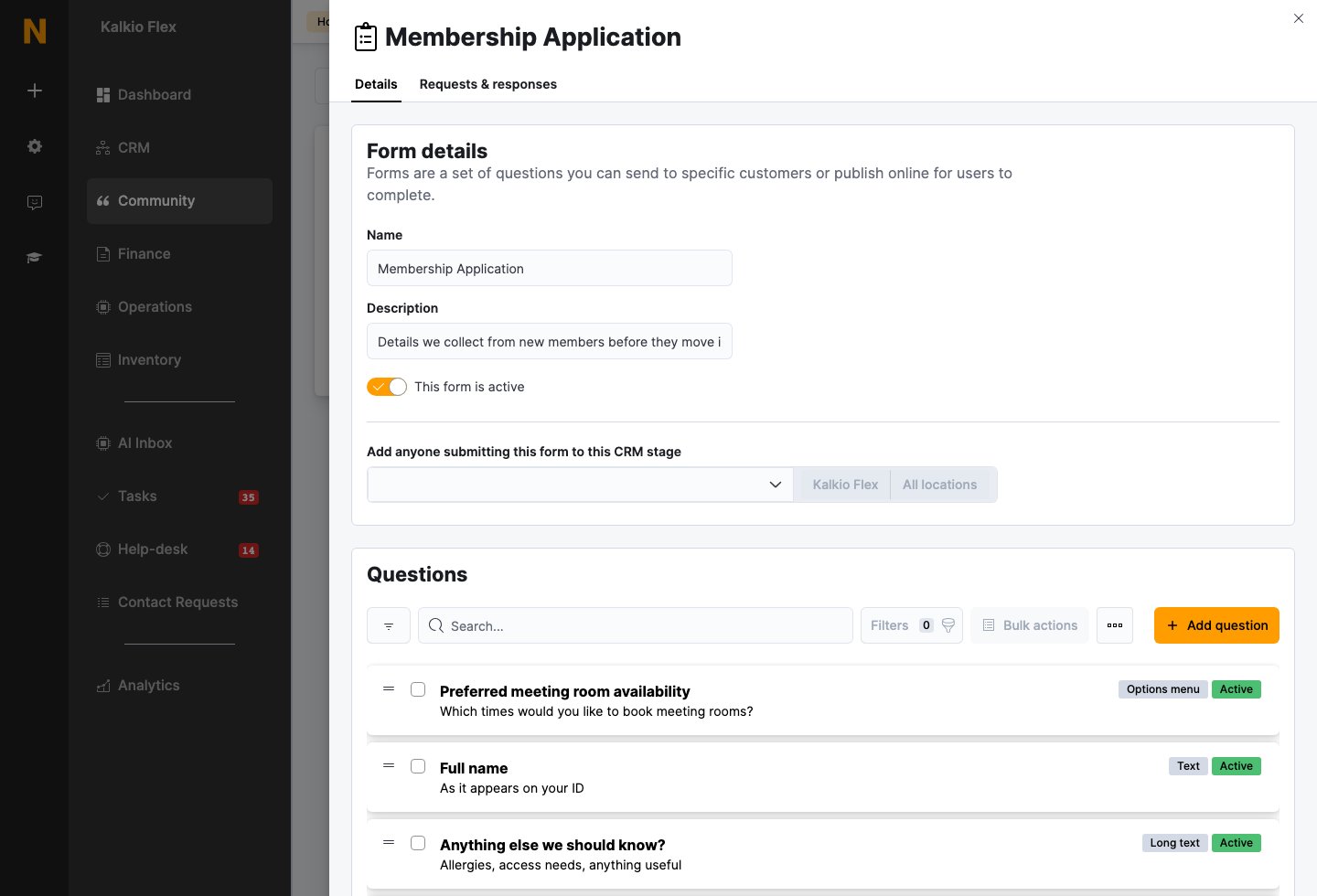
3
Add questions
In the Questions section, add each field in the order customers should answer them.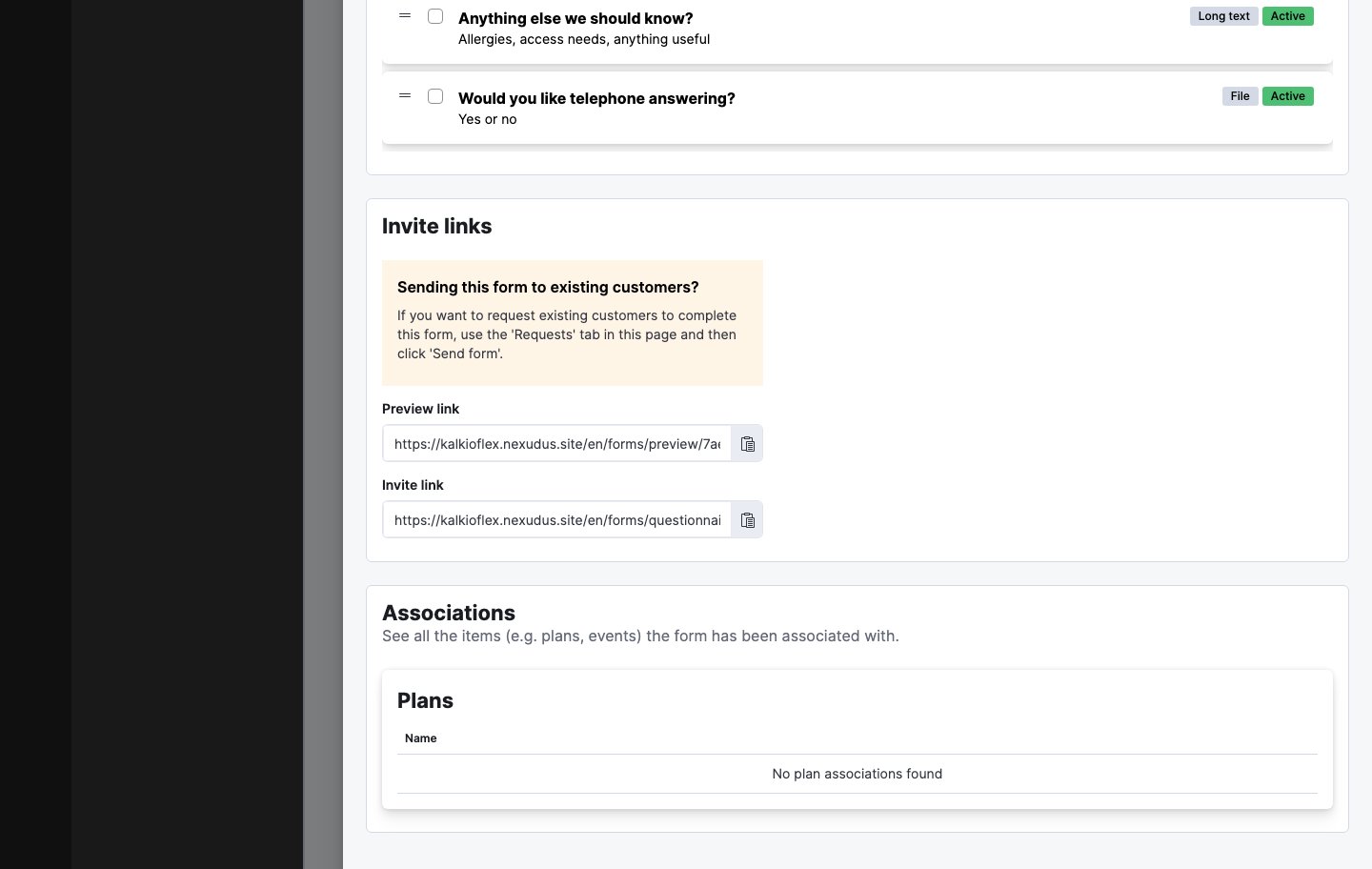
4
Share it
Copy the Preview link (what you see before submitting) or the Invite link (a page where customers fill it in).
Question types
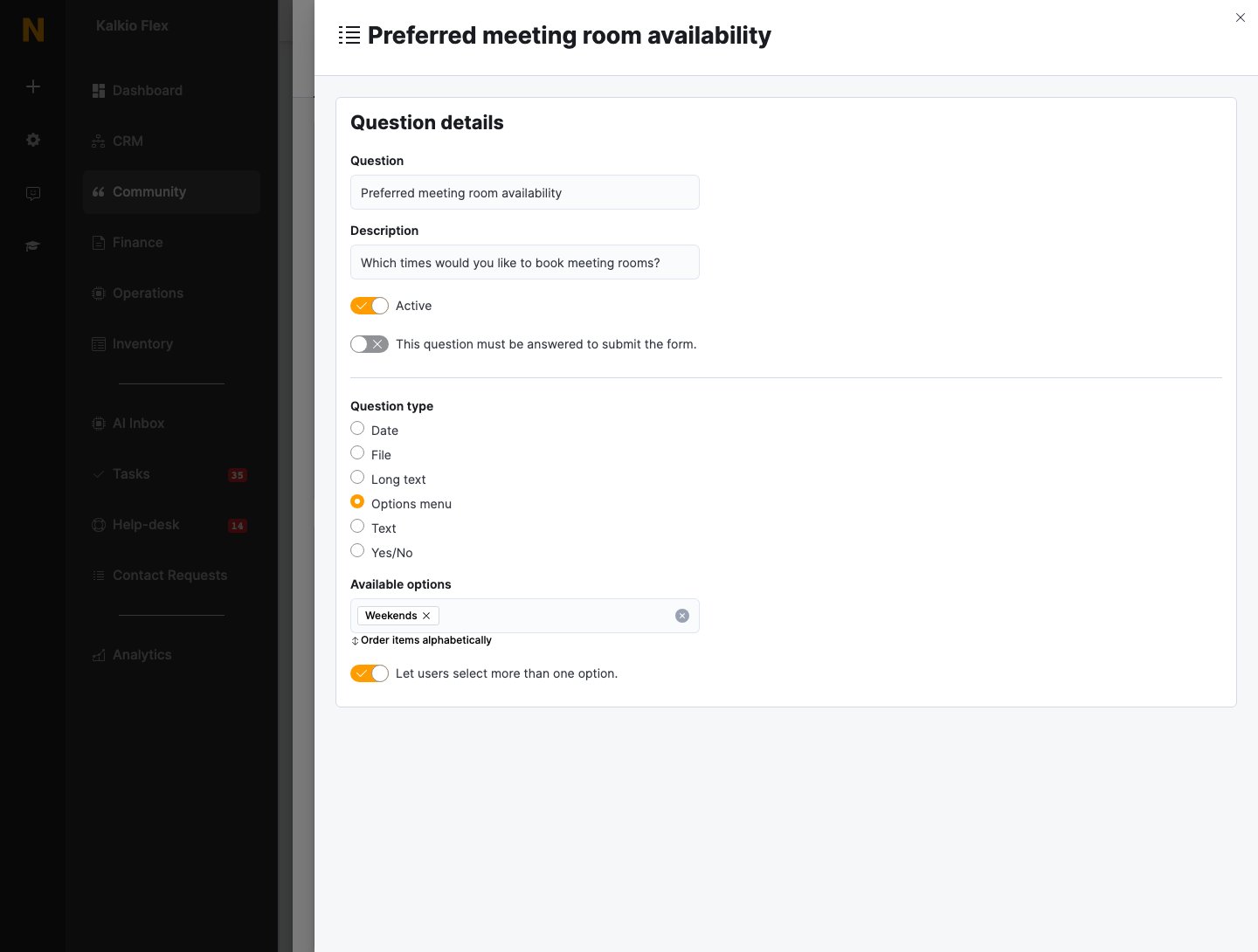
Each question has a Question text, an optional Description, an Active toggle, and a This question must be answered to submit the form requirement flag. Choose from these types:
Click any question in the list to edit it:
Sending forms to existing customers
The Requests & responses tab on a form is where you push a form out to specific people. Click Send form to request that existing customers complete it — the response then shows up in the list with a Pending status until they submit.Reviewing responses
From the form’s Requests & responses tab, or the central All answers list, each row shows:
Open a response to read the answers.
Where else forms appear
Forms aren’t limited to their own invite links — you can attach them to other parts of the platform:- CRM stages. When creating a form, choose Add anyone submitting this form to this CRM stage to drop every submitter straight into a CRM board stage — useful for turning applications into opportunities.
- Plan onboarding. A plan can be set to send a custom onboarding form to customers after they purchase. See Onboarding and compliance.
- Events. Each event can have a Pre-event form sent to registered attendees, with an optional reminder email. Completed submissions appear on the event’s Form Answers tab.