

What is Operator Takeover?
Operator Takeover lets you change how a proposed AI action is delivered to the customer. When you review an action in the AI Inbox, you’re not limited to the AI’s suggested channel — you can choose:- Email (AI assisted) — The AI-composed email sent through the AI email system
- Voice — AI-powered phone call using text-to-speech
- Email — Email sent through your connected email account or business default SMTP
- Help Desk — Creates a trackable support ticket and sends the customer a help desk notification
When to Use Each Channel
How to Change the Delivery Channel
Step 1: Open a Proposed Action
- Go to Operations → AI Assistant → AI Inbox
- Click on any pending proposed action to open the detail panel
- Review the customer context and the AI-drafted message
Step 2: Select a Channel
In the Delivery channel section:- Click the Channel dropdown
- Select one of the available options:
- AI assisted Email
- Voice
- Email message
- Help desk
Step 3: Configure Channel Options
For Voice Channel
What you’ll see:- ⚠️ Business hours warning (if enabled): “Voice messages are only sent during business hours. This action will be automatically deferred until the next available business hours window.”
- 🚫 Invalid phone number error: “The customer does not have a mobile phone number” or “The customer’s phone number is not in a valid international format.”
- 🚫 Voice not enabled error: “The Voice AI agent is not enabled for this location.”
- Customer must have a valid mobile phone number in international format (
+XX...) - Voice channel must be enabled in Settings
- If business hours enforcement is enabled, the call will be deferred to the next business hours window
For Email Message Channel
What you’ll see:- Send from email account dropdown
- First option: “Location default (no reply tracking)”
- Other options: Your connected email accounts (e.g., [email protected], [email protected])
“Replies cannot be automatically tracked without a connected email account. Customer replies will land in your normal inbox and will not appear in the AI conversation timeline.”How reply tracking works: When you send via a connected email account:
- The message includes a unique identifier in the email headers
- When the customer replies, their email client includes this in the
In-Reply-Toheader (standard email threading) - Nexudus syncs the reply from your connected inbox and matches it via the identifier
- The reply appears in the AI Conversations timeline with a “Replied via email” indicator
- Go to CRM → Email Accounts
- Click Add email account
- Choose your provider (Google Workspace, Office 365, or IMAP)
- Authenticate and grant access
- The account will appear in the “Send from” dropdown
For Help Desk Channel
What you’ll see:- Department dropdown (optional) — Assign to a specific support department
- Priority dropdown — Low, Normal, High, or Critical
- Internal notes text area (optional) — Notes visible only to admins, not the customer
- A new help desk message is created
- The customer receives your standard help desk notification email
- The ticket is linked to the AI conversation
- All future help desk comments are logged in the conversation timeline
Step 4: Edit the Message (Optional)
You can edit the subject line and message body before sending:- Subject field — Edit the subject line (editable for pending/snoozed actions)
- Message body — Full rich text editor with HTML formatting
- Variables like
{{customer_name}}and{{invoice_number}}are automatically replaced
Step 5: Approve and Send
- Review your channel selection and message
- Optionally add review notes (internal notes for your team, not sent to customer)
- Click Approve and send message
- Confirm in the modal that appears
- The message is sent immediately via the selected channel (or deferred if using Voice during non-business hours)
- The action status changes to Approved
- The message is logged in the AI Conversations timeline with the appropriate channel indicator
- Customer replies are automatically captured back into the conversation (depending on channel)
Reply Routing by Channel
Viewing the Conversation Timeline
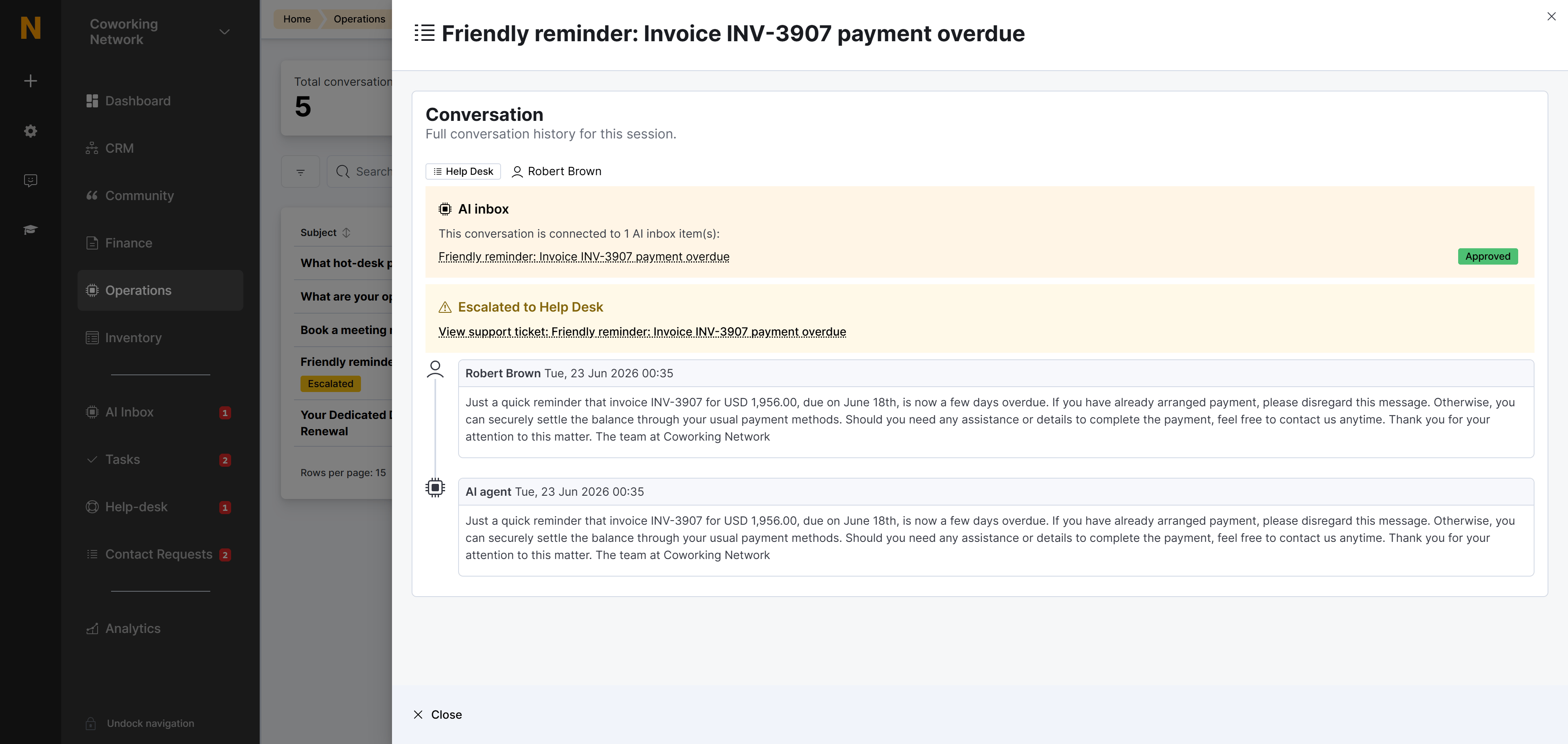
After sending via any channel, you can view the full conversation:- Go to Operations → AI Assistant → AI Conversations
- Find the conversation (search by customer name or subject)
- Open the conversation to see the timeline with all messages
- Sender avatar — AI, operator, or customer
- Channel indicator — Email icon, Help Desk icon, etc.
- Message content — Full text with formatting
- Link to source — Click to view the Email Message or Help-desk detail
Use Cases
Use Case 1: Sending from a Department Email
Scenario: The AI proposes a payment reminder. You want it to come from [email protected] instead of the AI email address. Flow:- Open the proposed action in the AI Inbox
- Change Channel to Email Message
- Select [email protected] from the “Send from” dropdown
- Edit the message if needed
- Click Approve and send
- Customer receives the email from [email protected]
- When they reply, the response appears in your billing@ inbox AND the AI conversation timeline
Use Case 2: Escalating a Technical Issue
Scenario: The AI detects a member hasn’t checked in for two weeks and proposes a re-engagement email. You realize this might be a technical access issue that needs support team attention. Flow:- Open the proposed action in the AI Inbox
- Change Channel to Help desk
- Select Facilities from the Department dropdown
- Set Priority to High
- Edit the message: “We noticed you haven’t been in lately. Is there an issue with your access card?”
- Add internal notes: “Potential door access issue”
- Click Approve and send
- A help desk ticket is created and assigned to Facilities
- Customer receives the help desk notification
- Support team sees the ticket with full AI conversation context
Use Case 3: Urgent Voice Follow-Up
Scenario: A high-value customer has an overdue invoice. The AI proposes an email, but you want to call them directly. Flow:- Open the proposed action in the AI Inbox
- Change Channel to Voice
- Review the warning: “This will be deferred until business hours” (if outside hours)
- Verify the customer has a valid mobile number
- Edit the voice script if needed
- Click Approve and send
- The AI places a voice call to the customer during business hours
- Call transcript is logged in the conversation timeline
Troubleshooting
Cannot Send via Voice
Symptoms:- “Voice channel not enabled” error message
- “Invalid or missing phone number” error
- ✅ Enable Voice in Settings
- ✅ Verify customer has a mobile phone number
- ✅ Ensure phone number is in international format (+XX…)
- ✅ Edit the customer record to add or fix the phone number
Replies Not Appearing in Timeline (Email Message)
Symptoms:- Customer replies but they don’t show up in AI Conversations
- You selected “Location default (no reply tracking)” instead of a connected email account
- The email account is disconnected or not syncing
- ✅ Use a connected email account instead of “Location default”
- ✅ Check CRM → Email Accounts to verify the account is connected and syncing
- ✅ Ensure the customer used “Reply” (not “Forward” or new email)
Email Account Not Listed
Symptoms:- Your email account doesn’t appear in the “Send from” dropdown
- ✅ Connect the email account in CRM → Email Accounts
- ✅ Verify your user role has the
emailAccountpermission - ✅ Confirm the email account belongs to the same location as the customer
Best Practices
- Use connected email accounts for Email Message — Always select a connected account to enable reply tracking
- Match channel to urgency — Use Voice for urgent matters, Help Desk for complex issues, Email message for personal touch
- Edit messages thoughtfully — The AI’s draft is a good starting point, but personalize for sensitive situations
- Add internal notes — Use review notes or help desk internal notes to document why you chose a specific channel
- Monitor conversation timelines — Check AI Conversations to see how customers respond to different channels
Related Documentation
AI Conversations
View all AI conversations with full timelines
AI Inbox
Review and approve proposed actions from proactive agents
Email Accounts
Configure connected email accounts for reply tracking
Help Desk
Using the help desk system for support tickets