

The Voice channel requires paid accounts on ElevenLabs and Twilio. Twilio charges per minute of call usage. See Twilio’s Voice pricing for current rates. The cost is typically low for conversational AI use cases, especially during after-hours when the AI handles routine inquiries.
Before you start
You need:- Administrator access to your Nexudus account.
- An ElevenLabs account — provides the AI agent, speech-to-text (STT), and text-to-speech (TTS) engine. Sign up at elevenlabs.io.
- A paid Twilio account with Voice capabilities enabled (free trial accounts have limited Voice capabilities).
- A phone number that can receive inbound voice calls. This can be a new number purchased through Twilio or an existing number you own.
Make sure the AI assistant is already enabled for your space. The Voice channel is an extension of the existing AI assistant — it will not work unless the base AI assistant is active.
Overview
The setup involves four main stages:
- Create an ElevenLabs agent — Configure the AI agent with a prompt and the Nexudus webhook tool.
- Configure the webhook tool — Point the agent’s webhook to your Nexudus portal.
- Acquire a Twilio phone number — Purchase or port a number for voice calls.
- Connect to Nexudus — Link your Twilio number to the ElevenLabs agent, then enter credentials in Nexudus settings.
ElevenLabs credentials overview
The Voice channel uses two separate credentials, each serving a different purpose:
The ElevenLabs Tool Bearer Token is required as soon as you enable the Voice channel for inbound calls. The ElevenLabs Auth Token is required only if you plan to use outbound calling — for example, when the AI proactively contacts a member about a booking confirmation, tour reminder, or follow-up.
Outbound calling also requires the Agent ID (your ElevenLabs agent’s unique identifier) and the Phone Number ID (the ElevenLabs phone number linked to your Twilio number). These are configured in the same ElevenLabs account. See Outbound calling below for details.
Stage 1 — Create an ElevenLabs agent
Your AI voice agent is created in ElevenLabs. You will configure the agent with a prompt and a webhook tool that connects to your Nexudus portal.1
Go to the Agents page
In your ElevenLabs account, navigate to https://elevenlabs.io/app/agents.
2
Create a new agent
Click Create Agent and give it a name such as “Nexudus Voice Assistant” or your space’s name followed by “AI Assistant”.
3
Configure the agent prompt
In the agent’s Instructions field, paste the following prompt:This prompt instructs the agent to delegate all user requests to Nexudus through the webhook tool you will configure next.
4
Configure voice settings
Select a voice from the ElevenLabs voice library. Choose a voice that matches your brand personality — professional, friendly, or energetic.Adjust the stability and similarity settings to your preference. Lower stability gives more expressive speech; higher stability sounds more consistent.
Stage 2 — Configure the webhook tool
The webhook tool is how your ElevenLabs agent communicates with your Nexudus portal. It sends user requests to Nexudus and receives AI responses back.1
Add a tool to your agent
In your ElevenLabs agent configuration, go to the Tools section and click Add Tool.Select Webhook as the tool type.
2
Name the tool
Name the tool
nexudus. This name must match the tool name referenced in your agent’s prompt.3
Configure the webhook settings
Set the following parameters:
Replace
{portal_sub_domain} with your Nexudus portal sub-domain. Go to Settings > Website in your Nexudus admin panel (e.g., https://dashboard.nexudus.com/settings/2/0/0) and copy the domain shown there. For example, if your portal is mymembers.nexudus.com, use mymembers.Do not replace {eleventlabel_conversation_id} — it is a path variable, not a placeholder. In the webhook tool settings below, you will map this variable to the system__conversation_id system variable so ElevenLabs passes the conversation ID at runtime.4
Configure headers
Add the following header:
Replace
{your_secret_key} with the value from the Elevenlabs Tool Bearer Token field. This is a secret you create yourself — go to Settings > Channels > Voice in your Nexudus admin panel, type a strong secret key into the Elevenlabs Tool Bearer Token field, and save. Then use that same secret key here in your ElevenLabs webhook configuration. This ensures that only your Nexudus portal can verify incoming webhook requests from ElevenLabs.5
Configure tool behavior
In the tool configuration, set the following:
6
Configure path parameters
Add the following path parameter:
This tells ElevenLabs to substitute the conversation ID at runtime. The
system__conversation_id is a built-in ElevenLabs variable that holds the unique ID for each conversation.7
Configure query parameters
Add the following query parameters:
8
Add session_id variable assignment
In the Dynamic Variable Assignments section of the webhook tool configuration, add a new variable:
The session_id variable is used to identify the caller’s session context. This is separate from the query parameters section — ElevenLabs stores variable assignments in their own dedicated section in the tool configuration.
9
Save the tool
Click Save to add the webhook tool to your agent.
The webhook uses the GET method because ElevenLabs voice conversations send user input as query parameters. The
{portal_sub_domain} placeholder must be replaced with your actual portal domain. The {eleventlabel_conversation_id} path variable is mapped to system__conversation_id in the webhook tool settings and is substituted at runtime by ElevenLabs.Stage 3 — Acquire a Twilio phone number
1
Verify Voice capabilities
In the Twilio Console, go to Account > Settings > Capabilities and ensure that Voice is enabled for your account.If Voice is not enabled, contact Twilio support to activate it. Free trial accounts may need to be upgraded to a paid plan first.
2
Note your account credentials
In the Twilio Console, go to Account > API keys & tokens. You need two values:
- Account SID — your account identifier
- Auth Token — your account secret
Stage 4 — Acquire a phone number
You need a phone number that can receive inbound voice calls. You have two options:The phone number should be able to receive inbound voice calls. Most Twilio numbers support this by default, but verify when purchasing.
Stage 4 — Connect to Nexudus
1
Connect Twilio to ElevenLabs
ElevenLabs can automatically configure all Twilio webhook settings for you:
- In ElevenLabs, go to Deploy > Phone numbers.
- Click Import Number > From Twilio.
- Add a label, enter your phone number, and select or type a new Twilio Account SID.
2
Open your AI settings in Nexudus
In the Nexudus administration panel, go to Settings > Channels > Voice.
3
Switch on AI Voice
Toggle the AI Voice setting to on. This activates the voice channel for your space.
4
Enter your credentials and phone number
Enter the following values in the corresponding fields: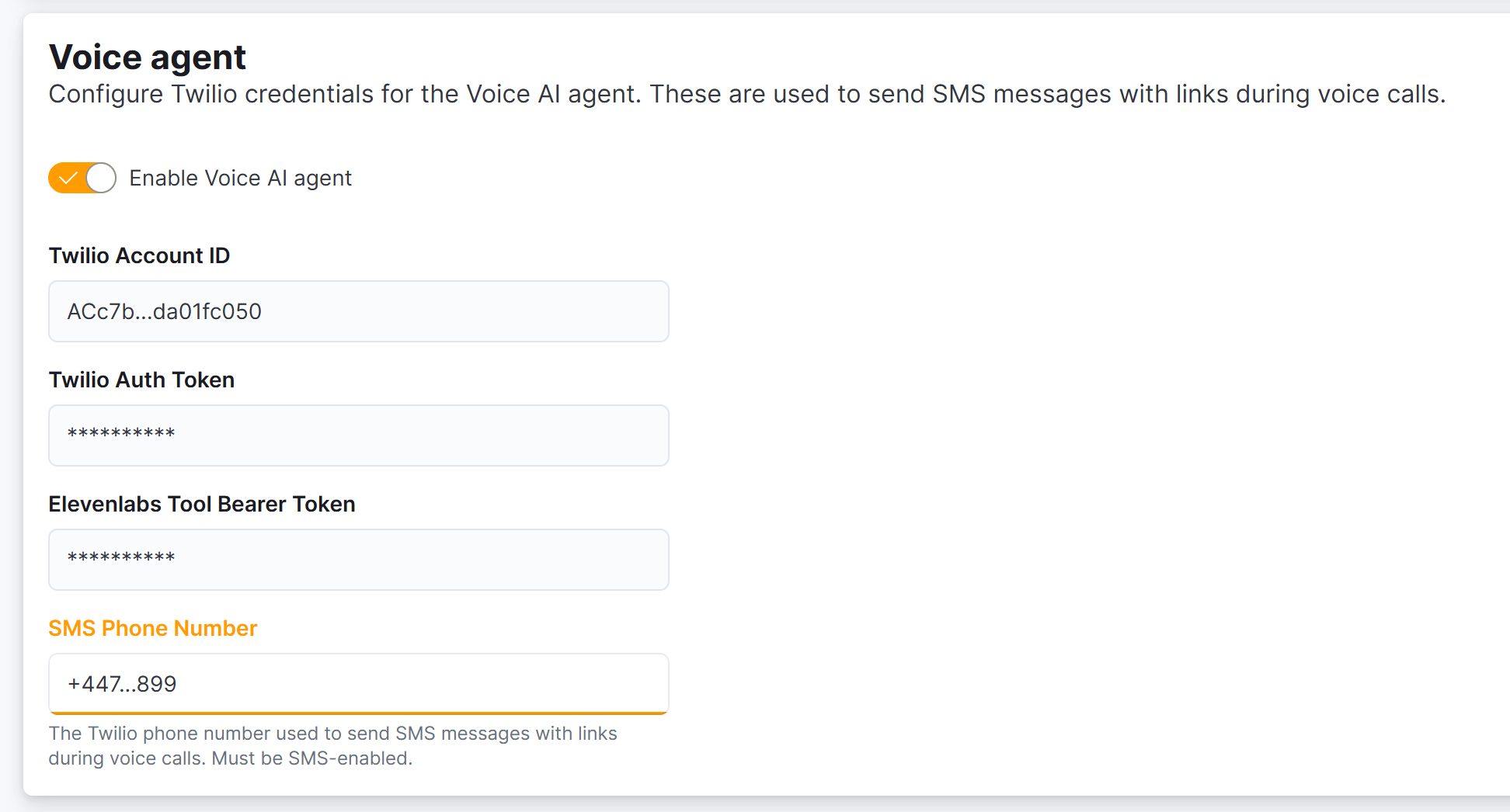
- Twilio Account ID — your Twilio Account SID (found in the Twilio Console under Account > API keys & tokens)
- Twilio Auth Token — your Twilio Auth Token (found in the Twilio Console under Account > API keys & tokens)
- SMS Phone Number — the Twilio phone number in E.164 format (e.g.,
+14155551234). This number is used for SMS link delivery. See SMS link delivery for details.
Outbound calling
In addition to answering incoming calls, the AI can initiate outbound calls to members and prospects. Outbound calling is used for:- Booking confirmations and reminders
- Tour reminders
- Follow-up inquiries
- Payment notifications
How it works
When the AI needs to make an outbound call, it uses your ElevenLabs agent configuration to place the call through your linked Twilio phone number. The caller experiences the call the same way as an inbound call — they hear the AI’s voice and can respond naturally.Required credentials
Outbound calling requires the following values configured in Nexudus:Enabling outbound calls
- Enter the ElevenLabs credentials in Settings > Channels > Voice in your Nexudus admin panel.
- Configure calling hours in the same settings page to control when outbound calls are made.
- Use the Test Outbound Call button (shown when Agent ID and Phone Number ID are both configured) to verify your setup.
Outbound calls respect the calling hours configured in Nexudus by default. Calls outside the calling window are automatically deferred until the next available window. You can disable this enforcement for testing purposes, but it is not recommended for production use.
Test the Voice channel
1
Call your space's number
From any phone, call your space’s AI voice number. The AI should answer and greet you.
2
Try a simple question
Ask a basic question like “What are your opening hours?” or “Where are you located?” to verify the AI responds correctly.
3
Check the conversation
After the call, go to Operations > AI Conversations in Nexudus to verify the conversation was recorded. You should see a new entry with the Voice channel badge.
Troubleshooting
What the caller can do
On the Voice channel, callers can:- Ask about opening hours, location, and facilities
- Browse and book meeting rooms and desks
- Inquire about day passes and membership plans
- Request a tour of private offices
- View and manage their existing bookings