

Overview
An invoice bills a customer for the charges on their account: their contracts, and the products, bookings, passes, event tickets and other charges they’ve bought. Most invoices are created automatically:- Members (customers with an active contract) are invoiced on each contract’s next invoice date. Anything else they’ve bought since their last invoice, such as bookings or products, is added to that invoice. Nexudus checks for contracts due to be invoiced every 15 minutes, so a new contract starting today or earlier is invoiced shortly after you add it.
- Contacts (customers without an active contract) are invoiced straight away when they buy something in the Members Portal. Charges you add to a contact’s account in the dashboard aren’t invoiced until you create an invoice for them.
How to access
Go to Finance → Invoices. To see one customer’s invoices, open the customer and go to their Invoices tab.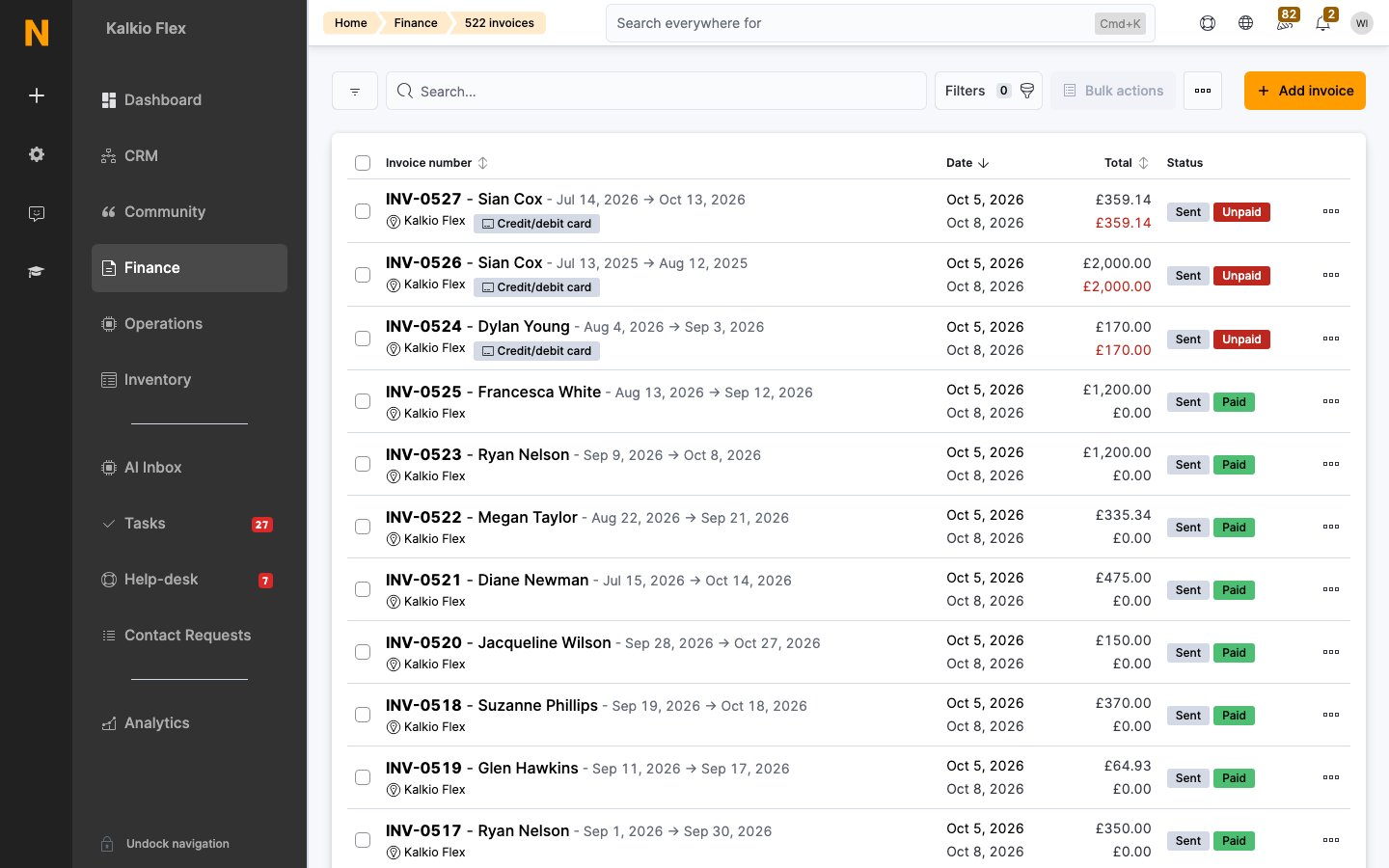
Invoice statuses
Locations using e-invoicing also show the e-invoice’s progress, such as eInvoice processed or eInvoice transfer failed.
Create an invoice
1
Open the form
In Finance → Invoices, select Add invoice.
2
Choose the customer
Select the Customer and the location the invoice is Issued by. The items due to be invoiced to the customer are listed. Untick any you want to leave out, or use Manage products, Manage contracts and Manage bookings to change them.
3
Choose what to include
Choose which due items to include:
- Include all due items in this invoice, or only due products, bookings, passes, charges or event tickets.
- Include contracts in this invoice, and choose which Contracts. The customer’s primary contract is used by default.
- Process all charges for team members, if the customer pays for a team.
4
Choose how to issue it
- Use available credit to pay this invoice: pay it from any credit on the customer’s account.
- Send this invoice by email to the customer.
- Create invoice as draft: see Draft invoices.
5
Save
Save the invoice.
Draft invoices
A draft shows what an invoice will look like before you issue it. Drafts aren’t legal invoices: you can’t take payment for them, and they use their own reference sequence, such asDRAFT-0001.
Nexudus also creates drafts automatically when a customer making a booking chooses to receive a proposal instead of booking straight away.
To issue a draft, tick it in the list and select Convert to Invoice. The draft is replaced by a real invoice with the next number in your sequence. If a draft can’t be converted, one of the charges it included has probably been deleted since it was created.
Open an invoice
Select an invoice to open it.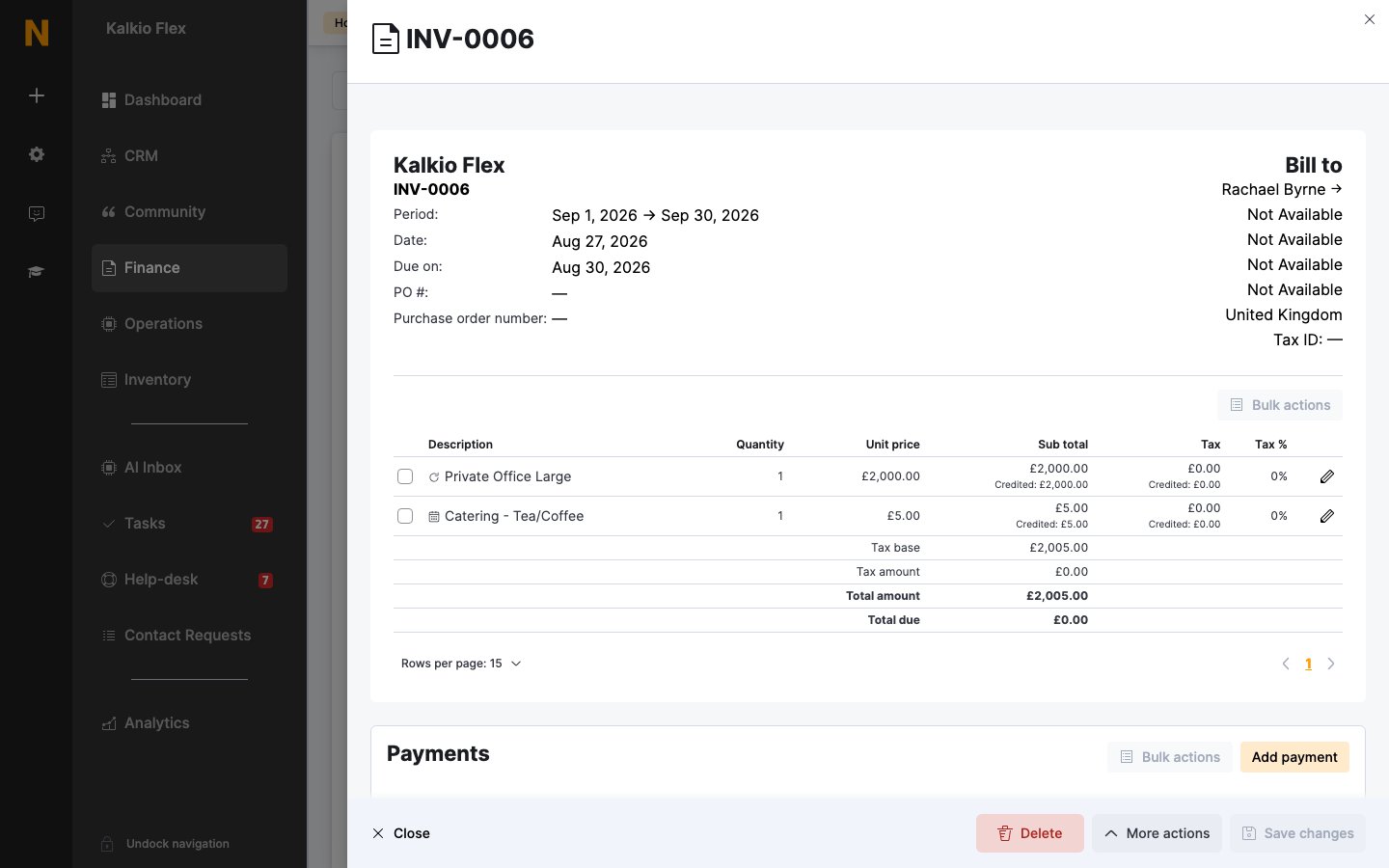
- Period, Date and Due on: see Invoice dates and due dates.
- PO # and Purchase order number.
- Bill to: the customer’s billing name, address and tax number at the time the invoice was issued.
- The invoice lines, each with its quantity, unit price, subtotal and tax, and any amount credited.
- Payments received, and the invoice’s Activity.
Edit an invoice
Select a field, such as the Due on date or a billing detail, to change it, then save. Changing billing details only affects this invoice. To change them for future invoices, edit the customer’s billing details. To change a line, select the pencil next to it. On an unpaid invoice, you can change the line’s description, quantity, price, tax rate and financial account. Once an invoice has been paid, you can only change the billing details and the lines’ financial accounts. To remove a line from an invoice that hasn’t been paid, delete it. Choose whether to include this charge in the next invoice or delete the associated charge too. For booking lines, you can also cancel the booking or void its charges. To credit, refund or cancel invoices or lines, see Credits, refunds and cancellations.Locked periods
If your location has a locked period, invoices issued before the locked date can’t be edited and their lines can’t be deleted. You can still refund, credit or cancel them, and record payments, as long as the new transactions are dated after the locked period.Payments
Payments for an invoice are listed in its Payments section.- Automatic payments are taken on the due date if the customer pays by card or direct debit.
- Add payment records a payment, such as a bank transfer or cash. Mark as Paid does the same from the list.
- Pay with stored card charges the customer’s saved card now.
- Pay with account credit pays the invoice from credit on the customer’s account.
- Reconcile looks for card, GoCardless or Stripe Checkout payments that haven’t been matched to the invoice yet.
Payment links
On Members Portal v5, unpaid invoices have a Payment link. Anyone with the link can pay the invoice online, even if the customer has no account or portal access. Copy it from the invoice’s Payments section and send it however you like. Invoice emails include the right link automatically: customers with portal access get a link that signs them in, and customers without one get the payment link. Payment links work with card and PayPal gateways, such as Stripe, Spreedly and PayPal. They don’t work with direct debit, such as GoCardless, which needs a bank account linked to a customer account. Each link only works for its own invoice and can’t be used again once the invoice is paid.Send and download invoices
From an invoice’s actions, or for several invoices from Bulk actions:
To export invoice data, such as references, dates, customers and payment status, tick the invoices and export them from Bulk actions.
Other actions
Invoice activity
Each invoice’s Activity lists what has happened to it, such as when it was sent and paid. Use Add note to add an internal note. Finance → Invoices → Activity shows the activity for all invoices: payment attempts and their results, and invoicing emails sent to customers, such as new invoices and direct debit mandate requests. Use it to find out why a payment failed or whether a customer was sent an invoice.Related
- Credits, refunds and cancellations
- Invoice dates and due dates
- Invoice settings
- Contracts: the main source of invoices
- Revenue forecast: the invoices your contracts will generate
- Ledger: charges and payments recorded against each customer
- Payment gateways: how customers pay