

Overview
Every invoice has a Date and a Due on date. Invoices that include a contract also have a Period.
You can change any of these dates on an individual invoice without changing the contract or the customer’s settings. See Edit an invoice.
How invoice periods work
In Nexudus, each day ends at midnight, so a period that ends on a date doesn’t include that date. To cover a whole month, a period runs from a day of the month to the same day of the next month. For example, a monthly contract billed on the 1st has invoice periods of 1 June to 1 July, 1 July to 1 August, and so on. The customer is charged for 1 June to 30 June inclusive; 1 July is the start of the next period. To make this clearer, the dashboard shows the period’s last day: a contract billed on the 7th shows periods such as 7 July to 6 August. The invoice the customer receives shows 7 July to 7 August, but they’re charged for each day only once. The same applies to reports: to include everything up to and including 31 July, set the report’s end date to 1 August.How the due date is set
When an invoice is created, Nexudus sets its Due on date using the first of these rules that applies:- The customer’s due date, if they have one.
- A plan due date, if the invoice includes a plan that has one. If several apply, the earliest due date is used.
- Match billing period, if it’s turned on and the invoice includes a contract: the due date is the start of the contract’s billing period.
- Your location’s default due date.
- After invoice is issued: Immediately, After 3 days, After 7 days, After 14 days or After a number of days, up to 365.
- On a calendar day: the 1st, 20th or last day of the following month, or a specific day of the following month.
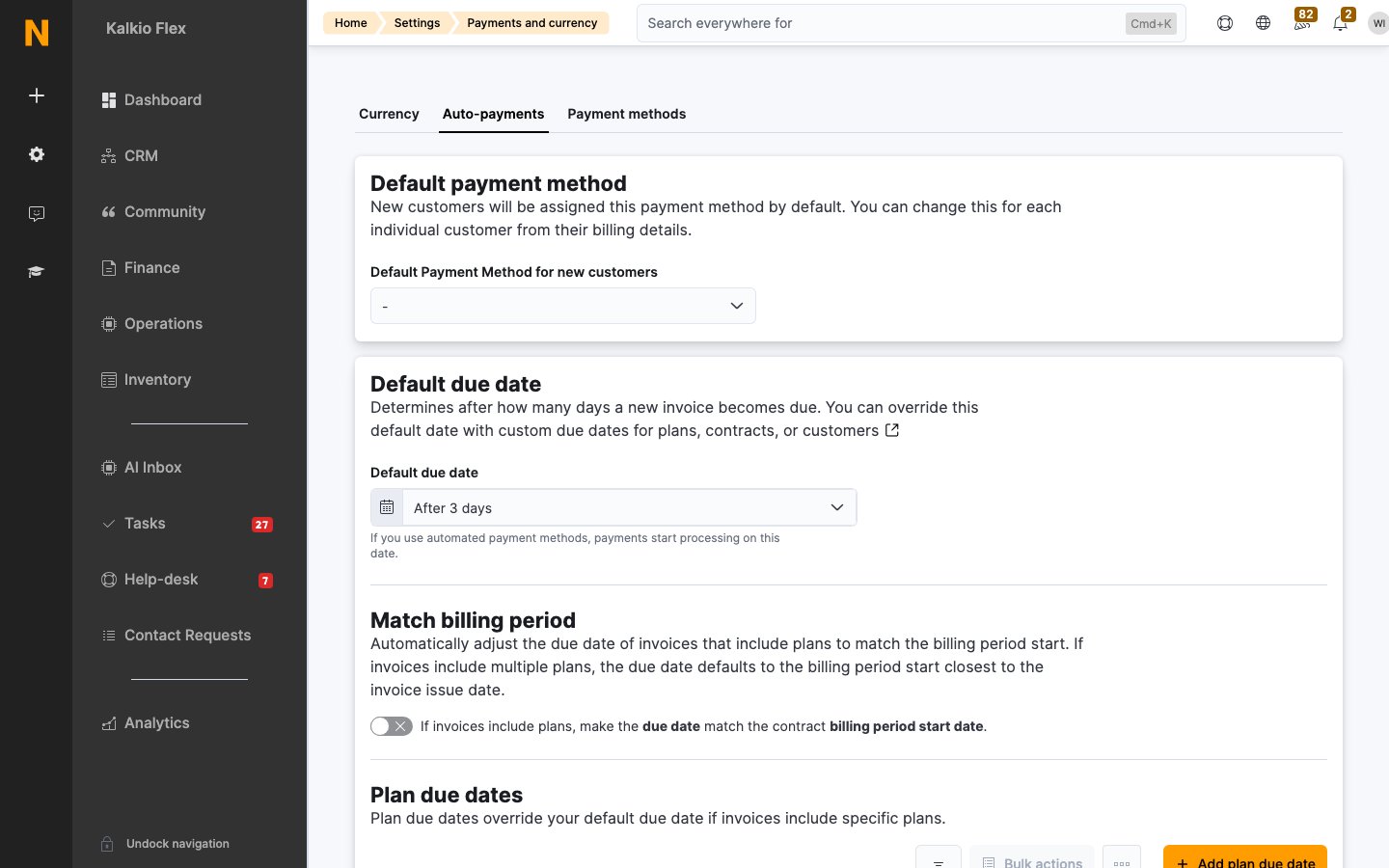
Default due date
Go to Settings → Billing and payments → Payments and currency → Auto-payments and set the Default due date. New locations start with After 3 days.Match billing period
On the same tab, turn on If invoices include plans, make the due date match the contract billing period start date. If an invoice includes several contracts, the billing period start closest to the invoice date is used.Plan due dates
To give invoices for certain plans their own due date, select Add plan due date on the same tab. Choose the Plans and the Due date.Customer due dates
To give one customer their own due date, open the customer and go to Account → Contact and billing. Set their Due date. It overrides every other due date setting.Give a customer more time to pay
To give a customer longer to pay one invoice, open the invoice and change its Due on date. Do this before the invoice becomes due: automatic payments start on the due date.Payment reminders
When a due invoice still hasn’t been paid, Nexudus reminds the customer and your team. Set the Number of days between payment reminder in Settings → Billing and payments → Payments and currency → Auto-payments, under Payments reminder. You can turn these reminders off for individual customers in their account. To send a reminder yourself, use Send Unpaid Invoice Notification on the invoice.Related
- Invoices
- Contracts: contract billing days and next invoice dates
- Invoice settings: matching the invoice date to the contract period