

Overview
TopBrewer by Scanomat is a connected coffee brewing station that lets customers order, customise, and pay for drinks using an integrated iPad. When integrated with Nexudus, drink purchases are automatically added to the customer’s account and charged on their next invoice — no cash, cards, or manual reconciliation required. Scanomat is the world-leading manufacturer of premium, connected coffee machines. Visit the TopBrewer website to learn more about the different beverage machine options available.How the integration works
Once the integration is enabled:- Customers order a drink using the iPad menu beside the machine.
- At the payment step, they present their personal QR code from the Members Portal.
- The machine verifies the customer with Nexudus and brews the drink.
- The purchase is automatically added to the customer’s account and appears on their next invoice.
Before you set up
Make sure you have the following ready before you start:- A TopBrewer by Scanomat account — If you don’t have one yet, get in touch with TopBrewer by Scanomat via their contact form. They will help you open your account and install the machine in your space. Mention that you want to integrate TopBrewer by Scanomat with Nexudus during the installation so the technician can show you how to connect to Nexudus from the TopBrewer by Scanomat app.
- A dedicated product — A product in Nexudus that represents TopBrewer by Scanomat drinks. This is the line item that appears on customer invoices. Because drink pricing is set in TopBrewer by Scanomat, keep this product internal and priced at 0.
- Your location’s portal prefix — The part of your Members Portal URL that comes before
spaces.nexudus.com. For example, if your portal iskalkio.spaces.nexudus.com, your prefix iskalkio. - A shared secret — A strong password that lets TopBrewer by Scanomat and Nexudus recognise each other. You can generate one with a password generator such as the Avast password generator. Copy and save it somewhere safe — you’ll enter it in both Nexudus and the machine.
Set up the integration
1
Create a QR code page in the portal editor
Customers scan a personal QR code to start their drink. That QR code is served by Nexudus and displayed on a custom page you build with the portal editor.For example, if your portal is 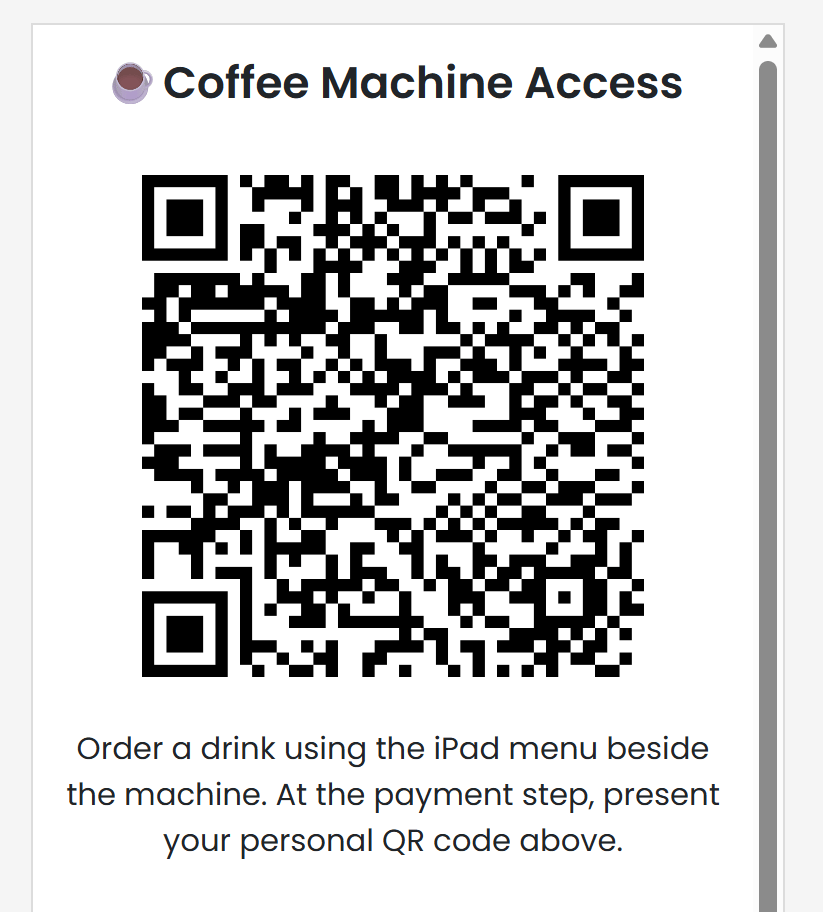
- Open the portal editor and create a new page (for example, titled My Coffee QR Code), or edit an existing page.
- Add an Image component to the page.
- In the Image component’s URL field, paste the following, replacing
{prefix}with your location’s portal prefix:
kalkio.spaces.nexudus.com, use:- Turn on the Add media token option on the Image component. This attaches the customer’s signed media token to the image URL so the machine recognises exactly who is scanning. Without it, the QR code won’t authenticate.
- Save and publish the page.
Each customer sees their own unique QR code on this page. The page must stay available to signed-in customers, and the Add media token option must remain enabled for the QR code to work.
2
Enable the TopBrewer by Scanomat integration
- Log in to dashboard.nexudus.com.
- Go to Settings → Integrations → Scanomat TopBrewer.
- Toggle on the TopBrewer by Scanomat integration.
- Select your dedicated TopBrewer by Scanomat product in the Coffee and Drinks product drop-down list.
- Optionally, set a Maximum amount on account to cap how much a customer can accumulate on their next invoice from TopBrewer by Scanomat purchases.
- Paste your shared secret into the Shared secret field.
- Select Save changes.
3
Share your secret with TopBrewer by Scanomat
During installation, your technician should have shown you how to open the menu in the TopBrewer by Scanomat app where you log in to your Nexudus account and enter the shared secret.If you weren’t shown this menu, get in touch with TopBrewer by Scanomat’s technical team via their contact form. They will help you access the right menu and enter your shared secret to finish the integration.Once the shared secret is entered on the machine, you’re all set — customers can start ordering drinks and their purchases will sync to Nexudus automatically.
How customers use it
Making a coffee is a simple process for customers:- Choose their drink from the TopBrewer’s iPad menu.
- Adjust their preferences, such as coffee strength, milk type, and the number of cups.
- Select Next Step: Pay.
- Place their cup under the machine’s tap.
- Open the Members Portal page you created in the portal editor and present the QR code to the iPad’s camera, keeping it within the frame.
Configuration options
Troubleshooting
- QR code shows “Loading…” or never loads — Make sure the Add media token option is enabled on the Image component and that the customer is signed in to the Members Portal.
- Machine rejects the QR code — Confirm the shared secret in Nexudus (Settings → Integrations → Scanomat TopBrewer) exactly matches the one entered in the TopBrewer by Scanomat app, and that the integration is toggled on.
- Wrong product on the invoice — Verify the Coffee and Drinks product points to your dedicated internal, zero-priced product.
- Purchases stopped appearing — Check that the integration hasn’t been switched off and that the QR code page is still published with the correct URL and the Add media token option enabled.