

Overview
The Zoom integration creates Zoom Meeting links for your bookings and events:- Resources — connect a meeting room to its own licensed Zoom user, and every booking of it gets that user’s meeting link in the confirmation email, for the customer and their guests.
- Events — attendees of events with Send a Zoom Meeting link to all attendees of this event. get a unique link to join.
Connecting Zoom
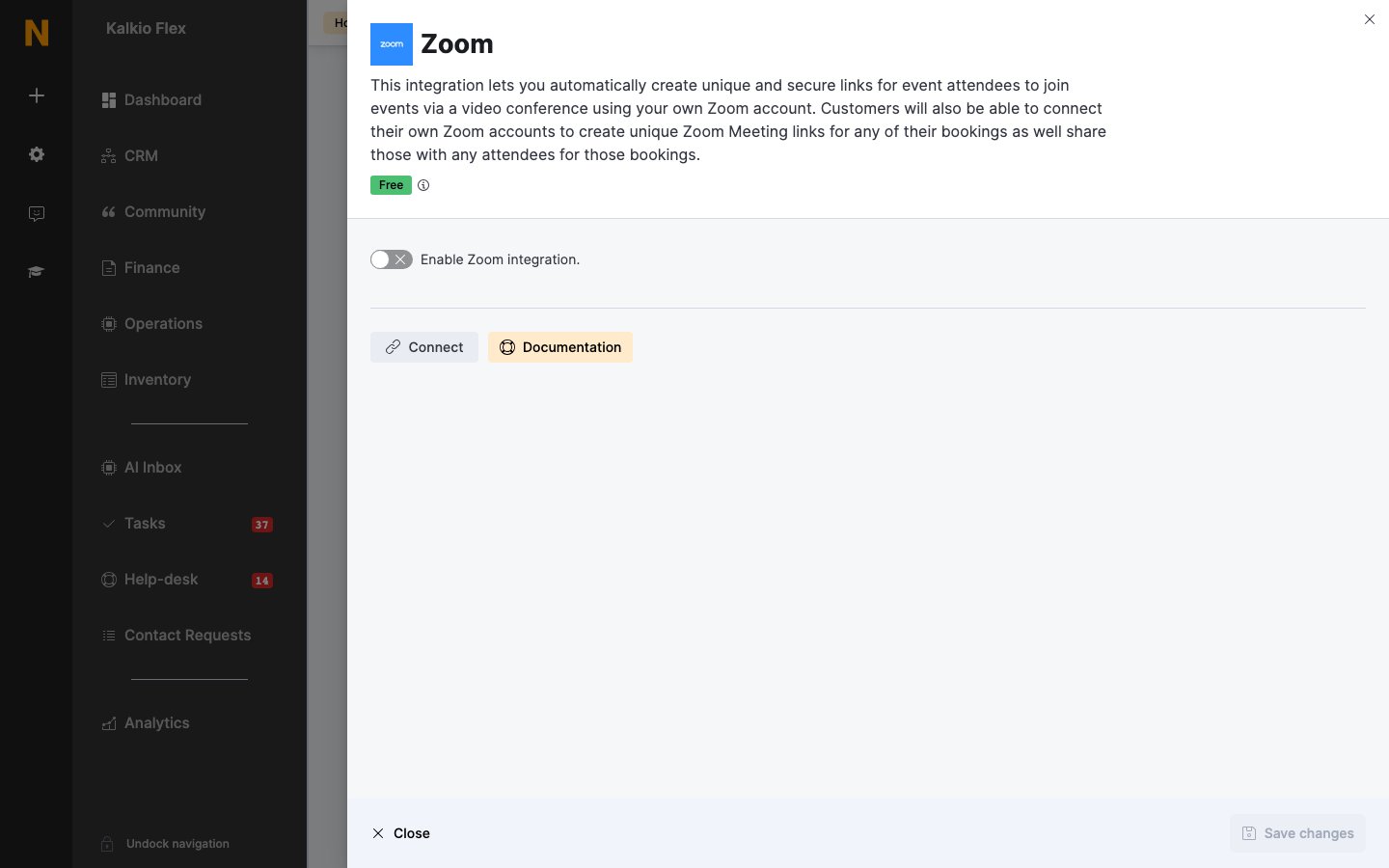
- Go to Settings → Integrations → Zoom and turn on Enable Zoom integration.
- Select Connect, sign in to Zoom, and select Authorize.
- Save.
Zoom links for resources
Each resource needs its own licensed Zoom user with a unique email address — four rooms need four users — so rooms booked at the same time don’t share a meeting.- In Zoom, create a user for each resource and assign it a licence.
- In Nexudus, open the resource from Inventory → Resources and go to its Integrations tab.
- Turn on Include a Zoom Meeting link in all bookings made for this resource. and select Connect this resource to Zoom.
- Sign in as that resource’s Zoom user and select Allow.
Zoom links for events
On an event’s details, turn on Send a Zoom Meeting link to all attendees of this event. If the event’s location isn’t connected yet, select Connect this location to Zoom. See Events.Related
- Video conferencing — all video integrations
- Features and add-ons — a resource’s Integrations tab