

Overview
Connecting your Wi-Fi to Nexudus lets you decide who can get online based on their passes, and check customers in and out automatically as they join and leave your network. Customers sign in to your Wi-Fi with their Nexudus details, and visitors can use temporary Wi-Fi access codes. Nexudus works with your network through one of four integrations, under Settings → Integrations → Networking. Which one you use depends on your Wi-Fi hardware.Who can connect
Whichever integration you use, a customer can get online when:- They hold a valid pass that includes network access. On each pass that should include Wi-Fi, turn on Allow customers holding this pass to connect to your IT network. under Network.
- Their own network access is on. On the customer’s Access rights tab, This customer can connect to your IT network. must be on. Turn it off to block one customer without changing their passes.
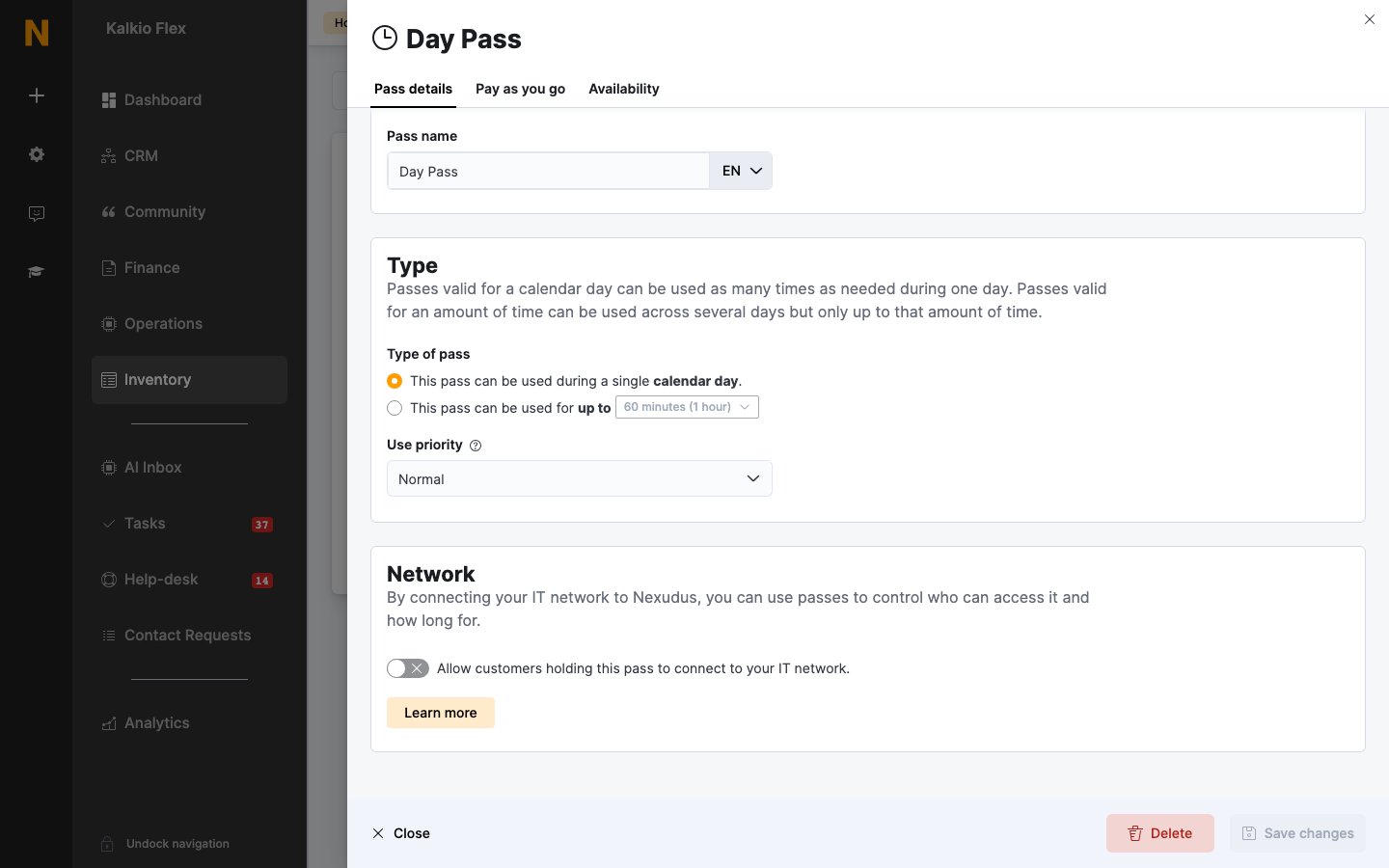
Changing a pass’s network setting doesn’t update customers’ access straight away. Their access changes when their passes renew or change, or when you run Update access control on the customer.
Checking in through Wi-Fi
When a customer connects, Nexudus checks them in using one of their valid passes, and checks them out when they disconnect. This keeps your check-ins, occupancy reports, and the list of who’s in accurate without anyone having to tap in. Wi-Fi check-ins follow the same rules as any other check-in: customers need a valid pass, and pay-as-you-go applies if you use it. See Check-ins and Check-in methods. To let customers check in automatically when one of their registered devices connects, and limit how many devices each customer can register, see Network check-in settings.Troubleshooting
If a customer can’t get online:- Check their passes. Most problems are an expired or used pass, or a pass without network access turned on.
- Check their network access. Make sure This customer can connect to your IT network. is on.
- Update their access. If you’ve just changed a pass or their account, run Update access control on the customer.
- Check the location. Customers can only use passes that are valid at the location they’re connecting from. See Availability and check-in rules.
Related
- Passes — the passes that grant network access
- Wi-Fi access codes — temporary Wi-Fi access for visitors
- Check-ins — check-in settings and failed check-ins
- Access control — door access with Nexudus