

Overview
Genetec Security Center is access control that runs on a server at your location. The integration adds your customers to Security Center as cardholders and puts them in the right cardholder groups based on what they have in Nexudus. You decide which doors each group opens in Security Center; Nexudus decides who’s in each group. Customers open doors with their card or PIN. The integration costs £50 a month per location (shown in your currency), on top of what Genetec charges.How access works
Nexudus sends each customer’s PIN and the cards in their Access cards field (in Account → Access rights) to Security Center.
Before you start
Nexudus connects to Security Center through its Web-based SDK role, so it must be reachable from the internet.1
Add the Web-based SDK role
In the Security Center Config Tool, go to Tasks → System → Roles. If Web-based SDK isn’t listed, select Add an entity → Web-based SDK and follow the steps. In the role’s Properties, check the port number and turn on Use SSL connection. Select Apply.
2
Make the server reachable
Either open the Web SDK port on your firewall, or install the Nexudus Network Bridge on your local network so you don’t need to open any ports. Nexudus can’t configure your network for you.
3
Create a user and groups
Create a Security Center user for Nexudus in User Management, and create your cardholder groups. Each group should include every door a customer needs, such as the building entrance as well as the room.
Setting up Genetec
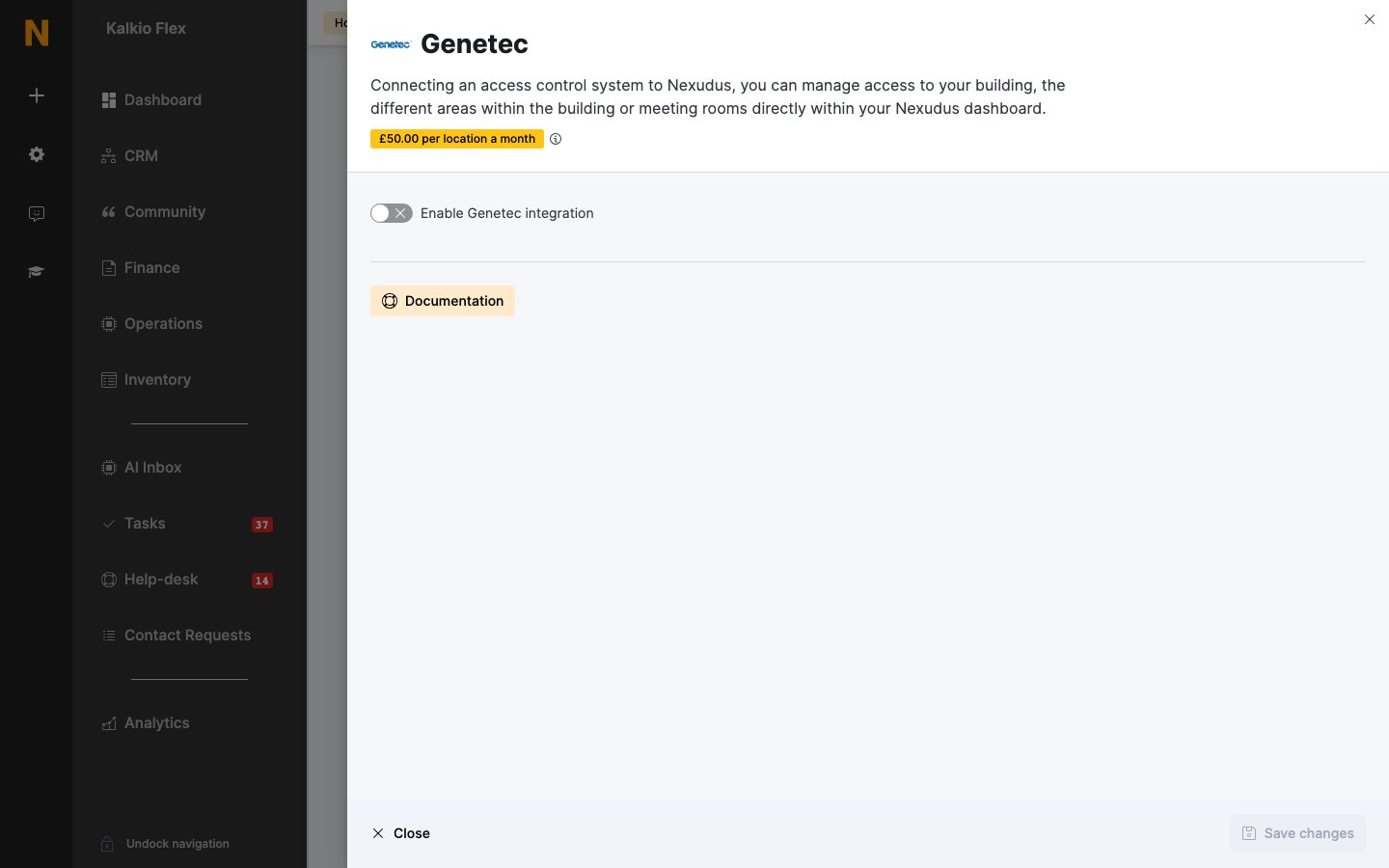
- Go to Settings → Integrations → Genetec and turn on Enable Genetec integration.
- Enter the Genetec server address — your server’s public address and Web SDK port, for example
https://yourserver.com:4590/WebSdk/. If you use the Network Bridge, enterhttps://bridge.nexudus.com/{DEVICE_ID}/WebSdk/, replacing{DEVICE_ID}with your bridge’s device ID. - Enter the Genetec username and Genetec password.
- If your Security Center uses partitions, enter the Default partition new cardholders are created in.
- Save. Then choose a Genetec access group for each of your Resources, Passes and Desks / Offices, leaving blank any that shouldn’t open doors, and save again.
Related
- Access control — how access control works in Nexudus
- Network Bridge — connecting systems on your local network