

Overview
DoorFlow is cloud-based access control. The integration adds your customers to DoorFlow and puts them in the right access groups based on what they have in Nexudus. You decide which doors each group opens in DoorFlow; Nexudus decides who’s in each group. The integration is free in Nexudus. You need a DoorFlow account with your doors installed.How access works
The access times set on a group in DoorFlow always apply — Nexudus can’t change them. Make sure they match when your passes can be used.
Desk and office access ends shortly after midnight at the start of the contract’s cancellation date. To let a customer in on their last day, give them a pass with access, or move the cancellation to the next day.
Before you start
- Get a DoorFlow API key from your DoorFlow account.
- Create your access groups in DoorFlow — they can only be created and edited there. Each group should include every door a customer needs, such as the building entrance as well as the room.
Setting up DoorFlow
1
Connect
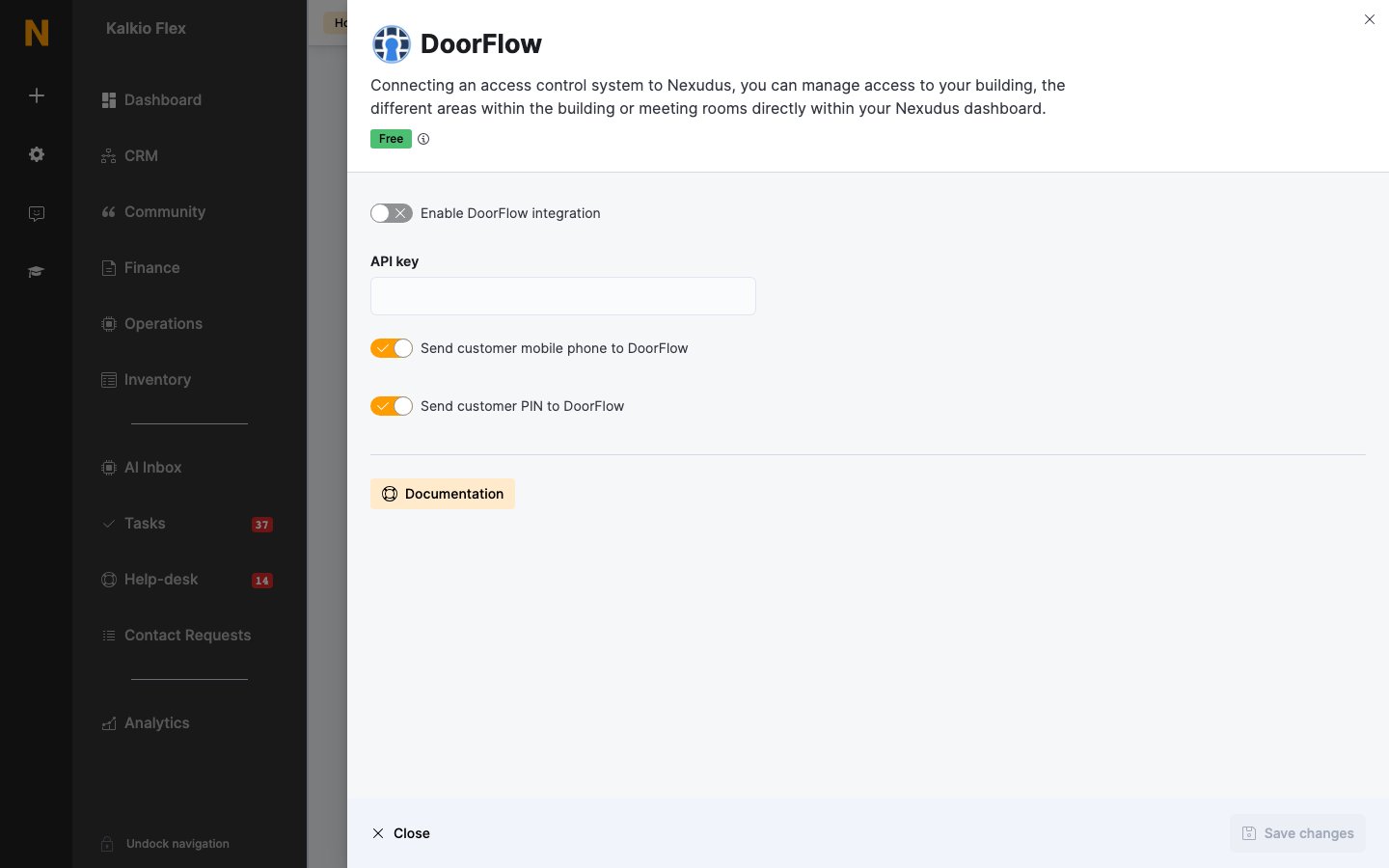
Go to Settings → Integrations → DoorFlow, turn on Enable DoorFlow integration, enter your API key, set the options below, and save.
2
Choose your site
Choose your DoorFlow site, and the site in Check in customers at if door unlocks should check customers in.
3
Link your inventory
Choose a DoorFlow access group for each of your Resources, Passes and Desks / Offices. Leave an item blank if it shouldn’t open any doors.
4
Choose check-in doors (optional)
Under Presence tracking, set each lock’s Action: Check customer in, Check customer out, Toggle customer check-in status, or Do nothing. Save.
If a customer checks in through a door without a valid pass, they can still open doors their groups allow, but the check-in is recorded as failed. See failed check-ins in Operations → Failed check-ins.
How customers open doors
What customers can use depends on your readers:- PIN — their Nexudus PIN, on readers with a PIN pad, if Send customer PIN to DoorFlow is on. DoorFlow PINs must be at least 4 digits, unique in your DoorFlow account, and can’t repeat the same pair of digits — for example 20720 or 54242 won’t work. You can change a customer’s PIN in Account → Access rights.
- Cards and fobs — enter the number in the customer’s Access cards or Access fobs field in Account → Access rights. DoorFlow takes one card and one fob per customer.
- The DoorFlow app (iOS only) — invite customers to the app from DoorFlow. They sign in with the details DoorFlow emails them and see the doors they can open.
Related
- Access control — how access control works in Nexudus
- Check-ins — tracking who’s in your space