

Overview
The Azure Active Directory integration lets people sign in to Nexudus with their Microsoft account, managed in your Azure Active Directory (now Microsoft Entra ID) tenant. It also works with an Azure AD B2C tenant, which lets customers sign in with their own organisation’s directory or social accounts. The integration is free. You need a Microsoft Azure account.Setting up Azure Active Directory
1
Copy your redirect URI
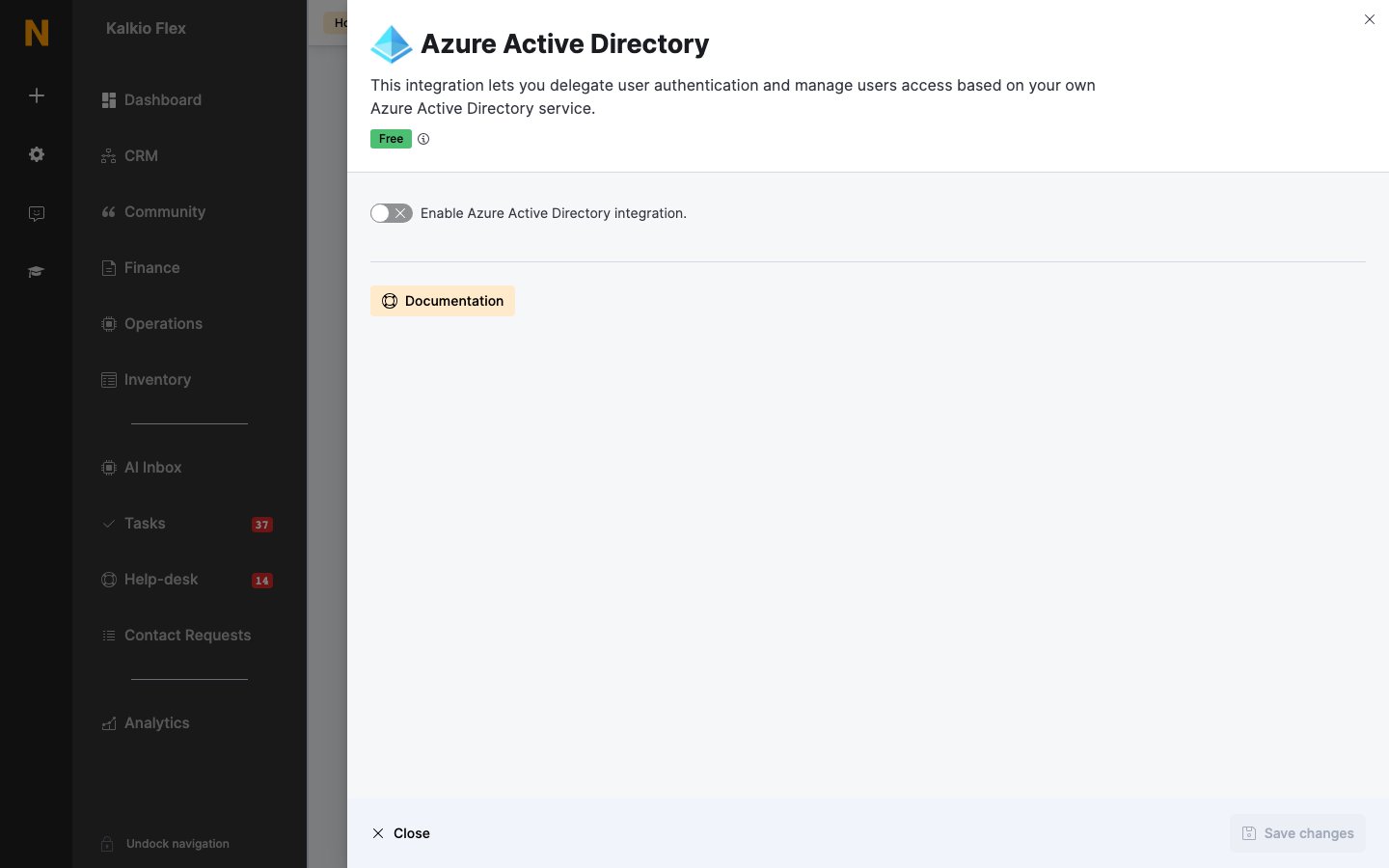
Go to Settings → Integrations → Azure Active Directory, turn on Enable Azure Active Directory integration., and copy the Redirect URI.
2
Register an app in Azure
In the Azure portal, open Microsoft Entra ID → App registrations → New registration. Name it clearly — for example Nexudus Login – Kalkio Spaces — and add the redirect URI as a Web redirect URI. One app covers all your locations if everyone signs in against the same directory.
3
Copy the IDs and create a secret
Copy the app’s Application (client) ID and Directory (tenant) ID. Under Certificates & secrets, create a New client secret and copy its Value (not its ID).
4
Finish in Nexudus
Enter the Tenant ID, Client ID and Client Secret, set a Sign in button label, choose the shared SSO options, and save.
Azure AD B2C
For a B2C tenant, register the app in your B2C tenant and choose Accounts in any identity provider or organizational directory (for authenticating users with user flows) as the supported account types. You also need a user flow, which decides which details the directory shares with Nexudus. Then complete the same steps above.Related
- Single sign-on — shared SSO options
- Microsoft Teams — booking from inside Teams