

Overview
The Office 365 integration links each of your resources to an Outlook calendar. Bookings made in Nexudus appear in the resource’s calendar, and events added in Outlook become bookings in Nexudus, usually within a few minutes. The integration is free. It’s for your team; customers can connect their own Outlook calendar from the members portal (see Integrations on the members portal).Before you start
- An Office 365 account you own, with access to its calendars. If you use a Microsoft organisation, the account needs Mailbox and Calendar permissions.
- Matching time zones — make sure Outlook and your Nexudus location use the same time zone, or booking times will be out.
- A calendar for each resource — in Outlook, use Add calendar → Create blank calendar for each resource you want to sync, named after the resource.
Connecting Office 365
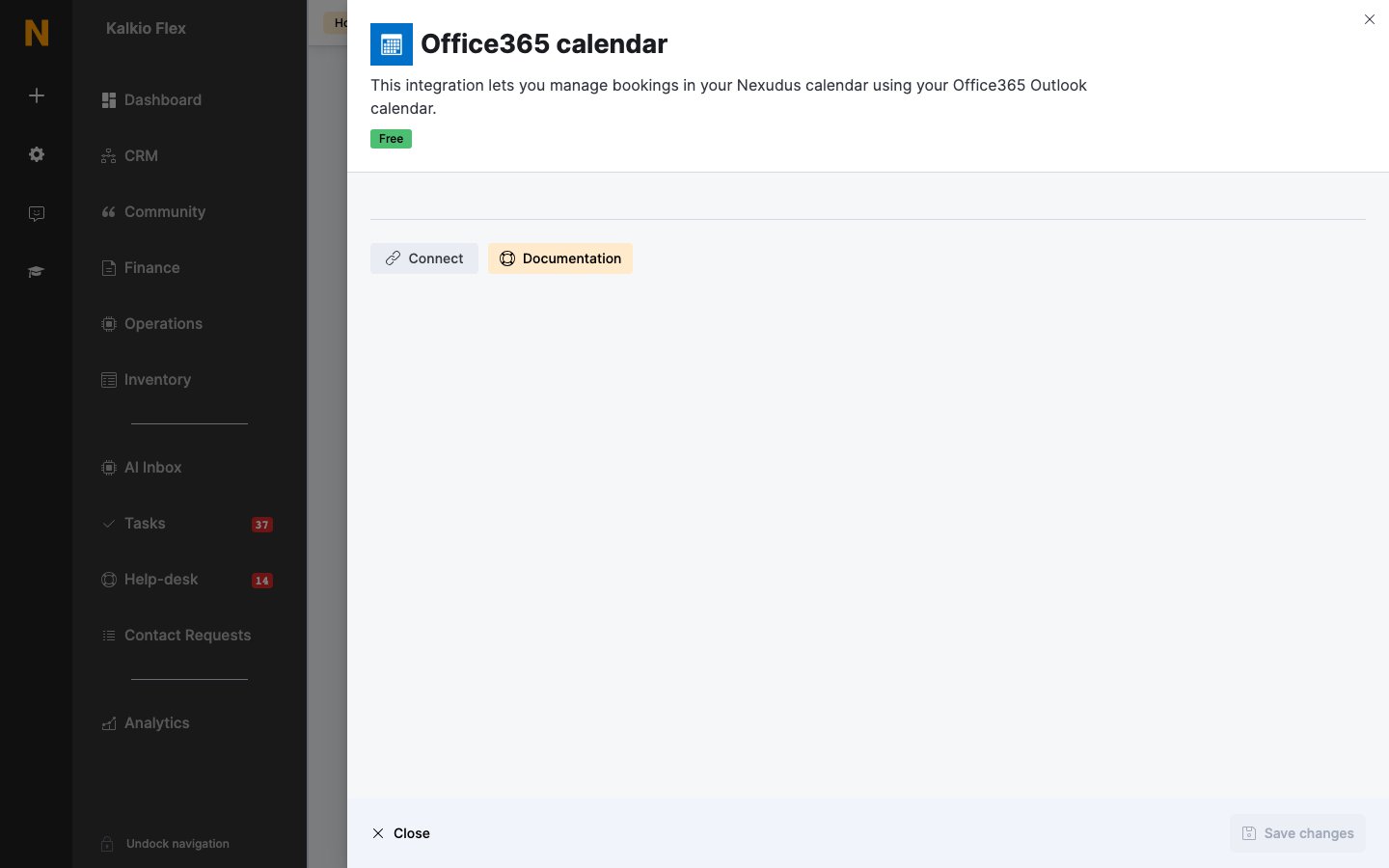
- Go to Settings → Integrations → Office365 calendar and select Connect.
- Sign in to your Microsoft account and select Yes to allow access.
- Back in Nexudus, choose the Office365 calendar for each Resource, or leave it on Not controlled by Nexudus.
- Save.
Booking from Outlook
Add an event to the resource’s calendar at a quarter-hour start and end time — bookings at other times are saved in Outlook but not synced. If your Outlook email matches a customer, the booking is theirs. To book for someone else, add their email as the first Attendee; if it doesn’t match a customer, assign the customer to the booking in Nexudus.Related
- Scheduling and calendars — all scheduling integrations
- Microsoft Teams — booking from inside Teams