

Overview
Kisi is cloud-based access control. The integration adds your customers to Kisi and puts them in the right Kisi access groups based on what they have in Nexudus. You decide which doors each group opens in Kisi; Nexudus decides who’s in each group. The integration is free in Nexudus. You need a Kisi account with your doors installed — contact Kisi to set one up.How access works
Kisi doesn’t support access through desks and offices. To give contract customers access, include a pass with Kisi access in their plan.
When a customer no longer has any access, Nexudus suspends or deletes their Kisi user, depending on your No access policy.
Before you start
Set up your access groups in Kisi. Groups can only be created and edited in Kisi. Each group should include every door a customer needs — the building entrance and floor doors as well as the room itself. One group per type of access (for example 24/7 access or Meeting rooms) is easier to manage than one group per plan. Create a Kisi API key. In Kisi, select your name in the top-right corner, then API → Add API Key. Name it Nexudus, enter your Kisi password, and copy the token. Keep it safe — treat it like a password.Setting up Kisi
1
Connect
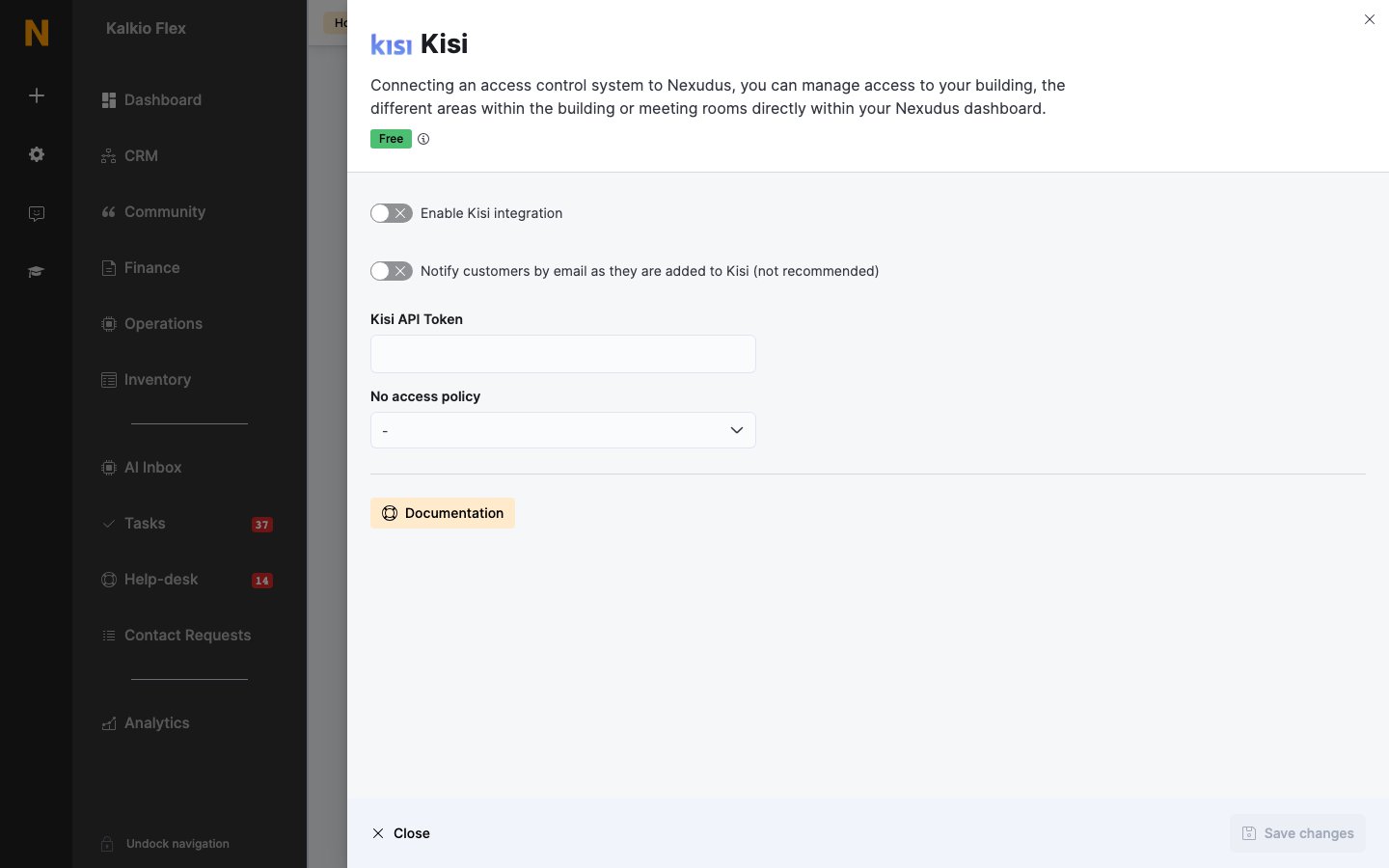
Go to Settings → Integrations → Kisi, turn on Enable Kisi integration, enter the Kisi API Token, choose a No access policy, and save.
2
Link passes and resources
Under Passes and Resources, choose the Kisi access group for each item. Leave an item blank if it shouldn’t open any doors.
3
Choose check-in doors (optional)
Under Presence tracking, choose an Action for each lock (below).
4
Save and test
Save, then check access with a test customer before going live.
Checking customers in from door unlocks
Under Presence tracking, set each lock’s Action:- Check customer in — for example, your main entrance.
- Check customer out — for example, an exit door.
- Toggle customer check-in status — each unlock switches between checked in and checked out.
- Do nothing — the door opens but doesn’t affect check-ins.
How customers open doors
Customers with access open doors with their phone in the white-label Passport app: with Bluetooth turned on and the app signed in, they hold their phone near the reader until the light turns green. They can also tap the Unlock door tile, or scan an automation tile set to Unlock KISI door.Troubleshooting
A customer can't open a door
A customer can't open a door
Check that they have an active pass or a booking that starts within the next 15 minutes, and that the pass or resource is linked to a Kisi group containing that door. Check the door is in the group in Kisi. If they use the app, make sure Bluetooth is on.
Door unlocks don't check customers in
Door unlocks don't check customers in
Check the lock’s Action under Presence tracking, and allow up to 10 minutes. Make sure the customer’s email address is the same in Kisi and Nexudus.
The integration stopped working
The integration stopped working
If Kisi rejects the API token, Nexudus turns the integration off. Create a new API key in Kisi, enter it, turn the integration back on, and save. Errors are also listed in Business checkup.
Related
- Access control — how access control works in Nexudus
- Passes — giving customers access through passes
- Check-ins — tracking who’s in your space