

Overview
A payment gateway connects Nexudus to the provider that moves the money, such as Stripe, GoCardless or PayPal. Once a gateway is enabled for a location, customers can pay their invoices in the Members Portal and app, and Nexudus can collect future invoices automatically from the card or bank account they saved. You can enable more than one gateway per location. A common setup is one card gateway for one-off purchases plus one direct debit gateway for recurring plan invoices.How to access
Go to Settings → Billing and payments → Payments and currency and open the Payment methods tab. The top of the tab lists the payment methods already installed for your location. Below it, under Available payment methods, type a provider’s name in the search box to find it, then select its tile to open its settings.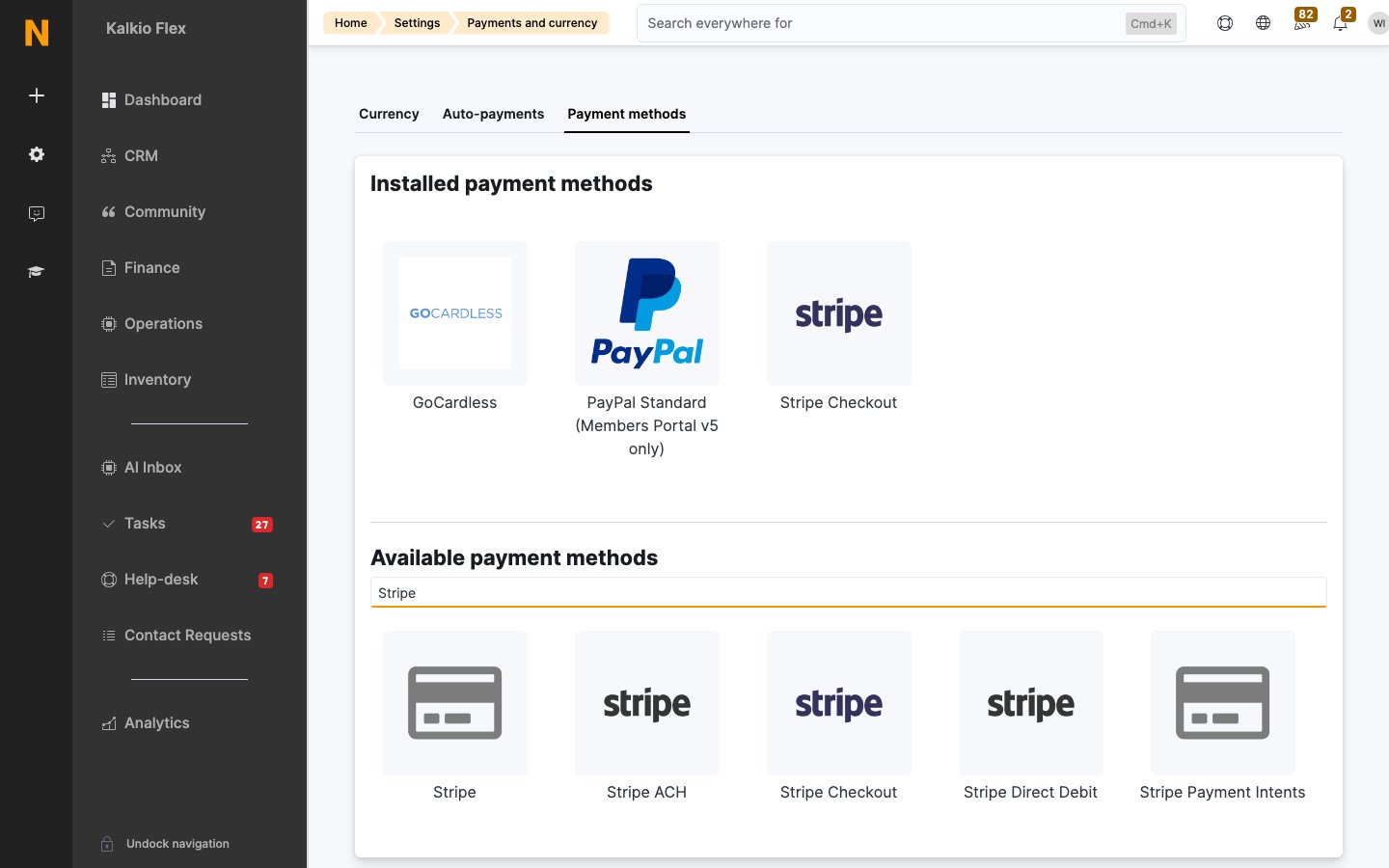
Payment methods are configured per location. If you run several locations, switch to each one and enable the gateway there too. You can use the same provider account for every location or a different account per location.
Key concepts
Card gateways and direct debit
Costs
Card gateways connected through Spreedly add a charge to your Nexudus subscription. All other gateways, including Stripe Checkout and direct debit, have no Nexudus charge.
Payment providers charge their own fees on top. Each gateway’s Payment gateway features panel shows whether the Nexudus charge applies.
When payments are collected
Nexudus tries to collect payment automatically when an invoice falls due, as long as the customer has saved payment details and Automatically collect payment for due invoices if payment details are available is ticked on their record. See Customer payment methods. Direct debit takes several working days to settle, so allow for it when you set the default due date (Settings → Billing and payments → Payments and currency → Auto-payments). For example, if you issue plan invoices on the 1st with a due date of the 3rd, direct debit payments usually arrive on the 6th or later.Strong Customer Authentication (SCA)
If both your business and your customer’s bank are in the European Economic Area, card payments must use Strong Customer Authentication (two-factor approval, usually through 3D Secure). Pick a card gateway that supports 3D Secure. Stripe Checkout and Stripe Payment Intents both do.Choose a gateway
Which gateways work in my country?
Availability depends on the provider, not on Nexudus:- Card gateways through Spreedly: search Spreedly’s gateway directory for your country. If you need SCA, check that the gateway supports Spreedly 3DS2 Global or gateway-specific 3DS2.
- Stripe: see Stripe’s supported countries.
- GoCardless: see GoCardless’s supported countries.
- PayPal: see PayPal’s country list.
Enable a payment gateway
1
Get your provider credentials
Open an account with the provider and make sure it is fully activated for live payments. Collect the API keys or other credentials the gateway’s guide lists.
2
Find the gateway
Go to Settings → Billing and payments → Payments and currency → Payment methods and search for the provider under Available payment methods. Select its tile.
3
Fill in the settings
Turn on Enabled (the switch name varies slightly by gateway) and paste in your credentials. Card gateways connected through Spreedly also ask for a Payment gateway name, which customers see at checkout, and an optional transaction fee.
4
Save
Select Save changes. The gateway moves to the list of installed payment methods at the top of the tab.
5
Test it
Make a small test payment before you rely on the gateway. See Test a payment method below.
Transaction fees
Card gateways connected through Spreedly can add a transaction fee to invoices paid through them. The fee is a percentage of the amount paid and appears as a separate Transaction fee line on the invoice. You can choose a Tax rate for the fee (the fee is treated as tax-inclusive) and a Financial account to record it against.Allowlist Nexudus IP addresses
Some providers only accept API calls from approved IP addresses. If your provider asks, allow these addresses:18.211.189.236, 54.204.55.35, 54.147.89.101, 18.203.12.142, 63.35.156.43 and 52.213.77.170.
Test a payment method
Test every gateway in each location before you rely on it. Test payments use real money, so pay with a card or bank account you own and refund it afterwards.1
Create a test customer
Add a customer you control, with a customer account so they can sign in to the Members Portal.
2
Issue a small invoice
Open the customer, sell them a product from the Sales tab, then issue an invoice for it. Charge at least $1: some gateways decline very small amounts as suspected fraud.
3
Pay it as the customer
Sign in to the Members Portal as the test customer, open the unpaid invoice and pay it with the gateway you are testing.
4
Check the result
Card payments show as paid within a few minutes. Direct debit payments need a mandate first and take at least 3 working days to settle.
5
Refund the payment
Refund the test invoice. See Credits, refunds and cancellations.
Disable a payment gateway
Open the gateway from the list of installed payment methods, turn off its enabled switch and select Save changes. Customers no longer see it in the Members Portal and Nexudus stops attempting payments through it. Card gateways connected through Spreedly can also be removed completely with Delete.Troubleshooting
- A gateway doesn’t appear at checkout. Check it is enabled in the location the customer is buying from. Gateways only appear when there is an amount to pay.
- Payments fail straight after setup. Most often the credentials are test or sandbox keys, or the provider account is not fully activated. Use live credentials from an activated account.
- A card gateway shows a red badge. The gateway is installed but not enabled or connected in the current location. Open it and turn it on under This gateway is available at.
- Invoices aren’t collected automatically. Check the gateway supports automatic recurring payments (see the table above), that the customer has saved payment details, and that automatic collection is on for the customer.