

Overview
A contract signs a customer up to one of your plans and is the basis for automatic, recurring billing. The plan acts as a template for the contract’s price and billing cycle. While a contract is active, Nexudus invoices it on its next invoice date, along with any products and deposits attached to it. A contract can also hold units from your floor plan, such as an office or desk, so they show as occupied while the contract runs. Customers with at least one active contract are members. Customers without one are contacts. A customer can have several contracts; one of them is their main contract.How to access
Go to Finance → Contracts to see all contracts. To see one customer’s contracts, open the customer and go to Sales → Contracts.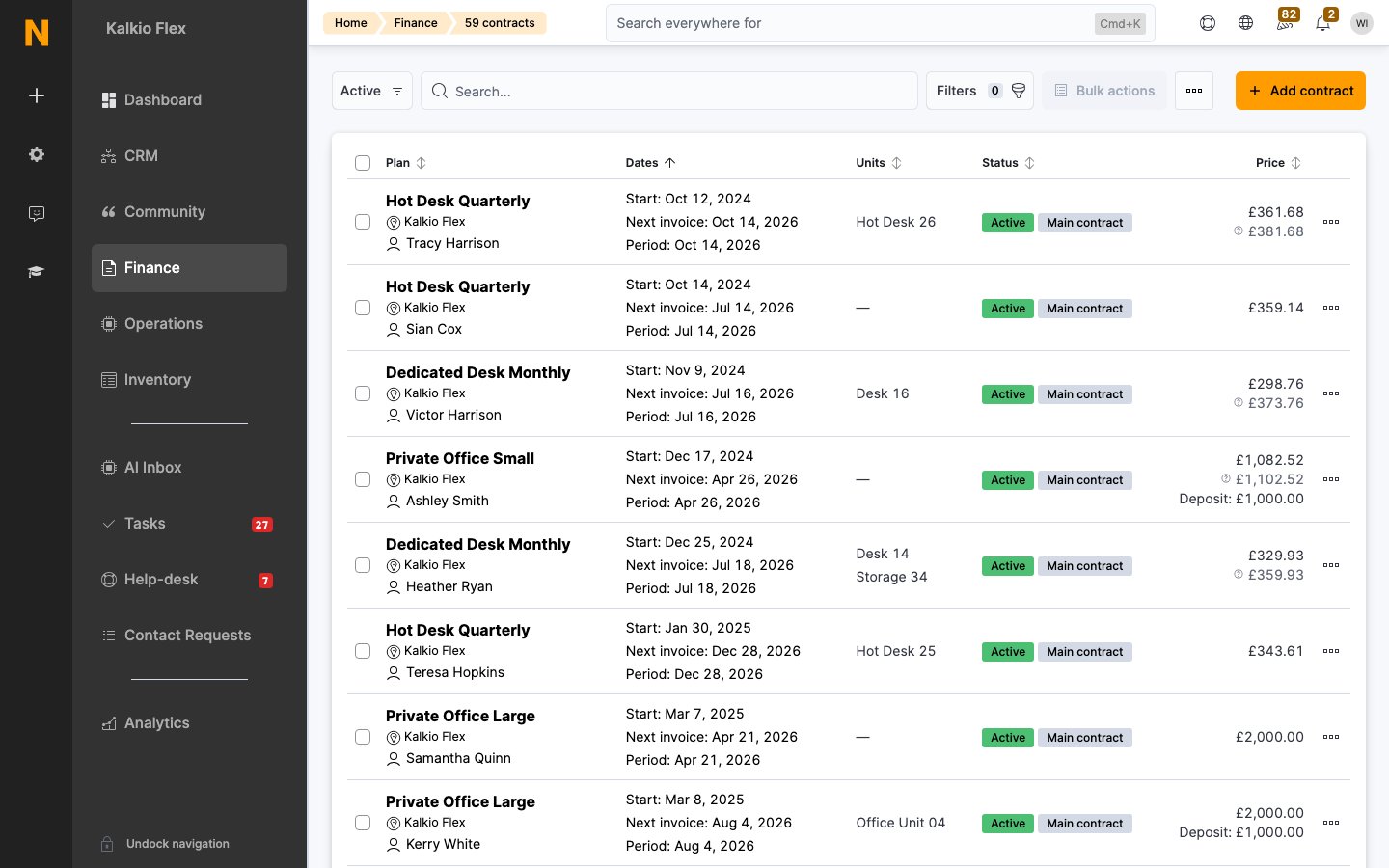
Contract statuses
Main contract marks a customer’s main contract.
Add a contract
1
Open the form
In Finance → Contracts, select Add contract. Or open the customer and select Add contract in Sales → Contracts.
2
Choose the customer and plan
Select the Customer, the Plan and the Location.
3
Set the key dates
Set the Start date, Next invoice date, Next invoice period and Billing day. See Contract dates.
4
Set the price and units
Choose any Offices / desks or Packages the contract includes. Only units free on the start date are listed. Then set the price. See Price.
5
Save
Save the contract.
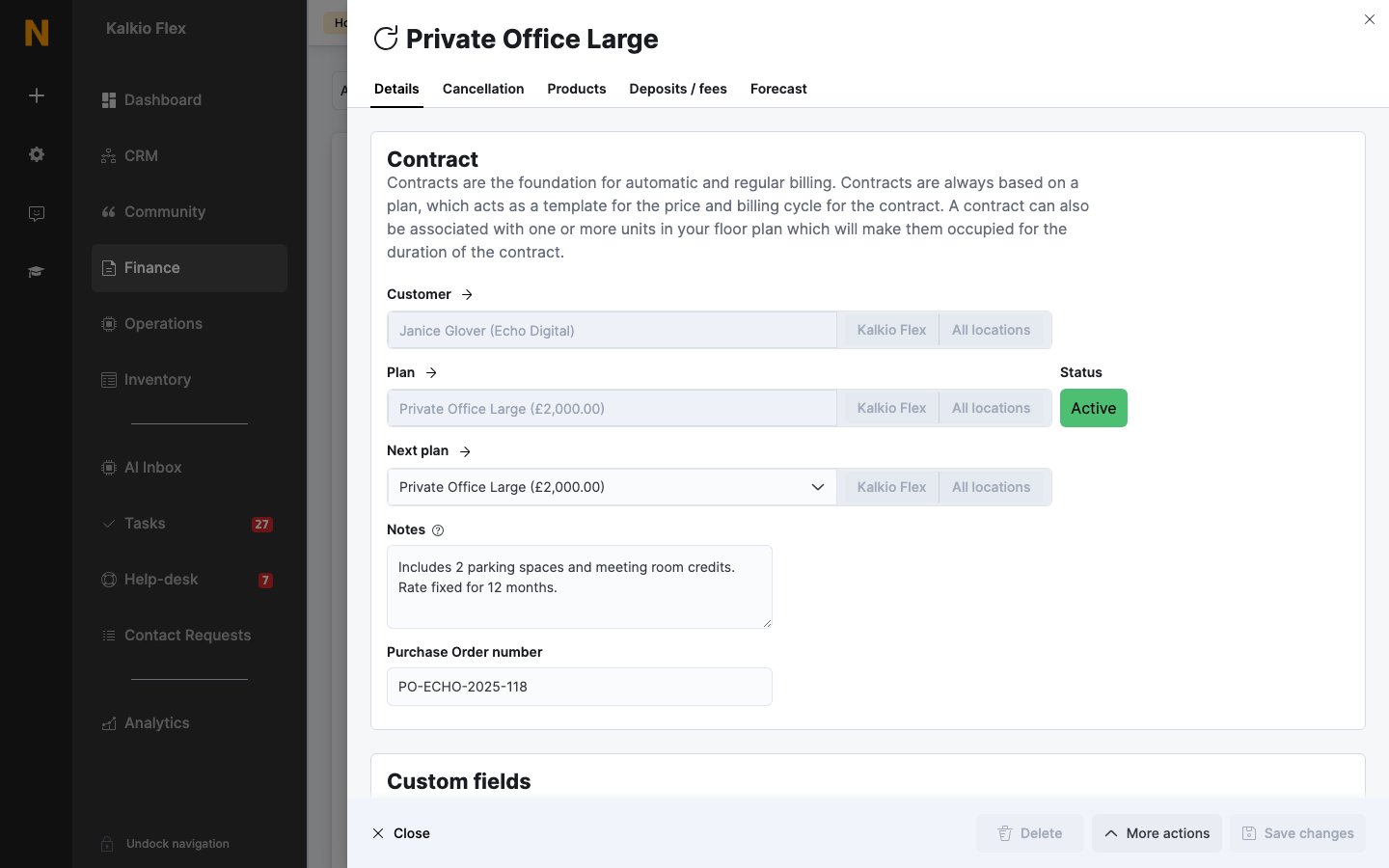
Contract dates
For example, a contract can start on the 1st of the month but be invoiced on the 5th.
Price
By default, a contract’s price follows its plan’s price, so changing the plan’s price changes the contract’s. If you type a different price, the contract’s price is fixed and no longer follows the plan. Other options in the Price section:- Use the target price of the selected units or packages as the contract price: price the contract from the units it includes.
- Include sign-up fees/deposits in the next invoice: add the plan’s sign-up fees and deposits to the next invoice.
- Adjust the next invoice based on how many days are left in the current billing period (pro-rate): charge only for the days until the billing day. Only available if the plan has Discount the first invoice turned on.
- Invoice extra periods in the next invoice: bill several periods up front.
- Contract value: record the contract’s value before discounts, for reporting.
Price schedules
A price schedule changes the contract’s price on future billing dates, for example a lower rate for the first three months. On the contract, under Price schedule, select Add schedule, choose the billing date it starts on (Price from) and enter the Price. Add a row for each change. Each price applies until the next schedule row, indefinitely if it’s the last. Rows that have already been applied can’t be changed or deleted. To add a new price period as a separate contract instead, use Create next price term from the contract’s actions.Products, deposits and the forecast
Use the contract’s tabs for what’s charged alongside it:- Products: recurring or one-off products invoiced with the contract.
- Deposits / fees: deposits and sign-up fees. Use Invoice deposits to invoice them straight away. See Deposits.
- Forecast: the invoices the contract will generate. You can add a one-off product to a future invoice from here. See Revenue forecast.
Change a customer’s plan
On the next invoice date
To switch a customer to another plan from their next invoice date, open the contract and choose the new plan in Next plan. The contract changes plan on its next invoice date. Select Cancel this change to undo it. Customers with a plan change scheduled aren’t archived, even if their current plan archives customers when it ends.Manually
To change plan on a different date, or for a contract with a fixed price:- On the current contract’s Cancellation tab, set the Cancellation date. Turn on Adjust the last invoice based on how many days are between the next invoice date and the cancellation date to prorate the last invoice.
- Use Create next price term to create a new contract that starts when the current one ends.
- Open the new contract, choose the new plan, and check its key dates.
Freeze a contract
Freezing puts a contract on hold for a number of billing cycles without cancelling it. While a contract is frozen:- It isn’t invoiced. Bookings and products are still invoiced on its usual billing day.
- If the customer has no other active contract, they become a contact and lose member rates and benefits.
- The customer can’t change or cancel it until it resumes.
Let customers freeze their own plan
On the plan’s Limits tab, turn on Customers in this plan can freeze their plan from the portal or the app. Then set Pauses a year and Cycles per freeze: for example, 3 pauses a year and 1 cycle per freeze lets members freeze for up to three single months a year. Customers freeze and resume their plan from Plans and Benefits in the Members Portal. Turning this off doesn’t affect contracts that are already frozen. Admins can always freeze contracts, whatever the plan’s settings.Cancel a contract
Cancel now
Tick the contracts in the list, or open the contract’s actions, and choose:- Cancel Contract: ends the contract without a final invoice.
- Cancel and issue last invoice: ends the contract and invoices any pending charges.
Schedule a cancellation
On the contract’s Cancellation tab, under Term and cancellation: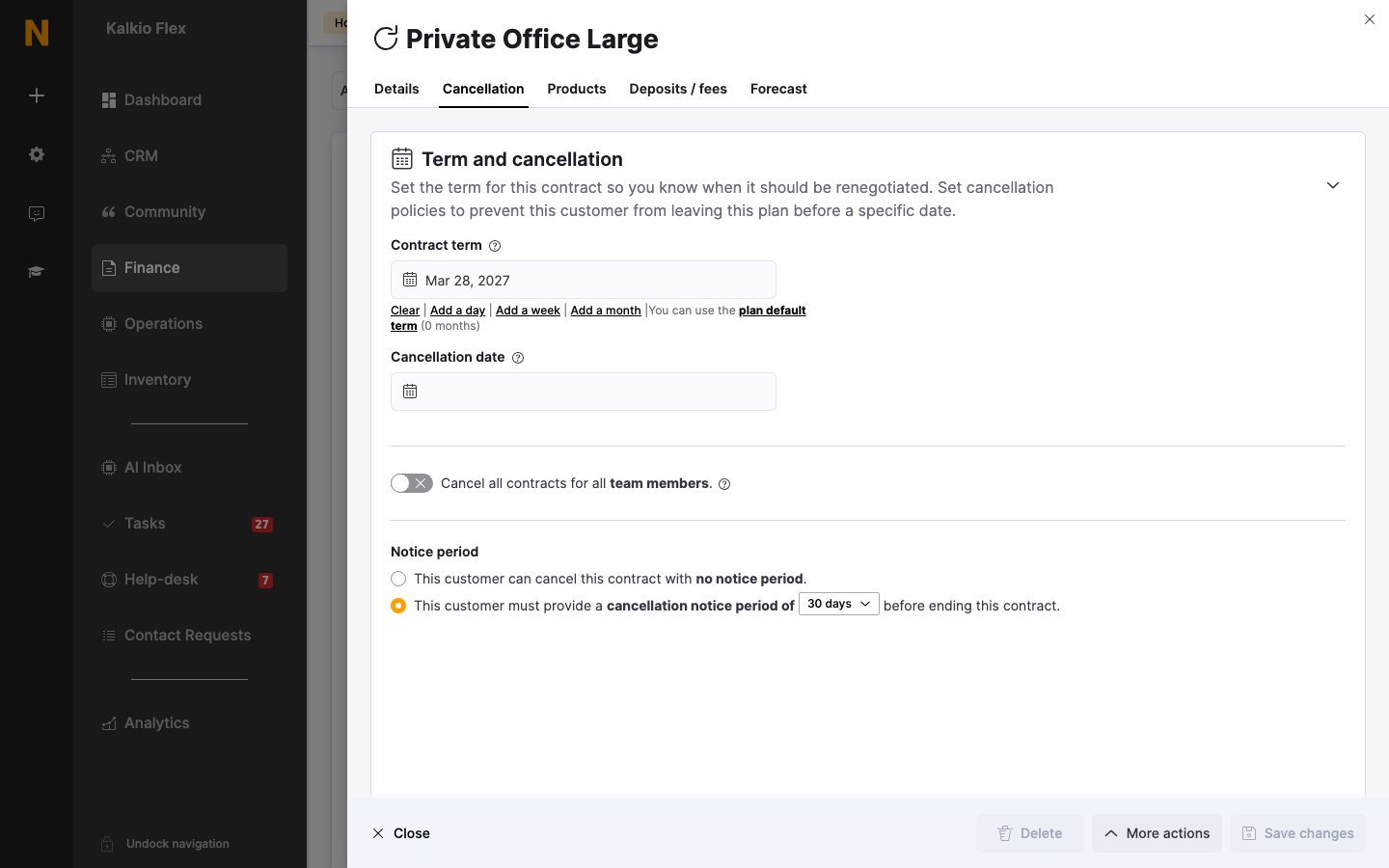
Other actions
To create a contract document from a document template, such as a licence agreement, see Customer documents. To export contracts, tick them in the list and use Bulk actions.
Related
- Plans: the templates contracts are based on
- Invoices: what contracts generate
- Revenue forecast: upcoming invoices from your contracts
- Proposals: offers that create contracts when accepted
- Deposits: deposits held against contracts