

Overview
A WiFi access token is a code that lets someone use your WiFi for a set amount of time, on a limited number of devices. Tokens are handy for guests, event attendees or anyone without a customer account. They work with network check-in integrations such as MikroTik, IronWifi and Layer8: people enter the code on your WiFi’s sign-in page. You can create tokens yourself, one at a time or in bulk, or have Nexudus create them automatically for bookings, event tickets and visitors.How to access
Go to Operations → Access & Check-in → WiFi Access tokens.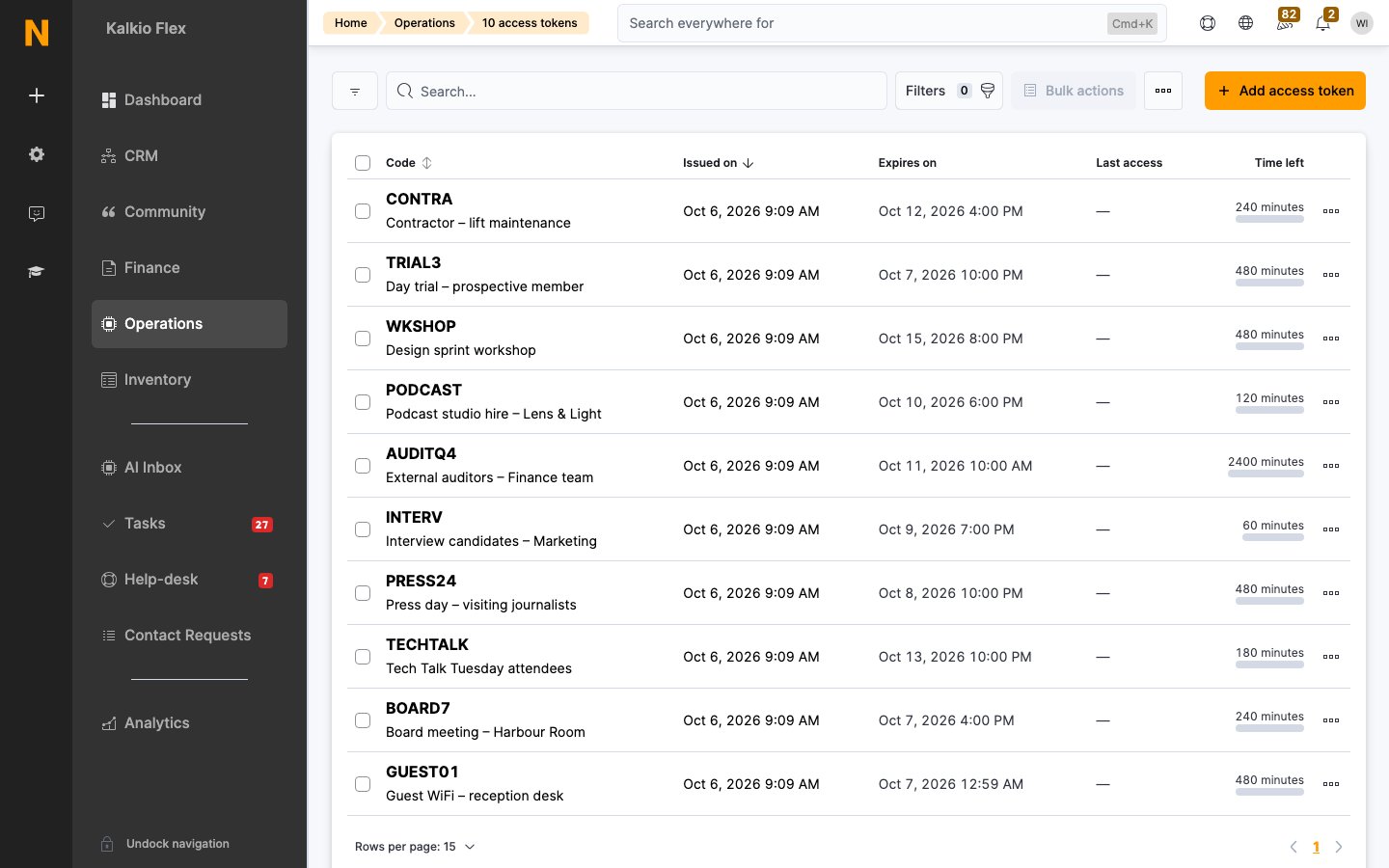
Create an access token
- Select Add access token, then Manual entry.
- If you manage more than one location, choose the Location.
- Nexudus generates a 6-character Code. You can change it to something easier to share, but not after you save the token.
- Add Notes if needed, for example who the token is for. Customers can’t see notes.
- Choose the Included time: 15, 30 or 60 minutes, or 2, 4 or 8 hours. To enter any other number of minutes, choose Custom. You can’t change the included time after you save the token.
- Set when it’s Valid from and Valid until. By default, a token is valid from now until the end of the day.
- Set the Maximum number of devices that can use the token. For example, for a team of 5 with two devices each, allow 10.
- Save.
Create tokens in bulk
To create many tokens at once, for example for an event:- Select Add access token, then Create in bulk.
- Enter how many tokens to generate, up to 100.
- Enter how many minutes each token should have. The default is 60.
- Enter how many devices each token should be valid for. The default is 1.
Create tokens automatically
Nexudus can create a token for each booking, event ticket or pre-registered visitor and send it to them by email.WiFi access for visitors
With Generate an access token for every pre-registered visitor turned on, also set:
Visitors registered before you turn this on don’t get a token. Register them again if they need WiFi. If visitors need to be approved by their host, their token only works once they’re approved.