

Overview
Lockers let customers reserve a smart locker and open it from their phone. They work with Salto Eloxx (also known as Gantner) electronic lockers through the Salto integration: your lockers are set up in Salto, synced into Nexudus, and reserved by customers in the Passport app or its white-label equivalent.Lockers can only be used with the Salto/Gantner integration. Lockers and locker groups are imported from Salto and can’t be created in Nexudus.
Setting up lockers
1
Add your lockers in Salto
Register your Eloxx lockers in the Salto site you’ll connect to Nexudus, grouped as you want them to appear — for example Ground floor lockers.
2
Turn on the locker integration
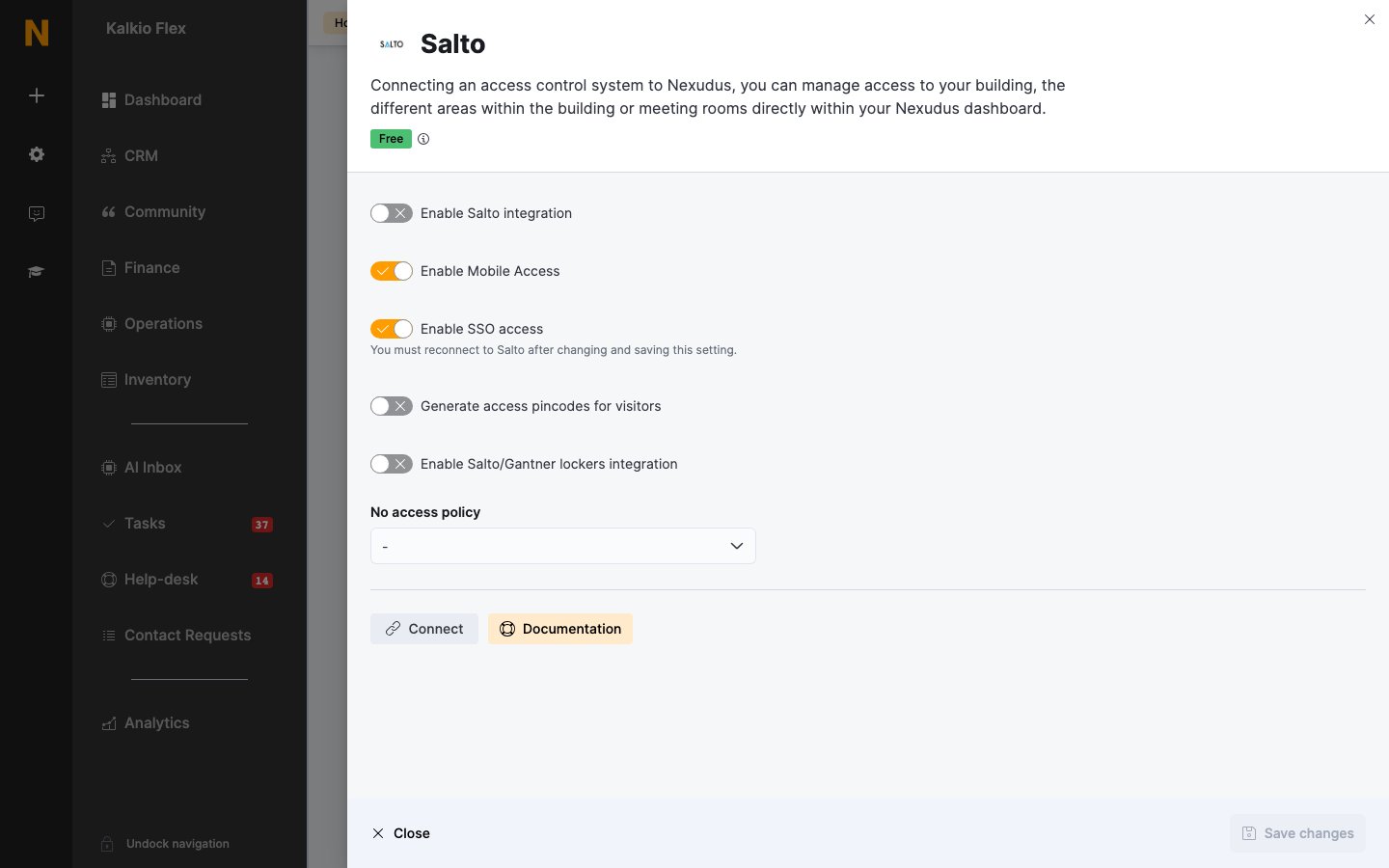
Go to Settings → Integrations → Salto. Turn on Enable Salto integration and Enable Salto/Gantner lockers integration, then select Connect, sign in with your Salto admin account, and choose your Salto site.
3
Sync your lockers
Back in the Salto integration settings, select Sync Salto Eloxx Locker data. Your locker groups and lockers are imported, and Lockers appears under Inventory.
4
Choose who can reserve them
Open each locker group in Inventory → Lockers and set its details and limits, as described below.
How to access
Go to Inventory → Lockers. The list shows each locker group’s Name, Number of units, and when it was Last synced with Salto. If the lockers integration isn’t turned on, this page explains that lockers need the Salto/Gantner integration.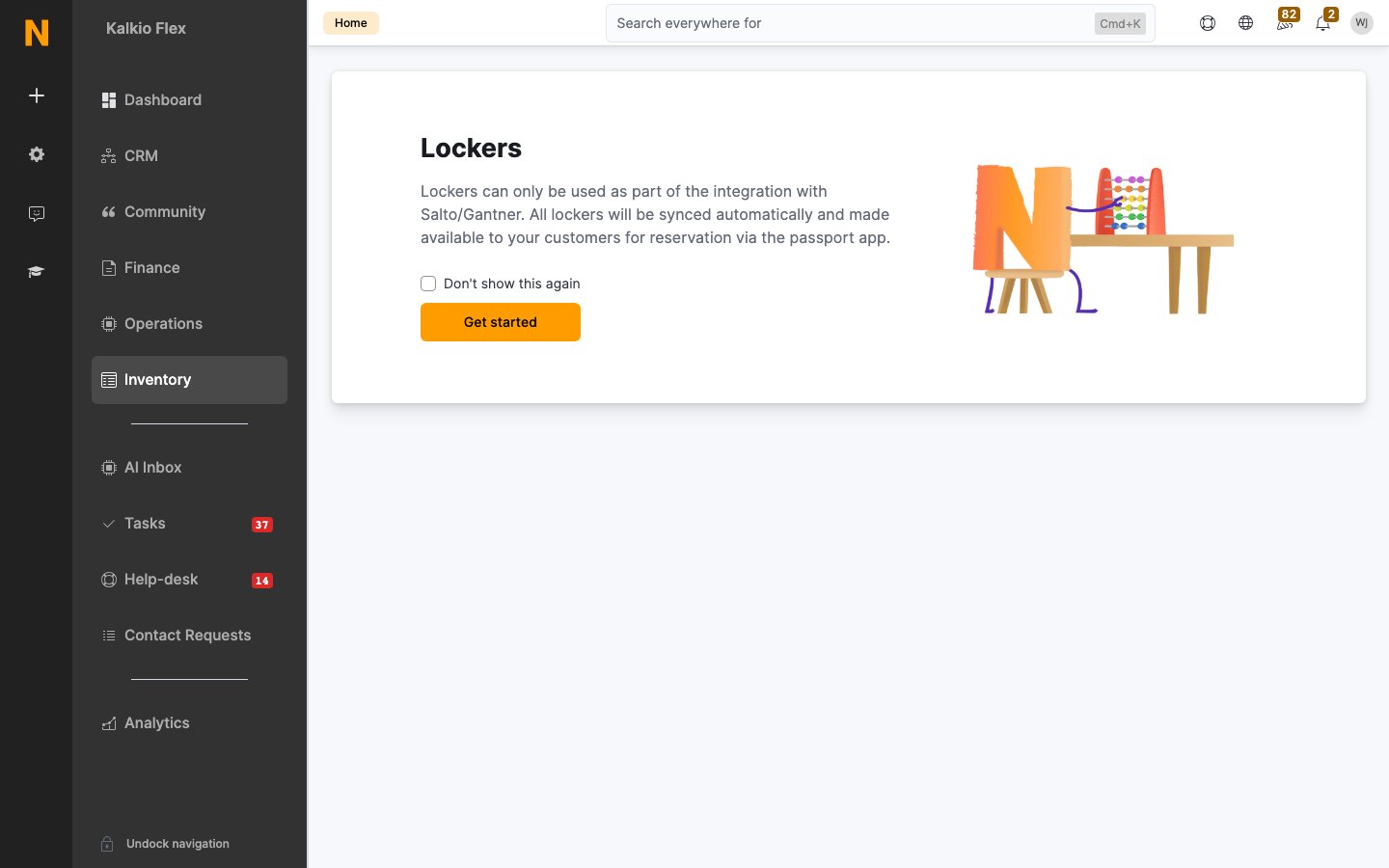
Locker groups
Each group of lockers in Salto becomes a locker group in Nexudus. Open a group to change how it appears and who can use it.Locker block details
Limits
Under Customer and teams, choose who can reserve lockers in the group:- This locker can be reserved by: — all customers, contacts, or members, optionally only on certain plans.
- Restrict the teams which can reserve this locker to: — only customers in the teams you choose. Leave it as Members of any team to allow everyone.
Units
The Units tab lists every locker in the group, with its Name, Status (In service, Not in service, or Reserved), and who it’s Assigned to.Managing a locker
Open a locker from its group’s Units tab.
The Activity section shows the locker’s latest actions — when it was assigned to, unlocked for, or released from a customer, and by whom. The Reservation history tab lists every reservation.
Reserving a locker for a customer
Customers usually reserve lockers themselves in the Passport app. To reserve one for them — for example as part of their onboarding — open the locker, choose the customer under Occupier, and save. The customer can then open it from the app.Opening a locker for a customer
If a customer can’t open their locker — for example because they’ve lost access to their account — use Unlock from the locker’s actions menu (⋯) on the group’s Units tab to open it remotely. Every unlock is recorded in the locker’s activity.Releasing lockers
Customers release their locker in the app when they no longer need it. To release one yourself, clear its Occupier. To release every locker in a group at once, open the group and choose Release all lockers from More actions.Related
- Salto — connecting Salto and syncing lockers
- Passport — the app customers use to reserve and open lockers
- Access control — door access with Nexudus