
Documentation Index

Fetch the complete documentation index at: https://learn.nexudus.com/llms.txt

Use this file to discover all available pages before exploring further.

Overview

Plans (also called memberships) define what a membership includes, how often it’s invoiced, what benefits customers receive, and what limits apply. Plans are the foundation of your recurring revenue — every customer with an active contract is on a plan. A plan can represent:
  • A full-time desk or office membership
  • A part-time hot-desking plan
  • A virtual office with mail handling
  • Storage-only access
  • Any other recurring subscription model
Plans are sold via contracts. When a customer signs up for a plan, a contract is created linking them to that plan.

How to access

Navigate to Inventory → Plans.
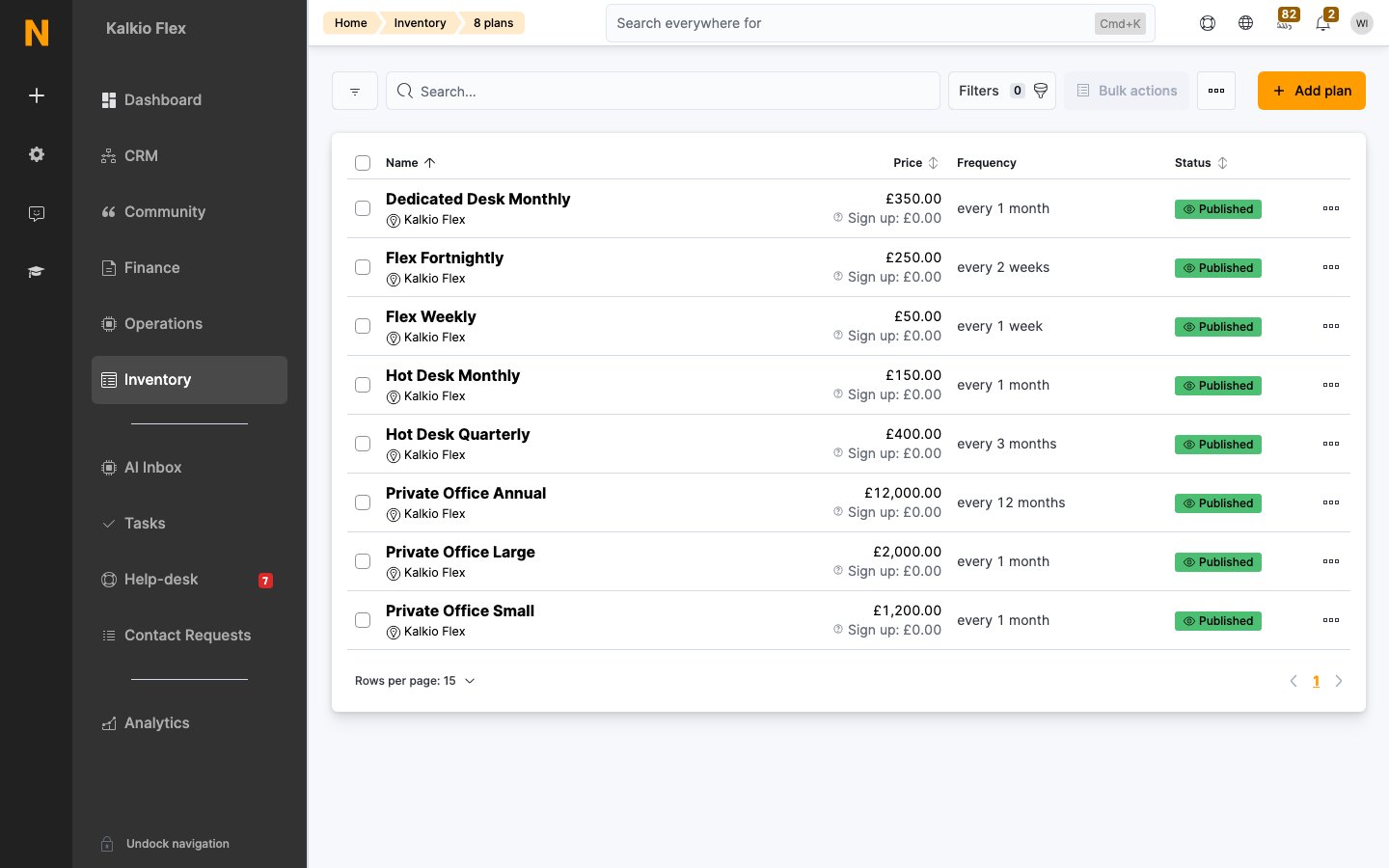
Requires the tariff role.

Plan kinds

Every plan has a kind that classifies the membership type. This helps you organize your plans and is used in analytics.
KindTypical use
Full-time Private OfficeDedicated office with 24/7 access
Part-time Private OfficeDedicated office with limited access hours/days
Full-time Dedicated DeskAssigned desk with 24/7 access
Part-time Dedicated DeskAssigned desk with limited access
Full-time Hot DeskUnassigned desk with 24/7 access
Part-time Hot DeskUnassigned desk with limited access
Other Full-time plansOther models with 24/7 access
Other Part-time plansOther models with limited access
StorageStorage unit only, no workspace access
Virtual OfficeMail handling and business address without physical workspace (see dedicated section below)
VirtualVirtual-only services
Other plansAnything else

Creating a plan

1

Navigate to Plans

Go to Inventory → Plans and click the ”+” button.
2

Enter plan details

  • Plan name — a clear name shown to customers
  • Plan kind — select the category that best fits
  • Plan description — explain what’s included (shown in the members portal)
3

Set pricing and billing cycle

  • Price — the recurring charge amount
  • Every (months/weeks) — how often the plan is invoiced (e.g., 1 month, 3 months, 1 week)
4

Configure portal display

  • Display this plan on the website/App — whether customers can see and purchase it
  • Category — a grouping tag for the shop
  • Display position — sort order
5

Save

Click Save to create the plan. Additional tabs become available for benefits, limits, restrictions, deposits, and legal terms.

Pricing and billing

Billing cycle

FieldDescription
PriceThe recurring charge per billing cycle
Every (months)Bill monthly, quarterly, etc. (e.g., 1 = monthly, 3 = quarterly, 12 = yearly)
Every (weeks)Alternative to monthly billing — bill weekly or fortnightly (e.g., 1 = weekly, 2 = fortnightly)
You can choose either month-based or week-based billing, not both. Setting one clears the other.

Additional invoices

You can create supplementary invoices between the main billing cycles — for example, invoice monthly but send a secondary reminder invoice every 2 weeks.
FieldDescription
Create additional invoicesEnables mid-cycle invoicing
Every (months/weeks)Frequency of the additional invoices
This is separate from advance invoicing (see below) — additional invoices are reminders, not advance charges.

Billing day and prorating

Billing day

OptionDescription
Fixed dayAll customers on this plan are billed on the same day of the month (e.g., 1st of each month). Select a number from 1–28.
Day of signupEach customer is billed on the day they signed up (e.g., signed up on the 15th → billed on the 15th).

First invoice prorating

Prorating discounts the first invoice when a customer signs up partway through a billing cycle.
FieldDescription
First invoice prorated discountNumber of days before the billing day that triggers prorating. If a customer signs up within this window, their first invoice is discounted proportionally.
Prorate day of monthThe target day used to calculate the prorate discount. If not set, falls back to the fixed billing day (if set).
How it works:
  1. Customer signs up on day X
  2. System calculates how many days until the next prorate day (e.g., day 1 of next month)
  3. If that number of days ≤ First invoice prorated discount, prorating applies:
    • Days in the full billing cycle = M (e.g., 30 days for a monthly plan)
    • Days until next billing = N
    • Days to discount = M - N
    • Price per day = (Plan price) / M
    • Discount = (Price per day) × (Days to discount)
    • A negative line item is added to the first invoice with this discount amount
  4. After the first invoice, prorating is turned off for that contract
Example: Monthly plan, 100/month,prorateday=1st,proratewindow=30days.CustomersignsuponJan15th.DaysuntilFeb1st=17.Since1730,proratingapplies.DaysinJan=31.Daystodiscount=3117=14.Discount=(100/31)×14=100/month, prorate day = 1st, prorate window = 30 days. Customer signs up on Jan 15th. Days until Feb 1st = 17. Since 17 ≤ 30, prorating applies. Days in Jan = 31. Days to discount = 31 - 17 = 14. Discount = (100/31) × 14 = 45.16. First invoice = 100100 - 45.16 = $54.84.
Set First invoice prorated discount to match your billing cycle length (e.g., 30 days for monthly) to always prorate proportionally, regardless of signup day.

Last invoice prorating (cancellation discount)

FieldDescription
Last invoice prorated discountWhen enabled, the final invoice is discounted for the unused portion of the billing cycle after the cancellation date.
How it works:
  • Customer cancels mid-cycle
  • The invoice period is shortened to the cancellation date
  • Days from cancellation to the original period end are discounted using the same formula as first invoice prorating
Example: Monthly plan, 100/month,customercancelsonJan20th.OriginalperiodendsJan31st.Daystodiscount=11.Discount=(100/31)×11=100/month, customer cancels on Jan 20th. Original period ends Jan 31st. Days to discount = 11. Discount = (100/31) × 11 = 35.48. Final invoice = 100100 - 35.48 = $64.52.
Prorating only applies if you set First invoice prorated discount with a prorate day. Without that configuration, cancellation prorating cannot work.

Advance invoicing

FieldDescription
Advance paymentsNumber of billing cycles to invoice upfront (e.g., 2 = invoice 3 cycles at once: current + 2 advance).
How it works:
  • The system generates a single invoice containing multiple billing periods as separate line items
  • Each line shows the date range it covers
  • If the customer cancels during an advance period, the affected line is pro-rated (if last invoice prorating is enabled)
Example: Monthly plan, $100/month, advance payments = 2. Customer signs up on Jan 1st. First invoice contains:
  • Line 1: Jan 1 – Jan 31 ($100)
  • Line 2: Feb 1 – Feb 28 ($100)
  • Line 3: Mar 1 – Mar 31 ($100)
  • Total: $300

Booking charges due date

Controls when charges from bookings (resources, meeting rooms) are added to invoices.
OptionDescription
When the next contract renewsBooking charges accumulate and are invoiced on the next plan renewal date
When the booking endsCharges are invoiced immediately after the booking finishes
When the booking was createdCharges are invoiced as soon as the booking is made
A specific day of the month after the bookingCharges are invoiced on a fixed monthly billing day (specify day 1–28)

Minimum price

Ensures a customer spends at least a certain amount each billing cycle, regardless of usage.
FieldDescription
Minimum priceThe floor amount per billing cycle. If the customer’s charges fall below this, a top-up charge is added to meet the minimum.
Consider passesInclude pass purchases in the minimum calculation
Consider bookingsInclude booking charges in the minimum calculation
Consider eventsInclude event ticket purchases in the minimum calculation
How it works:
  • After the first billing cycle, the system calculates total spend (plan price + passes/bookings/events if selected)
  • If total < minimum price, a line item is added: “[Plan Name] (min.)” for the difference
  • This does not apply to the first invoice

Benefits

The Benefits tab lets you bundle credits, passes, and allowances with the plan. Customers automatically receive these when their contract is active.
Benefit typeWhat it provides
Money creditA monetary credit applied to the customer’s booking balance
Time creditAn allowance of booking time for specific resource types
PassesOne or more passes granting time-limited access to the space
Printing creditAn allowance for printing services
Each benefit is a separate linked entity with its own expiration rules, usage limits, and renewal behavior.

Discounts

You can also configure percentage discounts on certain charges for customers on this plan:
DiscountApplies to
Bookings discountBooking charges for resources
Passes discountPass purchases (including pay-as-you-go passes)
Charges discountGeneric charges added to the customer’s account

Limits

Limits control customer behavior on a plan. These settings appear under the Limits tab.

Cancellation and pausing

FieldDescription
Can cancel from portal/appWhen unchecked, customers cannot cancel their own contracts — they must contact you
Can freeze from portal/appWhen checked, customers can pause their contracts temporarily
Pauses a yearMaximum number of times a customer can pause per year
Cycles per freezeMaximum billing cycles a customer can freeze each time they pause

Account management

FieldDescription
Suspend newly signed up customersWhen checked, new contracts start in a paused state and must be manually activated by an administrator
Maximum number of membersCap on how many customers can be on this plan simultaneously

Contract terms

FieldDescription
Minimum contract termNumber of billing cycles the customer must remain on the plan before canceling (e.g., 3 = 3 months for a monthly plan). If set, this term is copied to the contract on creation.
Cancellation notice periodNumber of days before the contract end that the customer must give notice to cancel. This is copied to the contract on creation.
Automatic cancellationNumber of billing cycles after which the contract automatically cancels itself (e.g., 12 = cancel after 12 months)
Unpaid account cancellationNumber of days an account can remain unpaid before the contract is automatically canceled
The minimum contract term and cancellation notice period are set at contract creation from the plan defaults. Changing them on the plan does not affect existing contracts.

Restrictions

Restrictions are hard limits — once a customer reaches them, they are blocked from further use, even if they purchase additional passes or credits.
Use these cautiously. Customers who hit a restriction cannot check in, book, or bring guests until the next reset period.

Access day restrictions

FieldDescription
Days of access per billing cycleMaximum days the customer can check in within one billing cycle
Days of access per monthMaximum days per calendar month
Days of access per weekMaximum days per calendar week

Access time restrictions

FieldDescription
Hours of access per billing cycleMaximum hours the customer can be checked in within one billing cycle
Hours of access per monthMaximum hours per calendar month
Hours of access per weekMaximum hours per calendar week

Booking time restrictions

FieldDescription
Booking minutes per monthMaximum booking time per calendar month
Booking minutes per weekMaximum booking time per calendar week

Visitor restrictions

FieldDescription
Visitors per monthMaximum number of guests the customer can bring per calendar month
Visitors per weekMaximum guests per calendar week
Visitors per dayMaximum guests per calendar day

Deposits and sign-up fees

Under the Deposits tab, you can add one-off charges that are invoiced when a customer signs up.
TypeDescription
Deposits and sign-up feesOne-time charges added to the first invoice (e.g., key deposit, setup fee, admin fee)
Plan componentsRecurring charges bundled with the plan (invoiced every billing cycle alongside the plan price)

Plan components

Plan components are products that are added to the contract as recurring charges. They are invoiced every cycle along with the plan price.
FieldDescription
Unlink component price when contract createdWhen enabled, the product’s price is copied to the contract at signup. Future changes to the product price do not affect existing contracts.
Use plan components for add-ons like parking, lockers, or extra services that should be bundled with the plan and invoiced together.

Virtual office plans

Virtual office plans provide customers with a business address and mail handling services without physical workspace access. They have special configuration options for compliance, identity verification, and delivery handling.
To enable virtual office features, check “This plan is a virtual office plan” on the General tab. The Virtual Office tab then appears.

Virtual office onboarding

Virtual office customers must complete a multi-step onboarding process that includes company details, personal details, AML screening, identity verification, and mail preferences. See Virtual Office Onboarding for the customer-facing flow.

Proof of address

FieldDescription
Require proof of addressWhen enabled, customers must upload proof of address documents before the contract is activated
Address check providerSelect Manual (administrator reviews documents)
Accepted documents descriptionInstructions shown to the customer about what documents are accepted (e.g., “Utility bill or bank statement dated within the last 3 months”)
Repeat the checkHow often the address verification must be repeated (Never, Every 3/6/12/24 months)
Keep paused if address mismatchWhen enabled, contracts remain paused if the address on the uploaded document does not match the customer’s registered address

Proof of ID

FieldDescription
Require proof of IDWhen enabled, customers must provide identity verification before activation
ID check providerSelect Manual (admin review), Stripe Identity (automated), or Open Sanctions (AML database check)
Accepted documents descriptionInstructions for manual ID checks (not shown if using Stripe Identity)
Repeat the checkHow often identity verification must be repeated (Never, Every 3/6/12/24 months)
Stripe Identity provides automated ID verification using a selfie and document scan. It returns instant results and checks against fraud databases.

AML screening

Anti-money laundering (AML) checks screen directors and company information against sanctions lists and watchlists.
FieldDescription
Require AML screeningWhen enabled, AML checks are triggered after the customer completes their company and director details
Enable OpenSanctionsUse the OpenSanctions database for screening (requires API configuration)
Enable PappersUse the Pappers business registry for screening (France-focused, requires API configuration)
OpenSanctions datasetSpecify which dataset to use (default = all datasets)
Match score thresholdThe minimum match confidence score (0.0–1.0) to flag a potential match (default: 0.7)
AML check statuses:
StatusMeaning
Not startedChecks haven’t been triggered yet
In progressScreening is running
ClearNo matches found — customer can proceed
Under reviewPotential match detected — requires manual review by an administrator
Match foundConfirmed match against a sanctions list — customer must contact support
ErrorProcessing error — customer should review details or contact support
Manually clearedAn administrator has manually approved the customer despite a match
AML checks must pass (status: Clear or Manually Cleared) before identity verification is triggered. If AML checks fail, the customer can return to the personal details step to correct director information.

Contract activation

FieldDescription
Keep contracts paused until checks passWhen enabled, contracts remain in a paused state until all required checks (address, ID, AML) are successfully completed

Custom onboarding form

FieldDescription
Send custom onboarding formWhen enabled, a custom form is emailed to the customer as part of the onboarding process
Select formChoose a form page from your Content → Form Pages list

Virtual office delivery handling

Virtual office customers can choose how their mail and deliveries are handled. You can configure which handling options are available for each delivery type and link products to charge for those services.

Delivery categories

Configure handling options separately for:
  • Mail — letters and small envelopes
  • Parcels — packages and large items
  • Checks — checks and payment documents
  • Publicity — marketing materials and unsolicited mail

Handling options

OptionAvailable forDescription
Store for collectionAll typesHold the item for the customer to collect in person
ForwardAll typesSend the item to a forwarding address
Open, scan & forwardMail, Checks, PublicityOpen, scan to PDF, and email the scan to the customer, then forward the original
Open, scan & recycleMail, PublicityOpen, scan to PDF, email the scan, then dispose of the original
Open, scan & shredMail, PublicityOpen, scan to PDF, email the scan, then securely shred the original
Open, scan & store for collectionMail, Checks, PublicityOpen, scan to PDF, email the scan, and hold the original for collection
RecycleMail, PublicityDispose of the item without opening
Return to senderAll typesSend the item back to the sender
ShredMail, PublicitySecurely destroy the item without opening
Deposit a checkChecks onlyDeposit the check into the customer’s bank account

Charges linked to handling actions

You can link products to specific handling actions. When a customer selects that handling option for an item, the linked product is automatically added to their account.
ActionProduct link
ForwardCharge for forwarding postage and handling
ShredCharge for secure shredding
RecycleCharge for disposal
ScanCharge for scanning and digitization
Return to senderCharge for return postage
Deposit a checkCharge for check deposit processing
StoreCharge for storage beyond the free storage period
CollectCharge when the customer collects the item
FieldDescription
Max free storage daysNumber of days an item can be stored for collection without charge. After this, the “Store” product is charged per day or period.

Contact limits

You can restrict how many company aliases, recipients, and forwarding addresses a virtual office customer can register.
FieldDescription
Company aliases limitMaximum number of company names the customer can receive mail under
Recipients limitMaximum number of individuals who can receive mail at this address
Forwarding addresses limitMaximum number of addresses the customer can forward mail to

The Legal tab lets you attach terms and conditions to the plan. Customers must accept these terms when signing up.
FieldDescription
Terms and conditionsThe legal terms the customer agrees to when signing the contract. Supports Markdown formatting.
Version historyA read-only log of all changes made to the terms and conditions, including timestamps and who made the change
Use the version history to track changes to your legal terms over time and prove which version a customer agreed to when they signed up.

Best practices

  • Use descriptive names — customers see these in the portal, so make plan names clear (e.g., “Full-time Hot Desk – 24/7 Access” instead of “Plan A”).
  • Set prorating consistently — if you bill monthly, set First invoice prorated discount to 30 days and enable Last invoice prorated discount for fair billing.
  • Use fixed billing days for easier accounting — all customers are billed on the same day, simplifying cash flow tracking.
  • Enable minimum price for usage-based plans to ensure baseline revenue.
  • Link deposits to plans instead of adding them manually — sign-up fees and key deposits should be configured on the plan so they’re automatic.
  • Use plan components for bundled add-ons (parking, lockers) instead of separate products.
  • Set minimum contract terms to reduce churn — require customers to commit for a minimum period (e.g., 3 months).
  • Enable cancellation notice periods to give yourself time to fill vacancies.
  • Test virtual office onboarding thoroughly before launching — the compliance requirements can be complex.
  • Configure delivery handling charges carefully — some handling options (forwarding, scanning) incur real costs that should be passed to customers.

Products

Create products to use as sign-up fees, deposits, or plan components.

Contracts

Manage customer contracts linked to plans.

Resources

Configure resources and link them to plans via access rules.

Virtual Office Onboarding

The customer-facing onboarding flow for virtual office members.