

Overview
A reminder sends an email automatically when something happens in a customer’s account: they sign up, it’s their birthday, their contract is about to renew, an invoice is overdue, a parcel hasn’t been collected. Set a reminder up once and it runs for every customer it applies to. Reminders can go to the customer, for example a welcome email or a renewal notice, or to your team, for example an alert to the community team when a member’s contract is ending.How to access
Go to CRM → Reminders.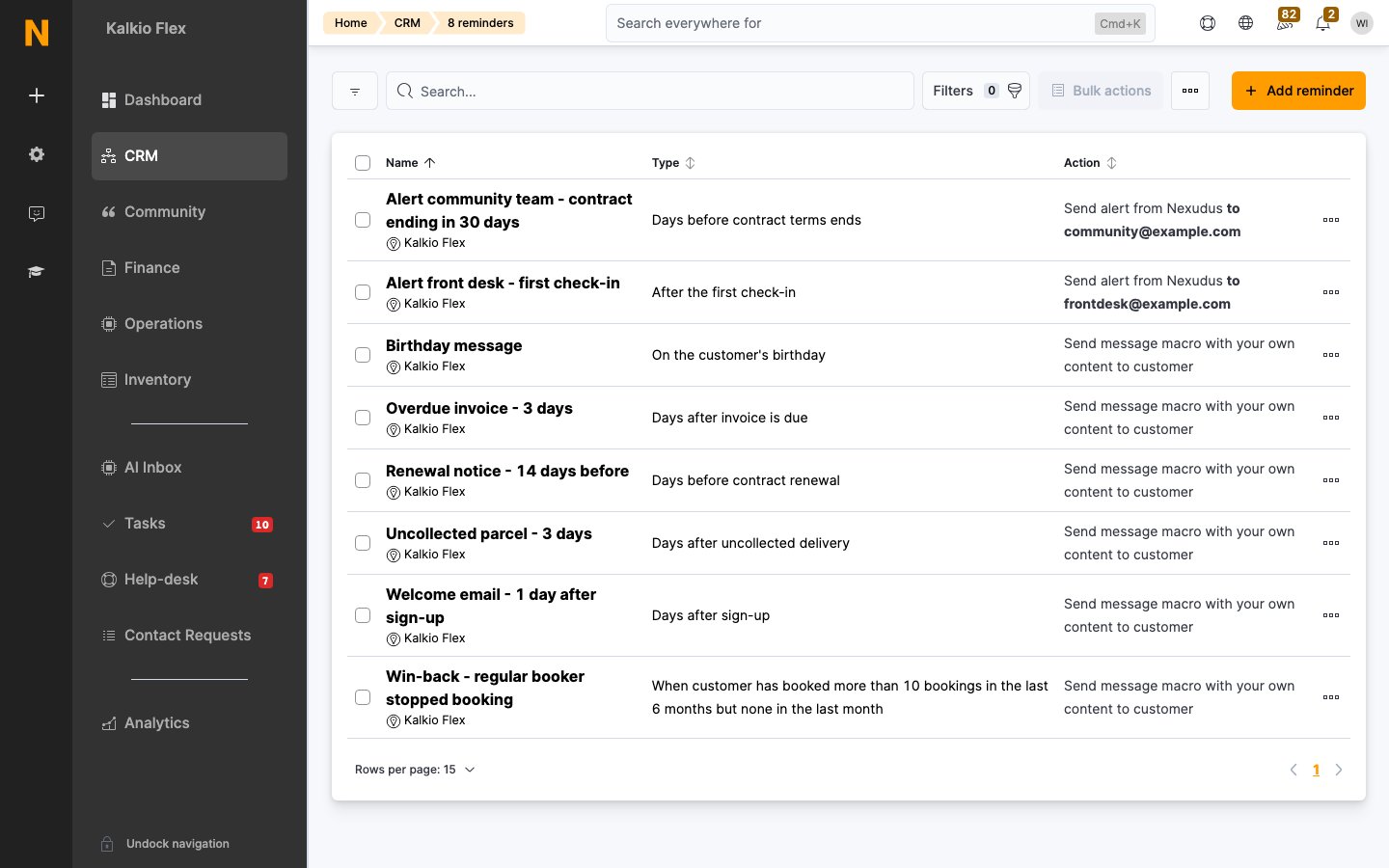
Create a reminder
Before you start, create the message macro or survey the reminder will send.1
Open the form
Go to CRM → Reminders and select Add reminder.
2
Name it and choose the location
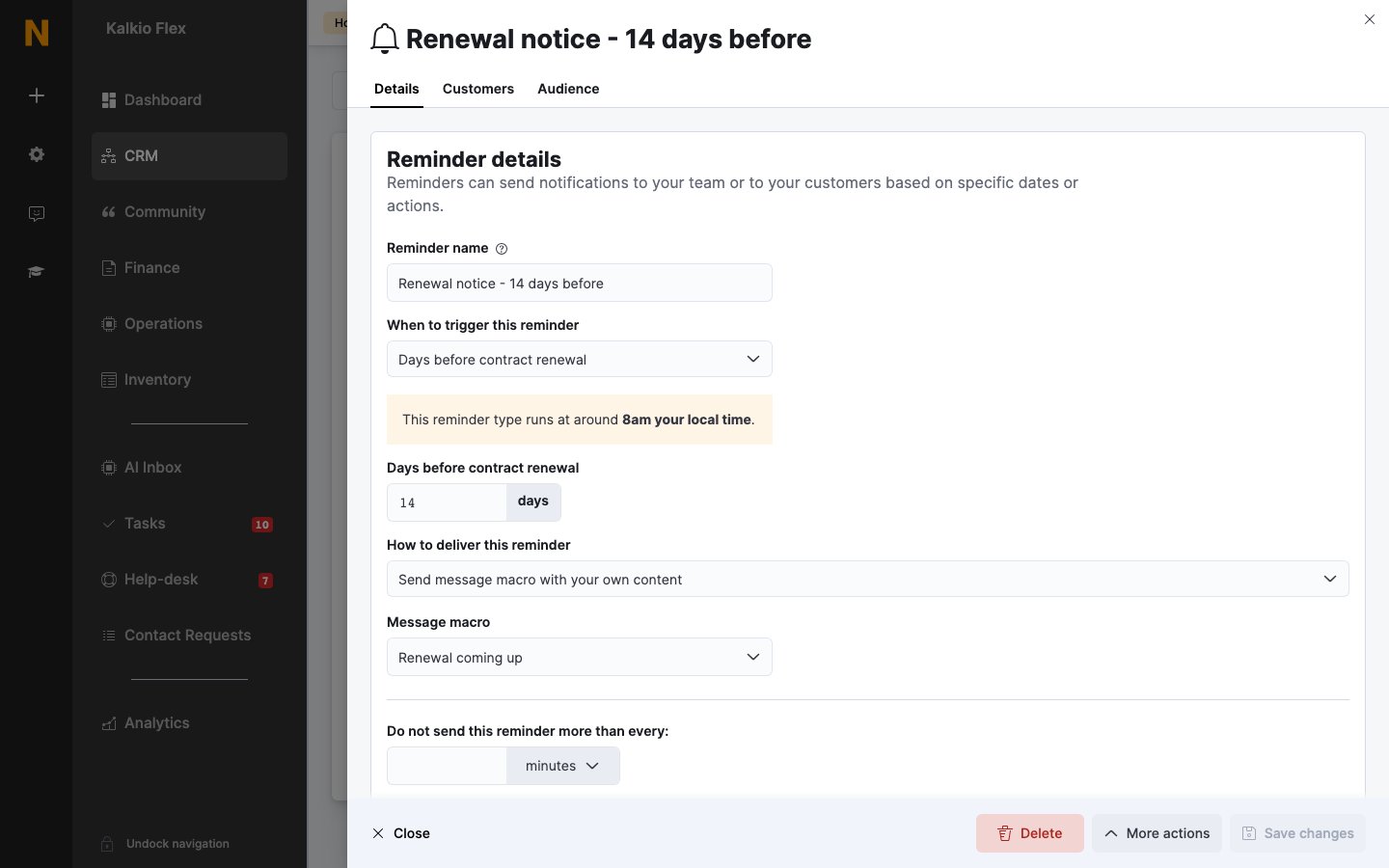
Enter a Reminder name, which only your team sees. In a network, choose the Location. Turn on Send to all locations within to include customers whose home location is any location within it.
3
Choose the trigger
Under When to trigger this reminder, choose what sends it, and set the number of days if the trigger needs one. See Triggers.
4
Choose what to send
Under How to deliver this reminder, choose one of:
- Send message macro with your own content: sends a message macro by email.
- Send a survey: sends one of your surveys.
- Send alert from Nexudus: sends a short alert with the reminder’s name and the customer’s details. Use this for alerts to your team, not for customers.
5
Limit how often it's sent (optional)
Use Do not send this reminder more than every to stop the same customer getting it too often, for example a feedback survey after every booking, but no more than once a week.
6
Choose which customers trigger it
On the Customers tab, choose whose activity sets the reminder off. See Customers.
7
Choose who receives it
On the Audience tab, choose Send to the customer’s email address or Send to specific email address. See Audience.
8
Save
Save the reminder.
Triggers
Each reminder has one trigger. Reminders based on a date, such as Days before contract renewal, are sent at around 8am in your location’s time zone. Reminders based on something a customer does, such as After a booking, are sent shortly after it happens.
A few triggers have extra rules:
- Fixed date reminders are sent at 8am on the chosen day. A reminder created after about 7am can’t be sent the same day, so set it up at least a day ahead.
- Days after invoice is due isn’t sent if the customer pays before the reminder goes out.
- Booking patterns and Days after uncollected delivery reminders can only be sent to the customer’s own email address.
Customers
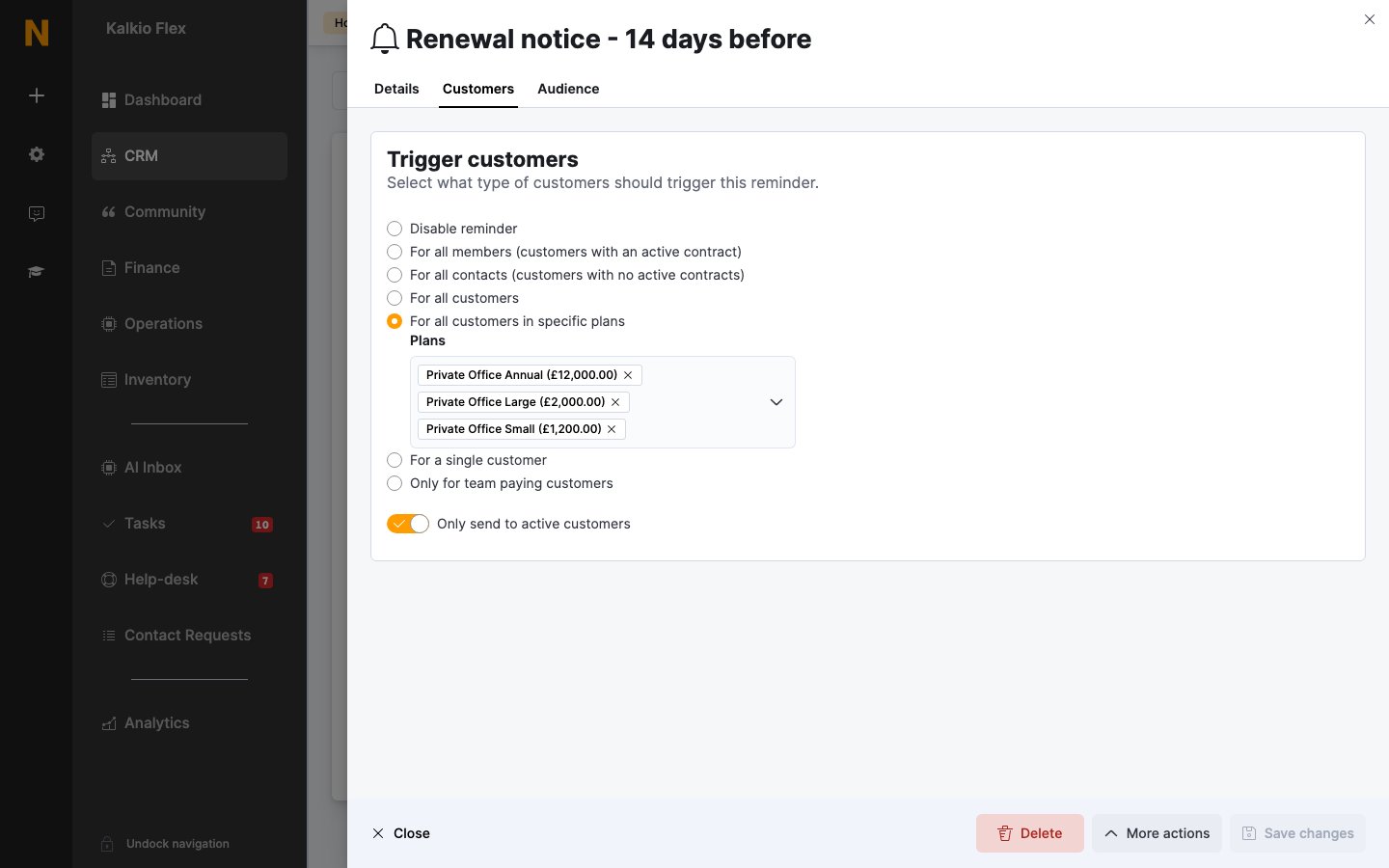
The Customers tab sets whose activity triggers the reminder:
Turn on Only send to active customers to leave out customers who are suspended.
Audience
The Audience tab sets who receives the email:- Send to the customer’s email address: the customer who triggered the reminder gets it. Use this for welcome emails, renewal notices and payment reminders.
- Send to specific email address: the email goes to the address you enter, such as your community team’s inbox, each time a customer triggers the reminder. Use this with Send alert from Nexudus to keep your team informed, for example when a member’s contract is about to end.
Collect feedback with surveys
Reminders are a good way to send surveys at the right moment, for example after a meeting room booking or a month after someone joins. Create one survey per reminder, so each set of responses stays separate, then choose Send a survey as the reminder’s delivery.Edit, export or delete reminders
- Edit a reminder by opening it and saving your changes. Changes only affect reminders sent from then on. If you edit a date-based reminder after about 8am, the change applies from the next day.
- Export reminders by ticking them in the list and using Bulk actions.
- Delete reminders by ticking them and deleting them from Bulk actions. To pause a reminder without deleting it, choose Disable reminder on its Customers tab.
Related
- Message macros: the message macros reminders send
- Surveys: feedback forms reminders can send
- Deliveries: reminders for uncollected parcels
- Teams: attendance reminders for teams