

Overview
Reports are the deeper side of Analytics: structured, exportable views over your data. Where a dashboard card gives a snapshot, a report lets you filter by date range and location, read the detail, and export it for your own analysis or for sharing.How to access
Navigate to Analytics → Reports in the dashboard.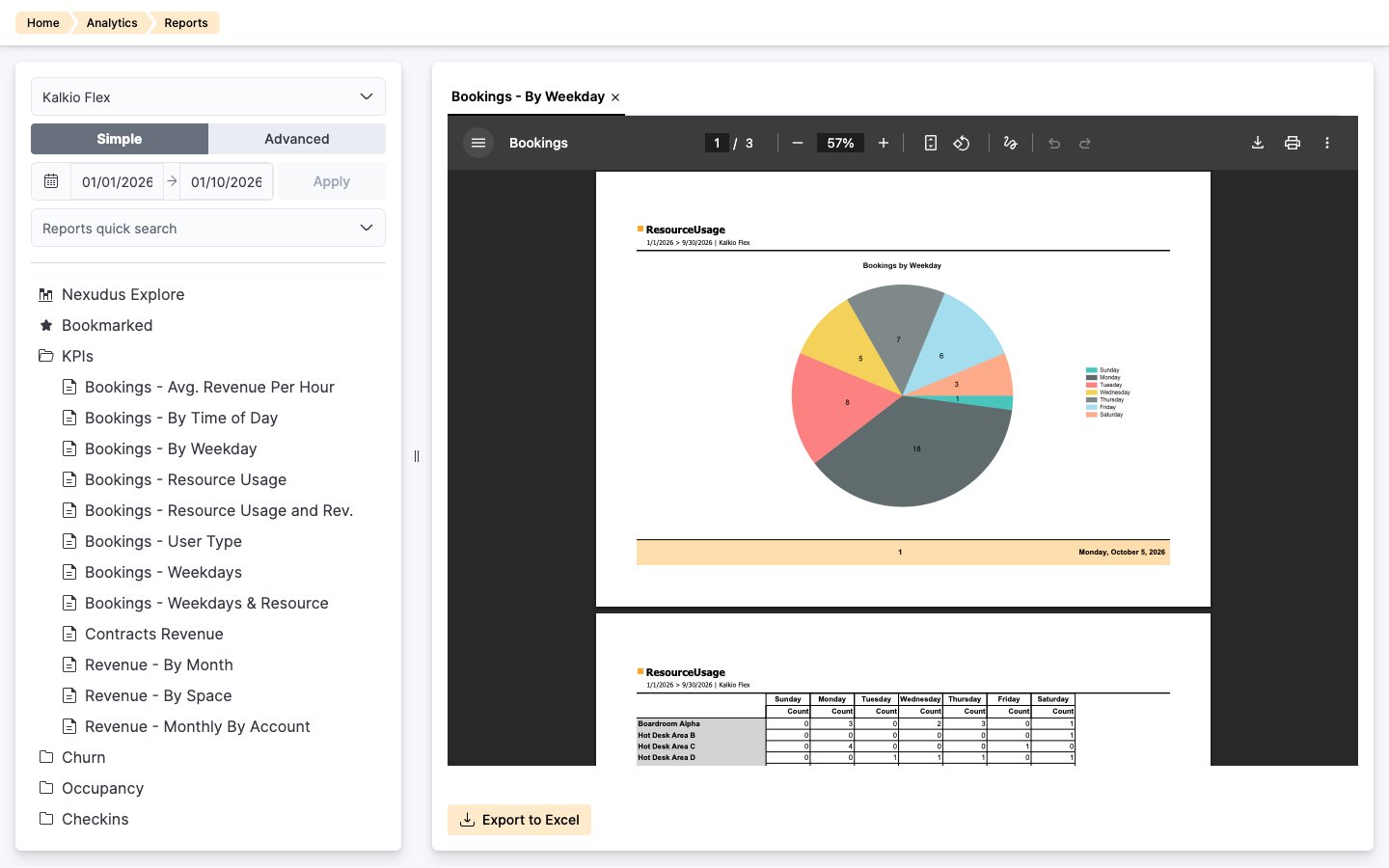
Report categories
Reports are organised into folders in the left-hand panel. Click a folder to see its reports, then click a report to open it in its own tab.Running a report
1
Choose the location
Select the location you want to report on from the drop-down list at the top of the left-hand panel.
2
Set the time period
Select the start and end dates, then click Apply. See Report time periods below.
3
Open the report
Click a folder, then click the report you need. The report opens in its own tab, so you can switch between several reports. Some reports take a few seconds to load.
4
Export (optional)
Click Export to Excel to take the numbers into a spreadsheet or another tool.
Report time periods
Reports show data for the current month by default. You can change the time period to cover as much or as little data as you need, such as the last week, the last quarter or the last year. To change the time period, select the start and end dates at the top of the left-hand panel and click Apply. Some reports, such as Today’s Bookings and Today’s Bookings by Resource, have a fixed time period that you can’t change.Bookmarking reports
Bookmark the reports you use most often so you can open them in a couple of clicks. To bookmark a report, hover over it in the list and click the star icon next to its name. Bookmarked reports appear in the Bookmarked folder at the top of the list.Tips
- Match the date range to the question. To see how many bookings you had in September, set the range to 1 September to 1 October. To see whether bookings are growing, set a range of six months or more and open a report that breaks results down by month, such as Bookings By Month.
- Export before you screenshot. An Excel file is filterable and shareable; a screenshot is neither.
- Bookmark recurring reports. If you run the same report every week, bookmark it and use the same time period each time so the results are comparable.
Related
- Dashboards — the at-a-glance counterpart
- Account Check-up — automated highlights of what needs attention
- Ledger — the per-customer detail behind billing reports