

Overview
Articles are blog-style posts published on your members portal and app — news, updates, guides, community spotlights, or anything else you want customers to read. Articles can be grouped into categories, scheduled to publish and unpublish automatically, limited to certain customers, and opened up for comments.How to access
Navigate to Community → Articles in the dashboard. Categories are managed from the Categories link under the Articles card on the Community page. Each row shows the article’s image, Title and summary, Author, number of Comments, Publish on and Unpublish on dates, and a Published or Unpublished badge based on those dates. Use Add article to create one.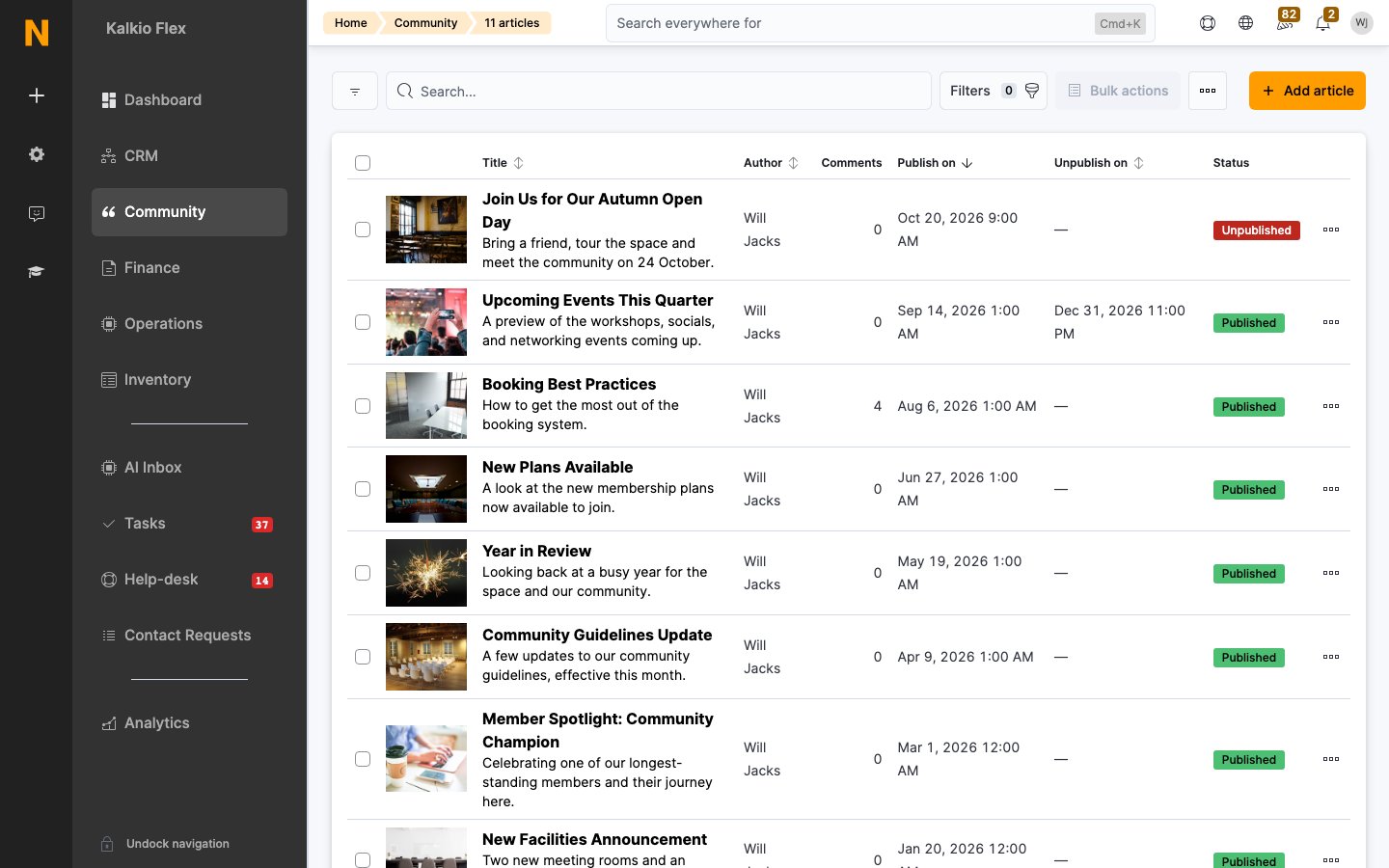
Writing an article
1
Add the article
Go to Community → Articles and click Add article.
2
Fill in the article details
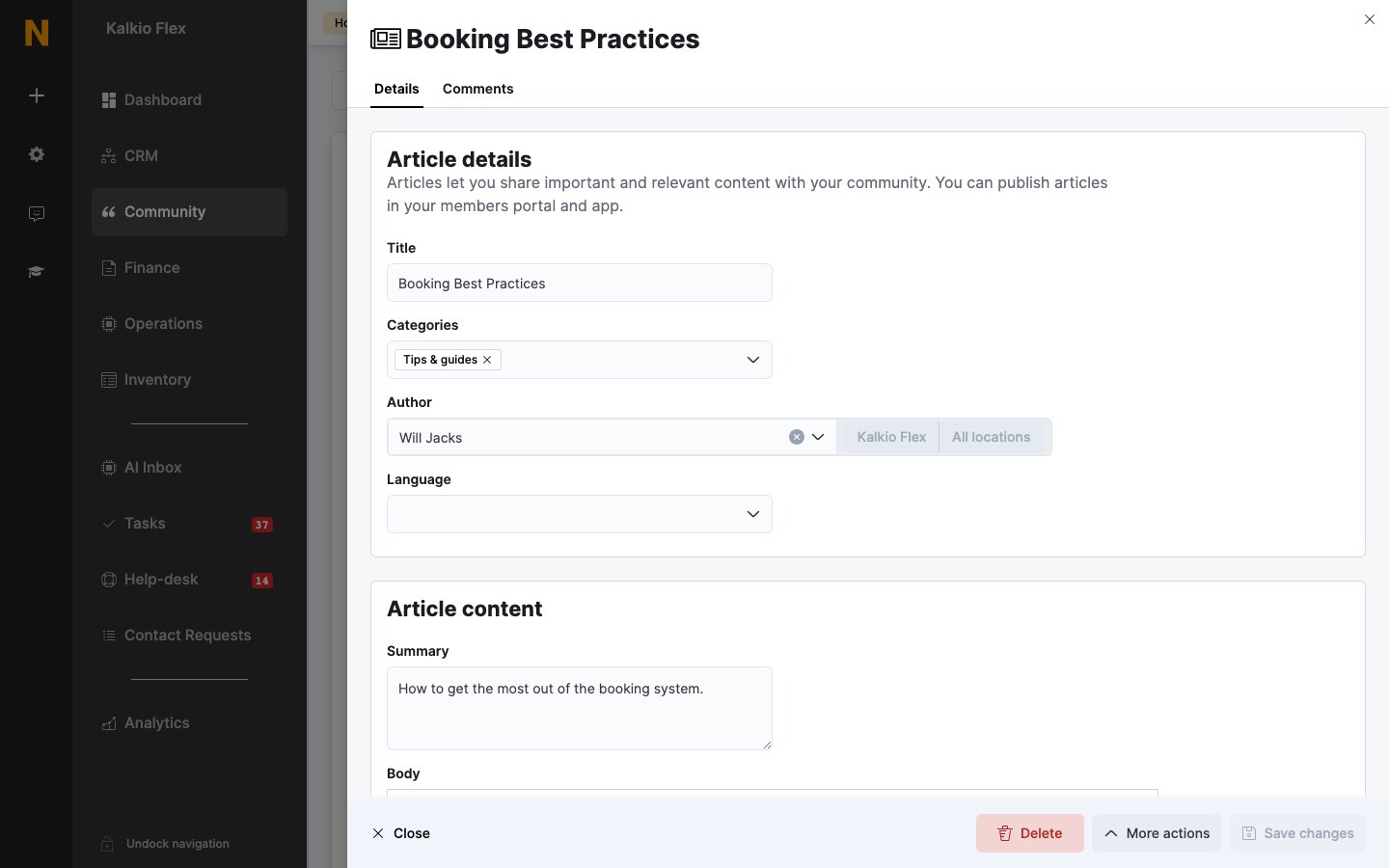
Enter a Title, choose one or more Categories, and pick the Author shown on the article. If you manage several locations, also choose the Location.
3
Set the language (optional)
Leave Language empty to show the article to everyone. If you choose a language, the article only appears to customers browsing your portal in that language — useful for publishing separate versions of the same article on a multilingual portal.
4
Write the content
Under Article content, add a Summary (shown in article listings) and the Body. Upload a Large image (1500×1125px or larger, used in the article list and on the article page) and a Small image (960×520px or larger, used when the article is listed as related to another).
5
Choose when and to whom it's published
Set the publishing dates and options described below, then save.
Publishing and unpublishing
Articles don’t have a separate publish button — they’re published according to the dates in their Publishing settings.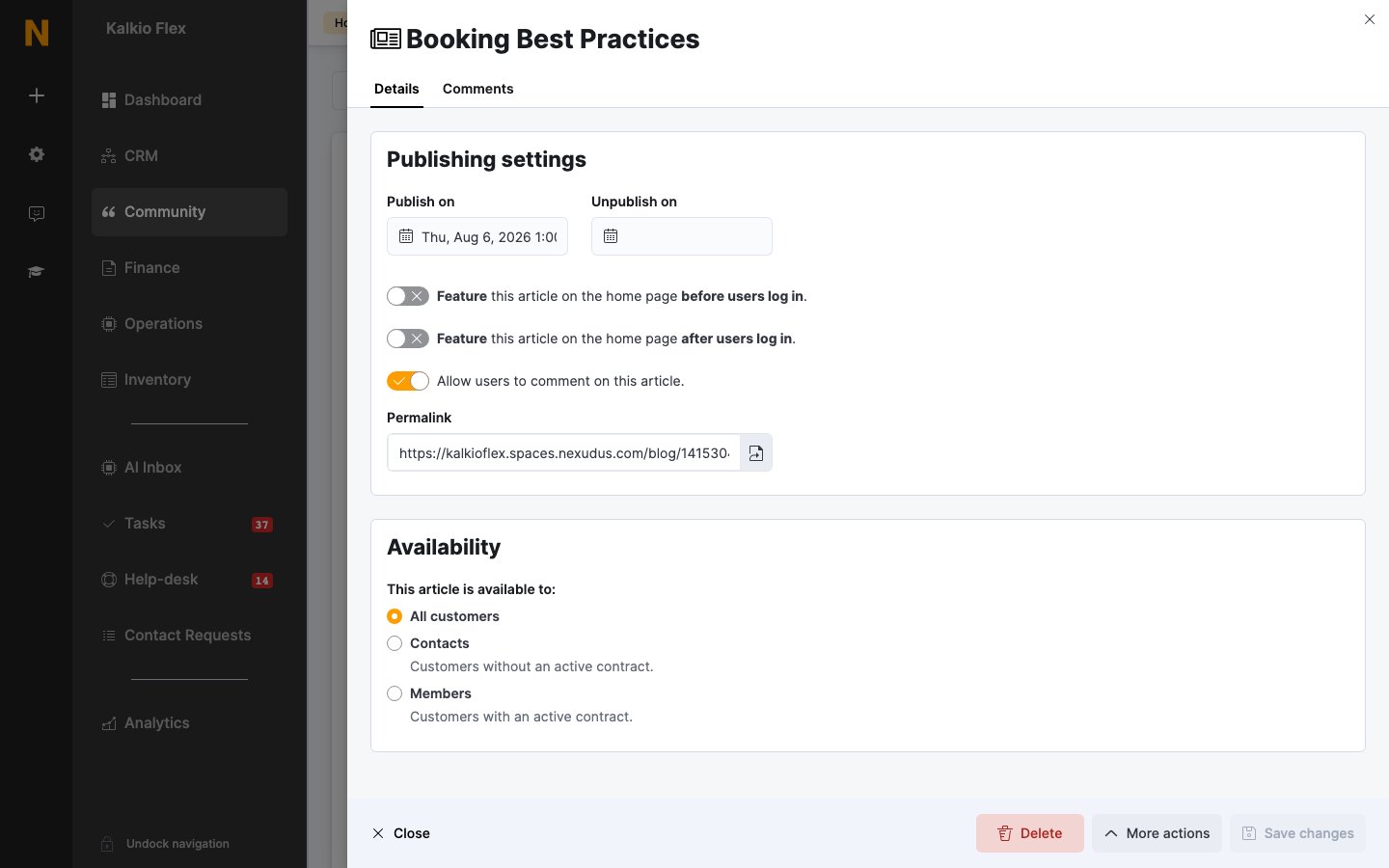
Under Availability, choose who the article is available to: All customers, Contacts (customers without an active contract), or Members (customers with an active contract).
Categories
Categories group related articles so customers can filter them on the portal. Go to Community → Articles → Categories and click Add category, then give it a Name — and a Location and Language if needed. Renaming a category updates every article in it.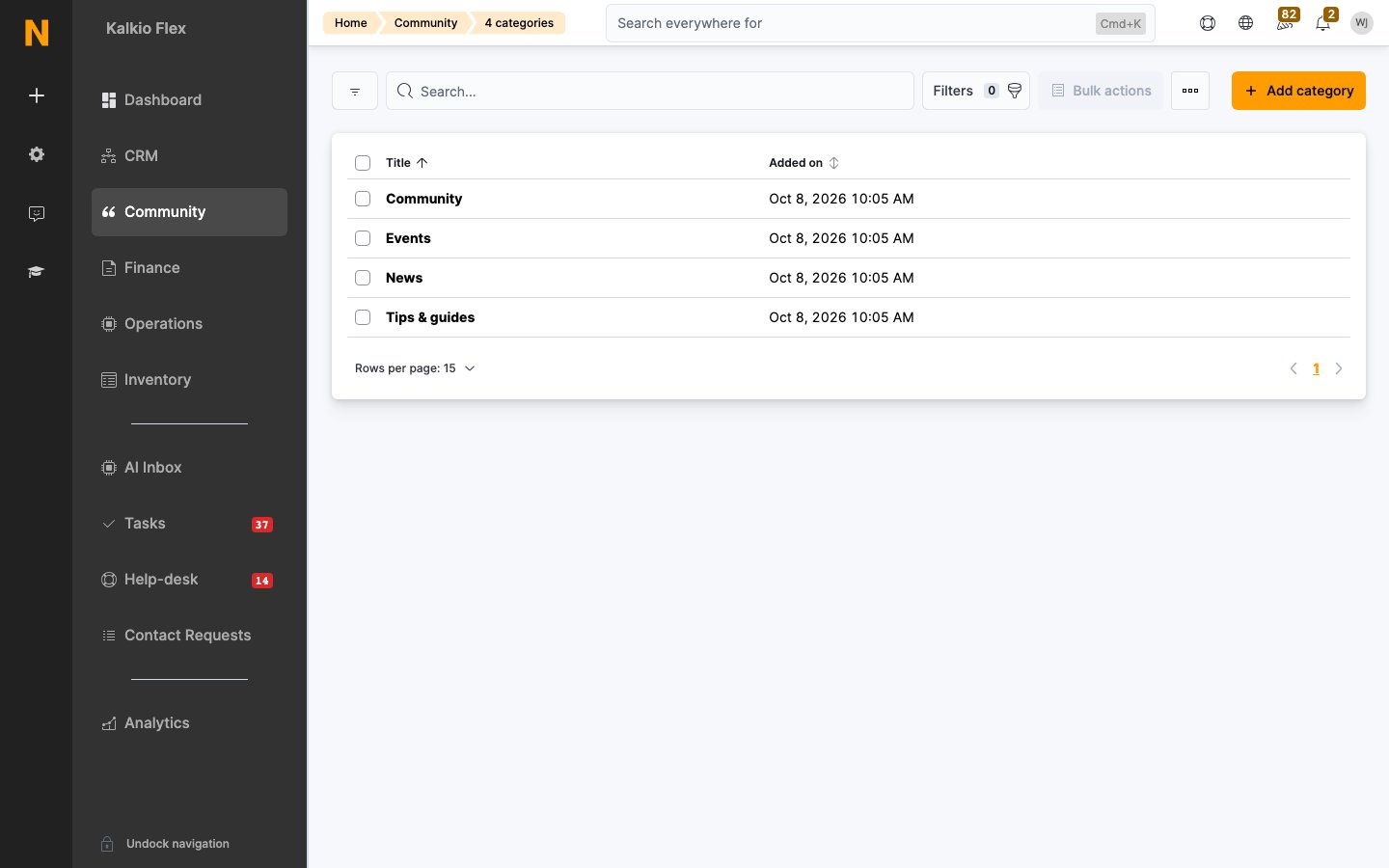
Moderating comments
Switching comments on
Two settings under Settings → Modules → Articles control comments for your whole account:- Let users post comments in articles. — the master switch. When it’s off, no article accepts comments, whatever its own setting.
- Automatically publish comments in articles. — when on, comments appear on the portal as soon as they’re posted. Turn it off to approve each comment before it’s published.
Approving, rejecting, and deleting comments
Open an article and go to the Comments tab. Comments are listed newest first, each with a Published or Unpublished badge. Use the All comments, Published, and Unpublished filters to find the ones waiting for review.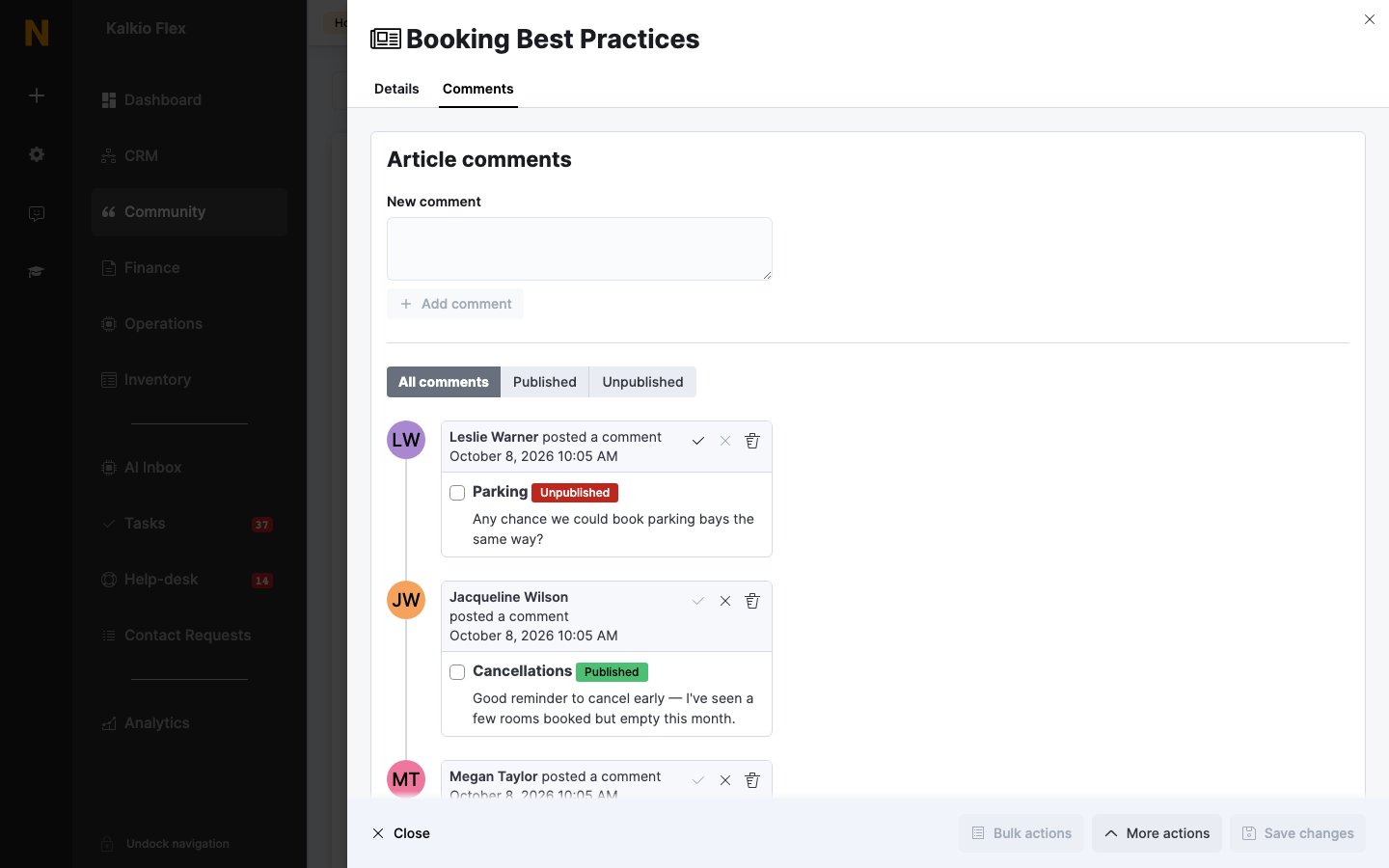
- Approve (✓) publishes the comment on the portal.
- Reject (✗) unpublishes it. Rejected comments are hidden from customers but stay on the tab, so you can change your mind later.
- Delete (bin icon) removes the comment permanently. Keep this for spam or abusive content.
Copying an article
To reuse an article’s structure — for example a monthly round-up — tick it in the list and choose Copy from the Bulk actions menu. The copy is named Copy of <title>, keeps the content, categories, and author, and starts with no comments and no publish date, so it stays unpublished until you schedule it.Related
- Announcements — short, prominent notices on the portal
- Newsletters — emailing customers about new articles
- Events — the events an article might promote
- FAQs — answers to common questions