

Overview
Deliveries is your front desk’s log of mail and parcels received for customers. When you register a delivery, Nexudus emails the customer, and anyone else you’ve chosen, to tell them it’s waiting. You can remind them if they don’t collect it, and record when they do. For virtual office customers, each delivery also follows the customer’s handling preference for that kind of item, for example scanning and forwarding their mail. See Handle virtual office deliveries.How to access
- All deliveries: go to Operations → Front-desk → Deliveries.
- One customer’s deliveries: open the customer and go to CRM → Deliveries.
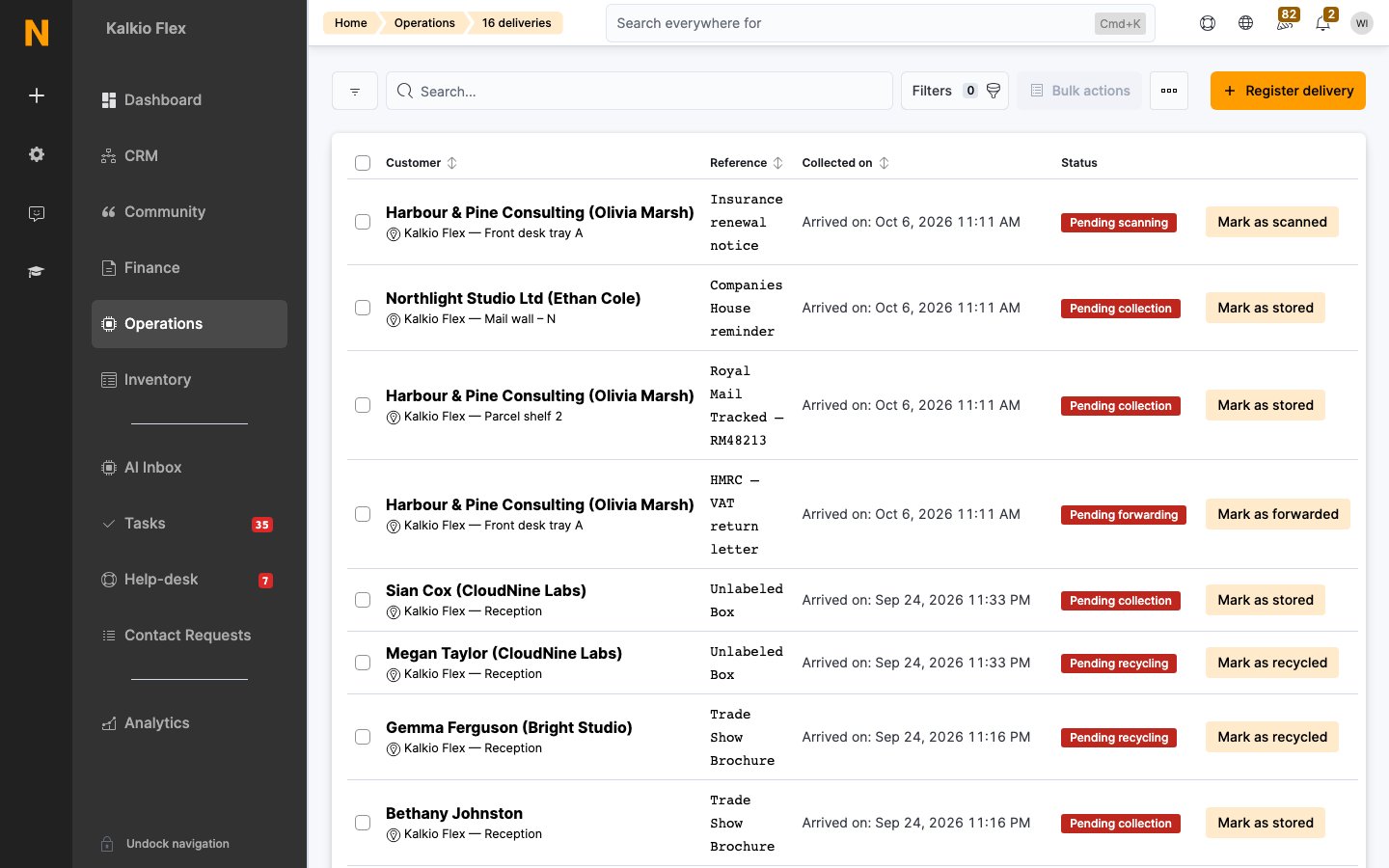
Register a delivery
- Select Register delivery.
- If you manage more than one location, choose the Location.
- Choose the Delivery type: Mail, Parcel, Checks, Publicity or Other.
- Upload a photo or scan of the delivery label. Nexudus reads it and suggests the recipient, courier and tracking number, and tries to match the recipient to a customer. You can upload a PDF instead, for example a scanned letter. To skip this, select Type details manually.
- If the customer isn’t matched, search for them under Type to search for company or individual. If the delivery is for a company, or for one of a virtual office customer’s nominated recipients, it’s assigned to the person who pays for it.
- Add a Reference, who it was Received by, the Delivery location where you’ve stored it, and any Notes.
- Save.
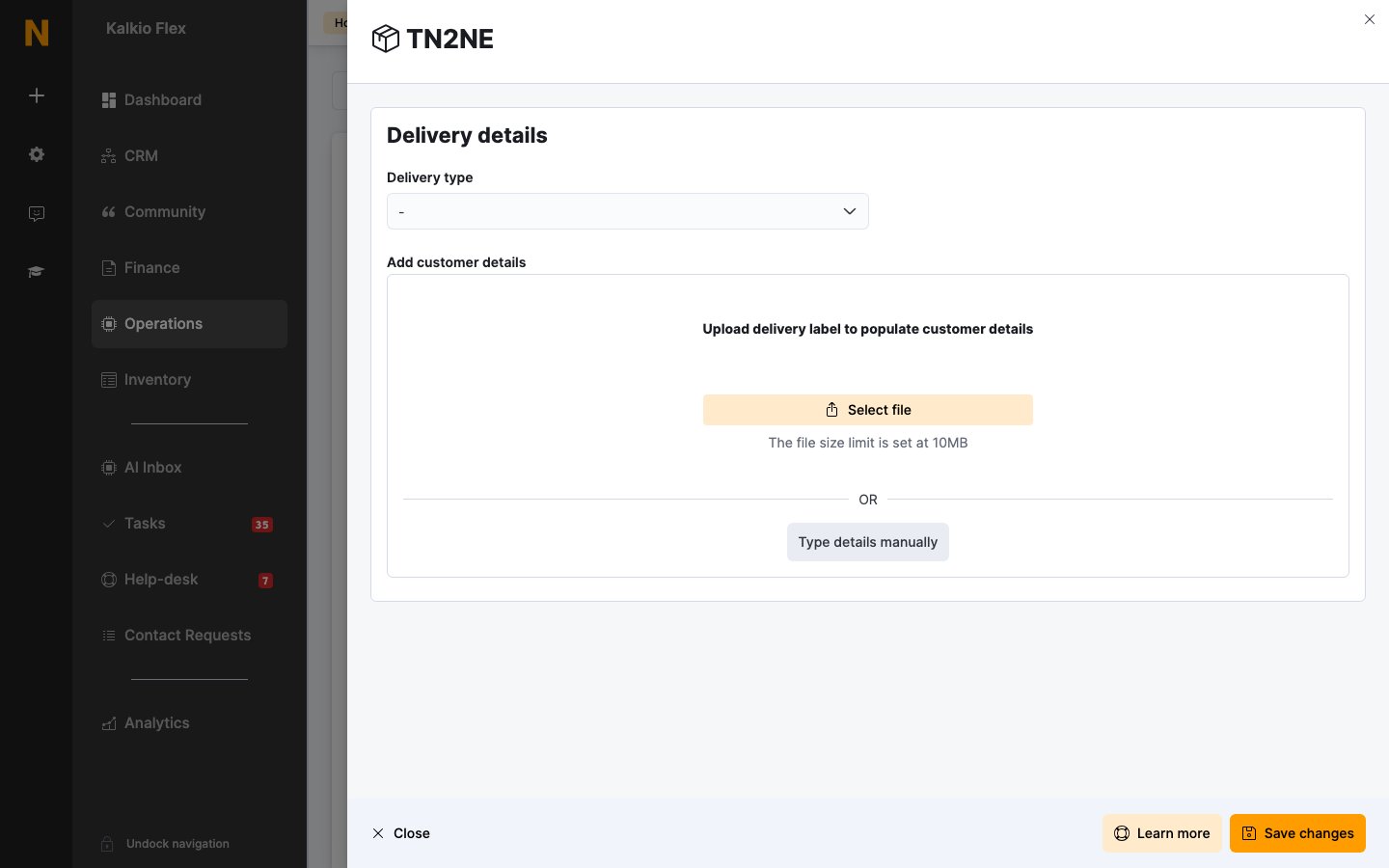
Who is notified
When you register a delivery for a customer, Nexudus sends the Delivery received email and an app notification. You can edit the email in the email templates editor. To notify other people too, open the customer, go to Account → Notifications and:- Turn on Notify this customer when a delivery is received for any member of their teams on each team member who should hear about their colleagues’ deliveries. For example, so anyone in a company can collect its parcels.
- Enter other addresses in Send an email notification about new deliveries to this email address. Separate several addresses with a semicolon (
;).